
If you work in networking, security, systems administration, or low-level scripting, you’ll regularly encounter binary numbers — subnet masks, permission bits, hardware flags, IP addresses, and bitmask values. Being able to convert binary strings to decimal integers in PowerShell is a fundamental skill that unlocks clean, readable solutions to problems that would otherwise require manual lookups or complex custom math.
In this tutorial, I’ll walk you through every practical method to convert binary to decimal in PowerShell — from a simple one-liner to bulk processing binary arrays, subnet mask conversion, bitmask evaluation, and a full bidirectional number-base converter function.
Understanding Binary and Decimal
Binary (base 2) uses only the digits 0 and 1. Each position represents a power of 2, starting from the right. For example:
1101 in binary = (1×8) + (1×4) + (0×2) + (1×1) = 13 in decimal
Decimal (base 10) is the everyday number system using digits 0–9.
The conversion between these two systems shows up constantly in IT work:
| Binary | Decimal | Common Use |
|---|---|---|
11111111 | 255 | Subnet mask octet |
00001010 | 10 | IP address octet |
11000000 | 192 | IP address octet |
00000001 | 1 | Single bit flag |
11111000 | 248 | Custom subnet mask |
10000000 | 128 | High bit set |
Check out Convert Seconds to Minutes in PowerShell
Method 1: [Convert]::ToInt32() — The Best Default Approach
The cleanest and most widely used method is .NET’s [System.Convert]::ToInt32() static method. It accepts a string and a base number — pass 2 for binary:
# Basic binary to decimal conversion
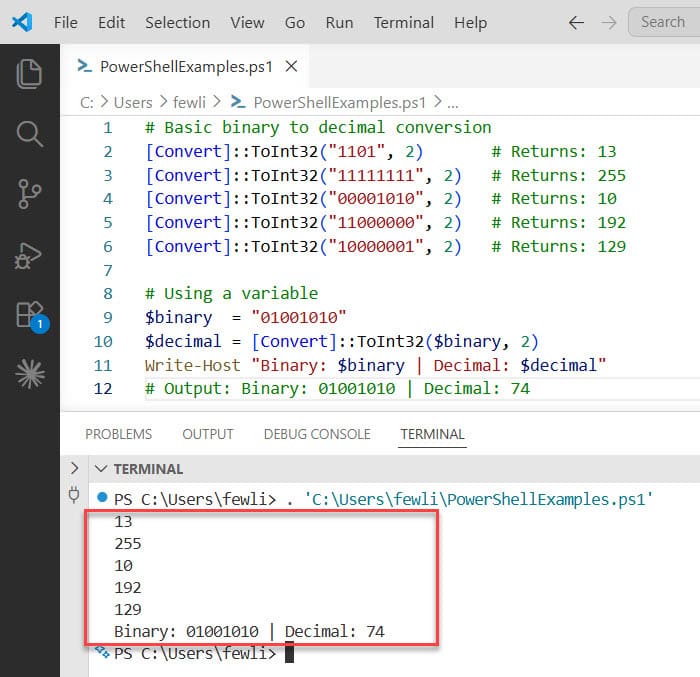
[Convert]::ToInt32("1101", 2)       # Returns: 13
[Convert]::ToInt32("11111111", 2)   # Returns: 255
[Convert]::ToInt32("00001010", 2)   # Returns: 10
[Convert]::ToInt32("11000000", 2)   # Returns: 192
[Convert]::ToInt32("10000001", 2)   # Returns: 129

# Using a variable
$binary  = "01001010"
$decimal = [Convert]::ToInt32($binary, 2)
Write-Host "Binary: $binary | Decimal: $decimal"
# Output: Binary: 01001010 | Decimal: 74
Why this is the recommended approach:
- It’s a direct .NET call — fast, reliable, and works on all PowerShell versions
- The second parameter (
2) explicitly declares the input base — readable and unambiguous - It handles leading zeros correctly —
"00001010"and"1010"both convert to10 - It works with any valid binary string up to 32 bits
You can see the exact output in the screenshot below:
Method 2: [Convert]::ToInt64() for Large Binary Strings
ToInt32() handles binary strings up to 32 bits (maximum decimal value: 2,147,483,647). For larger binary strings — such as 64-bit values, full IPv6 segments, or hardware identifiers — use ToInt64():
# 32-bit binary — works with both ToInt32 and ToInt64
[Convert]::ToInt64("11111111111111111111111111111111", 2)   # Returns: 4294967295

# 48-bit binary — requires ToInt64
[Convert]::ToInt64("111111111111111111111111111111111111111111111111", 2)

# Large binary string example
$largeBinary = "000010000000001111101000100010"
[Convert]::ToInt64($largeBinary, 2)   # Returns: 33588258
Quick rule: Use ToInt32() for binary strings up to 31 characters (without sign bit), ToInt64() for anything larger.
Read Convert Seconds to Hours and Minutes in PowerShell
Method 3: The 0b Binary Literal Prefix (PowerShell 7+)
PowerShell 7 introduced native binary literal support using the 0b prefix — the same syntax used in Python, C#, and many modern languages:
# PowerShell 7+ only
$value = 0b1101
Write-Host $value   # Output: 13

0b11111111   # 255
0b00001010   # 10
0b10000001   # 129

# Use in expressions directly
$flags = 0b10110010
Write-Host "Flag value: $flags"   # 178

# Combined with variables
$mask  = 0b11111000
$addr  = 0b11000000
$result = $addr -band $mask
Write-Host "Network: $result"
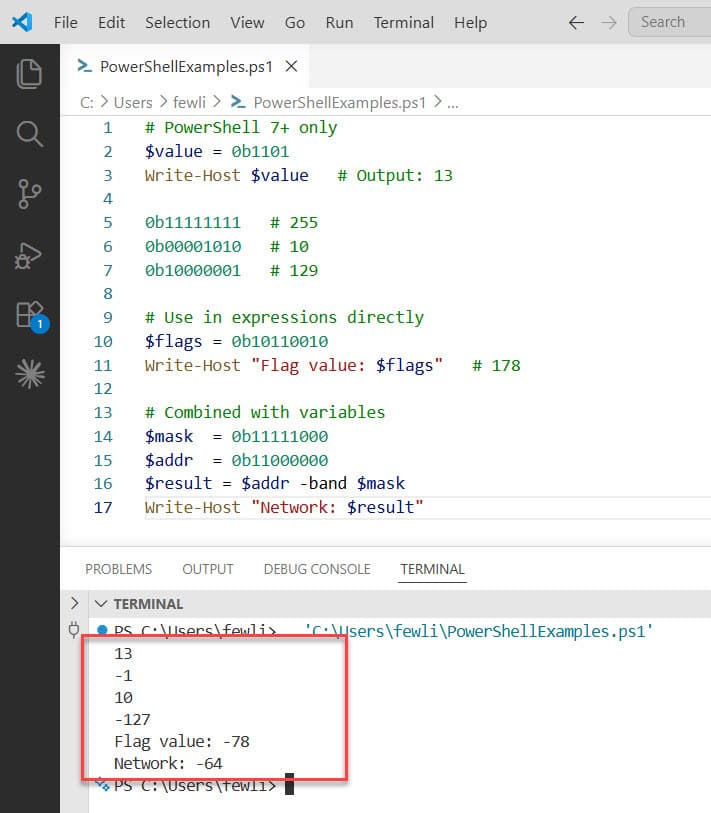
Important: The 0b prefix works on literal values in code — you cannot use it to convert a runtime string variable. For runtime string conversion, always use [Convert]::ToInt32($string, 2).
You can see the exact output in the screenshot below:
Method 4: Manual Calculation Using PowerShell Math
For educational purposes or environments with restricted .NET access, here’s how to perform the conversion manually using pure PowerShell math — this also helps you understand what ToInt32() does internally:
function Convert-BinaryToDecimalManual {
    param ([string]$Binary)

    $decimal = 0
    $length  = $Binary.Length

    for ($i = 0; $i -lt $length; $i++) {
        $bit      = [int]::Parse($Binary[$i].ToString())
        $power    = $length - $i - 1
        $decimal += $bit * [Math]::Pow(2, $power)
    }

    return [int]$decimal
}

Convert-BinaryToDecimalManual -Binary "1101"       # 13
Convert-BinaryToDecimalManual -Binary "11111111"   # 255
Convert-BinaryToDecimalManual -Binary "10110101"   # 181
How this works: The function iterates from left to right through the binary string. Each 1 or 0 is multiplied by 2 raised to its positional power (counting from 0 at the rightmost position), and the results are summed.
Read Cannot Convert Value to Type System.String Error in PowerShell
Real-World Use Case 1: Convert Binary Subnet Masks to Decimal
Subnet mask conversion is the most common real-world use of binary-to-decimal in networking scripts. A subnet mask like 255.255.248.0 is actually four 8-bit binary octets
# Convert binary subnet mask octets to dotted decimal
$binaryMask = "11111111", "11111111", "11111000", "00000000"

$decimalMask = ($binaryMask | ForEach-Object {
    [Convert]::ToInt32($_, 2)
}) -join "."

Write-Host "Subnet mask: $decimalMask"
# Output: Subnet mask: 255.255.248.0
Full IP Address Binary-to-Decimal Converter
function Convert-BinaryIPToDecimal {
    <#
    .SYNOPSIS
        Converts a binary IP address (dotted or single string) to dotted decimal.
    .EXAMPLE
        Convert-BinaryIPToDecimal -BinaryIP "11000000.10101000.00001010.00000001"
        # Returns: 192.168.10.1
    #>
    param (
        [Parameter(Mandatory)]
        [string]$BinaryIP
    )

    $octets = $BinaryIP -split '\.'

    if ($octets.Count -ne 4) {
        Write-Error "Expected 4 octets separated by dots. Got: $($octets.Count)"
        return
    }

    $decimal = ($octets | ForEach-Object {
        $val = [Convert]::ToInt32($_, 2)
        if ($val -lt 0 -or $val -gt 255) {
            Write-Error "Octet '$_' converts to $val — out of valid range 0-255"
            return
        }
        $val
    }) -join "."

    return $decimal
}

# Usage
Convert-BinaryIPToDecimal -BinaryIP "11000000.10101000.00001010.00000001"
# Output: 192.168.10.1

Convert-BinaryIPToDecimal -BinaryIP "10101100.00010000.00000000.00000001"
# Output: 172.16.0.1
Real-World Use Case 2: Evaluate Permission Bitmasks
In Windows administration, many permission values, access masks, and capability flags are stored as bitmasks. Understanding which bits are set requires binary conversion:
function Get-BitmaskDetails {
    <#
    .SYNOPSIS
        Converts a binary bitmask string and shows which bits are set.
    .EXAMPLE
        Get-BitmaskDetails -Binary "10110101"
    #>
    param (
        [Parameter(Mandatory)]
        [string]$Binary
    )

    $decimal  = [Convert]::ToInt32($Binary, 2)
    $padded   = $Binary.PadLeft(8, '0')

    Write-Host "Binary:  $padded"
    Write-Host "Decimal: $decimal"
    Write-Host "Hex:     0x$([Convert]::ToString($decimal, 16).ToUpper())"
    Write-Host "`nBits set:"

    for ($i = $padded.Length - 1; $i -ge 0; $i--) {
        $bitPos = $padded.Length - 1 - $i
        if ($padded[$i] -eq '1') {
            Write-Host "  Bit $bitPos (value $([Math]::Pow(2, $bitPos) -as [int]))"
        }
    }
}

Get-BitmaskDetails -Binary "10110101"
Output:
Binary:  10110101
Decimal: 181
Hex:     0xB5

Bits set:
  Bit 0 (value 1)
  Bit 2 (value 4)
  Bit 4 (value 16)
  Bit 5 (value 32)
  Bit 7 (value 128)
Read Convert Scientific Notation to Decimal using PowerShell
Real-World Use Case 3: Convert Binary Data from a File
When processing binary-encoded data files, configuration exports, or log files that store values in binary string format:
# Sample file content (binary_data.txt):
# 11001100
# 00110011
# 10101010
# 01010101

$binaryFile  = "C:\Data\binary_data.txt"
$outputFile  = "C:\Data\decimal_data.csv"

$results = Get-Content -Path $binaryFile -Encoding UTF8 | ForEach-Object {
    $line = $_.Trim()
    if ($line -match '^[01]+$') {
        [PSCustomObject]@{
            Binary  = $line
            Decimal = [Convert]::ToInt32($line, 2)
            Hex     = "0x" + [Convert]::ToString([Convert]::ToInt32($line, 2), 16).ToUpper()
        }
    }
}

$results | Format-Table -AutoSize
$results | Export-Csv -Path $outputFile -NoTypeInformation -Encoding UTF8

Write-Host "Converted $($results.Count) binary values. Saved to: $outputFile"
Real-World Use Case 4: Convert an Array of Binary Strings
$binaryValues = @(
    "00000000",
    "00001111",
    "10101010",
    "11001100",
    "11111111"
)

$converted = $binaryValues | ForEach-Object {
    [PSCustomObject]@{
        Binary  = $_
        Decimal = [Convert]::ToInt32($_, 2)
        Hex     = "0x" + [Convert]::ToString([Convert]::ToInt32($_, 2), 16).ToUpper().PadLeft(2, '0')
    }
}

$converted | Format-Table -AutoSize
Output:
Binary   Decimal Hex
------   ------- ---
00000000       0 0x00
00001111      15 0x0F
10101010     170 0xAA
11001100     204 0xCC
11111111     255 0xFF
Converting in Both Directions: Decimal ↔ Binary
Most real-world scripts need to go both ways. Here’s a complete bidirectional reference:
# Binary to Decimal
[Convert]::ToInt32("11001100", 2)    # → 204

# Decimal to Binary
[Convert]::ToString(204, 2)           # → "11001100"

# Decimal to Binary with leading zeros (padded to 8 bits)
[Convert]::ToString(10, 2).PadLeft(8, '0')   # → "00001010"

# Binary to Hex
[Convert]::ToString([Convert]::ToInt32("11001100", 2), 16).ToUpper()   # → "CC"

# Hex to Binary
[Convert]::ToString(0xCC, 2).PadLeft(8, '0')   # → "11001100"
Padding Binary Output
A very common requirement is to pad binary output to a fixed bit width — 8 bits for byte values, 16 for word values, 32 for DWORD:
# 8-bit padding (byte)
[Convert]::ToString(10, 2).PadLeft(8, '0')    # "00001010"

# 16-bit padding (word)
[Convert]::ToString(1024, 2).PadLeft(16, '0') # "0000010000000000"

# 32-bit padding (DWORD)
[Convert]::ToString(192, 2).PadLeft(32, '0')  # "00000000000000000000000011000000"
Check out PowerShell Cannot Convert Value to Type System.Int32
Building a Reusable Number Base Converter Function
Here’s a complete, production-ready function that converts between binary, decimal, octal, and hexadecimal in any direction:
function Convert-NumberBase {
    <#
    .SYNOPSIS
        Converts numbers between binary, decimal, octal, and hexadecimal bases.
    .PARAMETER Value
        The input value as a string.
    .PARAMETER FromBase
        The base of the input: 2 (binary), 8 (octal), 10 (decimal), 16 (hex).
    .PARAMETER ToBase
        The target base: 2, 8, 10, or 16.
    .PARAMETER PadWidth
        Optional. Pad binary/hex output to this width with leading zeros.
    .EXAMPLE
        Convert-NumberBase -Value "11001100" -FromBase 2 -ToBase 10
        # Returns: 204
    .EXAMPLE
        Convert-NumberBase -Value "255" -FromBase 10 -ToBase 2 -PadWidth 8
        # Returns: 11111111
    .EXAMPLE
        Convert-NumberBase -Value "FF" -FromBase 16 -ToBase 2 -PadWidth 8
        # Returns: 11111111
    #>
    [CmdletBinding()]
    param (
        [Parameter(Mandatory)]
        [string]$Value,

        [Parameter(Mandatory)]
        [ValidateSet(2, 8, 10, 16)]
        [int]$FromBase,

        [Parameter(Mandatory)]
        [ValidateSet(2, 8, 10, 16)]
        [int]$ToBase,

        [int]$PadWidth = 0
    )

    try {
        # Step 1: Convert input to decimal (Int64 for large values)
        $decimalValue = switch ($FromBase) {
            2  { [Convert]::ToInt64($Value, 2) }
            8  { [Convert]::ToInt64($Value, 8) }
            10 { [Int64]$Value }
            16 { [Convert]::ToInt64($Value, 16) }
        }

        # Step 2: Convert decimal to target base
        $result = switch ($ToBase) {
            2  { [Convert]::ToString($decimalValue, 2) }
            8  { [Convert]::ToString($decimalValue, 8) }
            10 { $decimalValue.ToString() }
            16 { [Convert]::ToString($decimalValue, 16).ToUpper() }
        }

        # Step 3: Apply padding if requested
        if ($PadWidth -gt 0) {
            $result = $result.PadLeft($PadWidth, '0')
        }

        return $result
    }
    catch {
        Write-Error "Conversion failed for value '$Value' (base $FromBase to base $ToBase): $_"
    }
}
Usage Examples
# Binary to Decimal
Convert-NumberBase -Value "11001100" -FromBase 2 -ToBase 10
# Returns: 204

# Decimal to Binary (padded to 8 bits)
Convert-NumberBase -Value "204" -FromBase 10 -ToBase 2 -PadWidth 8
# Returns: 11001100

# Binary to Hex
Convert-NumberBase -Value "11001100" -FromBase 2 -ToBase 16
# Returns: CC

# Hex to Binary (padded to 8 bits)
Convert-NumberBase -Value "FF" -FromBase 16 -ToBase 2 -PadWidth 8
# Returns: 11111111

# Decimal to Hex
Convert-NumberBase -Value "255" -FromBase 10 -ToBase 16
# Returns: FF

# Binary to Octal
Convert-NumberBase -Value "11001100" -FromBase 2 -ToBase 8
# Returns: 314
Validating Binary String Input
Before converting, it’s good practice to validate that your input is actually a valid binary string — especially when reading from files, CSV, or user input:
function Test-BinaryString {
    param ([string]$Value)
    return $Value -match '^[01]+$'
}

function Convert-BinaryToDecimalSafe {
    param (
        [Parameter(Mandatory, ValueFromPipeline)]
        [string]$Binary
    )
    process {
        $bin = $Binary.Trim()
        if (-not (Test-BinaryString $bin)) {
            Write-Warning "Invalid binary string: '$bin' — contains non-binary characters"
            return $null
        }
        if ($bin.Length -gt 63) {
            Write-Warning "Binary string too long for Int64: '$bin' ($($bin.Length) bits)"
            return $null
        }
        [Convert]::ToInt64($bin, 2)
    }
}

# Usage
"11001100"  | Convert-BinaryToDecimalSafe   # 204
"10102"     | Convert-BinaryToDecimalSafe   # Warning: invalid
"11111111"  | Convert-BinaryToDecimalSafe   # 255

# Pipeline from array
@("1101", "10101010", "11111111", "badvalue") | Convert-BinaryToDecimalSafe
Read PowerShell Convert HTML to Plain Text
Advanced Tips
1. Bulk convert binary values from a CSV column
Import-Csv "C:\Data\permissions.csv" -Encoding UTF8 |
    Select-Object Name,
        BinaryFlag,
        @{N='DecimalValue'; E={ [Convert]::ToInt32($_.BinaryFlag, 2) }},
        @{N='HexValue';     E={ "0x" + [Convert]::ToString([Convert]::ToInt32($_.BinaryFlag, 2), 16).ToUpper() }} |
    Export-Csv "C:\Output\permissions_decimal.csv" -NoTypeInformation -Encoding UTF8
2. Use bitwise operators on converted values
Once converted to decimal, use PowerShell’s bitwise operators for flag checking:
$permissions = [Convert]::ToInt32("10110101", 2)   # 181

# Check if a specific bit is set using -band
$readBit    = 0b00000001   # Bit 0
$writeBit   = 0b00000010   # Bit 1
$executeBit = 0b00000100   # Bit 2

$canRead    = ($permissions -band $readBit)    -ne 0
$canWrite   = ($permissions -band $writeBit)   -ne 0
$canExecute = ($permissions -band $executeBit) -ne 0

Write-Host "Read: $canRead | Write: $canWrite | Execute: $canExecute"
# Output: Read: True | Write: False | Execute: True
3. Convert dotted binary IP to dotted decimal in one line
$binaryIP = "11000000.10101000.00001010.00000001"
$decimalIP = ($binaryIP -split '\.' | ForEach-Object { [Convert]::ToInt32($_, 2) }) -join "."
Write-Host $decimalIP   # 192.168.10.1
4. Generate a full binary-decimal lookup table
# Generate lookup table for all 8-bit values (0-255)
0..255 | ForEach-Object {
    [PSCustomObject]@{
        Decimal = $_
        Binary  = [Convert]::ToString($_, 2).PadLeft(8, '0')
        Hex     = "0x" + [Convert]::ToString($_, 16).ToUpper().PadLeft(2, '0')
    }
} | Export-Csv "C:\Output\binary_lookup.csv" -NoTypeInformation -Encoding UTF8

Write-Host "Lookup table saved."
Common Mistakes Beginners Make
1. Passing an integer instead of a string to ToInt32()
[Convert]::ToInt32(1101, 2) does not convert binary 1101 to 13. It converts the decimal number 1101 from base 2, but since 1101 is already an integer in PowerShell, it gets interpreted as the decimal number 1101 — producing an unexpected result. Always pass binary values as strings: [Convert]::ToInt32("1101", 2).
2. Using ToInt32() for binary strings longer than 31 bits
[Convert]::ToInt32() handles up to 32-bit signed integers. A 32-bit all-ones binary string ("11111111111111111111111111111111") causes an overflow error because 4294967295 exceeds Int32.MaxValue. Use [Convert]::ToInt64() for 32-bit or larger values.
3. Forgetting to pad binary output when alignment matters
[Convert]::ToString(10, 2) returns "1010" — just 4 characters. If you’re displaying subnet mask octets, permissions, or byte values, you need consistent 8-bit width. Always use .PadLeft(8, '0') when fixed-width output is required.
4. Using the 0b prefix for runtime string variables
$bin = "1101"; [int]"0b$bin" does not work in PowerShell 5.1, and in PowerShell 7 the 0b prefix only works in source code literals, not string interpolation. Always use [Convert]::ToInt32($bin, 2) for runtime variable conversion.
5. Not trimming whitespace from imported strings
Binary strings read from files or CSV often have trailing spaces or newline characters. [Convert]::ToInt32(" 1101", 2) throws an error. Always call .Trim() before converting strings from external sources.
Check out PowerShell Convert String to URI
Quick Reference
| Goal | Method |
|---|---|
| Binary string → decimal | [Convert]::ToInt32("1101", 2) |
| Binary string → decimal (64-bit) | [Convert]::ToInt64("1101", 2) |
| Decimal → binary string | [Convert]::ToString(13, 2) |
| Decimal → binary (padded 8-bit) | [Convert]::ToString(13, 2).PadLeft(8, '0') |
| Binary literal (PS 7+) | 0b1101 |
| Binary → hex | [Convert]::ToString([Convert]::ToInt32("1101",2), 16).ToUpper() |
| Hex → binary | [Convert]::ToString(0xFF, 2).PadLeft(8, '0') |
| Dotted binary IP → decimal IP | ($bin -split '\.' \| % { [Convert]::ToInt32($_, 2) }) -join "." |
Best Practices for Binary Conversion Scripts
- Always use
[Convert]::ToInt32($string, 2)as your default — It’s the most readable, most widely understood method and works across all PowerShell versions - Use
ToInt64()when binary strings may exceed 31 characters — Better to be safe with the larger type than to get intermittent overflow errors on edge cases - Always validate binary string input before converting — A single non-binary character (
2,a, space) throws aFormatException; theTest-BinaryStringfunction takes one line to add - Always call
.Trim()on strings read from files or CSV — Invisible whitespace is the most common source of silent conversion failures - Use
.PadLeft(8, '0')for byte-width binary output — Consistency in display width prevents alignment bugs and misread values in subnet and permission scripts - Add both binary and hex columns when generating reports — Hex is a compact, readable representation of binary values that most engineers prefer for debugging
Conclusion
Converting binary to decimal in PowerShell is genuinely simple — [Convert]::ToInt32("binary_string", 2) is the one method you need for the vast majority of use cases. The second parameter is the key: it tells .NET which base to interpret the string as, making the conversion both explicit and self-documenting.
The reusable Convert-NumberBase function in this tutorial handles all four common bases — binary, octal, decimal, and hexadecimal — in any direction, with optional padding, and is a solid addition to any IT scripting utility module.
Whether you’re decoding subnet masks, evaluating permission bitmasks, or processing binary-encoded data files, the patterns in this tutorial give you a clean, reliable foundation for any number-base conversion task in your PowerShell environment.
You may also like:

Bijay Kumar is an esteemed author and the mind behind PowerShellFAQs.com, where he shares his extensive knowledge and expertise in PowerShell, with a particular focus on SharePoint projects. Recognized for his contributions to the tech community, Bijay has been honored with the prestigious Microsoft MVP award. With over 15 years of experience in the software industry, he has a rich professional background, having worked with industry giants such as HP and TCS. His insights and guidance have made him a respected figure in the world of software development and administration. Read more.
