
To change the Windows 11 desktop background color with PowerShell, write the color as “R G B” to the Background value in your user registry, with no wallpaper picture on top:
Set-ItemProperty -Path 'HKCU:\Control Panel\Colors' -Name Background -Value '30 58 95'No admin rights are needed, because it’s your own HKCU hive. Below I read the current color, convert hex and named colors, and wrap it all in a safe function, tested in PowerShell 7 and Windows PowerShell 5.1.
Get the current desktop background color
Start by reading what’s there now, so you can put it back later. The value is a string of three numbers from 0 to 255:
$rgb = (Get-ItemProperty -Path 'HKCU:\Control Panel\Colors' -Name Background).Background
$r, $g, $b = $rgb -split ' ' | ForEach-Object { [int]$_ }

"Background value: $rgb"
"As hex:           #{0:X2}{1:X2}{2:X2}" -f $r, $g, $b
Output:
Background value: 0 0 0
As hex:           #000000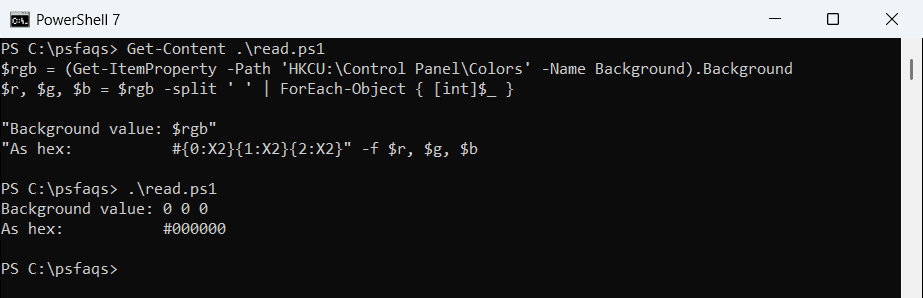
Mine is plain black. Save your own value somewhere before you change anything. Working with registry keys in PowerShell covers reading and creating values in more detail.
Convert a hex color to the RGB format Windows wants
Designers and brand guides give colors in hex, like #0078D4. The registry wants decimal numbers separated by spaces, so convert each pair of hex digits:
function ConvertTo-RgbString ([string]$Hex) {
    $Hex = $Hex.TrimStart('#')
    if ($Hex -notmatch '^[0-9A-Fa-f]{6}$') { throw "Not a 6-digit hex color: $Hex" }
    '{0} {1} {2}' -f [Convert]::ToInt32($Hex.Substring(0, 2), 16),
                     [Convert]::ToInt32($Hex.Substring(2, 2), 16),
                     [Convert]::ToInt32($Hex.Substring(4, 2), 16)
}

foreach ($hex in '#1E3A5F', '#0078D4', '#2E7D32', '#808080') {
    '{0}  ->  {1}' -f $hex, (ConvertTo-RgbString $hex)
}
Output:
#1E3A5F  ->  30 58 95
#0078D4  ->  0 120 212
#2E7D32  ->  46 125 50
#808080  ->  128 128 128
The function rejects anything that isn’t six hex digits, which keeps bad values out of the registry. For more number conversions, see converting a string to an integer.
Use color names like SteelBlue
System.Drawing knows the standard web color names. In PowerShell 7 it’s ready to use, but Windows PowerShell 5.1 doesn’t load it by default:
try {
    $c = [System.Drawing.ColorTranslator]::FromHtml('SteelBlue')
    "SteelBlue = $($c.R) $($c.G) $($c.B)"
}
catch {
    "Failed. $($_.Exception.Message)"
}
Output:
SteelBlue = 70 130 180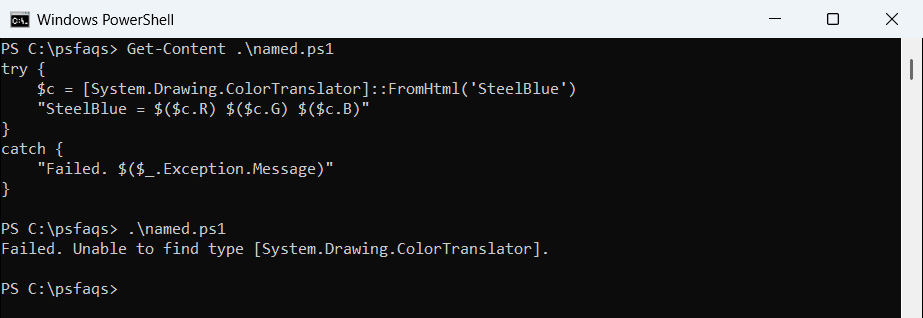
That’s the PowerShell 7 result. Add one Add-Type line and the same code works in both versions:
Add-Type -AssemblyName System.Drawing

foreach ($name in 'SteelBlue', 'DarkSlateGray', 'Teal') {
    $c = [System.Drawing.ColorTranslator]::FromHtml($name)
    '{0,-14} {1} {2} {3}' -f $name, $c.R, $c.G, $c.B
}
Output:
SteelBlue      70 130 180
DarkSlateGray  47 79 79
Teal           0 128 128
Join the three numbers with spaces and you have a Background value. Write-Host colors uses a different, shorter list of console color names.
How do I change the desktop background color with a script?
This function sets the color and clears the wallpaper path, so no picture covers it. Because both lines use Set-ItemProperty, -WhatIf shows the changes without making them:
function Set-DesktopBackgroundColor {
    [CmdletBinding(SupportsShouldProcess)]
    param([Parameter(Mandatory)][ValidatePattern('^\d{1,3} \d{1,3} \d{1,3}$')][string]$Rgb)

    Set-ItemProperty -Path 'HKCU:\Control Panel\Colors' -Name Background -Value $Rgb
    Set-ItemProperty -Path 'HKCU:\Control Panel\Desktop' -Name Wallpaper -Value ''
}

Set-DesktopBackgroundColor -Rgb '30 58 95' -WhatIf
Output:
What if: Performing the operation "Set Property" on target "Item: HKEY_CURRENT_USER\Control Panel\Colors Property: Background".
What if: Performing the operation "Set Property" on target "Item: HKEY_CURRENT_USER\Control Panel\Desktop Property: Wallpaper".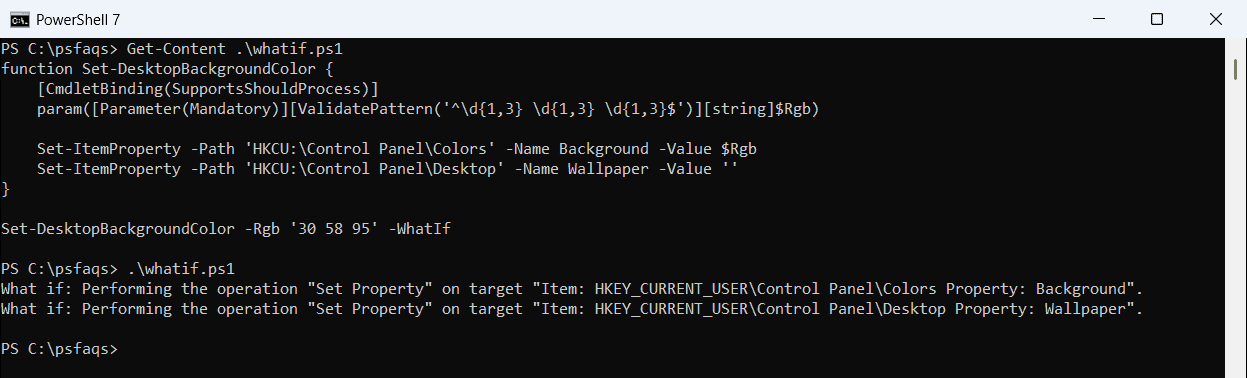
Drop -WhatIf to apply it. I only ran it with -WhatIf, because it would change my own desktop. Sign out and back in afterwards so Explorer reads the new values.
To set a picture instead of a color, see changing the wallpaper with PowerShell.
Why not SetSysColors or RUNDLL32?
Older scripts call SetSysColors with the desktop element to repaint the color right away. Microsoft now marks that element as not supported on Windows 10 or later, so I don’t rely on it.
The same goes for RUNDLL32.EXE user32.dll,UpdatePerUserSystemParameters, which isn’t a documented way to apply settings. Signing out is slower but predictable.
Set a solid color in Windows 11 Settings
The supported way is Settings > Personalization > Background. Pick Solid color from the background list, then choose a color.
I’d use Settings on one PC and the script for many. Either way, check the Windows version first if you support older machines.