
To extract URLs from an XML sitemap using PowerShell, cast the file to [xml] and read the loc element of every url entry:
[xml]$sitemap = Get-Content -Path .\post-sitemap.xml -Raw
$sitemap.urlset.url.loc
That returns every URL as plain text. Below I filter them by keyword, remove duplicates, handle sitemap index files, and save the list. I tested each step in PowerShell 7 and Windows PowerShell 5.1 on sample sitemaps.
Read all URLs from a sitemap file
A standard sitemap has a urlset root with one url element per page. PowerShell’s [xml] type lets you walk that tree with dots:
[xml]$sitemap = Get-Content -Path .\sitemaps\post-sitemap.xml -Raw
$urls = $sitemap.urlset.url.loc

"URLs in the sitemap: $($urls.Count)"
$urls
Output:
URLs in the sitemap: 6
https://contoso.com/sharepoint-list-views/
https://contoso.com/power-automate-approvals/
https://contoso.com/share-point-site-templates/
https://contoso.com/sharepoint-list-views/
https://contoso.com/teams-channel-files/
https://contoso.com/sharepoint-permissions-report/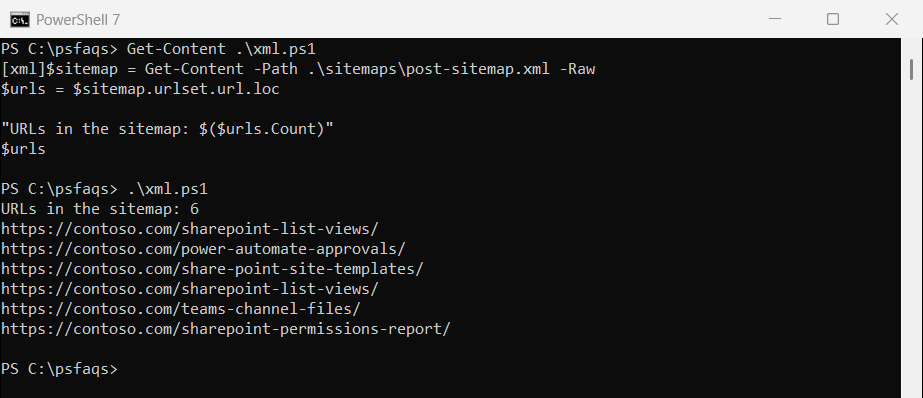
-Raw reads the file as one string, which [xml] needs. The sitemap repeats one URL on purpose, so the count is 6. Converting XML to a table uses the same dot-navigation for other XML files.
Why does Select-Xml return nothing for a sitemap?
Sitemaps use a default XML namespace, so a plain //loc XPath finds nothing. Microsoft’s docs say to pick any prefix for the default namespace and put it on every node in the XPath:
$path = '.\sitemaps\post-sitemap.xml'
$ns = @{ sm = 'http://www.sitemaps.org/schemas/sitemap/0.9' }

"Without the namespace: $(@(Select-Xml -Path $path -XPath '//loc').Count) results"
"With the namespace:    $(@(Select-Xml -Path $path -XPath '//sm:loc' -Namespace $ns).Count) results"
Output:
Without the namespace: 0 results
With the namespace:    6 results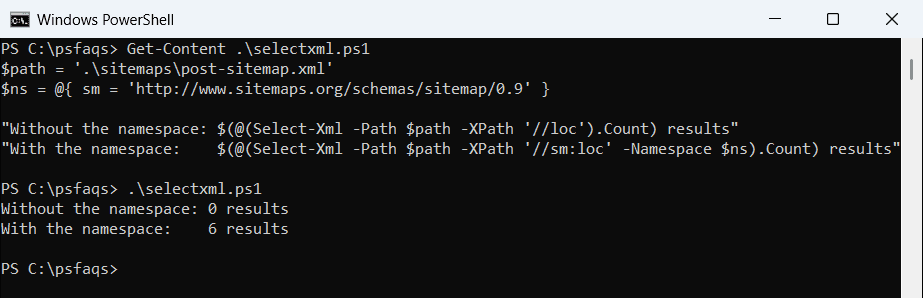
Both versions behave the same here. The [xml] dot syntax ignores namespaces, which is why I use it for quick jobs. PowerShell regex is another option, but it breaks when attributes or line breaks change.
Filter sitemap URLs by keyword and remove duplicates
Where-Object with -match keeps the URLs you want. The pattern share-?point also catches the hyphenated spelling, and Sort-Object -Unique drops repeats:
[xml]$sitemap = Get-Content -Path .\sitemaps\post-sitemap.xml -Raw

$sitemap.urlset.url.loc |
    Where-Object { $_ -match 'share-?point' } |
    Sort-Object -Unique
Output:
https://contoso.com/share-point-site-templates/
https://contoso.com/sharepoint-list-views/
https://contoso.com/sharepoint-permissions-report/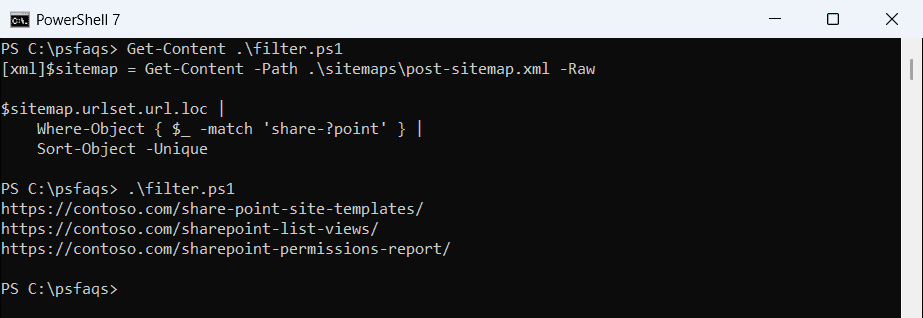
That’s PowerShell 7. Windows PowerShell 5.1 returned the same three URLs but put share-point-site-templates last, because the two versions weigh the hyphen differently when sorting text.
-match ignores case, so SharePoint and sharepoint both count. Removing duplicates from an array covers other ways to de-duplicate.
Get URLs changed after a date
Most sitemaps include lastmod. Cast it to a date and compare, which is handy for finding pages updated since your last audit:
[xml]$sitemap = Get-Content -Path .\sitemaps\post-sitemap.xml -Raw
$since = [datetime]'2026-09-01'

$sitemap.urlset.url |
    Where-Object { [datetime]$_.lastmod -ge $since } |
    Sort-Object loc -Unique |
    Format-Table loc, lastmod -AutoSize
Output:
loc                                           lastmod
---                                           -------
https://contoso.com/power-automate-approvals/ 2026-09-22
https://contoso.com/sharepoint-list-views/    2026-10-01
https://contoso.com/teams-channel-files/      2026-10-05
The dates are plain yyyy-MM-dd text, so the cast works in any culture. Converting strings to dates helps when a sitemap uses full timestamps.
Read every sitemap in a sitemap index
Big sites split URLs across several sitemaps and list them in a sitemap index. Loop through the index and read each child file:
[xml]$index = Get-Content -Path .\sitemaps\sitemap_index.xml -Raw

$all = foreach ($child in $index.sitemapindex.sitemap.loc) {
    $file = Join-Path '.\sitemaps' (Split-Path $child -Leaf)
    ([xml](Get-Content -Path $file -Raw)).urlset.url.loc
}
"Child sitemaps: $(@($index.sitemapindex.sitemap).Count)"
"Unique URLs:    $(@($all | Sort-Object -Unique).Count)"
Output:
Child sitemaps: 2
Unique URLs:    7
My child sitemaps are local copies, so I map each loc to a file name. For live sites, download each child URL instead, as shown in the last section.
Save the URL list to a text file
Out-File is the obvious choice, but its default encoding differs by version. I saved the same unique list both ways:
[xml]$sitemap = Get-Content -Path .\sitemaps\post-sitemap.xml -Raw
$list = $sitemap.urlset.url.loc | Sort-Object -Unique

$list | Out-File -FilePath .\urls-outfile.txt
$list | Set-Content -Path .\urls-setcontent.txt -Encoding utf8

$bytes = [System.IO.File]::ReadAllBytes((Resolve-Path .\urls-outfile.txt))
"Out-File:    $($bytes.Length) bytes, starts with $($bytes[0..1] -join ',')"
"Set-Content: $((Get-Item .\urls-setcontent.txt).Length) bytes"
Output:
Out-File:    234 bytes, starts with 104,116
Set-Content: 234 bytes
That’s PowerShell 7, which writes UTF-8. Windows PowerShell 5.1 wrote UTF-16 with a 255,254 byte-order mark, so the file was twice the size.
Set-Content -Encoding utf8 is closer, but 5.1 still adds a 3-byte UTF-8 mark at the start, so its file was 3 bytes bigger. In 7, use utf8NoBOM if a tool needs no mark at all. The Out-File guide lists every encoding option.
Extract URLs from a live sitemap
Invoke-RestMethod downloads the sitemap and returns it as XML, so the same dot syntax works on a live site:
$sitemap = Invoke-RestMethod -Uri 'https://contoso.com/post-sitemap.xml'
$sitemap.urlset.url.loc | Where-Object { $_ -match 'share-?point' } | Sort-Object -Unique