
To convert a JPG to PDF with PowerShell, print the image to the built-in Microsoft Print to PDF printer with PrintToFile turned on. The PDF lands at the path you give, with no Save As dialog and nothing to install:
$doc.PrinterSettings.PrinterName   = 'Microsoft Print to PDF'
$doc.PrinterSettings.PrintToFile   = $true
$doc.PrinterSettings.PrintFileName = 'C:\Photos\whiteboard-austin.pdf'
Below I build that into a reusable function, then convert one photo, combine several receipts into one PDF, fix sideways phone photos and convert a whole folder. I drew the sample JPGs with PowerShell and ran everything in PowerShell 7 and Windows PowerShell 5.1.
Check the Microsoft Print to PDF printer
Windows 10 and 11 include this virtual printer. Ask for it by name, so you don’t print your whole printer list:
Get-Printer -Name 'Microsoft Print to PDF' | Format-List -Property Name, DriverName, PortNameOutput:
Name       : Microsoft Print to PDF
DriverName : Microsoft Print To PDF
PortName   : PORTPROMPT:
The port is PORTPROMPT:, and that’s why printing a photo normally pops up a Save As window. Setting PrintToFile and PrintFileName skips that prompt, so you don’t need Add-PrinterPort, admin rights or a sleep timer. More printer commands are in listing printers with PowerShell.
A ConvertTo-Pdf function for JPG files
PrintDocument raises a PrintPage event for every page. The handler draws the current image, scaled to fit inside half-inch margins and centered, then sets HasMorePages until every image is printed:
function ConvertTo-Pdf ([string[]]$ImagePath, [string]$PdfPath) {
    Add-Type -AssemblyName System.Drawing
    $images = foreach ($path in $ImagePath) {
        $img = [System.Drawing.Image]::FromFile($path)
        if ($img.PropertyIdList -contains 0x0112) {          # EXIF orientation from a phone
            switch ($img.GetPropertyItem(0x0112).Value[0]) {
                3 { $img.RotateFlip('Rotate180FlipNone') }
                6 { $img.RotateFlip('Rotate90FlipNone') }
                8 { $img.RotateFlip('Rotate270FlipNone') }
            }
        }
        $img
    }
    $state = @{ Index = 0; Images = @($images) }

    $doc = [System.Drawing.Printing.PrintDocument]::new()
    $doc.PrinterSettings.PrinterName   = 'Microsoft Print to PDF'
    $doc.PrinterSettings.PrintToFile   = $true
    $doc.PrinterSettings.PrintFileName = $PdfPath
    $letter = $doc.PrinterSettings.PaperSizes | Where-Object Kind -EQ 'Letter' | Select-Object -First 1
    $doc.DefaultPageSettings.PaperSize = $letter
    $doc.DefaultPageSettings.Margins   = [System.Drawing.Printing.Margins]::new(50, 50, 50, 50)

    $doc.add_QueryPageSettings({                            # runs before each page
        param($sender, $e)
        $img = $state.Images[$state.Index]
        $e.PageSettings.Landscape = $img.Width -gt $img.Height
    })
    $doc.add_PrintPage({
        param($sender, $e)
        $img   = $state.Images[$state.Index]
        $box   = $e.MarginBounds
        $scale = [Math]::Min($box.Width / $img.Width, $box.Height / $img.Height)
        $w = [int]($img.Width * $scale); $h = [int]($img.Height * $scale)
        $x = $box.X + [int](($box.Width - $w) / 2); $y = $box.Y + [int](($box.Height - $h) / 2)
        $e.Graphics.DrawImage($img, $x, $y, $w, $h)
        $state.Index++
        $e.HasMorePages = $state.Index -lt $state.Images.Count
    })
    try { $doc.Print() }
    finally { $doc.Dispose(); $state.Images | ForEach-Object { $_.Dispose() } }

    $deadline = (Get-Date).AddSeconds(15)                   # the print spooler writes the file
    while (-not (Test-Path -Path $PdfPath) -and (Get-Date) -lt $deadline) { Start-Sleep -Milliseconds 200 }
}
QueryPageSettings runs right before each page, so a wide photo gets a landscape page and a tall receipt gets a portrait page. I also set Letter paper explicitly, so the PDF doesn’t depend on the PC’s default.
If you’re new to wrapping code like this, see how PowerShell functions work.
Convert a single JPG to PDF in PowerShell
To check the result, I use a small Get-PdfInfo helper that reads the PDF header and each page’s MediaBox:
function Get-PdfInfo ([string]$Path) {
    $text  = [System.IO.File]::ReadAllText($Path, [System.Text.Encoding]::ASCII)
    $boxes = [regex]::Matches($text, '/MediaBox\s*\[\s*0\.0 0\.0 (\d+)\.0 (\d+)\.0')
    $pages = $boxes | ForEach-Object {
        if ([int]$_.Groups[1].Value -gt [int]$_.Groups[2].Value) { 'landscape' } else { 'portrait' }
    }
    '{0}: starts {1}, {2} page(s): {3}' -f (Split-Path $Path -Leaf), $text.Substring(0, 5), @($pages).Count, ($pages -join ', ')
}
Both functions are saved in ConvertTo-Pdf.ps1, which I dot-source here:
. .\ConvertTo-Pdf.ps1
$jpg = (Resolve-Path -Path .\Photos\whiteboard-austin.jpg).Path
$pdf = [System.IO.Path]::ChangeExtension($jpg, '.pdf')

ConvertTo-Pdf -ImagePath $jpg -PdfPath $pdf
Get-PdfInfo -Path $pdf
Output:
whiteboard-austin.pdf: starts %PDF-, 1 page(s): landscape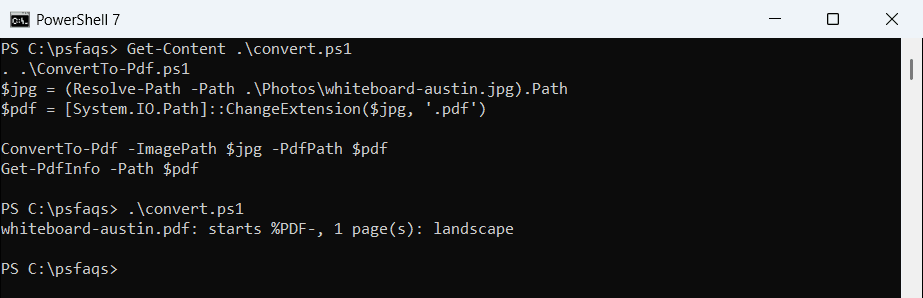
Every PDF starts with %PDF-. Pass a full path to FromFile and PrintFileName, because .NET resolves relative paths against the process folder. Getting the full path of a file shows the options.
How do I combine multiple JPGs into one PDF?
Pass several paths to the same function and each JPG becomes its own page. Sort the files first, because the page order follows the array order:
. .\ConvertTo-Pdf.ps1
$folder = (Resolve-Path -Path .\Photos\Expenses).Path
$jpgs   = Get-ChildItem -Path $folder -Filter *.jpg | Sort-Object -Property Name
$pdf    = Join-Path -Path $folder -ChildPath 'expenses-2026-10.pdf'

ConvertTo-Pdf -ImagePath $jpgs.FullName -PdfPath $pdf
"Combined $($jpgs.Count) JPGs:"
Get-PdfInfo -Path $pdf
Output:
Combined 3 JPGs:
expenses-2026-10.pdf: starts %PDF-, 3 page(s): portrait, portrait, landscape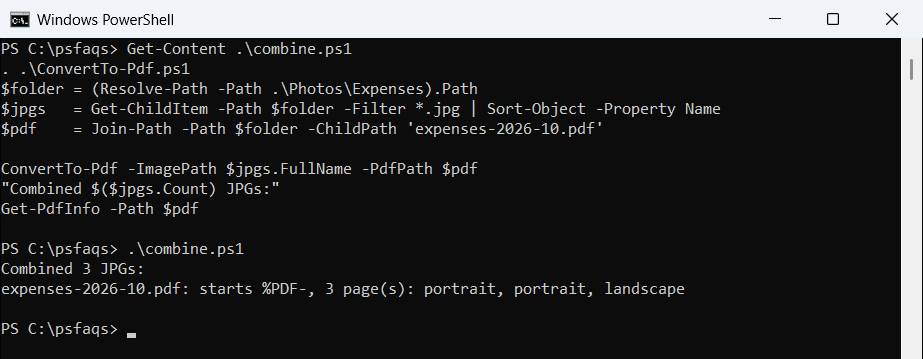
The two receipts are portrait and the parking map is landscape, all in one file. To order scans by time instead, see sorting files by date.
Fix sideways phone photos
Phones often save a portrait photo as a landscape image plus an EXIF orientation tag (0x0112). Viewers rotate it for you, but System.Drawing doesn’t, so the PDF would come out sideways:
Add-Type -AssemblyName System.Drawing
$img = [System.Drawing.Image]::FromFile((Resolve-Path -Path .\Photos\Inbox\phone-photo.jpeg).Path)
"EXIF orientation: $($img.GetPropertyItem(0x0112).Value[0])"
"Stored size:      $($img.Width) x $($img.Height)"
$img.RotateFlip('Rotate90FlipNone')
"Upright size:     $($img.Width) x $($img.Height)"
$img.Dispose()
Output:
EXIF orientation: 6
Stored size:      2000 x 1200
Upright size:     1200 x 2000
A value of 6 means the picture has to turn 90 degrees clockwise to stand upright, 3 means 180 degrees and 8 means 270. ConvertTo-Pdf reads the tag and calls RotateFlip before it draws the page.
If your phone saves HEIC files instead, convert HEIC to JPG first.