
To create multiple folders in PowerShell, give New-Item a comma-separated list of paths: New-Item -ItemType Directory -Path C:\Data\A, C:\Data\B. The -Path parameter takes an array, so one command makes them all.
For dozens of folders, read the names from a list, a number range or a CSV and loop over them. I tested each method in PowerShell 7.6 and Windows PowerShell 5.1, and the errors aren’t always worded the same.
Create multiple folders with one New-Item command
Separate the full paths with commas. New-Item returns a DirectoryInfo object for each folder, so I expand FullName to show where each one landed:
New-Item -ItemType Directory -Path C:\psfaqs\Offices\Austin, C:\psfaqs\Offices\Denver, C:\psfaqs\Offices\Seattle |
    Select-Object -ExpandProperty FullName
Output:
C:\psfaqs\Offices\Austin
C:\psfaqs\Offices\Denver
C:\psfaqs\Offices\Seattle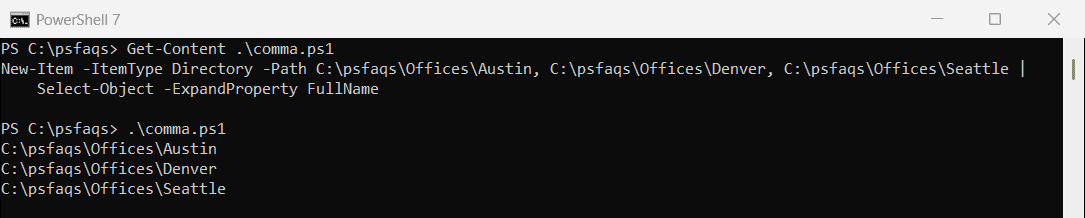
The parent folder Offices didn’t exist yet, and New-Item created it on the way. If you’re new to the cmdlet, the New-Item cmdlet guide covers files, folders and the -Value parameter.
Why doesn’t mkdir folder1 folder2 work in PowerShell?
In Command Prompt, md Boston Chicago creates two folders. In PowerShell, mkdir and md are a function that wraps New-Item, so a space-separated second name becomes an extra positional argument:
try {
    mkdir Boston Chicago -ErrorAction Stop
} catch {
    "Failed. $($_.Exception.Message)"
}
Output:
Failed. A positional parameter cannot be found that accepts argument 'Chicago'.Put a comma between the names instead. That turns them into one array, and the function passes it to -Path:
Set-Location C:\psfaqs\Offices
mkdir Boston, Chicago | Select-Object -ExpandProperty Name
(Get-Command -Name mkdir).CommandType
Output:
Boston
Chicago
Function
Both versions behave the same here. The names are relative to your current location, which getting the current directory shows you how to check.
Create folders from a list of names with a loop
When the names live in a variable, a foreach loop is easier to read. Here -Path is the parent and -Name is each new folder:
$cities = 'Austin', 'Denver', 'Seattle', 'Miami'
foreach ($city in $cities) {
    New-Item -Path C:\psfaqs\Offices -Name $city -ItemType Directory | Out-Null
}
(Get-ChildItem -Path C:\psfaqs\Offices -Directory).Name -join ', '
Output:
Austin, Denver, Miami, SeattleGet-ChildItem sorts the names alphabetically, which is why Miami comes before Seattle. The PowerShell foreach loop explains the syntax if you haven’t used it before.
For numbered folders, pipe a range to ForEach-Object and build each name with the -f format operator. The D2 format pads the month to two digits, so the folders sort correctly in File Explorer:
1..12 | ForEach-Object {
    $name = 'Month-{0:D2}' -f $_
    New-Item -ItemType Directory -Path "C:\psfaqs\Offices\2026\$name"
} | Select-Object -First 3 -ExpandProperty Name
Output:
Month-01
Month-02
Month-03
That creates Month-01 through Month-12 under a 2026 folder. ForEach-Object in a pipeline has more on the $_ variable used here.
Create nested folders and subfolders in PowerShell
You don’t need to build a deep path one level at a time. Name the deepest folder, and New-Item creates every missing parent:
$d = New-Item -ItemType Directory -Path C:\psfaqs\Offices\Austin\2026\Q1\Reports
$d.FullName
Output:
C:\psfaqs\Offices\Austin\2026\Q1\ReportsTo build the same set of subfolders inside several parent folders, nest two loops. Join-Path assembles each path without worrying about backslashes:
$offices = 'Austin', 'Denver', 'Seattle'
$subs = 'Invoices', 'Contracts', 'Reports'
foreach ($office in $offices) {
    foreach ($sub in $subs) {
        $path = Join-Path -Path C:\psfaqs\Offices -ChildPath "$office\$sub"
        New-Item -ItemType Directory -Path $path | Out-Null
    }
}
"Created $((Get-ChildItem C:\psfaqs\Offices -Directory -Recurse).Count) folders"
Output:
Created 12 folders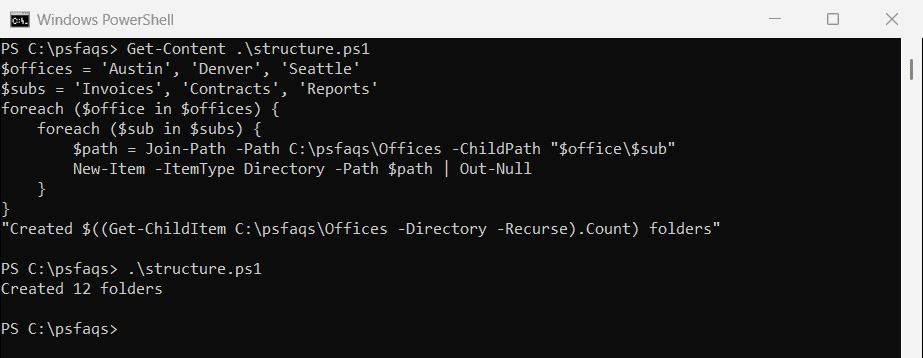
The count is 12 because it includes the three office folders plus nine subfolders. This pattern is handy for client or project templates.
Already have the parent folders? Pass all of them to -Path and the new folder name to -Name. New-Item creates it inside each one:
New-Item -Path C:\psfaqs\Offices\Austin, C:\psfaqs\Offices\Denver -Name Archive -ItemType Directory |
    Select-Object -ExpandProperty FullName
Output:
C:\psfaqs\Offices\Austin\Archive
C:\psfaqs\Offices\Denver\Archive
Create folders from a CSV or text file
For a long list, keep the names in a file. This CSV has a Department column, and each row becomes a folder:
Department,Owner
Finance,Maria Lopez
Marketing,Tom Baker
Legal,Dana Reyes
Import-Csv turns each row into an object, so $_.Department is the folder name:
Import-Csv -Path C:\psfaqs\departments.csv | ForEach-Object {
    New-Item -ItemType Directory -Path (Join-Path C:\psfaqs\Offices $_.Department)
} | Select-Object -ExpandProperty Name
Output:
Finance
Marketing
Legal
For a plain text file with one name per line, swap Import-Csv for Get-Content -Path C:\psfaqs\names.txt and use $_ directly. Looping through Import-Csv rows covers headers and filtering rows first.
How do I skip folders that already exist?
Run a script twice and New-Item stops on the first folder that’s already there. The message is the same in both versions:
try {
    New-Item -ItemType Directory -Path C:\psfaqs\Offices\Austin -Er