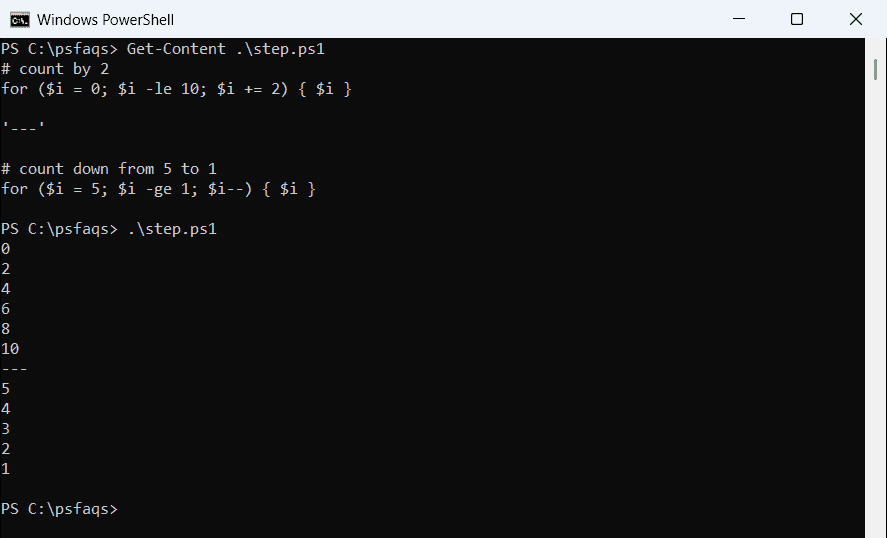
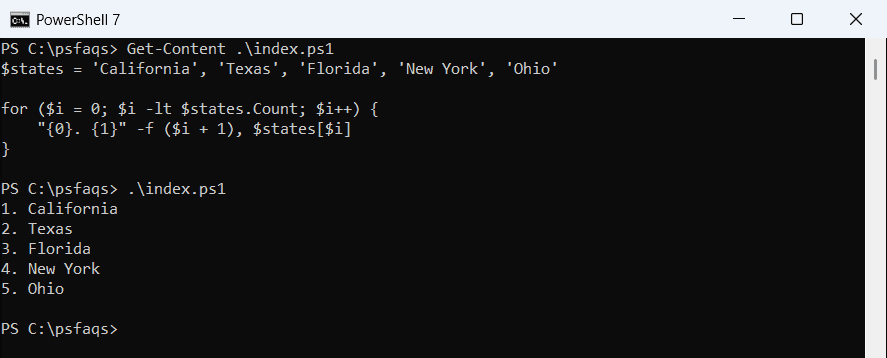
PowerShell For Loop [With Examples]

Recently, while working on a PowerShell script, I was required to iterate over a block of code multiple times. For this, I used the for loop in PowerShell. In this tutorial, I will show you how to work with the PowerShell for loop with various examples.

What is a for loop in PowerShell?

A For loop in PowerShell is a control flow statement that allows you to execute a block of code repeatedly based on a specified condition. It consists of three main components: initialization, condition, and repetition.

The initialization step sets up a counter variable, the condition checks whether the loop should continue running, and the repetition step updates the counter variable after each iteration.

Syntax of the PowerShell For Loop

Below is the syntax of the For loop in PowerShell:

for (<Initialization>; <Condition>; <Repeat>)
{
    <Statement-Block>
}
  • The initialization (init) sets the starting point of the loop. This is where the loop variable is defined, typically with a value of zero.
  • The increment clause updates the loop variable each time the loop runs. For example, $i++ increments the variable by one.
  • The condition checks whether the loop should continue running. If the condition is true, the loop runs; if false, it stops. An example is [i -lt 10]. Together, these three parts control the loop’s execution.
  • Repeat: This part is executed at the end of each iteration. It is usually used to increment or update the counter variable.
  • Statement-Block: This is the block of code that you want to execute repeatedly as long as the condition is true.

Read PowerShell Do While Loop

Basic for loop Example in PowerShell

Let’s start with a simple example to print numbers from 1 to 5 using PowerShell for loop:

for ($i = 1; $i -le 5; $i++)
{
    Write-Output $i
}

In this example:

  • Initialization$i = 1 sets the initial value of the counter variable $i to 1.
  • Condition$i -le 5 checks if $i is less than or equal to 5.
  • Repeat$i++ increments the value of $i by 1 after each iteration.
  • Statement-BlockWrite-Output $i prints the current value of $i.

You can see the output in the screenshot below:

Powershell for loop

Here is another little complex example where you want to iterate through a PowerShell array and perform some action on each element. Here is the complete PowerShell script.

$servers = @("Server1", "Server2", "Server3")

for ($i = 0; $i -lt $servers.Length; $i++)
{
    Write-Output "Pinging $($servers[$i])"
    Test-Connection -ComputerName $servers[$i] -Count 1
}

In this example:

  • Initialization$i = 0 initializes the counter variable $i to 0.
  • Condition$i -lt $servers.Length checks if $i is less than the length of the $servers array.
  • Repeat$i++ increments the value of $i by 1 after each iteration.
  • Statement-Block: The block pings each server in the array.

Read While Loop in PowerShell

Nested For Loop in PowerShell

There will be times when you might need to put loop inside a loop and that is known as nested loops in PowerShell. Here is an example where we are using a nested for loop in PowerShell.

for ($i = 0; $i -lt 3; $i++) {
    for ($j = 0; $j -lt 3; $j++) {
        Write-Output "$i, $j"
    }
}

This nested loop runs the inner loop each time the outer loop runs. Here is the output:

0, 0
0, 1
0, 2
1, 0
1, 1
1, 2
2, 0
2, 1
2, 2

Look at the screenshot below for the output, after I executed the above nested for loop PowerShell script.

Nested For Loops in PowerShell

Read PowerShell Do-Until Loop Examples

How to Use Break and Continue in PowerShell for loop?

Now, let me show you how to use the break and continue in PowerShell for loop.

Break and Continue statements give you control over loop execution.

  • break: Exits the for loop immediately.
  • continue: Skips the remaining statements in the current iteration and proceeds to the next iteration.

Here is an example of how to use the break statement in a for loop in PowerShell.

for ($i = 0; $i -lt 10; $i++) {
    if ($i -eq 5) { break }
    Write-Output $i
}

In this loop, it stops when $i equals 5. The continue statement skips the rest of the current loop iteration and proceeds with the next iteration.

Here is an example of how to use continue in PowerShell for loop.

for ($i = 0; $i -lt 10; $i++) {
    if ($i % 2 -eq 0) { continue }
    Write-Output $i
}

This loop skips even numbers, outputting only the odd ones.

You can see the output in the screenshot below, after I executed using VS code.

Break and Continue in PowerShell for loop

Here’s an example of how you can use the break and continue in a single PowerShell script.

for ($i = 1; $i -le 10; $i++)
{
    if ($i -eq 5)
    {
        continue  # Skip the rest of the loop when $i is 5
    }
    if ($i -eq 8)
    {
        break  # Exit the loop when $i is 8
    }
    Write-Output $i
}

In this example:

  • The loop skips printing the number 5 due to the continue statement.
  • The loop terminates when $i equals 8 due to the break statement.

Read How to Loop Through an Array in PowerShell?

PowerShell for loop try catch

Now, let me show you how to handle errors in a for loop in PowerShell using the try catch.

We can use the Try and Catch blocks within a For loop in PowerShell to handle exceptions gracefully. This is particularly useful when you want to ensure that the loop continues executing even if an error occurs during one of the iterations.

Syntax

The syntax for using Try and Catch within a For loop in PowerShell is like the below:

for (<Initialization>; <Condition>; <Repeat>)
{
    try
    {
        # Code that may throw an exception
    }
    catch
    {
        # Code to handle the exception
    }
}

Example

Now, let us see an example.

Suppose we attempt to divide a number by a series of values, including zero, which will throw an exception. We want to catch this exception and handle it without stopping the entire loop.

Here is the complete PowerShell script.

$numbers = @(10, 5, 0, 2)

for ($i = 0; $i -lt $numbers.Length; $i++)
{
    try
    {
        $result = 100 / $numbers[$i]
        Write-Output "Result of 100 divided by $($numbers[$i]) is $result"
    }
    catch
    {
        Write-Output "Cannot divide by $($numbers[$i]). Error: $_"
    }
}

In this example:

  • Initialization$i = 0 initializes the counter variable $i to 0.
  • Condition$i -lt $numbers.Length ensures the loop runs as long as $i is less than the length of the $numbers array.
  • Repeat$i++ increments the counter variable $i by 1 after each iteration.

Within the try block, we attempt to divide 100 by the current element of the $numbers array. If the division by zero occurs, it throws an exception, which is caught by the catch block. The catch block then outputs an error message indicating the issue.

I executed the above PowerShell script and you can see the output in the screenshot below:

PowerShell for loop try catch

Conclusion

I hope now you got to know how to use the for loop in PowerShell with various example. I have also shown you how to use the break and continue statement in a PowerShell for loop. Finally, we got to know how to use the try catch statements in a for loop in PowerShell with an example.

If you still have any question feel free to leave a comment below.

You may also like:

100 PowerShell cmdlets download free

100 POWERSHELL CMDLETS E-BOOK

FREE Download an eBook that contains 100 PowerShell cmdlets with complete script and examples.