
To create a GUID in PowerShell, run the New-Guid cmdlet. It returns a new, random globally unique identifier every time:
$id = New-Guid
"New GUID: $id"
Output (yours will be different):
New GUID: bac6d792-e7a7-41ce-b6cb-d80ee039a238Below I cover the other way to create one, the text formats, validation and converting a GUID to hex. Every example ran in PowerShell 7.6 and Windows PowerShell 5.1, with the same results.
New-Guid or [guid]::NewGuid()
Both create the same kind of value, a [guid] object. New-Guid is the PowerShell cmdlet, and [guid]::NewGuid() calls .NET directly:
$a = New-Guid
$b = [guid]::NewGuid()

"Both are GUIDs: $($a -is [guid] -and $b -is [guid])"
"Different values: $($a -ne $b)"
Output:
Both are GUIDs: True
Different values: True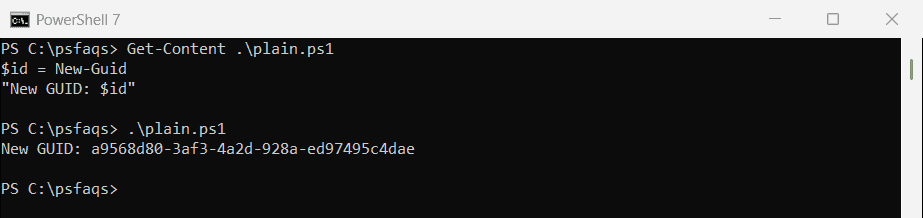
Use whichever reads better in your script.
Check the format
Every GUID is 36 characters: 32 hex digits and four dashes. The 4 at the start of the third group marks it as a random (version 4) GUID:
$id = New-Guid

"Type:    $($id.GetType().Name)"
"Length:  $($id.ToString().Length) characters"
"Pattern: $($id.ToString() -match '^[0-9a-f]{8}-[0-9a-f]{4}-4[0-9a-f]{3}-[89ab][0-9a-f]{3}-[0-9a-f]{12}$')"
Output:
Type:    Guid
Length:  36 characters
Pattern: True
GUID formats
ToString takes a format letter. D is the default with dashes, N has no dashes, B adds braces and P adds parentheses:
$id = [guid]'3f2504e0-4f89-11d3-9a0c-0305e82c3301'

foreach ($f in 'D', 'N', 'B', 'P') { '{0}  {1}' -f $f, $id.ToString($f) }
"Upper   $($id.ToString().ToUpper())"
Output:
D  3f2504e0-4f89-11d3-9a0c-0305e82c3301
N  3f2504e04f8911d39a0c0305e82c3301
B  {3f2504e0-4f89-11d3-9a0c-0305e82c3301}
P  (3f2504e0-4f89-11d3-9a0c-0305e82c3301)
Upper   3F2504E0-4F89-11D3-9A0C-0305E82C3301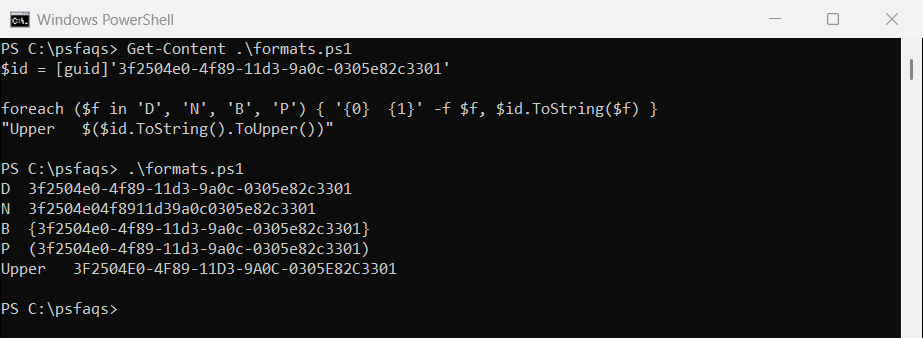
Registry keys and many Microsoft tools use the B format in uppercase.
The empty GUID
[guid]::Empty is all zeros. It’s a handy default when a value hasn’t been set yet, and easy to test for:
"[guid]::Empty:  $([guid]::Empty)"
"Is it empty?    $([guid]::Empty -eq [guid]'00000000-0000-0000-0000-000000000000')"
Output:
[guid]::Empty:  00000000-0000-0000-0000-000000000000
Is it empty?    True
Check if a string is a valid GUID
[guid]::TryParse returns True or False instead of throwing an error. It accepts the D, N, B and P formats in either case:
foreach ($text in '3f2504e0-4f89-11d3-9a0c-0305e82c3301', '{3F2504E0-4F89-11D3-9A0C-0305E82C3301}', '3f2504e0-4f89-11d3', 'not-a-guid') {
    $parsed = [guid]::Empty
    '{0,-40} valid: {1}' -f $text, [guid]::TryParse($text, [ref]$parsed)
}
Output:
3f2504e0-4f89-11d3-9a0c-0305e82c3301     valid: True
{3F2504E0-4F89-11D3-9A0C-0305E82C3301}   valid: True
3f2504e0-4f89-11d3                       valid: False
not-a-guid                               valid: False
Use it to check IDs from CSV files or user input before passing them on. Converting strings to numbers uses the same TryParse idea.
Convert a GUID to hex
There are two different hex forms, and they don’t match. The N format is the text without dashes. ToByteArray returns the bytes as Windows stores them, with the first three groups reversed:
$id = [guid]'3f2504e0-4f89-11d3-9a0c-0305e82c3301'

"N format:         $($id.ToString('N'))"
"ToByteArray hex:  $(([BitConverter]::ToString($id.ToByteArray())) -replace '-', '')"
Output:
N format:         3f2504e04f8911d39a0c0305e82c3301
ToByteArray hex:  E004253F894FD3119A0C0305E82C3301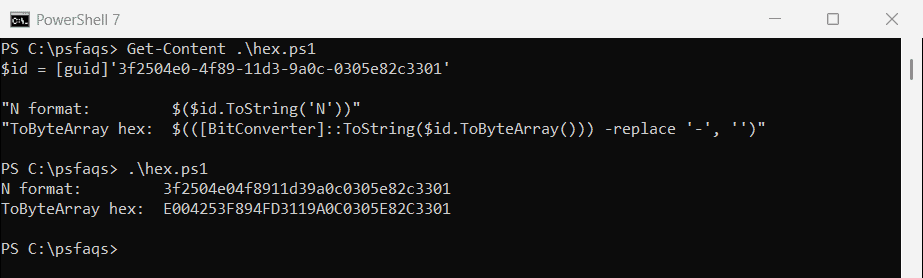
Use the N format for display and file names. Use the byte form when a system stores the raw GUID, like a database column or Active Directory.
Search Active Directory by objectGUID
LDAP filters need each byte escaped with a backslash. Build that string from the byte array:
$id = [guid]'3f2504e0-4f89-11d3-9a0c-0305e82c3301'

$escaped = ($id.ToByteArray() | ForEach-Object { '\{0:x2}' -f $_ }) -join ''
"LDAP filter: (objectGUID=$escaped)"
Output:
LDAP filter: (objectGUID=\e0\04\25\3f\89\4f\d3\11\9a\0c\03\05\e8\2c\33\01)Pass the filter to Get-ADUser -LDAPFilter or any LDAP search. Get-ADUser -Identity also accepts the GUID directly, which is easier when you can use it.
Convert hex back to a GUID
Cast N-format hex straight to [guid]. For byte-order hex, turn each pair of digits into a byte first, then build the GUID from the bytes:
$hexN = '3f2504e04f8911d39a0c0305e82c3301'
"From N-format hex: $([guid]$hexN)"

$byteHex = 'e004253f894fd3119a0c0305e82c3301'
$bytes = [byte[]]($byteHex -split '(..)' -ne '' | ForEach-Object { [Convert]::ToByte($_, 16) })
"From byte hex:     $([guid]::new($bytes))"
Output:
From N-format hex: 3f2504e0-4f89-11d3-9a0c-0305e82c3301
From byte hex:     3f2504e0-4f89-11d3-9a0c-0305e82c3301
Both give back the original GUID, which is a good way to check you picked the right form.
Use a GUID for unique file names
A short piece of a GUID makes a name that won’t clash with other runs:
$name = 'upload-{0}.csv' -f (New-Guid).ToString('N').Substring(0, 8)
"Name length: $($name.Length), looks right: $($name -match '^upload-[0-9a-f]{8}\.csv$')"
Output:
Name length: 19, looks right: TrueEight hex characters give over 4 billion combinations, which is plenty for temp files. Use the full GUID when names must never repeat.