
If you’ve ever exported data from a database, pulled performance metrics, or opened a CSV file — only to find numbers that look like 1.23E+04 or 5.73e+02 — you already know how annoying scientific notation can be. It’s compact, sure, but try doing any real work with it and you’ll hit a wall fast.
In this tutorial, I’ll walk you through several practical ways to convert scientific notation to decimal in PowerShell. Whether it’s a simple one-liner or a full script to process a CSV file, I’ve got you covered.
What Is Scientific Notation, and Why Does PowerShell Use It?
Scientific notation is just a shorthand for very large or very small numbers. Instead of writing 57,303.333333, you write 5.7303333333e+02. PowerShell (and .NET under the hood) often switches to this format automatically when numbers get too big or too small to display cleanly.
You’ll typically run into this when:
- Reading Performance Monitor (Perfmon) counter data
- Importing CSV files from Excel or databases
- Working with large numeric datasets in PowerShell pipelines
- Processing financial or scientific data exports
The good news? PowerShell gives you multiple clean ways to deal with it.
Method 1: Cast Directly Using [decimal]
This is the simplest and most commonly used approach. If you already have a numeric value in a variable that PowerShell has internally stored as a float or double, casting it to [decimal] gives you the full decimal representation.
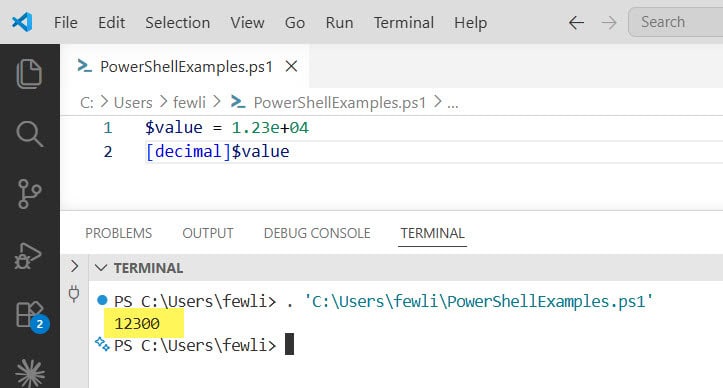
$value = 1.23e+04
[decimal]$value
Output:
12300
Here is the exact output in the screenshot below:
You can also use the -as operator, which does the same thing but won’t throw an error if the conversion fails (it just returns $null instead):
$value = 5.7303333333e+02
$value -as [decimal]
Output:
573.03333333
I use -as [decimal] when I’m processing data inside a pipeline and I’m not 100% sure every value is valid. It’s safer.
Check out Convert String to Decimal in PowerShell
Method 2: Use [decimal]::Parse() with NumberStyles.Float
Here’s a common trap — if you have the scientific notation stored as a string (not a number), just casting with [decimal] won’t work. PowerShell won’t know how to interpret the exponential part.
$str = "5.7303333333e+02"
[decimal]$str   # This will throw an error or return wrong result
The fix is to use the [decimal]::Parse() method and tell it explicitly that the string includes a float/exponent format:
$str = "5.7303333333e+02"
$style = [System.Globalization.NumberStyles]::Float
$decimalValue = [decimal]::Parse($str, $style)
Write-Host $decimalValue
Output:
573.03333333
You can check out the exact output in the screenshot below:
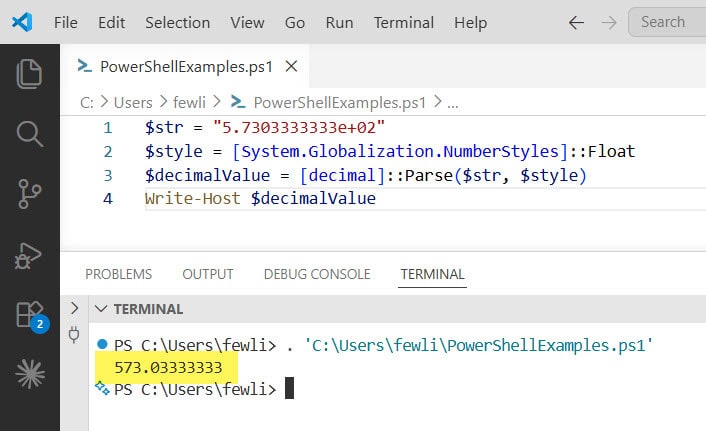
The NumberStyles.Float flag tells the parser to allow exponents in the input string. Without it, Parse() chokes on the e+02 part. This method is rock-solid for string inputs.
Check out PowerShell Measure-Object 2 Decimal Places
Method 3: Format Output with the -f Operator
Sometimes PowerShell stores the value just fine internally, but when you print or export it, it shows up in scientific notation. In that case, you don’t need to change the underlying type — you just need to control how it’s displayed.
Use the -f format operator:
$value = 1.23e+10
"{0:F0}" -f $value     # No decimal places
"{0:F2}" -f $value     # 2 decimal places
"{0:N}" -f $value      # With thousand separators
Output:
12300000000
12300000000.00
12,300,000,000.00
The F format means “fixed-point.” The number after it controls how many decimal places you want. N adds thousand separators, which is great for presenting financial data.
This is my go-to when I just need something to look right in a report or on-screen output.
Read PowerShell Round to 2 Decimal Places
Method 4: Using ToString() with a Format String
Another clean way — call .ToString() directly on the variable and pass a format specifier:
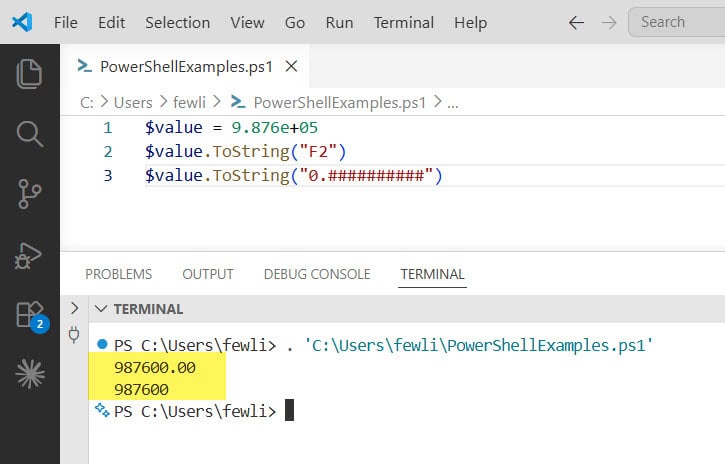
$value = 9.876e+05
$value.ToString("F2")
$value.ToString("0.##########")
Output:
987600.00
987600
The second format ("0.##########") suppresses trailing zeros, which can be handy when precision varies.
You can see the exact output in the screenshot below:
Check out Get JSON Data from a URL in PowerShell
Method 5: Convert a Whole CSV File
This is where things get practical for a lot of real-world scenarios. You export data, open it in PowerShell, and the numbers are all in scientific notation. Here’s how to convert the whole file:
$data = Import-Csv -Path "C:\data\export.csv"
$style = [System.Globalization.NumberStyles]::Float

foreach ($row in $data) {
    $row.Price = [decimal]::Parse($row.Price.Replace(',', '.'), $style)
}

$data | Export-Csv -Path "C:\data\export_converted.csv" -NoTypeInformation
A few things worth noting here:
- The
.Replace(',', '.')handles European-style decimals where a comma is the decimal separator [decimal]::Parse()with theFloatstyle handles the exponent part of the stringExport-Csvwith-NoTypeInformationremoves the noisy type header from the output
If your CSV has multiple columns with scientific notation values, you can loop through the property names dynamically:
$data = Import-Csv -Path "C:\data\export.csv"
$style = [System.Globalization.NumberStyles]::Float
$numericCols = @("Price", "Quantity", "Amount")

foreach ($row in $data) {
    foreach ($col in $numericCols) {
        if ($row.$col -match 'e[+-]\d+') {
            $row.$col = [decimal]::Parse($row.$col.Replace(',', '.'), $style)
        }
    }
}

$data | Export-Csv -Path "C:\data\export_converted.csv" -NoTypeInformation
The -match 'e[+-]\d+' check makes sure you only try to convert values that actually look like scientific notation — you don’t want to accidentally break values that are already plain decimals.
Read PowerShell Find Folders Matching Pattern
Method 6: Reusable Function for Clean Code
If you’re doing this often across different scripts, wrap it in a reusable function:
function Convert-ScientificToDecimal {
    param (
        [string]$Value
    )
    $style = [System.Globalization.NumberStyles]::Float
    $cleanValue = $Value.Replace(',', '.')
    try {
        return [decimal]::Parse($cleanValue, $style)
    }
    catch {
        Write-Warning "Could not convert: $Value"
        return $null
    }
}

# Usage
Convert-ScientificToDecimal "1.23E+04"
Convert-ScientificToDecimal "5.7303333333e+02"
Convert-ScientificToDecimal "9.87E-03"
Output:
12300
573.03333333
0.00987
The try/catch block is important here. If someone passes in a value that isn’t actually a number, you’ll get a clear warning instead of a script crash.
Which Method to Use When?
| Situation | Best Method |
|---|---|
| Variable is already a number type | [decimal]$value or -as [decimal] |
| Value is stored as a string | [decimal]::Parse($str, NumberStyles.Float) |
| Just need clean display output | "{0:F2}" -f $value or .ToString("F2") |
| Processing a CSV file | Loop with [decimal]::Parse() |
| Repeated use across scripts | Custom function |
Check out PowerShell Convert Byte Array to Hex String
Avoid These Common Errors
Here are some common errors that you should avoid.
- Don’t use
[decimal]$strwhen$stris a string with exponent — this won’t work reliably and may throw an error. - Watch out for locale differences — some systems use a comma as the decimal separator. Always normalize with
.Replace(',', '.')before parsing. - Large numbers may lose precision with
[double]— prefer[decimal]for financial data.[double]only has ~15-16 significant digits, while[decimal]gives you 28-29. - Check your input data first — not every number in your CSV will be in scientific notation. Use a
-matchcheck before trying to parse.
Conclusion
Here, I explained how to convert scientific notation to decimal in PowerShell using different methods. Here it comes down to two scenarios: either you’re working with a live numeric value (use [decimal] casting), or you’re dealing with a string (use [decimal]::Parse() with NumberStyles.Float). The format operator -f handles display formatting if the value itself is fine but just needs to look different on screen.
The CSV scenario is the most common real-world use case, and the combination of Import-Csv, [decimal]::Parse(), and Export-Csv handles it cleanly every time.
You may also like:

Bijay Kumar is an esteemed author and the mind behind PowerShellFAQs.com, where he shares his extensive knowledge and expertise in PowerShell, with a particular focus on SharePoint projects. Recognized for his contributions to the tech community, Bijay has been honored with the prestigious Microsoft MVP award. With over 15 years of experience in the software industry, he has a rich professional background, having worked with industry giants such as HP and TCS. His insights and guidance have made him a respected figure in the world of software development and administration. Read more.
