
If you’ve ever worked with time-based data in PowerShell, you already know how often values come in as raw seconds. Whether it’s script execution time, API response duration, or system performance logs, seconds are useful—but not always the most readable format. At some point, I found myself constantly needing to convert those seconds into a more human-friendly format like minutes (and sometimes hours) to make reports and outputs easier to understand.
In this tutorial, I’ll walk you through how I typically convert seconds into minutes in PowerShell using simple and practical approaches. We’ll look at straightforward calculations as well as PowerShell-friendly ways to handle time conversion so you can use them directly in your scripts.
Convert Seconds to Minutes in PowerShell
The core math for converting seconds to minutes in PowerShell is simple.
- Minutes =
[Math]::Floor($seconds / 60) - Remaining seconds =
$seconds % 60 - Total minutes (decimal) =
$seconds / 60
For example, 150 seconds = 2 minutes and 30 seconds = 2.5 total minutes.
Method 1: Simple Math Division
The fastest one-liner for getting total minutes as a decimal:
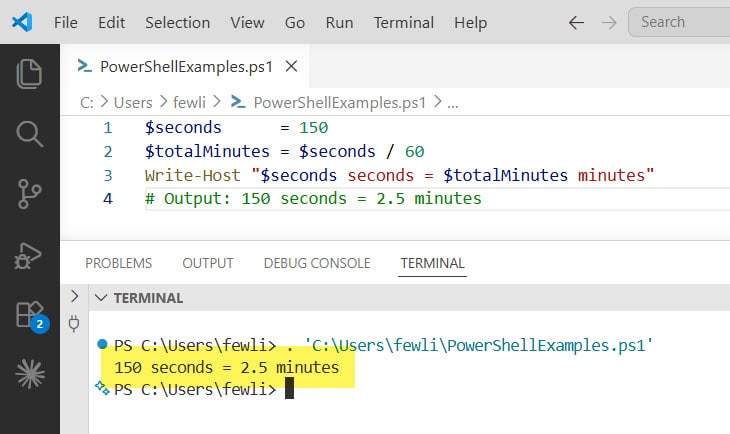
$seconds      = 150
$totalMinutes = $seconds / 60
Write-Host "$seconds seconds = $totalMinutes minutes"
# Output: 150 seconds = 2.5 minutes
Here is the exact output in the screenshot below;
To get whole minutes and leftover seconds separately:
$seconds    = 150
$minutes    = [Math]::Floor($seconds / 60)
$remaining  = $seconds % 60

Write-Host "$seconds seconds = $minutes min $remaining sec"
# Output: 150 seconds = 2 min 30 sec
Check out Check if a File’s LastWriteTime is Greater Than a Specific Date in PowerShell
Method 2: Using New-TimeSpan (Recommended)
The New-TimeSpan cmdlet is the cleanest and most powerful approach. It creates a TimeSpan object with named properties you can use directly:
$seconds  = 3725
$timespan = New-TimeSpan -Seconds $seconds

Write-Host "Total Minutes : $($timespan.TotalMinutes)"
Write-Host "Hours         : $($timespan.Hours)"
Write-Host "Minutes       : $($timespan.Minutes)"
Write-Host "Seconds       : $($timespan.Seconds)"
Output:
Total Minutes : 62.0833333333333
Hours         : 1
Minutes       : 2
Seconds       : 5
You can see the exact output in the screenshot below:

Key TimeSpan properties:
| Property | Returns |
|---|---|
.TotalMinutes | Total minutes including fractional (e.g. 62.08) |
.TotalSeconds | Total seconds as decimal |
.TotalHours | Total hours including fractional |
.Minutes | Just the minutes component (0–59) |
.Hours | Just the hours component |
.Seconds | Just the seconds component (0–59) |
Use .TotalMinutes when you want the full decimal value. Use .Minutes when you only want the minutes portion of a broken-down time.
Check out Find Dates in Strings with PowerShell
Method 3: Using [TimeSpan]::FromSeconds()
An alternative .NET approach — same result, slightly different syntax:
$seconds  = 3725
$timespan = [TimeSpan]::FromSeconds($seconds)

Write-Host "Total Minutes : $($timespan.TotalMinutes)"
Write-Host "Formatted     : $($timespan.ToString('hh\:mm\:ss'))"
Method 4: Format as mm:ss
When you need a clean MM:SS display string — useful for logs, reports, or console output:
$seconds  = 185
$timespan = New-TimeSpan -Seconds $seconds

# Format as mm:ss
$formatted = $timespan.ToString("mm\:ss")
Write-Host "Duration: $formatted"
# Output: Duration: 03:05
Format as hh:mm:ss
$seconds   = 7385
$timespan  = New-TimeSpan -Seconds $seconds
$formatted = $timespan.ToString("hh\:mm\:ss")
Write-Host "Duration: $formatted"
# Output: Duration: 02:03:05
Note: The backslash before
:escapes the colon as a literal character in the format string — without it, PowerShell treats it as a format specifier.
Read PowerShell Get-Date -UFormat Examples
Method 5: Format with Readable Labels
For human-friendly output in reports and dashboards:
$seconds  = 7385
$ts       = New-TimeSpan -Seconds $seconds

$readable = "{0} hours, {1} minutes, {2} seconds" -f $ts.Hours, $ts.Minutes, $ts.Seconds
Write-Host $readable
# Output: 2 hours, 3 minutes, 5 seconds
Or with a conditional to skip zero values:
function Format-Duration {
    param ([int]$Seconds)

    $ts   = New-TimeSpan -Seconds $Seconds
    $parts = @()

    if ($ts.Hours   -gt 0) { $parts += "$($ts.Hours) hr" }
    if ($ts.Minutes -gt 0) { $parts += "$($ts.Minutes) min" }
    if ($ts.Seconds -gt 0) { $parts += "$($ts.Seconds) sec" }

    if ($parts.Count -eq 0) { return "0 sec" }
    return $parts -join " "
}

Format-Duration -Seconds 45       # 45 sec
Format-Duration -Seconds 150      # 2 min 30 sec
Format-Duration -Seconds 3725     # 1 hr 2 min 5 sec
Format-Duration -Seconds 7200     # 2 hr
Real-World Use Case 1: Measure Script Execution Time
One of the most common uses — measuring how long a script block takes to run and displaying it in minutes and seconds:
$startTime = Get-Date

# --- Simulate workload ---
Start-Sleep -Seconds 75

$endTime  = Get-Date
$elapsed  = $endTime - $startTime   # Returns a TimeSpan

Write-Host "Execution time  : $($elapsed.TotalSeconds) seconds"
Write-Host "In minutes      : $([Math]::Round($elapsed.TotalMinutes, 2)) minutes"
Write-Host "Formatted       : $($elapsed.ToString('mm\:ss'))"
Or use Measure-Command for a one-liner:
$duration = Measure-Command { Start-Sleep -Seconds 75 }

Write-Host "Total seconds : $($duration.TotalSeconds)"
Write-Host "Total minutes : $([Math]::Round($duration.TotalMinutes, 2))"
Write-Host "Formatted     : $($duration.ToString('mm\:ss'))"
Check out PowerShell Get-Date Month Name
Real-World Use Case 2: Convert a Seconds Column in a CSV
A common scenario — a CSV export from a monitoring tool, call center system, or video platform stores durations as raw seconds:
# Sample CSV (calls.csv):
# CallID,AgentName,DurationSeconds
# 1001,Alice,245
# 1002,Bob,67
# 1003,Carol,3612

Import-Csv "C:\Data\calls.csv" -Encoding UTF8 |
    Select-Object CallID,
        AgentName,
        DurationSeconds,
        @{N='DurationMinutes'; E={ [Math]::Round([int]$_.DurationSeconds / 60, 2) }},
        @{N='Formatted';       E={ (New-TimeSpan -Seconds ([int]$_.DurationSeconds)).ToString("mm\:ss") }} |
    Export-Csv "C:\Output\calls_formatted.csv" -NoTypeInformation -Encoding UTF8

Write-Host "Conversion complete."
Output (preview):
CallID AgentName DurationSeconds DurationMinutes Formatted
------ --------- --------------- --------------- ---------
1001   Alice     245             4.08            04:05
1002   Bob       67              1.12            01:07
1003   Carol     3612            60.2            01:12 (hh:mm needed here)
For calls over an hour, switch the format to hh\:mm\:ss:
@{N='Formatted'; E={
    $ts = New-TimeSpan -Seconds ([int]$_.DurationSeconds)
    if ($ts.Hours -gt 0) { $ts.ToString("hh\:mm\:ss") } else { $ts.ToString("mm\:ss") }
}}
Real-World Use Case 3: Display System Uptime in Minutes
Here is another use case to display system uptime in minutes in PowerShell.
$os      = Get-CimInstance Win32_OperatingSystem
$uptime  = (Get-Date) - $os.LastBootUpTime

Write-Host "System Uptime"
Write-Host "-------------"
Write-Host "Total seconds : $([int]$uptime.TotalSeconds)"
Write-Host "Total minutes : $([Math]::Round($uptime.TotalMinutes, 1))"
Write-Host "Total hours   : $([Math]::Round($uptime.TotalHours, 2))"
Write-Host "Formatted     : $($uptime.Days)d $($uptime.Hours)h $($uptime.Minutes)m"
Check out PowerShell Get Difference Between Two Dates in Minutes
Real-World Use Case 4: Process Event Log Durations
When querying event logs or task history where timestamps give you start/end times and you need the duration in minutes:
$events = Get-WinEvent -LogName "System" -MaxEvents 20 |
    Where-Object { $_.Id -eq 1074 }

$events | ForEach-Object {
    [PSCustomObject]@{
        EventId       = $_.Id
        TimeCreated   = $_.TimeCreated
        # Example: compare to a reference time
        MinutesAgo    = [Math]::Round((New-TimeSpan -Start $_.TimeCreated -End (Get-Date)).TotalMinutes, 1)
    }
} | Format-Table -AutoSize
Build a Complete Reusable ConvertTo-Minutes Function
Here is a complete reusable function that you can use in PowerShell.
function ConvertTo-Minutes {
    <#
    .SYNOPSIS
        Converts seconds to minutes with multiple output format options.
    .PARAMETER Seconds
        Input value in seconds.
    .PARAMETER Format
        Output format: Decimal, MMSS, HHMMSS, Readable, Object
    .EXAMPLE
        ConvertTo-Minutes -Seconds 3725 -Format Readable
        # Returns: 1 hr 2 min 5 sec
    .EXAMPLE
        ConvertTo-Minutes -Seconds 185 -Format MMSS
        # Returns: 03:05
    #>
    [CmdletBinding()]
    param (
        [Parameter(Mandatory, ValueFromPipeline)]
        [double]$Seconds,

        [ValidateSet("Decimal","MMSS","HHMMSS","Readable","Object")]
        [string]$Format = "Decimal"
    )

    process {
        $ts = New-TimeSpan -Seconds $Seconds

        switch ($Format) {
            "Decimal"  {
                [Math]::Round($ts.TotalMinutes, 4)
            }
            "MMSS"     {
                $ts.ToString("mm\:ss")
            }
            "HHMMSS"   {
                $ts.ToString("hh\:mm\:ss")
            }
            "Readable" {
                $parts = @()
                if ($ts.Days    -gt 0) { $parts += "$($ts.Days) day$(if($ts.Days -ne 1){'s'})" }
                if ($ts.Hours   -gt 0) { $parts += "$($ts.Hours) hr" }
                if ($ts.Minutes -gt 0) { $parts += "$($ts.Minutes) min" }
                if ($ts.Seconds -gt 0) { $parts += "$($ts.Seconds) sec" }
                if ($parts.Count -eq 0) { "0 sec" } else { $parts -join " " }
            }
            "Object"   {
                [PSCustomObject]@{
                    InputSeconds   = $Seconds
                    TotalMinutes   = [Math]::Round($ts.TotalMinutes, 4)
                    TotalHours     = [Math]::Round($ts.TotalHours, 4)
                    Days           = $ts.Days
                    Hours          = $ts.Hours
                    Minutes        = $ts.Minutes
                    Seconds        = $ts.Seconds
                    Formatted_MMSS   = $ts.ToString("mm\:ss")
                    Formatted_HHMMSS = $ts.ToString("hh\:mm\:ss")
                }
            }
        }
    }
}
Usage Examples
Here is an example that you can use the above reusable function.
# Decimal total minutes
ConvertTo-Minutes -Seconds 150 -Format Decimal
# 2.5

# MM:SS string
ConvertTo-Minutes -Seconds 185 -Format MMSS
# 03:05

# HH:MM:SS string
ConvertTo-Minutes -Seconds 7385 -Format HHMMSS
# 02:03:05

# Human readable
ConvertTo-Minutes -Seconds 7385 -Format Readable
# 2 hr 3 min 5 sec

# Full object
ConvertTo-Minutes -Seconds 3725 -Format Object

# Pipeline from array
@(45, 150, 3725, 86400) | ConvertTo-Minutes -Format Readable
# 45 sec
# 2 min 30 sec
# 1 hr 2 min 5 sec
# 1 day
Handle Milliseconds
When your input includes milliseconds — from Measure-Command, performance counters, or API response times:
# Total milliseconds to minutes
$ms        = 137500
$ts        = [TimeSpan]::FromMilliseconds($ms)
$minutes   = $ts.TotalMinutes

Write-Host "Milliseconds : $ms"
Write-Host "Total minutes: $([Math]::Round($minutes, 4))"
Write-Host "Formatted    : $($ts.ToString('mm\:ss\.fff'))"
# Output: 02:17.500
Read PowerShell (Get-Date).AddDays(0) [With Examples]
Quick Reference
| Goal | Code |
|---|---|
| Total decimal minutes | $seconds / 60 |
| Whole minutes + seconds | [Math]::Floor($s/60) and $s % 60 |
| TimeSpan from seconds | New-TimeSpan -Seconds $s |
| Total minutes (TimeSpan) | (New-TimeSpan -Seconds $s).TotalMinutes |
Format as mm:ss | (New-TimeSpan -Seconds $s).ToString("mm\:ss") |
Format as hh:mm:ss | (New-TimeSpan -Seconds $s).ToString("hh\:mm\:ss") |
| From milliseconds | [TimeSpan]::FromMilliseconds($ms).TotalMinutes |
| Measure script time | (Measure-Command { ... }).TotalMinutes |
Mistakes I See Most People Make
Here are some mistakes that I see most people make and you should avoid this.
1. Using .Minutes instead of .TotalMinutes
.Minutes returns only the minutes component (0–59) of the TimeSpan. For 3725 seconds, .Minutes returns 2 (just the minutes portion of “1h 2m 5s”), while .TotalMinutes returns 62.08 (the full duration in minutes). Always use .TotalMinutes when you want the complete value.
2. Forgetting to escape the colon in format strings
$ts.ToString("mm:ss") returns unexpected output because : is a format specifier inside ToString. Always escape it with a backslash: "mm\:ss".
3. Integer division losing decimal precision
$seconds / 60 with integer inputs returns a decimal in PowerShell, which is correct. But if you’ve explicitly cast your variable as [int], division stays integer: [int]150 / 60 = 2 (not 2.5). Cast to [double] first if you need decimal minutes: [double]$seconds / 60.
4. Using Get-Date for duration formatting
Some beginners try to format durations using Get-Date -Minute $m -Second $s — this is wrong because Get-Date works with actual clock times, not durations. Always use New-TimeSpan or [TimeSpan]::FromSeconds() for duration values.
5. Not handling large values
New-TimeSpan -Seconds 86400 = exactly 1 day. The .ToString("hh\:mm\:ss") format shows only 00:00:00 because hh only captures the hours component (0–23), not total hours. For multi-day values, include days: $ts.ToString("dd\:hh\:mm\:ss") or use the Readable format pattern.
Best Practices
Here are some best practices that you can follow.
- Use
New-TimeSpan -Secondsas your default approach — it’s readable, flexible, and gives you access to all time components - Always use
.TotalMinutesfor the complete decimal value — use.Minutesonly when you need the isolated minutes component - Escape colons in format strings with backslash —
"mm\:ss"not"mm:ss" - Use
Measure-Commandfor script duration measurement — it’s cleaner than manualGet-Datesubtraction - Round
.TotalMinutesfor display —[Math]::Round($ts.TotalMinutes, 2)avoids long floating-point strings in output - Handle days separately for long durations — values over 24 hours need
$ts.Daysincluded in your formatted output
Conclusion
Converting seconds to minutes in PowerShell is most cleanly handled through New-TimeSpan -Seconds, which gives you a rich TimeSpan object with .TotalMinutes, .Minutes, .Hours, and built-in format strings like "mm\:ss" and "hh\:mm\:ss".
The reusable ConvertTo-Minutes function covers all output formats — decimal, clock-style strings, human-readable labels, and a full object — and works natively in pipelines for bulk processing CSV columns, log entries, and performance data.
You may also like:
- Find Files Modified After a Specific Date Using PowerShell
- Find Files Modified Between Dates Using PowerShell

Bijay Kumar is an esteemed author and the mind behind PowerShellFAQs.com, where he shares his extensive knowledge and expertise in PowerShell, with a particular focus on SharePoint projects. Recognized for his contributions to the tech community, Bijay has been honored with the prestigious Microsoft MVP award. With over 15 years of experience in the software industry, he has a rich professional background, having worked with industry giants such as HP and TCS. His insights and guidance have made him a respected figure in the world of software development and administration. Read more.
