
When working with PowerShell scripts, you often need to work with file and folder paths. For example, you might be writing a script that processes files inside a directory, copies files to another location, or logs information about specific folders. In many cases, scripts require the absolute path of a directory instead of a relative path to correctly locate files.
However, many users are unsure how to retrieve the full absolute path of a directory in PowerShell, especially when they only know the folder name or are working with relative paths inside a script. This can sometimes cause scripts to fail or reference the wrong location.
PowerShell provides simple commands that let you quickly and reliably retrieve the absolute path of a directory.
In this tutorial, we will learn how to get the absolute path of a directory using PowerShell, along with practical examples.
What Is an Absolute Path Anyway?
Before we dive in, let’s make sure we’re on the same page.
An absolute path is the complete path to a file or folder from the root of your drive. It includes everything – the drive letter, all parent folders, and the target folder name.
For example:
- Absolute path:
C:\Users\John\Documents\Projects\MyApp - Relative path:
.\MyAppor..\Documents
Absolute paths always start from the root (like C:\) and give you the full location. No ambiguity, no guesswork.
Here are some real-world scenarios where you’ll need absolute paths:
- Script portability: Your script needs to know the exact locations regardless of where it’s run from
- Logging: You want to record exact file locations in log files
- File operations: Copying, moving, or referencing files across different directories
- Working with APIs: Many tools and APIs require absolute paths, not relative ones
- Troubleshooting: Sometimes you just need to know “where the heck am I?”
Method 1: Using Get-Location (The Simplest Way)
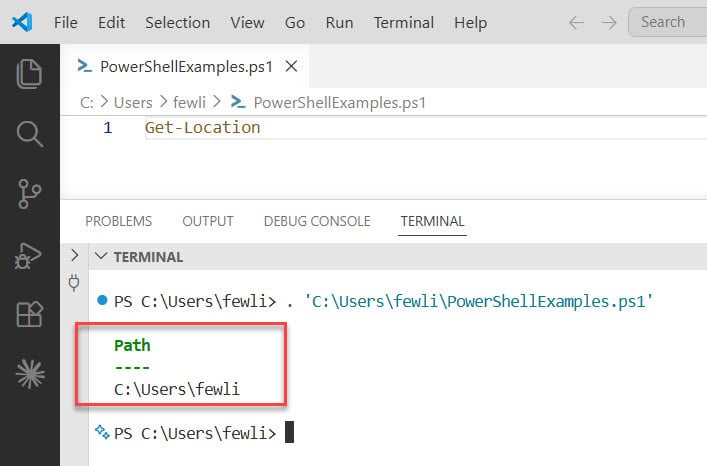
Let’s start with the easiest method. If you just want to know the absolute path of your current directory, use Get-Location.
Get-LocationThat’s it. Run that command, and PowerShell will spit out the full path of where you currently are.
You’ll get something like:
Path
----
C:\Users\fewli
You can see the exact output in the screenshot below:
Get Just the Path String
Sometimes you don’t want the formatted output – you just want the path as a plain string. Here’s how:
(Get-Location).PathOr you can use the shorthand:
$pwd.PathThe $pwd variable is a built-in variable that always contains your current location. Pretty handy.
Check out Copy Files from One Folder to Another in PowerShell
Method 2: Using Resolve-Path (The Power User’s Choice)
Now we’re getting to the good stuff. Resolve-Path is what you use when you have a relative path and want to convert it to an absolute path.
Here’s the basic syntax:
Resolve-Path -Path ".\SomeFolder"This command takes whatever relative path you give it and returns the absolute path.
Practical Examples
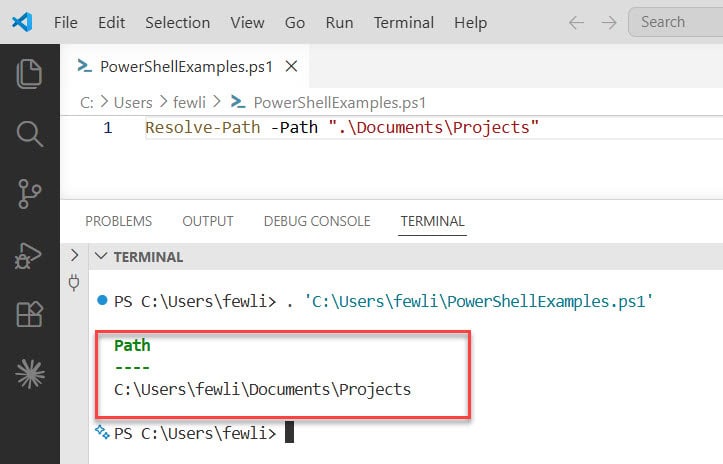
Let’s say you’re in C:\Users\fewli and you want to know the absolute path of a subfolder:
Resolve-Path -Path ".\Documents\Projects"Result: C:\Users\fewli\Documents\Projects
You can see the exact output in the screenshot below:
You can also go up directories:
Resolve-Path -Path "..\Public"If you’re in C:\Users\fewli, this gives you C:\Users\Public.
Getting Just the String
Just like with Get-Location, you can get the path as a plain string:
(Resolve-Path -Path ".\SomeFolder").PathOr even simpler:
Resolve-Path ".\SomeFolder" | Select-Object -ExpandProperty PathThe Wildcard Trick
Here’s something cool – Resolve-Path supports wildcards. Want absolute paths for all folders starting with “Project”?
Resolve-Path -Path ".\Project*"You’ll get a list of all matching folders with their full paths.
Read PowerShell Import-CSV Foreach
Method 3: Using Convert-Path (The Clean Option)
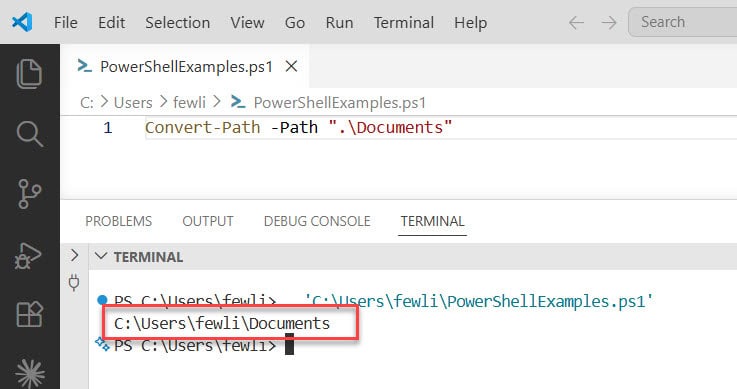
This is my personal favorite for most situations. Convert-Path is like Resolve-Path, but it returns just the string by default. No extra formatting, no objects – just the path.
Convert-Path -Path ".\Documents"That’s it. Clean and simple.
You can see the exact output in the screenshot below:
Why I Like Convert-Path
- Returns a string directly (no need for
.PathorSelect-Object) - Works with relative paths
- Less typing
- Perfect for variable assignments
Example:
Here is an example.
$projectPath = Convert-Path ".\MyProject"
Write-Host "Project is located at: $projectPath"
Check out Check if a File’s LastWriteTime is Greater Than a Specific Date in PowerShell
Method 4: Using .NET (When You Need More Control)
Sometimes you need to get an absolute path without changing your current directory or even checking if the path exists. That’s where .NET methods come in handy.
[System.IO.Path]::GetFullPath(".\SomeFolder")This method converts relative paths to absolute paths based on the current directory, but here’s the kicker – it doesn’t verify the path exists. It just does the math.
When to Use This
- You’re building a path that doesn’t exist yet
- You need to construct paths programmatically
- You’re working with paths from user input
- Performance matters (this is faster than filesystem checks)
Example: Building Paths
Here is an example.
$basePath = "C:\Projects"
$relativePath = "..\Documents\Files"
$fullPath = [System.IO.Path]::GetFullPath((Join-Path $basePath $relativePath))
Read Convert Excel Files to CSV Using PowerShell
Getting Absolute Paths of Specific Directories
Let’s look at some specific scenarios you’ll run into.
Get the Absolute Path of a Specific Folder
If you know the folder name but not its full path:
$folderName = "MyProject"
Get-ChildItem -Path "C:\Users\John" -Recurse -Directory -Filter $folderName | Select-Object -ExpandProperty FullName
This searches recursively and returns the full path of any matching folder.
Get the Absolute Path of the Script’s Directory
When you’re writing a script and need to know where the script itself is located:
$scriptPath = $PSScriptRoot$PSScriptRoot is a built-in variable that contains the directory path of the script that’s currently executing.
Super useful for scripts that need to reference files relative to their own location:
$configFile = Join-Path $PSScriptRoot "config.json"
$absoluteConfigPath = Convert-Path $configFile
Get the Absolute Path of User Folders
PowerShell has some handy shortcuts for common user folders:
# Documents folder
[Environment]::GetFolderPath("MyDocuments")

# Desktop
[Environment]::GetFolderPath("Desktop")

# Application Data
[Environment]::GetFolderPath("ApplicationData")
These always return absolute paths, regardless of where you’re running the command from.
Check out PowerShell Find File by Name Wildcard Examples
Working with Multiple Paths
Sometimes you need absolute paths for multiple items. Here’s how to handle that efficiently.
Get Absolute Paths for All Subfolders
Get-ChildItem -Directory | ForEach-Object { $_.FullName }This gives you the absolute path of every subfolder in your current directory.
Store Multiple Paths in a Variable
$allFolders = Get-ChildItem -Directory | Select-Object -ExpandProperty FullNameNow $allFolders is an array containing absolute paths of all folders.
Common Mistakes and How to Avoid Them
Let me share some mistakes I’ve run into over the years.
Mistake 1: Forgetting the Path Doesn’t Exist
Resolve-Path and Convert-Path will throw errors if the path doesn’t exist. If you’re not sure whether a path exists, check first:
if (Test-Path ".\SomeFolder") {
    $path = Convert-Path ".\SomeFolder"
    Write-Host "Path: $path"
} else {
    Write-Host "Path doesn't exist"
}
Or use the .NET method which doesn’t care if the path exists:
$path = [System.IO.Path]::GetFullPath(".\SomeFolder")Mistake 2: Using String Concatenation for Paths
Don’t do this:
$badPath = "C:\Users\John" + "\Documents"Do this instead:
$goodPath = Join-Path "C:\Users\John" "Documents"Join-Path handles path separators correctly and works across different operating systems.
Mistake 3: Not Handling Spaces in Paths
Paths with spaces can be tricky. Always use quotes:
Convert-Path ".\My Folder With Spaces"Complete PowerShell Script
Here’s a real-world example that combines several techniques:
# Get the script's directory
$scriptDir = $PSScriptRoot

# Build paths relative to script location
$dataFolder = Join-Path $scriptDir "Data"
$outputFolder = Join-Path $scriptDir "Output"

# Convert to absolute paths (create if they don't exist)
if (-not (Test-Path $dataFolder)) {
    New-Item -Path $dataFolder -ItemType Directory | Out-Null
}
if (-not (Test-Path $outputFolder)) {
    New-Item -Path $outputFolder -ItemType Directory | Out-Null
}

$dataPath = Convert-Path $dataFolder
$outputPath = Convert-Path $outputFolder

Write-Host "Data folder: $dataPath"
Write-Host "Output folder: $outputPath"

# Get absolute paths of all CSV files in data folder
$csvFiles = Get-ChildItem -Path $dataPath -Filter "*.csv" | Select-Object -ExpandProperty FullName

Write-Host "`nFound $($csvFiles.Count) CSV files:"
$csvFiles | ForEach-Object { Write-Host "  $_" }
This script shows you how to work with relative paths, create directories if needed, convert to absolute paths, and list files – all common tasks you’ll encounter.
Quick References
Here’s a quick summary of the commands we covered:
- Get current directory absolute path:
Get-Locationor$pwd.Path - Convert relative to absolute (path must exist):
Convert-Path ".\folder" - Resolve path with wildcards:
Resolve-Path ".\folder*" - Get absolute path without checking existence:
[System.IO.Path]::GetFullPath(".\folder") - Get script’s directory:
$PSScriptRoot - Get folder’s full path property:
(Get-Item ".\folder").FullName - Join paths safely:
Join-Path "C:\Users" "John"
Wrapping Up
In this tutorial, we explored how to get the absolute path of a directory using PowerShell. Retrieving the full directory path is very useful when writing scripts that need to work with files and folders reliably.
We also looked at different ways to obtain the absolute path, which can help ensure your scripts reference the correct location instead of relying on relative paths. This is especially important when working with file operations, automation scripts, and system administration tasks.
By using these PowerShell commands, you can easily retrieve and work with absolute directory paths, making your scripts more accurate and easier to maintain.
You may like the following tutorials:
- Find the Most Recent File in a Directory with PowerShell
- How to Find Passwords in Files with PowerShell?
- PowerShell Get-ChildItem Files Only

Bijay Kumar is an esteemed author and the mind behind PowerShellFAQs.com, where he shares his extensive knowledge and expertise in PowerShell, with a particular focus on SharePoint projects. Recognized for his contributions to the tech community, Bijay has been honored with the prestigious Microsoft MVP award. With over 15 years of experience in the software industry, he has a rich professional background, having worked with industry giants such as HP and TCS. His insights and guidance have made him a respected figure in the world of software development and administration. Read more.
