
To check hard drive space using PowerShell, run Get-Volume. It shows the free space (SizeRemaining) and total size of each drive, and it works without admin rights in Windows PowerShell 5.1 and PowerShell 7:
Get-Volume -DriveLetter C | Select-Object DriveLetter, SizeRemaining, SizeOutput:
DriveLetter SizeRemaining          Size
----------- -------------          ----
          C  375963209728 1022815629312
For a report you can reuse, including free space in GB, percent free and remote servers, query Win32_LogicalDisk. I’ll build that below.
I tested every command on Windows 11 in both PowerShell versions, and I’ll call out the few places where they differ.
Check free disk space with Get-PSDrive
Get-PSDrive is the quickest way to see used and free space. The default view already rounds both to GB:
Get-PSDrive -PSProvider FileSystemOutput:
Name           Used (GB)     Free (GB) Provider      Root                                               CurrentLocation
----           ---------     --------- --------      ----                                               ---------------
C                 602.43        350.14 FileSystem    C:\                                                         psfaqs
Temp              602.43        350.14 FileSystem    C:\Users\alice\AppData\Local\Temp\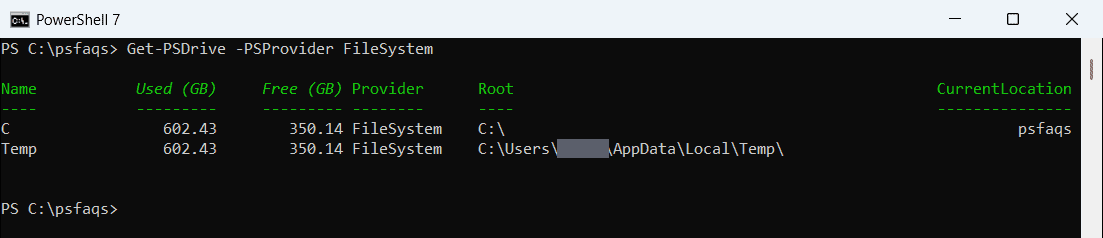
Notice the Temp row. PowerShell 7.4 added a Temp: drive that points to your temp folder, so it repeats the numbers of drive C. Windows PowerShell 5.1 doesn’t have it.
To work with the numbers, select the drive and convert the raw bytes yourself:
Get-PSDrive -Name C | Select-Object Name,
    @{ Name = 'UsedGB'; Expression = { [math]::Round($_.Used / 1GB, 2) } },
    @{ Name = 'FreeGB'; Expression = { [math]::Round($_.Free / 1GB, 2) } }
Output:
Name  UsedGB  FreeGB
----  ------  ------
C    602.430 350.140
Get free disk space in GB with Get-Volume
Get-Volume adds the file system, volume label and health status. Here’s a cleaner table with the space in GB:
Get-Volume | Where-Object DriveType -eq 'Fixed' |
    Select-Object DriveLetter, FileSystemLabel, FileSystem, HealthStatus,
        @{ Name = 'FreeGB'; Expression = { [math]::Round($_.SizeRemaining / 1GB, 2) } },
        @{ Name = 'SizeGB'; Expression = { [math]::Round($_.Size / 1GB, 2) } } |
    Format-Table -AutoSize
Output:
DriveLetter FileSystemLabel FileSystem HealthStatus  FreeGB  SizeGB
----------- --------------- ---------- ------------  ------  ------
                            NTFS       Healthy        0.110   1.020
C           Windows         NTFS       Healthy      350.140 952.570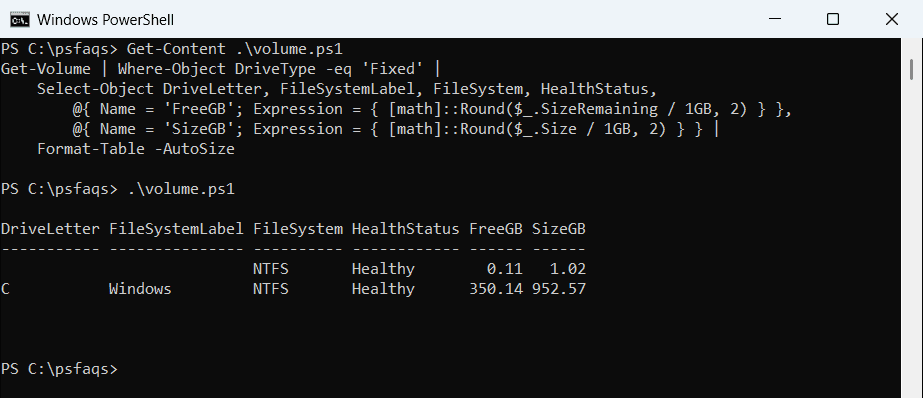
The row without a drive letter is the Windows recovery partition. Add Where-Object DriveLetter if you only want lettered drives.
The Get-Volume documentation lists every property it returns.
Check disk space with Win32_LogicalDisk
For scripts, I prefer the Win32_LogicalDisk CIM class. It works on any Windows version, it takes a -ComputerName parameter, and DriveType = 3 keeps only local hard drives.
This function returns size, free space and percent free for each drive:
function Get-DiskSpace {
    [CmdletBinding()]
    param([string[]]$ComputerName)

    $cim = @{ ClassName = 'Win32_LogicalDisk'; Filter = 'DriveType = 3' }
    if ($ComputerName) { $cim.ComputerName = $ComputerName }    # remote PCs only (uses WinRM)

    Get-CimInstance @cim |
        Select-Object @{ Name = 'Computer';  Expression = { $_.SystemName } },
                      @{ Name = 'Drive';     Expression = { $_.DeviceID } },
                      @{ Name = 'SizeGB';    Expression = { [math]::Round($_.Size / 1GB, 2) } },
                      @{ Name = 'FreeGB';    Expression = { [math]::Round($_.FreeSpace / 1GB, 2) } },
                      @{ Name = 'PercentFree'; Expression = { [math]::Round($_.FreeSpace / $_.Size * 100, 1) } }
}

Get-DiskSpace | Format-Table -AutoSize
Output:
Computer Drive  SizeGB  FreeGB PercentFree
-------- -----  ------  ------ -----------
PC-01    C:    952.570 350.140      36.800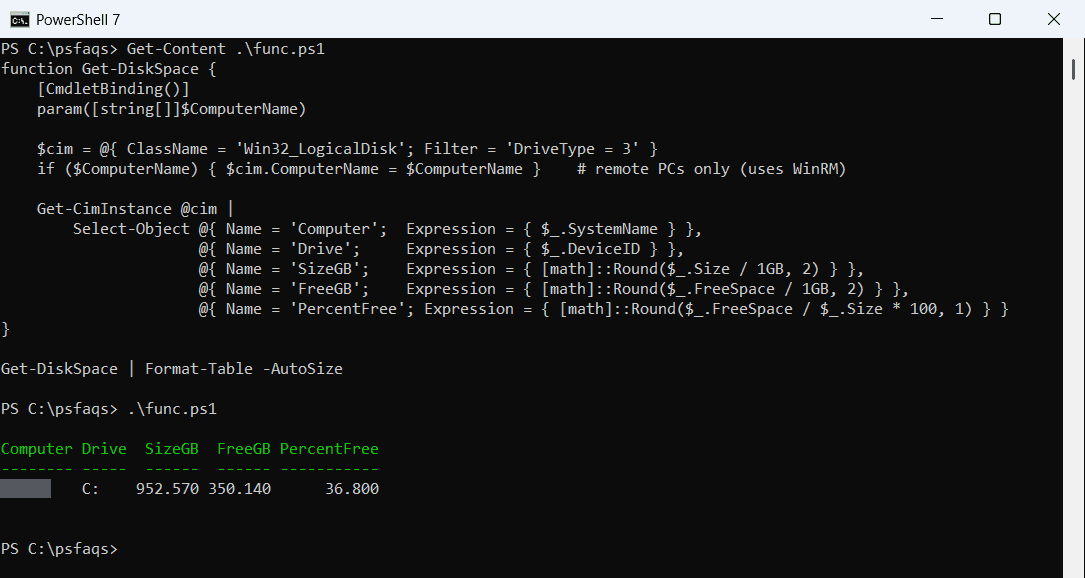
Many older scripts use Get-WmiObject Win32_LogicalDisk. That cmdlet was removed in PowerShell 7, so use Get-CimInstance instead. The properties are the same.
How do I alert when a drive is low on space?
Once you have PercentFree, a threshold check is a few lines. This prints a warning for any drive under 15% free:
# Get-DiskSpace from the previous section must be loaded first
$threshold = 15    # percent

Get-DiskSpace | ForEach-Object {
    if ($_.PercentFree -lt $threshold) {
        Write-Warning "$($_.Computer) $($_.Drive) is low on space: $($_.FreeGB) GB free ($($_.PercentFree)%)"
    }
    else {
        "$($_.Computer) $($_.Drive) is OK: $($_.FreeGB) GB free ($($_.PercentFree)%)"
    }
}
Output:
PC-01 C: is OK: 350.14 GB free (36.8%)Schedule it with Task Scheduler, or send the warning by email or to Teams instead of the console.
Check disk space on a remote computer
Get-DiskSpace passes -ComputerName straight to Get-CimInstance, so you can check several servers at once:
Get-DiskSpace -ComputerName 'SRV01', 'SRV02', 'SQL01' |
    Sort-Object PercentFree |
    Format-Table -AutoSize

# save a report
Get-DiskSpace -ComputerName (Get-Content .\servers.txt) |
    Export-Csv .\disk-space-report.csv -NoTypeInformation
The function only adds -ComputerName when you pass one. That’s deliberate: even your own computer name makes Get-CimInstance connect through WinRM. On my PC, where the WinRM service isn’t running, that failed with “The client cannot connect to the destination specified in the request.”
CIM connects over WinRM, so remoting must be enabled on the servers and you need admin rights there. The Computer column comes from each server’s own name, so the report shows where every row came from.
If a server doesn’t answer, enable WinRM with PowerShell on it first.
Get disk space without WMI using .NET
The .NET DriveInfo class reads free space directly and runs fast. In PowerShell 7, it also works on macOS and Linux:
[System.IO.DriveInfo]::GetDrives() |
    Where-Object { $_.DriveType -eq 'Fixed' -and $_.IsReady } |
    Select-Object Name,
        @{ Name = 'FreeGB';  Expression = { [math]::Round($_.AvailableFreeSpace / 1GB, 2) } },
        @{ Name = 'TotalGB'; Expression = { [math]::Round($_.TotalSize / 1GB, 2) } }
Output:
Name  FreeGB TotalGB
----  ------ -------
C:\  350.140 952.570
AvailableFreeSpace respects disk quotas for the current user. TotalFreeSpace ignores them, so the two can differ on shared servers.
Why does my 1 TB drive show 952 GB?
Drive makers count 1 TB as 1,000,000,000,000 bytes. PowerShell’s 1GB constant is 1,073,741,824 bytes (230), the same unit File Explorer calls GB:
$bytes = (Get-CimInstance Win32_LogicalDisk -Filter "DeviceID = 'C:'").Size
"Bytes:            {0:N0}" -f $bytes
"Decimal TB:       {0:N2}" -f ($bytes / 1e12)
"PowerShell GB:    {0:N2}" -f ($bytes / 1GB)
"1GB in PowerShell = {0:N0} bytes" -f 1GB
Output:
Bytes:            1,022,815,629,312
Decimal TB:       1.02
PowerShell GB:    952.57
1GB in PowerShell = 1,073,741,824 bytes
So nothing is missing. The same drive is 1.02 TB in decimal units and 952.57 GB in the binary units Windows and PowerShell use.
Get-Disk vs. Get-Volume
People often try Get-Disk first. It lists the physical disks, not free space:
Get-Disk | Select-Object Number, FriendlyName, PartitionStyle,
    @{ Name = 'SizeGB'; Expression = { [math]::Round($_.Size / 1GB, 2) } }
Output:
Number FriendlyName        PartitionStyle  SizeGB
------ ------------        --------------  ------
     0 KBG50ZNV1T02 KIOXIA GPT            953.870
Use Get-Disk to check disk numbers, partition style or health. Use Get-Volume, Get-PSDrive or Win32_LogicalDisk to check free space.
Frequently Asked Questions
What is the PowerShell command to check disk space?
Run Get-Volume or Get-PSDrive -PSProvider FileSystem. For free space in GB and percent free, query Get-CimInstance Win32_LogicalDisk -Filter 'DriveType = 3'.
How do I get free disk space in GB with PowerShell?
Divide the byte value by the built-in 1GB constant and round it, for example [math]::Round($_.FreeSpace / 1GB, 2).
How do I check disk space on a remote computer?
Use Get-CimInstance Win32_LogicalDisk -ComputerName SRV01 -Filter 'DriveType = 3'. WinRM must be enabled on the remote computer.
Do I need to run PowerShell as administrator to check disk space?
No. Get-Volume, Get-PSDrive and Win32_LogicalDisk all work as a standard user on the local computer. Remote checks need admin rights on the target.
Why doesn’t Get-WmiObject work in PowerShell 7?
The WMI v1 cmdlets were removed in PowerShell 7. Use Get-CimInstance, which returns the same Win32_LogicalDisk data. See Microsoft’s differences between Windows PowerShell 5.1 and PowerShell 7.
You might also find these storage guides useful:
- Get the size of a folder in PowerShell
- Find the largest folders using PowerShell
- List drives in PowerShell
- Get computer information using PowerShell

Bijay Kumar is an esteemed author and the mind behind PowerShellFAQs.com, where he shares his extensive knowledge and expertise in PowerShell, with a particular focus on SharePoint projects. Recognized for his contributions to the tech community, Bijay has been honored with the prestigious Microsoft MVP award. With over 15 years of experience in the software industry, he has a rich professional background, having worked with industry giants such as HP and TCS. His insights and guidance have made him a respected figure in the world of software development and administration. Read more.