
To get the .NET version using PowerShell, check two things: the .NET Framework version in the registry, and the modern .NET runtimes with dotnet --list-runtimes. Windows can have both installed side by side.
Below I show both checks, plus how to see which .NET your PowerShell session runs on. I ran them on Windows 11 in PowerShell 7.6 and 5.1.
Get the .NET Framework version from the registry
For .NET Framework 4.5 and later, Windows stores a Release number in the registry. Microsoft publishes the table that maps it to a version:
$release = Get-ItemPropertyValue -LiteralPath 'HKLM:\SOFTWARE\Microsoft\NET Framework Setup\NDP\v4\Full' -Name Release
$version = switch ($release) {
    { $_ -ge 533320 } { '4.8.1 or later'; break }
    { $_ -ge 528040 } { '4.8'; break }
    { $_ -ge 461808 } { '4.7.2'; break }
    { $_ -ge 461308 } { '4.7.1'; break }
    { $_ -ge 460798 } { '4.7'; break }
    default           { 'older than 4.7' }
}
"Release key:            $release"
".NET Framework version: $version"
Output:
Release key:            533509
.NET Framework version: 4.8.1 or later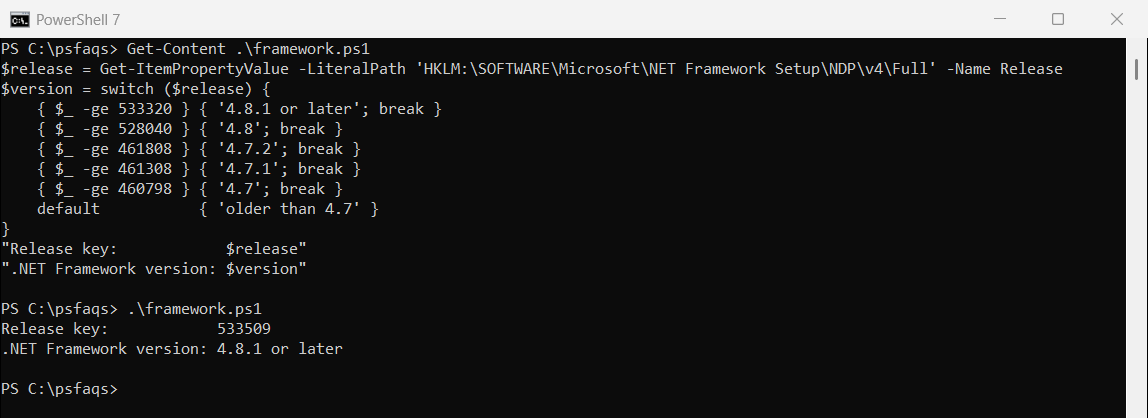
533509 is the 4.8.1 key on Windows 11 2025 Update. Comparing with -ge, from newest to oldest, keeps the check working when new keys appear. The full table is in Microsoft’s guide to installed .NET Framework versions.
Check for .NET Framework 3.5
Older versions live under their own keys. For 3.5, check HKLM:\SOFTWARE\Microsoft\NET Framework Setup\NDP\v3.5 for Install = 1. Installing .NET Framework 3.5 covers the details.
See which .NET your PowerShell runs on
RuntimeInformation.FrameworkDescription reports the runtime of the current process. In PowerShell 7.6 it returns .NET 10:
[System.Runtime.InteropServices.RuntimeInformation]::FrameworkDescriptionOutput:
.NET 10.0.12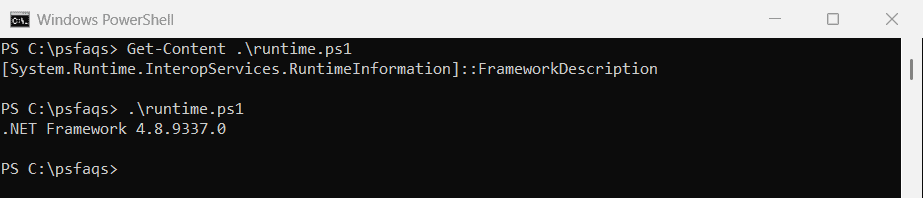
The screenshot shows the same command in Windows PowerShell 5.1, which still runs on .NET Framework. Checking your PowerShell version shows the related $PSVersionTable.
List installed .NET runtimes and SDKs
For .NET 5 and later (and the older .NET Core), the dotnet command lists every installed runtime and SDK:
dotnet --list-runtimes | ForEach-Object {
    $name, $version = ($_ -split ' ')[0, 1]
    '{0,-30} {1}' -f $name, $version
}
"SDKs: $((dotnet --list-sdks | ForEach-Object { ($_ -split ' ')[0] }) -join ', ')"
Output:
Microsoft.AspNetCore.App       6.0.24
Microsoft.AspNetCore.App       7.0.13
Microsoft.NETCore.App          6.0.24
Microsoft.NETCore.App          7.0.13
Microsoft.WindowsDesktop.App   6.0.24
Microsoft.WindowsDesktop.App   7.0.13
SDKs: 7.0.403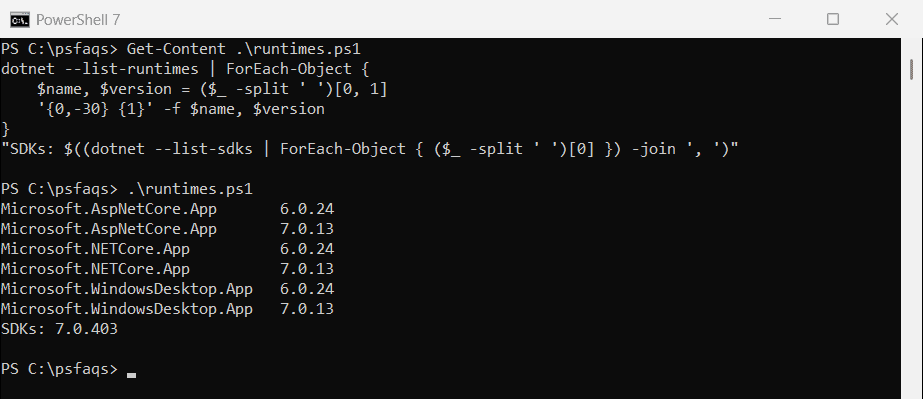
Apps need the right runtime, not an SDK. The SDK is only for building code. Microsoft explains both commands in How to check that .NET is already installed.
Spot runtimes that are out of support
.NET 6 and .NET 7 in this list are both past their end of support, so they no longer get security fixes. Check the .NET lifecycle page and remove old runtimes your apps don’t need.
Check the .NET version on remote computers
The registry check works remotely through Invoke-Command. You need admin rights and WinRM on each PC:
Invoke-Command -ComputerName PC-SALES-07, PC-SALES-08 -ScriptBlock {
    Get-ItemPropertyValue -LiteralPath 'HKLM:\SOFTWARE\Microsoft\NET Framework Setup\NDP\v4\Full' -Name Release
}
Each result comes back with a PSComputerName property, so you can tell the PCs apart.
Frequently Asked Questions
How do I check the .NET Framework version with PowerShell?
Read the Release value under HKLM:\SOFTWARE\Microsoft\NET Framework Setup\NDP\v4\Full and compare it with Microsoft’s table. 533320 or higher means 4.8.1.
How do I check the .NET Core or .NET 8 version?
Run dotnet --list-runtimes. It lists every installed runtime with its version.
What is the difference between .NET Framework and .NET?
.NET Framework 4.x is the Windows-only version built into Windows. .NET 5 and later is the cross-platform successor you install separately.
Which .NET does PowerShell 7 use?
PowerShell 7.6 runs on .NET 10. Windows PowerShell 5.1 runs on .NET Framework 4.8.
Why does dotnet say it isn’t recognized?
No .NET SDK or runtime with the dotnet command is installed. .NET Framework doesn’t include it.
Related version checks:
- Check the PowerShell version
- Get the Windows version
- Install .NET Framework 3.5
- Update PowerShell on Windows 11

Bijay Kumar is an esteemed author and the mind behind PowerShellFAQs.com, where he shares his extensive knowledge and expertise in PowerShell, with a particular focus on SharePoint projects. Recognized for his contributions to the tech community, Bijay has been honored with the prestigious Microsoft MVP award. With over 15 years of experience in the software industry, he has a rich professional background, having worked with industry giants such as HP and TCS. His insights and guidance have made him a respected figure in the world of software development and administration. Read more.