Regular expressions (regex) are used for pattern-matching in PowerShell. As a PowerShell developer or an administrator, you should know how to use Regex in PowerShell. In this tutorial, I will explain everything about PowerShell Regular Expressions (Regex) with examples.
Regular Expressions (Regex) in PowerShell
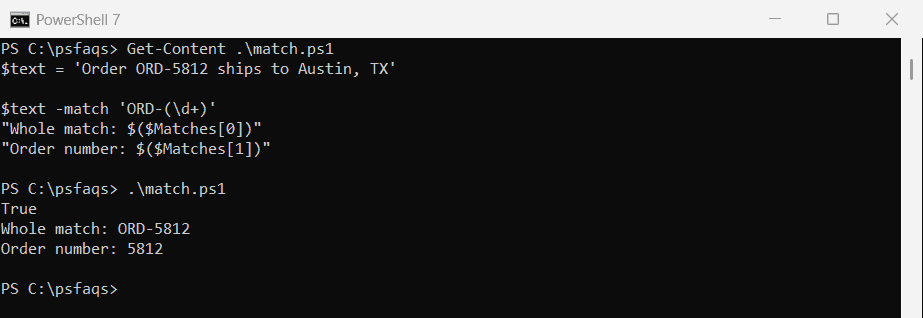
PowerShell leverages the .NET regex engine to provide robust pattern-matching capabilities. PowerShell has several operators and cmdlets that use regular expressions, making it very useful for text processing tasks.
Regex Basics in PowerShell
Let me start with the basics. Regular expressions in PowerShell follow standard syntax with some PowerShell-specific nuances.
# Simple pattern matching
"John Smith" -match "John" # Returns: True
"Jane Doe" -match "John" # Returns: FalseThe -match operator is case-insensitive by default. If you need case-sensitive matching, use -cmatch instead. This distinction is particularly important when working with proper names or case-sensitive identifiers.
PowerShell Regex Operators
PowerShell provides several operators for working with regular expressions:
| Operator | Description | Case-Sensitive Version |
|---|---|---|
| -match | Matches a string against a pattern | -cmatch |
| -notmatch | Negated match | -cnotmatch |
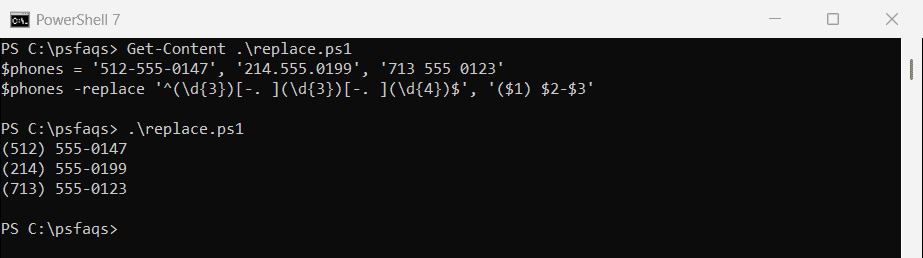
| -replace | Replaces text in a string | -creplace |
| -split | Splits a string into an array | -csplit |
I frequently use these operators when processing configuration files or parsing output from other commands.
Check out PowerShell Filter Operators
Practical PowerShell Regex Use Cases
Let’s explore some real-world scenarios where PowerShell regex can be really useful. I’ll walk through three practical PowerShell regex use cases that I’ve personally implemented in various organizations.
Validating Email Addresses
Email validation is a common requirement in many scripts. Here’s how I approach it:
$emailPattern = "^[a-zA-Z0-9._%+-]+@[a-zA-Z0-9.-]+\.[a-zA-Z]{2,}$"
$email = "robert.johnson@acme-corp.com"
if ($email -match $emailPattern) {
Write-Output "Valid email address"
} else {
Write-Output "Invalid email address"
}This pattern checks for the standard email format with a username, @ symbol, domain name, and top-level domain. The pattern is flexible enough to handle most business email formats while still providing basic validation.
You can see the exact output in the screenshot below:

Extracting MAC Addresses from Logs
When troubleshooting network issues, I often need to extract MAC addresses from log files:
$logContent = Get-Content "C:\Logs\network-devices.log"
$macPattern = "([0-9A-F]{2}[:-]){5}([0-9A-F]{2})"
$macAddresses = $logContent | Where-Object { $_ -match $macPattern } |
ForEach-Object { $matches[0] }
Write-Output "Found MAC addresses:"
$macAddressesThis pattern matches the standard MAC address format (like AA:BB:CC:DD:EE:FF or AA-BB-CC-DD-EE-FF). The script extracts all MAC addresses from the log file and stores them in the $macAddresses variable for further processing.
Check out Filter Empty Values Using PowerShell Where-Object Cmdlet
Validating and Extracting IP Addresses
IP address validation is another common task in network automation:
$ipPattern = "^(?:(?:25[0-5]|2[0-4][0-9]|[01]?[0-9][0-9]?)\.){3}(?:25[0-5]|2[0-4][0-9]|[01]?[0-9][0-9]?)$"
$ipAddress = "192.168.1.1"
if ($ipAddress -match $ipPattern) {
Write-Output "$ipAddress is a valid IPv4 address"
} else {
Write-Output "$ipAddress is not a valid IPv4 address"
}This pattern validates IPv4 addresses by checking that each octet is within the valid range (0-255). I’ve used this in scripts that perform network scans or configuration management.
Read Filter Unique Objects in PowerShell with Where-Object
Advanced PowerShell Regex Techniques
Now, let me show you some advanced PowerShell Regex techniques that you can also use in your scripts.
Using Regex Groups for Data Extraction
Regular expressions enable you to locate and extract data by using capturing groups:
$logEntry = "2025-06-15 14:30:22 - User [ThomasAnderson] accessed server DATACENTER-DC01"
$pattern = "User \[(.*?)\] accessed server (.*)"
if ($logEntry -match $pattern) {
$username = $matches[1]
$server = $matches[2]
Write-Output "User $username accessed server $server"
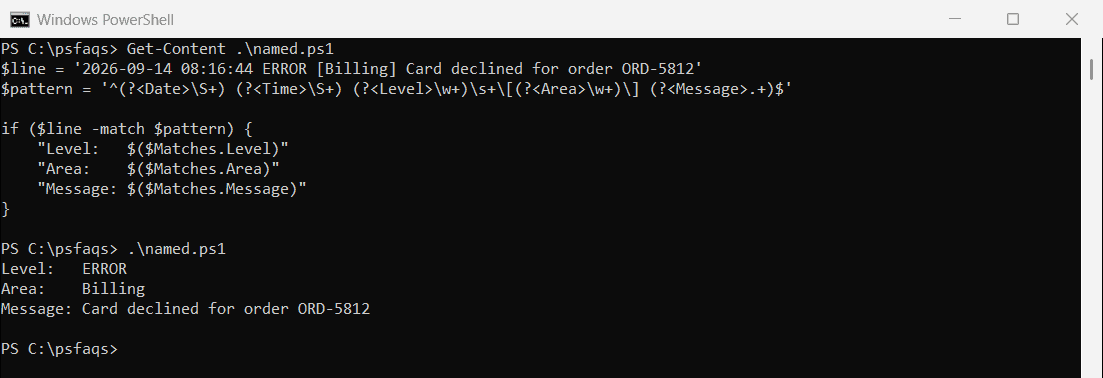
}When a match is found, PowerShell automatically populates the $matches hashtable with the captured groups. This makes it easy to extract specific pieces of information from structured text like log entries.
Here is the exact output in the screenshot below:

Lookahead and Lookbehind Assertions
For more complex pattern matching, lookahead and lookbehind assertions are invaluable:
# Password validation with lookahead assertions
$password = "StrongP@ss123"
$pattern = "^(?=.*[a-z])(?=.*[A-Z])(?=.*\d)(?=.*[@$!%*?&])[A-Za-z\d@$!%*?&]{8,}$"
if ($password -match $pattern) {
Write-Output "Password meets complexity requirements"
} else {
Write-Output "Password does not meet complexity requirements"
}This pattern uses positive lookahead assertions to ensure the password contains at least one lowercase letter, one uppercase letter, one digit, and one special character, and is at least 8 characters long.
Read PowerShell Where-Object vs Filter
Multiline Regex Processing
When working with configuration files or logs, multiline processing is often necessary:
$configFile = @"
[DATABASE]
Server=db-east-01.example.com
Port=1433
Database=Customers
[API]
Endpoint=https://api.example.com/v1
ApiKey=12345abcde
"@
$pattern = "(?ms)^\[DATABASE\](.*?)^\["
if ($configFile -match $pattern) {
$databaseSection = $matches[1].Trim()
Write-Output "Database configuration:"
Write-Output $databaseSection
}The (?ms) modifier enables multiline mode and makes the dot character match newlines. This allows you to extract entire sections from configuration files with a single regex pattern.
Read PowerShell Variables in Quotes
Best Practices for PowerShell Regex
Over the years, I’ve developed some best practices that have served me well when working with regex in PowerShell.
1. Start Simple and Build Complexity
I always recommend starting with the simplest pattern that works and gradually adding complexity. This approach makes debugging easier and helps avoid the “regex soup” that can be challenging to maintain.
2. Use Verbose Regex for Complex Patterns
For complex patterns, use the verbose regex option to make your code more readable:
$emailPattern = @"
(?x) # Enable verbose mode
^ # Start of string
[a-zA-Z0-9._%+-]+ # Username
@ # @ symbol
[a-zA-Z0-9.-]+ # Domain name
\. # Dot
[a-zA-Z]{2,} # Top-level domain
$ # End of string
"@
"jane.smith@acme.com" -match $emailPatternThe (?x) modifier enables verbose mode, allowing you to add comments and whitespace to your regex pattern without affecting the matching behavior.
3. Test and Refine
Several online resources help you work with regular expressions in PowerShell, including:
- Microsoft regular expression documentation
- The Regex101 tester with the .NET (C#) setting
- RegexOne tutorials
- RegExHelper (a GUI tool written in PowerShell)
I frequently use these tools to test and refine my patterns before implementing them in production scripts.
4. Use Regex in Moderation
Regular expressions can be powerful, but should be used in moderation. For simple string operations, PowerShell’s built-in string methods might be more readable and performant. I choose regex when I need pattern-matching capabilities that go beyond simple string operations.
Conclusion
PowerShell regex is useful while working in Windows environments. Throughout my career, I’ve utilized these techniques to automate various tasks, including user account management and infrastructure monitoring.
In this tutorial, I explained how to use PowerShell Regex with various examples. I hope these practical examples will help you to learn more.
You may also like:
- PowerShell: Where-Object vs Select-Object
- PowerShell where-object starts with
- PowerShell Where-Object for Null or Empty Values
Bijay Kumar is an esteemed author and the mind behind PowerShellFAQs.com, where he shares his extensive knowledge and expertise in PowerShell, with a particular focus on SharePoint projects. Recognized for his contributions to the tech community, Bijay has been honored with the prestigious Microsoft MVP award. With over 15 years of experience in the software industry, he has a rich professional background, having worked with industry giants such as HP and TCS. His insights and guidance have made him a respected figure in the world of software development and administration. Read more.