
To get the Windows update history in PowerShell, ask the Windows Update Agent through its Microsoft.Update.Session COM object. QueryHistory returns the same records you see on the Update history page in Settings:
$s = (New-Object -ComObject Microsoft.Update.Session).CreateUpdateSearcher()
$s.QueryHistory(0, $s.GetTotalHistoryCount()) | Select-Object Date, Title
Get-HotFix is quicker to type, but it shows only part of the picture. Below I compare both, decode the result codes, find failed updates, export to CSV and read the event log, in PowerShell 7 and Windows PowerShell 5.1.
List installed updates with Get-HotFix
Get-HotFix reads the Win32_QuickFixEngineering class and returns KB numbers with an install date. I sort newest first and format the date so it doesn’t depend on regional settings:
Get-HotFix |
    Sort-Object InstalledOn, HotFixID -Descending |
    Select-Object HotFixID, Description,
        @{ n = 'InstalledOn'; e = { $_.InstalledOn.ToString('yyyy-MM-dd') } }
Output:
HotFixID  Description     InstalledOn
--------  -----------     -----------
KB5129195 Security Update 2026-10-09
KB5126052 Update          2026-10-09
KB5124007 Security Update 2026-10-09
KB5054156 Update          2025-12-20
To check one update, pass its KB number to -Id. A missing KB writes an error, so silence it and test the result:
foreach ($kb in 'KB5129195', 'KB5000000') {
    if (Get-HotFix -Id $kb -ErrorAction SilentlyContinue) { "$kb is installed" }
    else { "$kb is not installed" }
}
Output:
KB5129195 is installed
KB5000000 is not installed
-Id doesn’t accept wildcards, but -Description does, for example -Description 'Security*'. To see what’s waiting to install instead, check for pending Windows updates.
Why doesn’t Get-HotFix show all updates?
Microsoft documents that Win32_QuickFixEngineering returns only updates supplied by Component Based Servicing. Updates from Windows Installer or the Windows Update site aren’t in it. On my test PC the gap was huge:
$searcher = (New-Object -ComObject Microsoft.Update.Session).CreateUpdateSearcher()
$history  = $searcher.QueryHistory(0, $searcher.GetTotalHistoryCount())
$installed = $history | Where-Object { $_.Operation -eq 1 -and $_.ResultCode -eq 2 }

"Get-HotFix entries:     $(@(Get-HotFix).Count)"
"Update history entries: $($history.Count)"
"Successful installs:    $(@($installed).Count)"
Output:
Get-HotFix entries:     4
Update history entries: 874
Successful installs:    844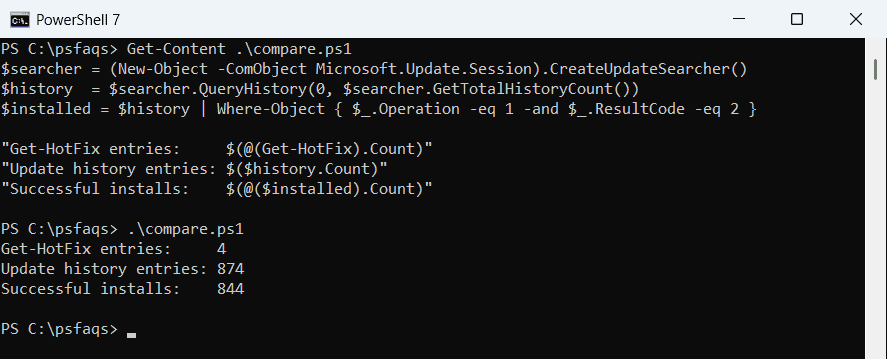
Defender intelligence updates, driver updates, the Malicious Software Removal Tool and Store app updates all land in the history but not in Get-HotFix. To match a cumulative update to your build, get the Windows version too.
Get the full Windows Update history with QueryHistory
QueryHistory(start, count) returns entries newest first, and GetTotalHistoryCount tells you how many exist. ResultCode is a number, so an array turns it into a word. I skip the daily Defender intelligence updates to see the Windows patches:
$searcher = (New-Object -ComObject Microsoft.Update.Session).CreateUpdateSearcher()
$history  = $searcher.QueryHistory(0, $searcher.GetTotalHistoryCount())
$results  = 'Not started', 'In progress', 'Succeeded', 'Succeeded with errors', 'Failed', 'Aborted'

$history |
    Where-Object { $_.Title -match 'KB\d+' -and $_.Title -notmatch 'Security Intelligence' } |
    Select-Object -First 5 @{ n = 'Date (UTC)'; e = { $_.Date.ToString('yyyy-MM-dd HH:mm') } },
        @{ n = 'KB'; e = { [regex]::Match($_.Title, 'KB\d+').Value } },
        @{ n = 'Result'; e = { $results[$_.ResultCode] } },
        @{ n = 'Title'; e = { $_.Title.Substring(0, [math]::Min(46, $_.Title.Length)) } } |
    Format-Table -AutoSize
Output:
Date (UTC)       KB        Result    Title
----------       --        ------    -----
2026-10-15 02:05 KB4052623 Succeeded Update for Microsoft Defender Antivirus antima
2026-10-09 06:07 KB890830  Succeeded Windows Malicious Software Removal Tool x64 -
2026-10-09 02:09 KB5129195 Succeeded 2026-09 Security Update (KB5129195) (26200.945
2026-10-08 09:20 KB5126052 Succeeded 2026-09 .NET Framework Security Update (KB5126
2026-09-18 17:48 KB4052623 Succeeded Update for Microsoft Defender Antivirus antima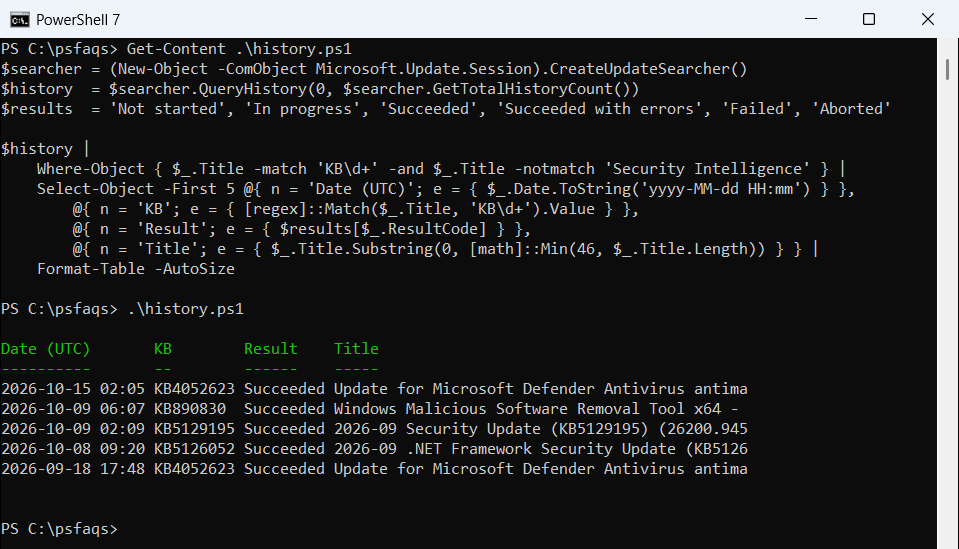
In my tests the Date values matched the event log time in UTC, so I label them that way. The KB column comes from a PowerShell regex match on the title, since the history has no KB property.
Operation is 1 for an installation and 2 for an uninstallation. ResultCode runs from 0 (not started) to 5 (aborted), with 2 for success and 4 for failure.
Find failed Windows updates
Group the history by ResultCode for a quick health check, then list the failures with their HResult in hex, the form error lists use:
$searcher = (New-Object -ComObject Microsoft.Update.Session).CreateUpdateSearcher()
$history  = $searcher.QueryHistory(0, $searcher.GetTotalHistoryCount())
$results  = 'Not started', 'In progress', 'Succeeded', 'Succeeded with errors', 'Failed', 'Aborted'

$history | Group-Object ResultCode | ForEach-Object { '{0,-10} {1}' -f $results[[int]$_.Name], $_.Count }

$history | Where-Object { $_.ResultCode -eq 4 -and $_.Title -match 'KB\d+' } |
    Select-Object -First 3 @{ n = 'Date (UTC)'; e = { $_.Date.ToString('yyyy-MM-dd') } },
        @{ n = 'KB'; e = { [regex]::Match($_.Title, 'KB\d+').Value } },
        @{ n = 'HResult'; e = { '0x{0:X8}' -f $_.HResult } } |
    Format-Table -AutoSize
Output:
Succeeded  844
Failed     26
Aborted    4

Date (UTC) KB        HResult
---------- --        -------
2026-09-03 KB2267602 0x80240016
2026-08-19 KB2267602 0x80240016
2026-06-10 KB2267602 0x80240016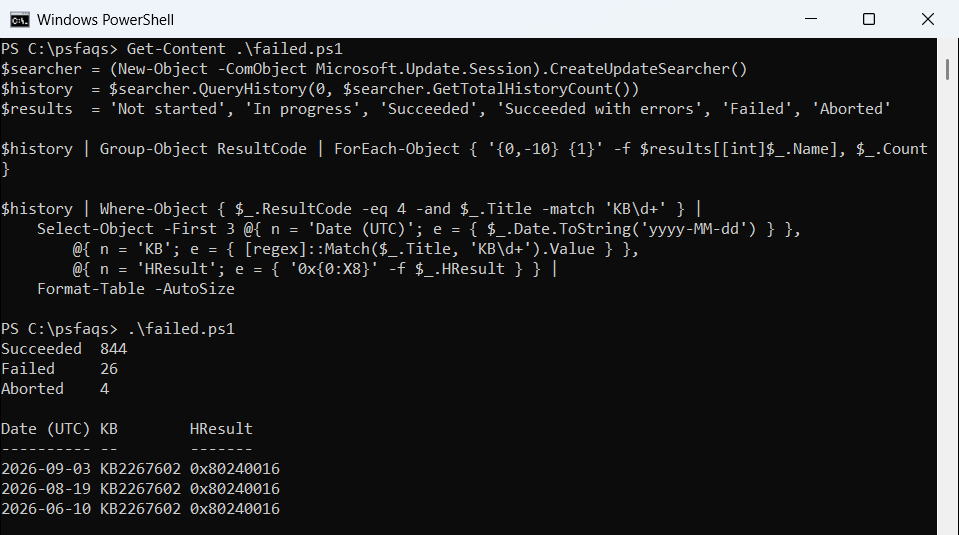
0x80240016 means another installation was running or a restart was pending, so the update simply retried later. Once you know why it failed, you can