
To prompt for input in PowerShell, use Read-Host. It shows your message, waits until the user types something and presses Enter, and returns what they typed:
$name = Read-Host -Prompt 'Enter your first name'
"Hello, $name! Your report is ready."
Output (what I typed follows the colon):
Enter your first name: Maria
Hello, Maria! Your report is ready.
PowerShell adds the colon and space after your prompt text, so leave them out of the message. The value goes into $name, and you can use it like any other variable.
For this guide I ran every script in real PowerShell 7.6 and Windows PowerShell 5.1 consoles and typed the answers in. The outputs show exactly what appeared on screen.
Read-Host always returns text
Even when the user types a number, Read-Host gives you a string. That leads to surprising math:
$licenses = Read-Host -Prompt 'How many licenses'

"Read-Host returned a $($licenses.GetType().Name)"
"Doubled as text:     $($licenses * 2)"
"Doubled as a number: $([int]$licenses * 2)"
Output:
How many licenses: 5
Read-Host returned a String
Doubled as text:     55
Doubled as a number: 10
Multiplying the text '5' by 2 repeats it, so you get 55. Convert the answer with [int] before you calculate. See how to convert a string to an integer for other number types.
Validate the input and ask again
Users make typos, so check the answer and prompt again until it’s valid. -as [int] returns nothing instead of an error when the text isn’t a number:
do {
    $answer   = Read-Host -Prompt 'Number of licenses (1-100)'
    $licenses = $answer -as [int]
} until ($licenses -ge 1 -and $licenses -le 100)

"Ordering $licenses licenses."
Output:
Number of licenses (1-100): ten
Number of licenses (1-100): 250
Number of licenses (1-100): 25
Ordering 25 licenses.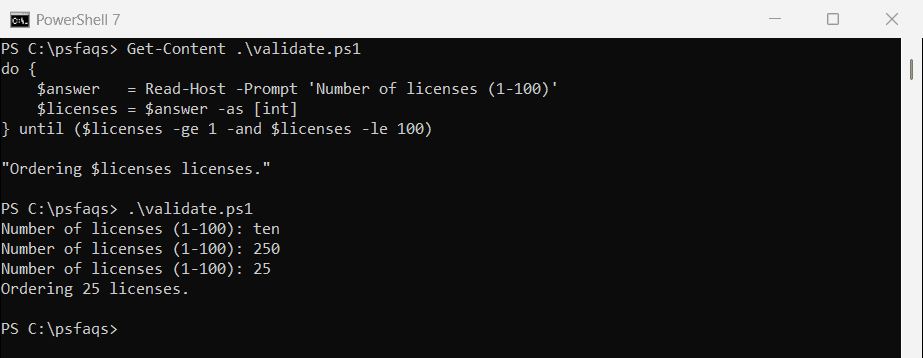
The loop only exits when the answer is a whole number from 1 to 100. “ten” failed the conversion, and 250 was out of range.
How do I give Read-Host a default value?
Read-Host has no default parameter. Show the default in the prompt, then use it when the answer is empty. Here I just pressed Enter:
$city = Read-Host -Prompt 'Office city [Austin]'
if ([string]::IsNullOrWhiteSpace($city)) {
    $city = 'Austin'
}
"Using office: $city"
Output:
Office city [Austin]:
Using office: Austin
IsNullOrWhiteSpace() also catches an answer that’s only spaces, which a plain -eq '' check would miss.
Why ?? doesn’t work here
In PowerShell 7, you might reach for the null-coalescing operator. It doesn’t help, because pressing Enter returns an empty string, not $null:
$city = (Read-Host -Prompt 'Office city [Austin]') ?? 'Austin'
"Using office: [$city]"
Output in PowerShell 7:
Office city [Austin]:
Using office: []
The brackets show that $city is empty. ?? only replaces $null, so stick with the IsNullOrWhiteSpace() check.
Ask a yes or no question
Loop until the answer is one you expect. -in and -eq ignore case, so Y and y both work:
do {
    $reply = Read-Host -Prompt 'Delete 42 old log files? (y/n)'
} until ($reply -in 'y', 'n')

if ($reply -eq 'y') { 'Deleting files...' } else { 'Cancelled. Nothing was deleted.' }
Output:
Delete 42 old log files? (y/n): maybe
Delete 42 old log files? (y/n): n
Cancelled. Nothing was deleted.
For anything destructive, make “no” the safe path, as it is here. The script only deletes when the answer is exactly y.
Read multiple lines of input
Read-Host reads one line at a time, so call it in a loop and stop at an empty line:
$servers = [System.Collections.Generic.List[string]]::new()
while ($true) {
    $name = Read-Host -Prompt 'Server name (press Enter when done)'
    if ([string]::IsNullOrWhiteSpace($name)) { break }
    $servers.Add($name)
}
"You entered $($servers.Count) servers: $($servers -join ', ')"
Output:
Server name (press Enter when done): WEB01
Server name (press Enter when done): WEB02
Server name (press Enter when done): SQL01
Server name (press Enter when done):
You entered 3 servers: WEB01, WEB02, SQL01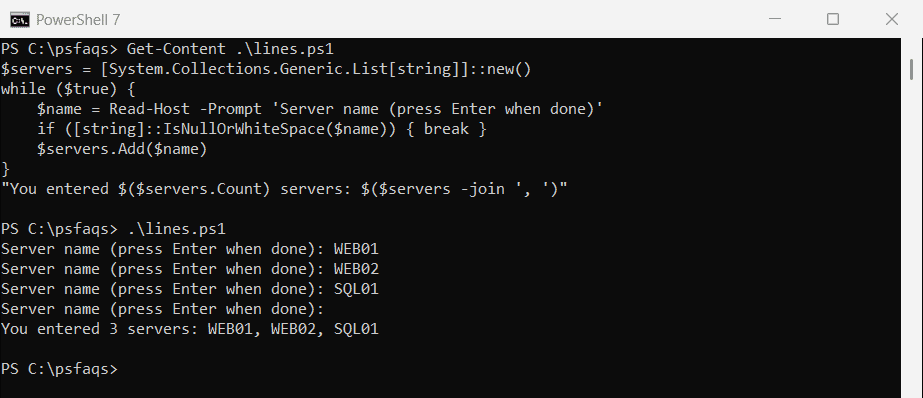
I used a generic List instead of += on an array, which gets slow when the list grows. Each answer can be up to 1,022 characters, which is Read-Host’s limit.
Prompt for a password
Add -AsSecureString and PowerShell shows an asterisk for each character. You get a SecureString back instead of plain text:
$password = Read-Host -Prompt 'Password for svc-backup' -AsSecureString
"Stored as a $($password.GetType().Name) with $($password.Length) characters"
Output:
Password for svc-backup: ************
Stored as a SecureString with 12 characters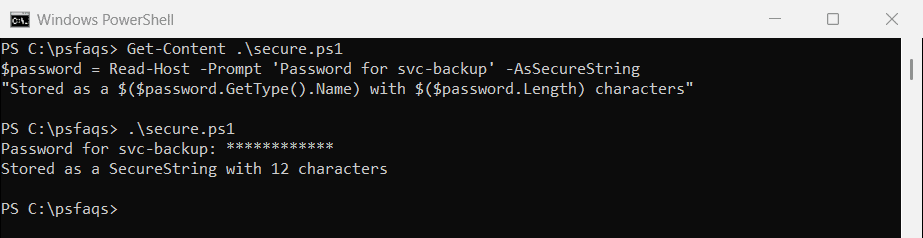
Most cmdlets that need a password, like New-LocalUser, accept a SecureString directly. To sign in with it, build a credential. See how to create a credential object in PowerShell.
Masked input as plain text (PowerShell 7)
PowerShell 7.1 added -MaskInput. The typing is hidden the same way, but you get a normal string:
$pin = Read-Host -Prompt 'Four-digit PIN&