
Your script prints a value, but the next command never sees it, or a function hands back more than you expected. Both puzzles come down to how PowerShell output really works.
Quick answer: PowerShell Write-Output sends objects to the success stream (the pipeline). If nothing consumes them, they’re shown in the console; otherwise the next command, a variable or a function’s caller receives them:
Write-Output 'Order 1001 shipped to Austin, TX'We’ll cover the echo alias, capturing output, function return values, -NoEnumerate (which behaves differently in Windows PowerShell 5.1), files, and what to use for color or no newline.
What You Need Before You Start
Any PowerShell version works, and no admin rights are needed. We tested in PowerShell 7.6 and Windows PowerShell 5.1. If you’re still choosing between the two output cmdlets, our Write-Host vs Write-Output comparison gives the short version.
Step 1: Send Text and Objects With Write-Output
Write-Output, its echo alias and a bare string all do the same job. The fourth line proves the text really travels down the pipeline, because ForEach-Object receives it:
Write-Output 'Order 1001 shipped to Austin, TX'
echo 'Order 1002 shipped to Denver, CO'
'Order 1003 shipped to Seattle, WA'
Write-Output 'Order 1004 shipped to Miami, FL' | ForEach-Object { $_.ToUpper() }
'Aliases: ' + ((Get-Alias -Definition Write-Output).Name -join ', ')
Output:
Order 1001 shipped to Austin, TX
Order 1002 shipped to Denver, CO
Order 1003 shipped to Seattle, WA
ORDER 1004 SHIPPED TO MIAMI, FL
Aliases: echo, write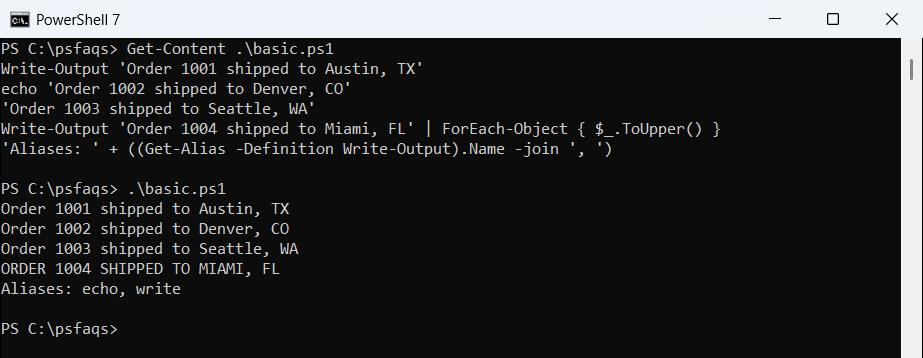
Microsoft lists echo on every platform and write on Windows only. Since a bare value is output anyway, Write-Output is mostly about readability. To show a variable’s value inside a sentence, see printing variables in PowerShell.
Step 2: Capture Write-Output in a Variable
Because Write-Output writes to the success stream (stream 1), assigning it to a variable stores the value instead of printing it. Write-Host writes to the information stream (stream 6), so the variable stays empty:
$saved = Write-Output 'Shipped on 2026-10-15'
$hostLine = Write-Host 'Shown on screen only'
"Write-Output captured: $saved"
"Write-Host captured nothing: $($null -eq $hostLine)"
$info = Write-Host 'Stream 6 message' 6>&1
"Redirected with 6>&1: $($info.GetType().Name)"
Output:
Shown on screen only
Write-Output captured: Shipped on 2026-10-15
Write-Host captured nothing: True
Redirected with 6>&1: InformationRecord
Only the Write-Host line reached the screen. Redirecting with 6>&1 turns it into an InformationRecord object. More on that cmdlet in our Write-Host guide.
Step 3: Return Values From a PowerShell Function
A function returns everything that lands in the success stream, not just the value after return. Here Write-Output, a bare string and return all add an item:
function Get-ShippingReport {
    Write-Host 'Building the report...'
    Write-Output 'Austin, TX'
    'Denver, CO'
    return 'Seattle, WA'
    'This line never runs'
}
$cities = Get-ShippingReport
"Items returned: $($cities.Count)"
$cities
Output:
Building the report...
Items returned: 3
Austin, TX
Denver, CO
Seattle, WA
Three items came back as an array, and the Write-Host line was shown but not returned. The return keyword also exits, so the last line never runs. Our function return values tutorial covers this pattern in depth.
Step 4: Pass an Array as One Object With -NoEnumerate
By default Write-Output unrolls a collection and sends each item separately. -NoEnumerate sends the array as a single object, which Measure-Object counts as 1. We tried five spellings in both shells:
$orders = @(1001, 1002, 1003)
'Default             : ' + (Write-Output $orders | Measure-Object).Count
'