PowerShell New Line in String

When writing PowerShell scripts, one of the most common tasks you’ll encounter is formatting text output. Whether you’re sending messages to the console, writing logs to a file, or generating reports, adding a new line (or line break) is essential for readability and structure.

In this tutorial, we’ll explore multiple ways to add a new line in PowerShell strings, discuss how each method works, and highlight when to use them for the best results. By the end, you’ll know exactly which approach to use in any PowerShell environment — from Windows to cross-platform PowerShell Core.

What Is a New Line in PowerShell?

A new line is a special character sequence that tells PowerShell to move the cursor to the next line when displaying or writing text. It’s the scripting equivalent of pressing Enter on your keyboard.

In PowerShell, new lines can be represented in different ways depending on your platform and use case. Windows traditionally uses a carriage return + line feed (\r\n), while Linux and macOS use a line feed (\n) only. PowerShell supports both formats, allowing you to choose the one that fits your needs.

Now, let me show you several methods for adding a newline to a string in PowerShell.

Method 1: Using the Backtick Character `n

The simplest and most common way to add a new line in PowerShell is to use the backtick escape sequence `n. The backtick () is PowerShell’s escape character, and n` represents a line feed.

Here is an example:

$message = "Hello, World!`nWelcome to PowerShell scripting."
Write-Output $message

Once you execute the above PowerShell script, you will see the output like below:

Hello, World!
Welcome to PowerShell scripting.

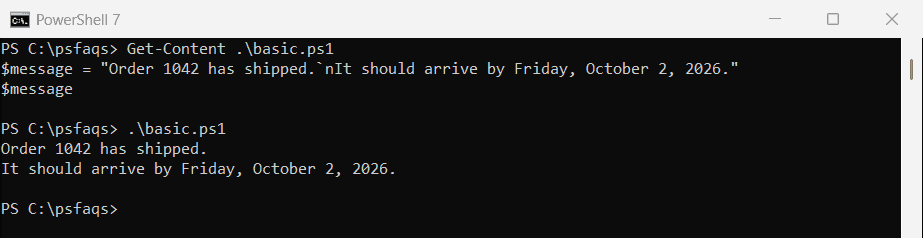
Here is the exact output in the screenshot below:

powershell new line in string

When PowerShell encounters `n, it inserts a line break, moving the text that follows to a new line. This method is ideal for quick console output or simple string concatenation.

It’s lightweight and easy to remember, making it perfect for short scripts or inline formatting when you want to display multi-line text directly in the console.

💡 Pro Tip: You can also use `r for a carriage return, but in most cases, `n works perfectly for PowerShell scripts.

Read Remove Newline from String in PowerShell

Method 2: Using `r`n for Windows Line Breaks

If you’re working on Windows and need to ensure proper Windows-style line endings, use `r`n. It combines a carriage return (r) and a line feed (n), which is the standard newline format in Windows-based text files.

Here is an example:

$message = "First Line`r`nSecond Line"
Write-Host $message

Output:

First Line
Second Line

You can also see the exact output in the screenshot below:

Add new lines in powershell string

The `r`n sequence is especially important when writing text to files that will be opened in Notepad or other Windows applications. Without it, the file might display all text on one line.

This approach guarantees that your line breaks appear correctly across all Windows tools, making it the preferred method for file output or logging on Windows systems.

Check out Convert XML to CSV in PowerShell

Method 3: Using [Environment]::NewLine

PowerShell is built on .NET, which means it can access the .NET environment variables — including [Environment]::NewLine. This variable automatically adjusts the newline character based on the operating system you’re running on.

Here is an example:

$message = "PowerShell Rocks!" + [Environment]::NewLine + "Cross-platform scripting made easy."
Write-Output $message

Output:

PowerShell Rocks!
Cross-platform scripting made easy.

Using [Environment]::NewLine makes your scripts platform-independent. On Windows, it inserts \r\n, while on Linux and macOS, it inserts \n.

This is the best method for cross-platform automation, especially when you’re writing scripts intended for PowerShell 7+ that may run on multiple operating systems. It ensures consistent behavior without manually checking the OS type.

Check out Concatenate String with NewLine in PowerShell

Method 4: Using Here-Strings for Multi-Line Text

If you’re dealing with multi-line text, such as configuration templates, email bodies, or documentation blocks, Here-Strings are your best friend. They allow you to define multi-line text exactly as it should appear — no escape sequences required.

Here is an example:

$message = @"
This is line one.
This is line two.
This is line three.
"@
Write-Output $message

Output:

This is line one.
This is line two.
This is line three.

Here-Strings preserve the exact formatting, spacing, and line breaks you include between the @" and "@ delimiters. This makes them perfect for long text blocks, JSON templates, or multi-line commands.

Unlike normal strings, you don’t need to worry about escape characters — what you type inside the Here-String is exactly what PowerShell outputs.

Check out How to Split Strings by Newlines in PowerShell?

Method 5: Using .Replace() or -replace for Dynamic New Lines

Sometimes, you’ll need to insert new lines dynamically — for example, when processing CSV data or parsing logs. In such cases, you can use PowerShell’s string replacement methods to insert new lines wherever needed.

Here is an example:

$message = "Hello,World,PowerShell"
$newMessage = $message.Replace(",", "`n")
Write-Output $newMessage

Output:

Hello
World
PowerShell

The .Replace() method replaces all occurrences of a character or substring (in this case, commas) with a newline character.

This is incredibly useful for data transformation, text formatting, or log file cleanup. You can also use the -replace operator for regex-based replacements, giving you even more flexibility when working with complex patterns.

Common Mistakes to Avoid

Here are some common mistakes you should avoid while working with this.

  1. Using single quotes ' instead of double quotes "
    Single quotes treat everything literally, so 'HellonWorld’will not interpretn` as a newline. Always use double quotes when using escape characters.
  2. ❌ **Forgetting the backtick ()** Typing ninstead of ``n“ won’t create a new line — PowerShell will just display the letter n.
  3. Incorrect file encoding
    When writing to files, always specify -Encoding UTF8 or -Encoding ASCII. Otherwise, your line breaks might not show up properly in some editors.

Here is a summary of all the methods I explained above:

MethodSyntaxPlatformBest Use Case
Backtick `n"HellonWorld”`Windows/Linux/macOSQuick console output
Carriage Return + Line Feed"HellornWorld"WindowsWriting to text files
[Environment]::NewLine"Hello" + [Environment]::NewLine + "World"Cross-platformUniversal scripting
Here-String@" ... "@AllMulti-line text blocks
.Replace() / -replace$string.Replace(",", "n”)`AllDynamic text formatting

Conclusion

As a PowerShell developer, there are many times you might need to add a new line in a string. In this tutorial, I explained various methods to add a new line to a PowerShell string. Whether you’re using the backtick escape character, Windows-style line endings, or Here-Strings, understanding how each method works ensures your scripts behave consistently across platforms.

For cross-platform automation, [Environment]::NewLine is the most reliable choice. But for quick console output or file writing, `n and `r`n remain the most practical options.

Does this tutorial help you?

You may also like the following tutorials:

Leave a Comment

100 PowerShell cmdlets download free

100 POWERSHELL CMDLETS E-BOOK

FREE Download an eBook that contains 100 PowerShell cmdlets with complete script and examples.