
To get a substring in PowerShell, call the Substring method on a string. Substring(start, length) returns length characters from the start position, and Substring(start) returns everything from there to the end:
$orderId = 'US-TX-2026-00418'

$orderId.Substring(3, 2)
$orderId.Substring(6)
Output:
TX
2026-00418
Positions start at 0, so position 3 is the fourth character. I ran every example here in PowerShell 7.6 and Windows PowerShell 5.1, with the same results.
Pick parts by position
When the text has a fixed layout, like an order ID, each part sits at a known position. Count from 0 and take the length you need:
$orderId = 'US-TX-2026-00418'

'Country: {0}' -f $orderId.Substring(0, 2)
'State:   {0}' -f $orderId.Substring(3, 2)
'Year:    {0}' -f $orderId.Substring(6, 4)
'Number:  {0}' -f $orderId.Substring(11)
'Length:  {0}' -f $orderId.Length
Output:
Country: US
State:   TX
Year:    2026
Number:  00418
Length:  16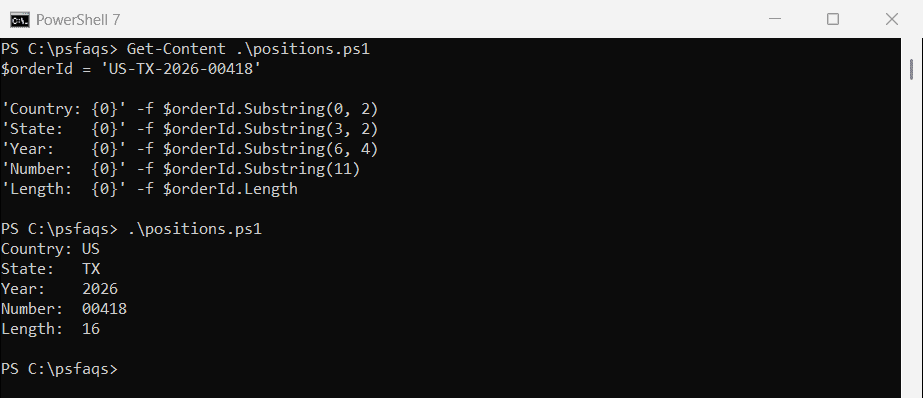
The Length property tells you how many characters the string has. Getting a string’s length covers the details.
Avoid the out-of-range error
Substring throws an error when start plus length goes past the end of the string. The message says the index and length must refer to a location within the string:
$zip = '98101'

try { $zip.Substring(2, 5) }
catch { "Failed. Start 2 plus length 5 runs past the end of a 5-character string" }

function Get-Substring {
    param([string]$Text, [int]$Start, [int]$Length)
    if ($Start -ge $Text.Length) { return '' }
    $Text.Substring($Start, [Math]::Min($Length, $Text.Length - $Start))
}

"Safe version: $(Get-Substring -Text $zip -Start 2 -Length 5)"
Output:
Failed. Start 2 plus length 5 runs past the end of a 5-character string
Safe version: 101
The small helper above caps the length at whatever’s left, so it never fails. Use it when the input can be shorter than you expect, like user input or CSV values.
Get a substring from the end
PowerShell has no built-in right-side function, but there are three easy ways. Subtract from the Length, use a negative index slice, or cut characters off the end:
$card = 'Visa ending in 4417'
$invoice = 'INV-2026-000587'

"Last 4 with Substring: $($card.Substring($card.Length - 4))"
"Last 6 with a slice:   $(-join $invoice[-6..-1])"
"Drop the last 7:       $($invoice.Substring(0, $invoice.Length - 7))"
Output:
Last 4 with Substring: 4417
Last 6 with a slice:   000587
Drop the last 7:       INV-2026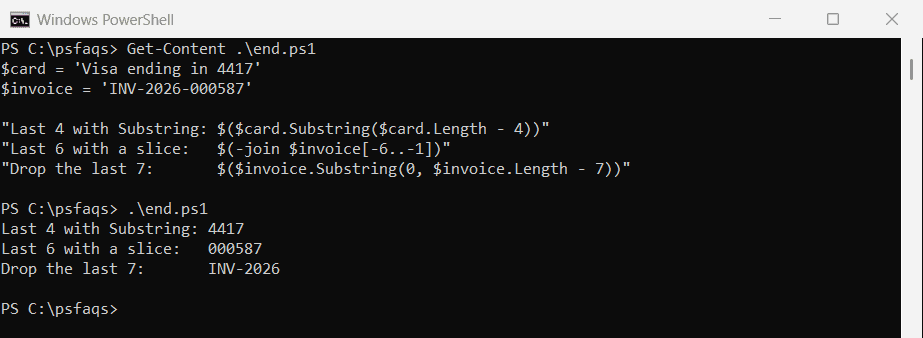
A slice like $invoice[-6..-1] returns characters, so -join puts them back into a string. On a string shorter than you ask for, Substring throws an error, while the slice just returns the whole string.
Get the text before or after a character
When the position varies, find it first. IndexOf returns the position of the first match, and LastIndexOf returns the last one:
$email = 'emma.carter@contoso.com'
$at = $email.IndexOf('@')

"User:   $($email.Substring(0, $at))"
"Domain: $($email.Substring($at + 1))"

$file = 'sales-report.2026-09.final.csv'
$dot = $file.LastIndexOf('.')
"Name:   $($file.Substring(0, $dot))"
"Ext:    $($file.Substring($dot + 1))"
Output:
User:   emma.carter
Domain: contoso.com
Name:   sales-report.2026-09.final
Ext:    csv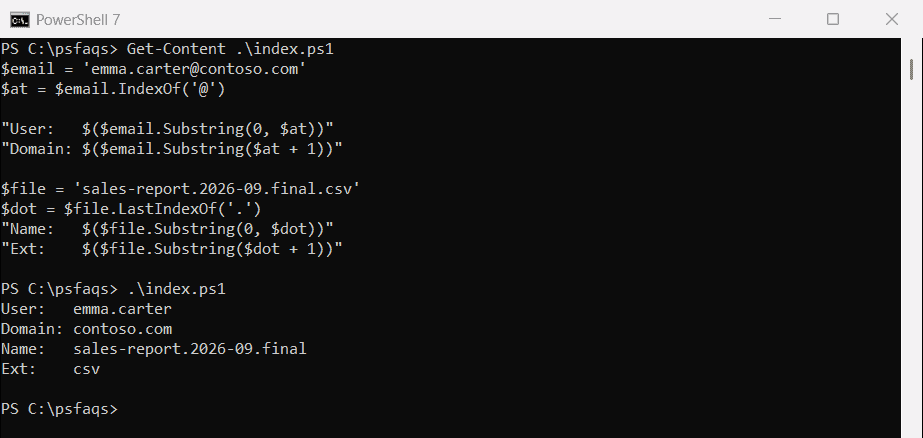
LastIndexOf matters for file names with several dots. Finding a character in a string has more IndexOf examples.
To remove or replace everything before a character, see PowerShell replace string before a character.
When the character isn’t there
IndexOf returns -1 when there’s no match, and passing -1 to Substring fails. Check the result before you use it:
$path = 'Invoices'
$slash = $path.IndexOf('/')
"IndexOf returned $slash"

try { $path.Substring(0, $slash) }
catch { "Failed. Substring can't take a negative length" }

if ($slash -ge 0) { $path.Substring(0, $slash) } else { "No '/', keeping the whole value: $path" }
Output:
IndexOf returned -1
Failed. Substring can't take a negative length
No '/', keeping the whole value: Invoices
Get the text between two strings
Find the start and end positions with IndexOf, or let a regular expression do both with -match. The regex version is easier to read once there’s more than one value to pull out:
$line = 'Shipped order #58213 to Denver, CO on 2026-09-28'

$start = $line.IndexOf('#') + 1
$end = $line.IndexOf(' ', $start)
"With IndexOf: $($line.Substring($start, $end - $start))"

if ($line -match '#(\d+) to (.+?) on') {
    "With -match:  order $($Matches[1]), city $($Matches[2])"
}
Output:
With IndexOf: 58213
With -match:  order 58213, city Denver, CO
$Matches[1] holds the first group in parentheses. Extracting text between delimiters and Microsoft’s about_Regular_Expressions go further.
IndexOf is case-sensitive
Unlike most PowerShell operators, the IndexOf method matches case exactly. Pass OrdinalIgnoreCase to ignore it:
$subject = 'RE: Invoice INV-2026-000587'

"IndexOf('invoice'):         $($subject.IndexOf('invoice'))"
"IndexOf ignoring case:      $($subject.IndexOf('invoice', [StringComparison]::OrdinalIgnoreCase))"
"Text after it:              $($subject.Substring($subject.IndexOf('invoice', [StringComparison]::OrdinalIgnoreCase) + 8))"
Output:
IndexOf('invoice'):         -1
IndexOf ignoring case:      4
Text after it:              INV-2026-000587
Substring itself never looks at case. It only counts characters.
When -split is simpler
If the parts are separated by the same character, -split is shorter than counting positions. It also keeps working when a part changes length: