
To write JSON to a file in PowerShell, convert the object with ConvertTo-Json and pipe the text to Set-Content. Raise -Depth when the data is nested:
$data | ConvertTo-Json -Depth 10 | Set-Content -Path .\data.jsonThat one line hides three traps: cut-off nested data, the wrong file encoding in Windows PowerShell 5.1, and appending that breaks the file. I ran each one in PowerShell 7 and 5.1, and the fixes are below.
Save a PowerShell object as a JSON file
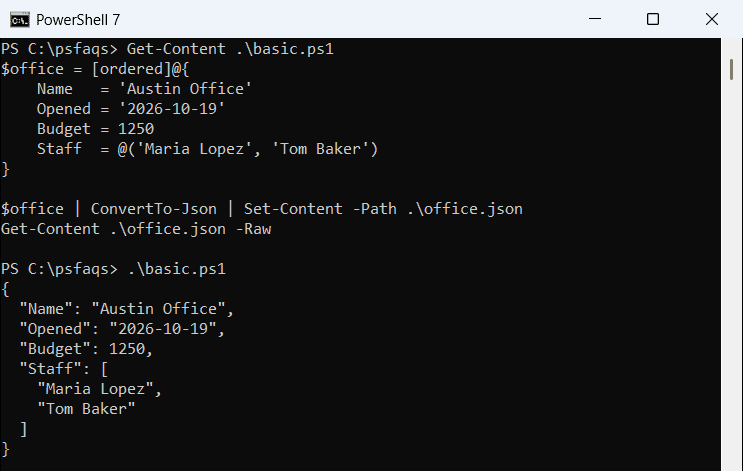
Start with an ordered hashtable, so the keys stay in the order you typed them. Then convert it and save it:
$office = [ordered]@{
    Name   = 'Austin Office'
    Opened = '2026-10-19'
    Budget = 1250
    Staff  = @('Maria Lopez', 'Tom Baker')
}

$office | ConvertTo-Json | Set-Content -Path .\office.json
Get-Content .\office.json -Raw
Output:
{
  "Name": "Austin Office",
  "Opened": "2026-10-19",
  "Budget": 1250,
  "Staff": [
    "Maria Lopez",
    "Tom Baker"
  ]
}
Set-Content replaces the file each time. Windows PowerShell 5.1 writes the same data with wider indentation, which is valid JSON but looks different.
A [pscustomobject] works the same way, and so does an array of custom objects. Every property becomes a JSON key.
Read the JSON file back to check it
Always read the file back once. Get-Content -Raw returns one string, and ConvertFrom-Json turns it into an object again:
$o = Get-Content .\office.json -Raw | ConvertFrom-Json
"$($o.Name) opened $($o.Opened) with $($o.Staff.Count) people"
Output:
Austin Office opened 2026-10-19 with 2 peopleIf this line fails, the file isn’t valid JSON. For lists of records, here’s how to read a JSON file into an array.
Why is my JSON file missing nested data?
ConvertTo-Json stops at a depth of 2 by default. Anything deeper gets flattened into a string. Here, Skills is three levels down:
$team = [ordered]@{
    Office = 'Denver'
    Staff  = @( [ordered]@{ Name = 'Dana Reyes'; Skills = @('Azure', 'SQL') } )
}
$team | ConvertTo-Json -Compress -WarningVariable w -WarningAction SilentlyContinue
"Warnings: $($w.Count)"
$team | ConvertTo-Json -Compress -Depth 5
Output:
{"Office":"Denver","Staff":[{"Name":"Dana Reyes","Skills":"Azure SQL"}]}
Warnings: 1
{"Office":"Denver","Staff":[{"Name":"Dana Reyes","Skills":["Azure","SQL"]}]}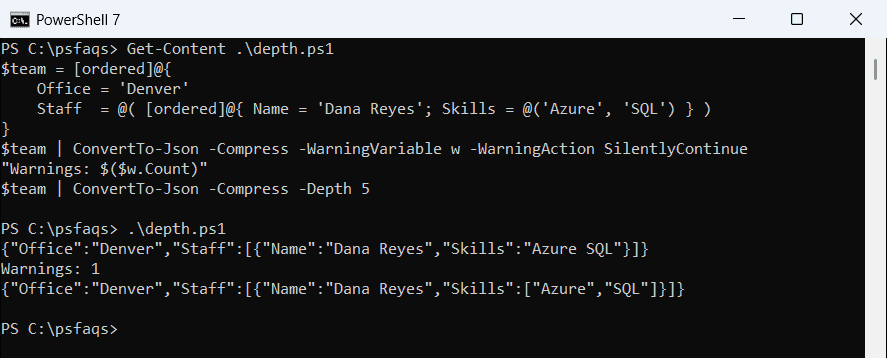
PowerShell 7 writes a warning, so I counted it with -WarningVariable (more on the PowerShell warning stream). Windows PowerShell 5.1 printed Warnings: 0 and saved the broken text without a word.
Pick a -Depth higher than your data needs; the maximum is 100. The ConvertTo-Json cmdlet guide covers -Compress and the other switches.
Set-Content vs Out-File: which encoding do you get?
This is where the two versions really split. I wrote the same JSON, with an accented “é”, three ways and checked the first bytes:
$json = @{ City = 'San José' } | ConvertTo-Json -Compress
$json | Set-Content .\sc.json
$json | Out-File .\of.json
$json | Set-Content .\u8.json -Encoding utf8

foreach ($f in 'sc', 'of', 'u8') {
    $b = [IO.File]::ReadAllBytes("$PWD\$f.json")
    $hex = ($b[0..2] | ForEach-Object { '{0:X2}' -f $_ }) -join ' '
    '{0}.json  {1} bytes  starts {2}' -f $f, $b.Length, $hex
}
Output:
sc.json  22 bytes  starts 7B 22 43
of.json  22 bytes  starts 7B 22 43
u8.json  22 bytes  starts 7B 22 43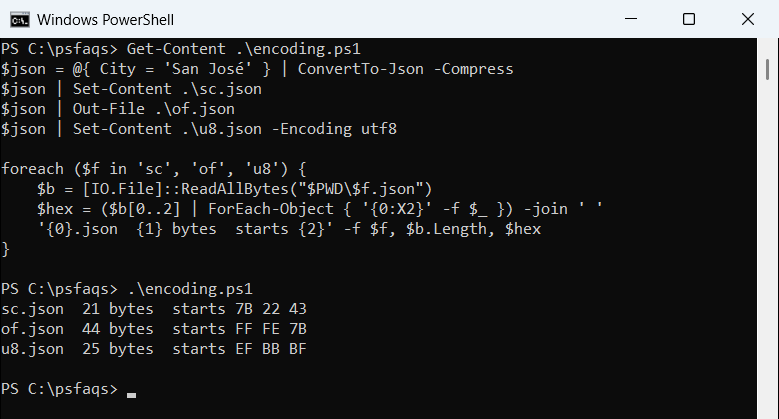
In PowerShell 7, all three files are identical UTF-8 without a byte order mark (BOM). That’s the default for both cmdlets.
In 5.1, Set-Content saved the é as a single ANSI byte, Out-File wrote UTF-16 (FF FE) at twice the size, and -Encoding utf8 added the EF BB BF BOM. Some JSON parsers reject that BOM.
PowerShell 7 can still write a BOM with -Encoding utf8BOM. More detail is in writing UTF-8 files in PowerShell and the Out-File cmdlet.
Write BOM-less UTF-8 JSON in Windows PowerShell 5.1
Windows PowerShell 5.1 has no utf8NoBOM value. Call .NET with a UTF8Encoding that turns the BOM off, and pass a full path:
$json = @{ City = 'San José' } | ConvertTo-Json -Compress
$utf8 = [Text.UTF8Encoding]::new($false)
[IO.File]::WriteAllText("$PWD\city.json", $json, $utf8)

$b = [IO.File]::ReadAllBytes("$PWD\city.json")
"$($b.Length) bytes, starts $('{0:X2}' -f $b[0])"
Output:
20 bytes, starts 7BThe file is plain UTF-8: the é takes two bytes and the first byte is the opening brace. It gives the same result in both versions. Here’s more on converting between bytes and strings.
Keep a single item as a JSON array
Piping an array unrolls it, so one item comes out as a plain object. Pass the array to -InputObject instead:
$list = @([pscustomobject]@{ Name = 'Dana Reyes'; City = 'Seattle' })

$list | ConvertTo-Json -Compress
ConvertTo-Json -InputObject $list -Compress
Output:
{"Name":"Dana Reyes","City":"Seattle"}
[{"Name":"Dana Reyes","City":"Seattle"}]
PowerShell 7 also has -AsArray, which wraps the output in brackets, but Windows PowerShell 5.1 doesn’t support it. To force any value into a list first, see converting an object to an array.
How do I append to a JSON file in PowerShell?
Don’t use Add-Content. It adds a second JSON document after the first one, and the file s