
To open a file in PowerShell with its default app, run Invoke-Item with the file’s path. It works like double-clicking the file in File Explorer:
Invoke-Item -Path C:\Reports\sales-report.txtBelow I show how to preview what will open, open a file in a specific app, and read files right in the console. I tested each command in PowerShell 7.6 and 5.1 with sample files.
Open a file with its default app using Invoke-Item
Invoke-Item (alias ii) opens files, and folders too, with whatever app Windows has set for that type. Add -WhatIf to see the target without opening anything:
Invoke-Item -Path C:\psfaqs\Open\sales-report.txt -WhatIf
Invoke-Item -Path C:\psfaqs\Open -WhatIf
Output:
What if: Performing the operation "Invoke Item" on target "Item: C:\psfaqs\Open\sales-report.txt".
What if: Performing the operation "Invoke Item" on target "Item: C:\psfaqs\Open".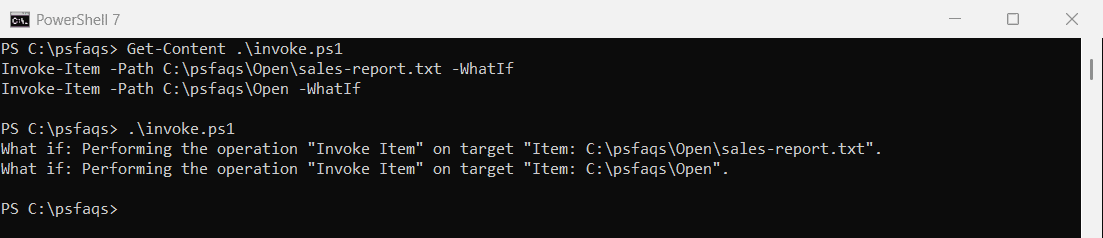
Drop -WhatIf to open them for real. A .txt file opens in Notepad, an .xlsx in Excel and a folder in File Explorer. ii . opens the current folder.
Open a file in a specific app with Start-Process
Start-Process lets you choose the program. Pass the file as an argument:
Start-Process -FilePath notepad.exe -ArgumentList 'C:\psfaqs\Open\sales-report.txt' -WhatIfOutput:
What if: Performing the operation "Start-Process" on target "C:\WINDOWS\system32\notepad.exe C:\psfaqs\Open\sales-report.txt".
Start-Process -WhatIf only works in PowerShell 7. In Windows PowerShell 5.1, run the command without it. Start-Process examples covers -Wait and running as another user.
Print or edit with -Verb
Many file types support verbs like Print and Edit. Start-Process -FilePath .\report.txt -Verb Print sends the file to your default printer.
Read a file in the console with Get-Content
Sometimes you don’t need an app at all. Get-Content shows the file in PowerShell, and -TotalCount and -Tail show just the start or end:
Get-Content -Path C:\psfaqs\Open\sales-report.txt -TotalCount 3
'...'
Get-Content -Path C:\psfaqs\Open\sales-report.txt -Tail 1
Output:
Weekly sales report - week of 2026-09-21
Austin: $18,420
Dallas: $22,915
...
Total: $61,095
For long log files, Get-Content -Path .\app.log -Tail 20 -Wait keeps showing new lines as they’re written. Reading a file line by line goes deeper.
Open a CSV file as objects
Import-Csv reads a CSV file into objects, so you can sort and filter it before anything else:
Import-Csv -Path C:\psfaqs\Open\sales.csv |
    Sort-Object -Property { [int]$_.Total } -Descending |
    Format-Table -AutoSize
Output:
Region  Rep           Total
------  ---           -----
Central Taylor Brooks 22915
South   Casey Reed    19760
West    Jordan Miller 18420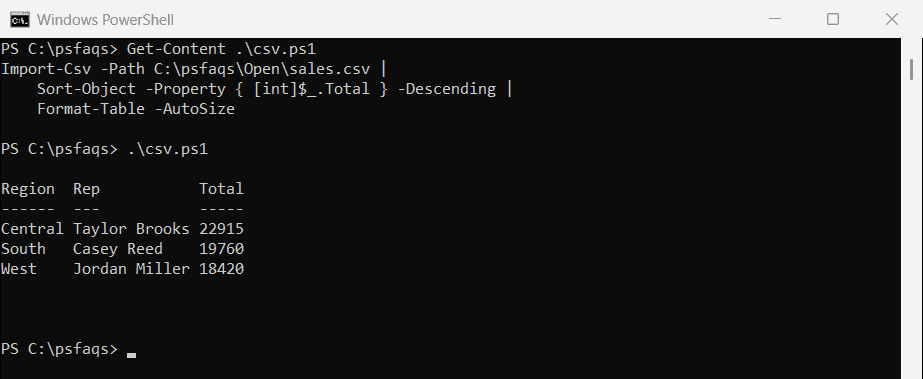
To open the same file in Excel instead, run Invoke-Item on it. Looping through Import-Csv rows shows how to process each record.
Open a file in VS Code or another editor
If an editor adds itself to your PATH, you can call it by name. For Visual Studio Code, run code .\sales-report.txt. For any other editor, use Start-Process with the full path to its .exe.
For a full walkthrough of loading rows, picking one column and the one-row Count trap in 5.1, read how to read a CSV file into an array.
Frequently Asked Questions
How do I open a file in PowerShell?
Run Invoke-Item -Path .\file.txt. It opens the file with its default app, like double-clicking it.
How do I open a file in Notepad from PowerShell?
Run notepad .\file.txt or Start-Process -FilePath notepad.exe -ArgumentList '.\file.txt'.
How do I open the current folder in File Explorer?
Run ii . or explorer ..
How do I view a file’s contents without opening an app?
Use Get-Content -Path .\file.txt. Add -TotalCount or -Tail to see only part of it.
Why does Start-Process say it has no WhatIf parameter?
Start-Process only supports -WhatIf in PowerShell 7. Windows PowerShell 5.1 doesn’t have it. See Microsoft’s Invoke-Item reference.
Related file tasks:
