
To change directory in PowerShell, use Set-Location, or its short alias cd, followed by the folder path. Get-Location shows where you are now:
Set-Location -Path C:\psfaqs\Projects\Website
(Get-Location).Path
Output:
C:\psfaqs\Projects\WebsiteBelow I cover relative paths, folders with spaces, going back to the previous folder, and a .NET gotcha that trips up scripts. Every example ran in PowerShell 7.6 and Windows PowerShell 5.1.
cd, chdir and sl are all Set-Location
PowerShell has three built-in aliases for Set-Location, so the command you know from Command Prompt or Linux works:
Get-Alias -Name cd, chdir, sl | ForEach-Object { '{0,-6} -> {1}' -f $_.Name, $_.Definition }Output:
cd     -> Set-Location
chdir  -> Set-Location
sl     -> Set-Location
Use cd at the prompt and Set-Location -Path in scripts, where full names are easier for others to read.
Relative paths: .., subfolders and the root
.. means the parent folder, a name alone means a subfolder, and \ jumps to the root of the current drive:
Set-Location -Path C:\psfaqs\Projects\Website\src
"Start:        $(Get-Location)"
Set-Location -Path ..
"After ..      $(Get-Location)"
Set-Location -Path '..\Budget 2026\Reports'
"Sibling path: $(Get-Location)"
Set-Location -Path \
"Root:         $(Get-Location)"
Output:
Start:        C:\psfaqs\Projects\Website\src
After ..      C:\psfaqs\Projects\Website
Sibling path: C:\psfaqs\Projects\Budget 2026\Reports
Root:         C:\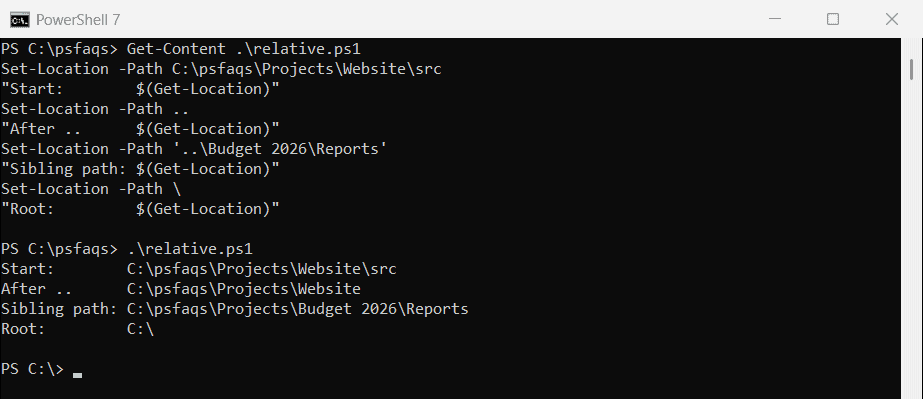
Combine them freely, like ..\..\Logs to go up two levels and into Logs.
Folders with spaces need quotes
Without quotes, PowerShell treats the part after the space as a second argument and refuses the command:
try { Set-Location C:\psfaqs\Projects\Budget 2026 -ErrorAction Stop }
catch { "Without quotes: Failed. $($_.Exception.Message)" }

Set-Location -Path 'C:\psfaqs\Projects\Budget 2026'
"With quotes:    $(Get-Location)"
Output:
Without quotes: Failed. A positional parameter cannot be found that accepts argument '2026'.
With quotes:    C:\psfaqs\Projects\Budget 2026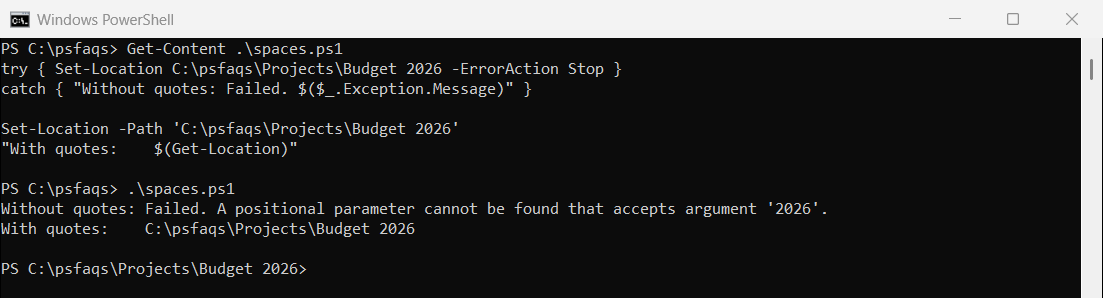
Single quotes are safest. Double quotes work too, and so does escaping the space with a backtick. Tab completion adds the quotes for you when you press Tab.
Go back to the previous folder
PowerShell 7 remembers where you’ve been. cd – goes back to the last folder, and cd + goes forward again, like a browser’s back and forward buttons:
Set-Location -Path C:\psfaqs\Projects\Website
Set-Location -Path C:\psfaqs\Projects\Budget` 2026
Set-Location -Path -
"After cd - : $(Get-Location)"
Set-Location -Path +
"After cd + : $(Get-Location)"
Output in PowerShell 7.6:
After cd - : C:\psfaqs\Projects\Website
After cd + : C:\psfaqs\Projects\Budget 2026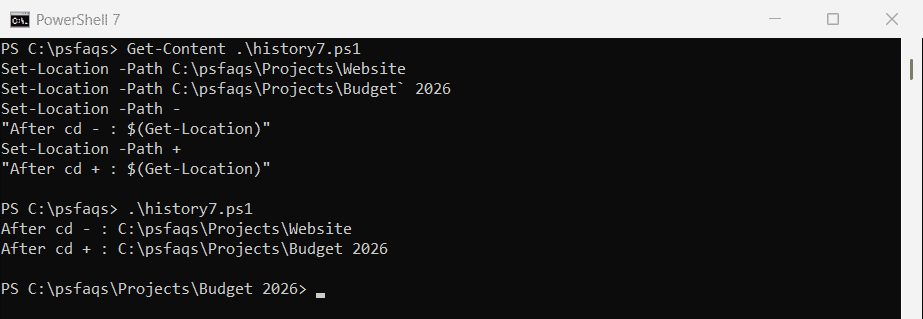
Windows PowerShell 5.1 doesn’t have this, and looks for a folder literally named -:
Set-Location -Path C:\psfaqs\Projects\Website
try { Set-Location -Path - -ErrorAction Stop }
catch { "cd - : Failed. Windows PowerShell 5.1 looks for a folder named '-'" }
Output in Windows PowerShell 5.1:
cd - : Failed. Windows PowerShell 5.1 looks for a folder named '-'Push-Location and Pop-Location
In scripts, Push-Location switches to a folder and remembers where you came from. Pop-Location takes you back, even if the folder changed several times in between:
Set-Location -Path C:\psfaqs\Projects\Website
Push-Location -Path 'C:\psfaqs\Projects\Budget 2026\Reports'
"Working in:   $(Get-Location)"
Pop-Location
"Back in:      $(Get-Location)"
Output:
Working in:   C:\psfaqs\Projects\Budget 2026\Reports
Back in:      C:\psfaqs\Projects\Website
This works in both versions and is the reliable way for a script to return to the user’s folder when it’s done.
.NET methods don’t follow cd
Set-Location changes PowerShell’s location, but not the .NET current directory that methods like [IO.File]::ReadAllText use:
Set-Location -Path C:\psfaqs\Projects\Website
"PowerShell location: $(Get-Location)"
".NET directory:      $([System.IO.Directory]::GetCurrentDirectory())"
Output:
PowerShell location: C:\psfaqs\Projects\Website
.NET directory:      C:\psfaqs
So a relative path passed to a .NET method resolves against the old folder. Pass full paths instead, for example with (Resolve-Path -Path .\data.txt).Path. Getting the path of a file shows more ways.
Change drives and providers
Set-Location also moves between drives and PowerShell providers, like the registry and environment variables:
Set-Location -Path HKLM:\SOFTWARE\Microsoft
"Registry: $(Get-Location)"
Set-Location -Path Env:
"Env drive: $(Get-Location)"
Set-Location -Path C:\psfaqs
"Back on C: $(Get-Location)"
Output:
Registry: HKLM:\SOFTWARE\Microsoft
Env drive: Env:\
Back on C: C:\psfaqs
Type a drive letter with a colon, like D:, to switch drives. Microsoft lists every parameter in the Set-Location reference.
Change to the script’s own folder
Inside a script, $PSScriptRoot holds the folder the script is saved in. Starting with this line makes relative paths in the script work from anywhere:
Set-Location -Path $PSScriptRootFrequently Asked Questions
How do I change directory in PowerShell?
Type