
You’re writing a PowerShell script to process 500 log files from a server. Halfway through, you realize some files are empty or corrupted — and you don’t want those to break your entire loop. You just need the script to skip the bad file and move on to the next one. That’s exactly the problem we’re solving today.
Skipping to the next item in a loop means you stop processing the current item and immediately jump to the next iteration — without exiting the loop entirely. Think of it like a supervisor walking down a checklist: if one employee’s record is incomplete, she skips that row and checks the next one.
In PowerShell, this is something you’ll need constantly — whether you’re processing Active Directory users, querying Microsoft 365 data, renaming files in bulk, or reading rows from a CSV report.
In this article, I’ll show you 4 ways to skip to the next item in a PowerShell ForEach loop.
Method 1 – Using continue in a foreach Statement
Use this method when you’re iterating over an in-memory collection using the foreach keyword (not the pipeline). It’s the cleanest, most readable approach for beginners and handles the skip operation natively.
Scenario: You have a folder with 500 server log files. You want to process each file, but you want to skip any file that is empty (zero bytes).
Step 1: Store your file list in a variable.
# Get all log files from the target folder
$logFiles = Get-ChildItem -Path "C:\ServerLogs" -Filter "*.log"
Step 2: Loop through each file and use continue to skip empty files.
foreach ($file in $logFiles) {
    # Skip files with no content
    if ($file.Length -eq 0) {
        Write-Host "Skipping empty file: $($file.Name)" -ForegroundColor Yellow
        continue
    }

    # Process the valid file
    Write-Host "Processing: $($file.Name)" -ForegroundColor Green
    # Add your file processing logic here
}
Output:
Skipping empty file: error_blank.log
Processing: app_2026-06-01.log
Processing: app_2026-06-02.log
Skipping empty file: debug_empty.log
Processing: app_2026-06-03.log
You can see the exact output in the screenshot below. I executed the above script on my local system.
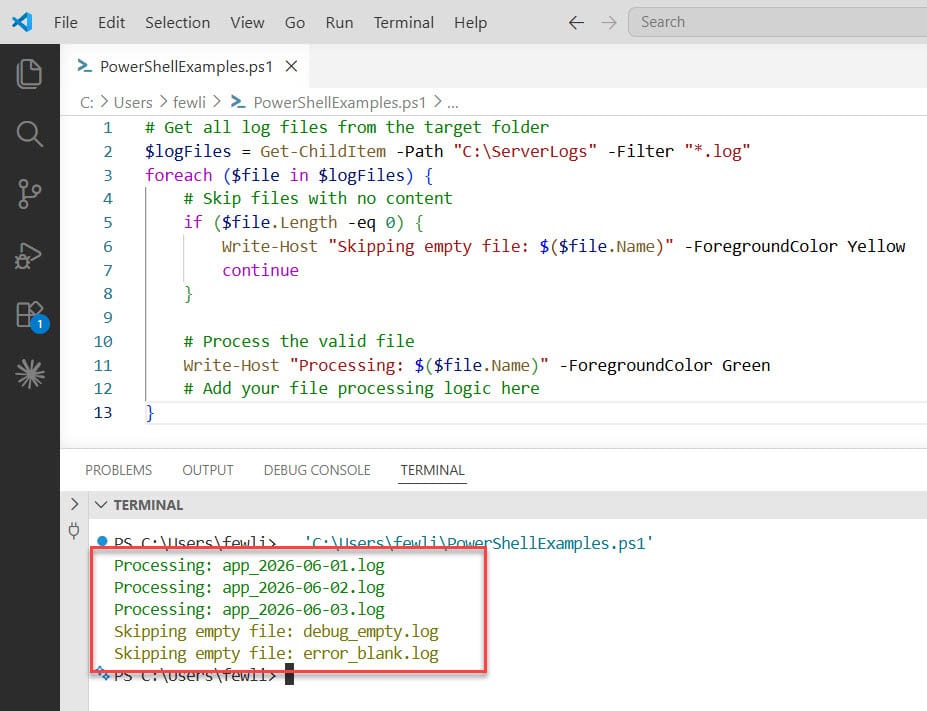
How does this script work?
The foreach keyword loops through each item in $logFiles. Inside the loop, the if statement checks whether the file’s .Length property equals zero.
If it does, continue immediately sends control back to the top of the loop — skipping everything below it — and the next file starts processing. Files with content pass the check and hit the processing line.
Pro Tip: The
continuekeyword only works natively insideforeach,for,while, anddoloops. Do NOT usecontinueinside aForEach-Objectpipeline block — it behaves likebreakthere and can silently abort your entire script. Always use theforeachstatement when you needcontinue.
Method 2 – Using return Inside ForEach-Object (Pipeline)
Use this method when you’re working with the ForEach-Object cmdlet in a pipeline. In a pipeline context, return acts exactly like continue does in a foreach loop — it skips the rest of the current iteration and moves to the next object.
Scenario: Same 500 log files. This time you’re feeding them through the pipeline and want to skip empty files inline.
Step 1: Pipe your file list into ForEach-Object.
Step 2: Use return to skip unwanted items.
Get-ChildItem -Path "C:\ServerLogs" -Filter "*.log" | ForEach-Object {
    # $_ refers to the current file object in the pipeline
    if ($_.Length -eq 0) {
        Write-Host "Skipping empty file: $($_.Name)" -ForegroundColor Yellow
        return   # This skips to the next pipeline object
    }

    # Process the valid file
    Write-Host "Processing: $($_.Name)" -ForegroundColor Green
}
Output:
Skipping empty file: error_blank.log
Processing: app_2026-06-01.log
Processing: app_2026-06-02.log
Skipping empty file: debug_empty.log
You can see the exact output in the screenshot below:
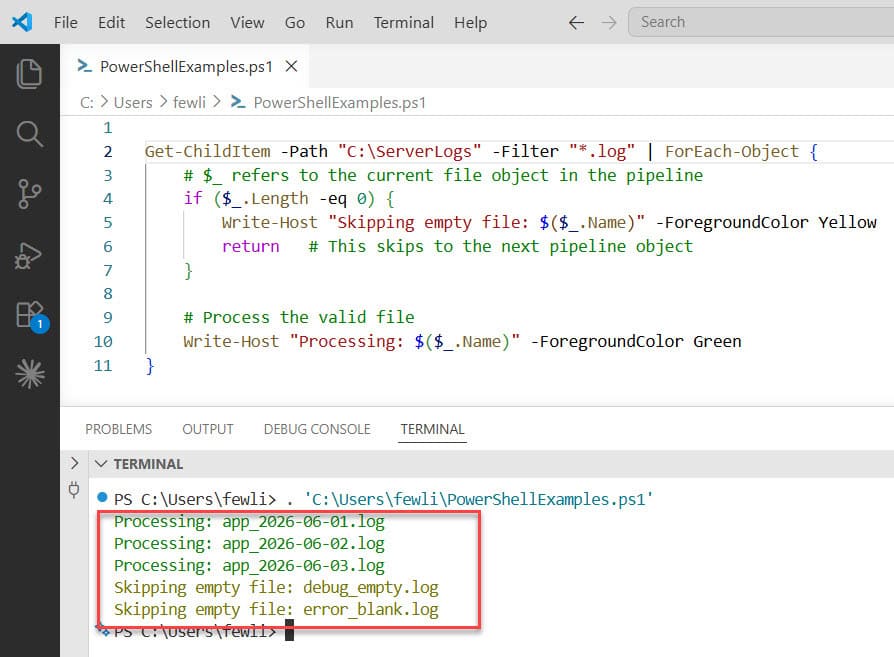
How does this script work?
ForEach-Object receives each file object from the pipeline and exposes it as $_ (the automatic variable for the current pipeline object). When return is hit inside the script block, PowerShell finishes the current script block execution for that object and moves on to the next one in the pipeline.
This is the key gotcha: return here doesn’t exit the whole script — it only exits the current iteration’s script block.
Pro Tip: This is one of PowerShell’s most common gotchas. In a
ForEach-Objectblock,continuewalks up the call stack looking for a loop — and if it doesn’t find one it can use, it terminates your runspace silently. Always usereturnin pipeline-basedForEach-Objectblocks, nevercontinue.
Check out Remove the Last Empty Line from a File Using PowerShell
Method 3 – Skip with continue in a foreach Loop with Error Handling (Try/Catch)
Use this method when you need to skip items that cause errors — not just items that fail a condition check. This pattern is common in production scripts where you’re connecting to remote systems, querying APIs, or reading files that might be locked or inaccessible.
Scenario: You’re processing log files on a remote server and some files may be locked by another process. You want to catch the error, log it, and continue to the next file — without stopping the entire script.
Step 1: Build the loop with a try/catch block inside.
Step 2: Place continue inside the catch block.
$logFiles = Get-ChildItem -Path "C:\ServerLogs" -Filter "*.log"
$errorLog = @()   # Array to store skipped file names

foreach ($file in $logFiles) {
    try {
        # Attempt to read the file content
        $content = Get-Content -Path $file.FullName -ErrorAction Stop

        if ([string]::IsNullOrWhiteSpace($content)) {
            Write-Host "Skipping empty file: $($file.Name)" -ForegroundColor Yellow
            continue
        }

        Write-Host "Processing: $($file.Name)" -ForegroundColor Green
        # Add your actual processing logic here

    } catch {
        # Log the error and skip to next file
        Write-Host "ERROR on $($file.Name): $($_.Exception.Message)" -ForegroundColor Red
        $errorLog += $file.Name
        continue   # Move to the next file
    }
}

# Report skipped files
Write-Host "`nFiles skipped due to errors: $($errorLog.Count)"
$errorLog | ForEach-Object { Write-Host " - $_" }
Output:
Processing: app_2026-06-01.log
ERROR on locked_file.log: The process cannot access the file...
Processing: app_2026-06-02.log
Skipping empty file: debug_empty.log
Processing: app_2026-06-03.log

Files skipped due to errors: 1
 - locked_file.log
How does this script work?
The try block attempts to read each file using Get-Content with -ErrorAction Stop — this flag forces PowerShell to throw a terminating error (instead of just a warning) so the catch block triggers.
Inside the catch block, the error message is captured using $_.Exception.Message and the filename is added to the $errorLog array. Then continue skips to the next file. After the loop, the script prints a summary of all skipped files.
Pro Tip: Always use
-ErrorAction Stopwhen you wanttry/catchto work. Without it,Get-Contentand many other cmdlets write a non-terminating error to the error stream — which yourcatchblock will never see. This is one of the most common bugs in PowerShell error handling.
Read How to Use PowerShell Remove-Item with Try Catch
Method 4 – Skip Using a Where-Object Filter Before the Loop
Use this method when you want to filter out unwanted items before the loop even starts. This is the most efficient approach because it avoids unnecessary iterations entirely — especially useful when working with large datasets like thousands of files, hundreds of AD objects, or large CSV exports.
Scenario: Same 500 log files. Instead of checking inside the loop, you filter out empty files upfront and only loop over the ones worth processing.
Step 1: Use Where-Object to pre-filter the collection.
Step 2: Loop only over the filtered results.
# Pre-filter: only include files with content (Length greater than 0)
$validLogFiles = Get-ChildItem -Path "C:\ServerLogs" -Filter "*.log" |
    Where-Object { $_.Length -gt 0 }

Write-Host "Total files found: $(
    (Get-ChildItem -Path 'C:\ServerLogs' -Filter '*.log').Count
)"
Write-Host "Files to process after filter: $($validLogFiles.Count)"

foreach ($file in $validLogFiles) {
    Write-Host "Processing: $($file.Name)" -ForegroundColor Green
    # Add your file processing logic here
}
Output:
Total files found: 500
Files to process after filter: 487

Processing: app_2026-06-01.log
Processing: app_2026-06-02.log
Processing: app_2026-06-03.log
...
How does this script work?
Where-Object filters the pipeline before results are stored in $validLogFiles. The script block inside { $_.Length -gt 0 } evaluates to $true for files with content — only those files pass through.
By the time the foreach loop starts, every item in the collection already meets your criteria. There’s nothing to skip because the bad items never enter the loop.
Pro Tip: This approach is ideal when your filtering logic is simple and based on object properties. For complex, multi-condition checks — or when you need to log which items were skipped — use Method 1 or Method 3 instead.
Where-Objectis fast, clean, and pairs beautifully with cmdlets likeGet-ChildItem,Get-ADUser, andImport-Csv.
Check out PowerShell Throw Exception with Message
Things to Keep in Mind
continuevs.returnin the pipeline: Never usecontinueinside aForEach-Objectscript block. Usereturnthere instead. Usingcontinuein a pipeline block causes PowerShell to walk up the call stack, and if no enclosing loop is found, it silently kills your runspace.-ErrorAction Stopis required fortry/catch: Many PowerShell cmdlets write non-terminating errors by default. Without-ErrorAction Stop, yourcatchblock never fires. Always add this flag when you need error-based skipping.foreachstatement vs.ForEach-Objectcmdlet: These are two different constructs. Theforeachkeyword (statement form) supportscontinueandbreaknatively. TheForEach-Objectcmdlet is a pipeline command that uses script blocks —continueandbreakbehave differently there.- PowerShell 7 vs. Windows PowerShell 5.1: Loop behavior for
continue,return, andbreakis consistent across both versions. However, error handling and module availability can differ — always test your scripts in the version your environment uses. - Avoid using
breakwhen you meancontinue:breakexits the entire loop.continueskips just the current iteration. Usingbreakby mistake when you want to skip one item will stop all remaining processing — a common and frustrating bug. - Pre-filtering with
Where-Objectis the fastest approach: If performance matters (e.g., iterating over thousands of AD objects or CSV rows), filter before the loop. Each unnecessary iteration adds overhead. A well-placedWhere-Objectcan cut loop execution time significantly for large datasets.
You now have 4 solid, practical ways to skip to the next item in a PowerShell ForEach loop — from the simple continue statement, to pipeline-safe return, to error-handling with try/catch, to proactive pre-filtering with Where-Object.
For most everyday scripts, use Method 1 (continue in a foreach statement) for clarity; use Method 3 when you’re running production scripts against remote systems or APIs where errors are expected. I hope you found this article helpful.
You may also like:
- PowerShell For Loop With Index and Range Examples
- PowerShell For Loop 1 to 10
- How to Break Out of ForEach Loops in PowerShell?

Bijay Kumar is an esteemed author and the mind behind PowerShellFAQs.com, where he shares his extensive knowledge and expertise in PowerShell, with a particular focus on SharePoint projects. Recognized for his contributions to the tech community, Bijay has been honored with the prestigious Microsoft MVP award. With over 15 years of experience in the software industry, he has a rich professional background, having worked with industry giants such as HP and TCS. His insights and guidance have made him a respected figure in the world of software development and administration. Read more.
