
To rename files with a date in PowerShell, pipe the files to Rename-Item and build each new name in a script block from BaseName, a formatted date and Extension:
(Get-ChildItem C:\Reports -File) | Rename-Item -NewName { $_.BaseName + '_' + (Get-Date -Format 'yyyy-MM-dd') + $_.Extension }Swap Get-Date for $_.LastWriteTime to stamp each file with its own date. Below I’ll walk through both, plus the duplicate-name, colon and Windows PowerShell 5.1 traps I hit while testing.
Create sample files to rename
Renames are hard to undo in bulk, so practice on throwaway files first. Paste this into PowerShell 7 or Windows PowerShell 5.1:
$root = 'C:\psfaqs\t\renamedate\Reports'
$null = New-Item $root -ItemType Directory -Force
$files = [ordered]@{
    'Acme-Invoice.pdf'           = '2026-10-05 09:30', '2026-09-28 08:00'
    'Bluebird-Order.csv'         = '2026-10-12 14:15', '2026-10-01 10:00'
    'Cedar-Payroll.xlsx'         = '2026-10-19 11:00', '2026-10-15 09:00'
    'Denver-Expenses.xls'        = '2026-10-21 15:40', '2026-10-20 13:00'
    'Hudson-Report [Draft].docx' = '2026-10-22 16:45', '2026-10-22 08:30'
    'Lakeside-Budget.xlsx'       = '2026-10-19 08:20', '2026-10-02 07:45'
}
foreach ($name in $files.Keys) {
    $f = New-Item -Path $root -Name $name -ItemType File -Value 'sample' -Force
    $f.CreationTime  = Get-Date $files[$name][1]
    $f.LastWriteTime = Get-Date $files[$name][0]
}

Get-ChildItem $root -File | ForEach-Object {
    '{0,-28} {1}' -f $_.Name, $_.LastWriteTime.ToString('yyyy-MM-dd HH:mm')
}
Output:
Acme-Invoice.pdf             2026-10-05 09:30
Bluebird-Order.csv           2026-10-12 14:15
Cedar-Payroll.xlsx           2026-10-19 11:00
Denver-Expenses.xls          2026-10-21 15:40
Hudson-Report [Draft].docx   2026-10-22 16:45
Lakeside-Budget.xlsx         2026-10-19 08:20
The script sets LastWriteTime and CreationTime on purpose, so every file has a known 2026 date to rename with. The listing shows each file’s last modified time.
This post renames files that already exist. If you’re creating a new file and want today’s date in its name from the start, see how to add a date to a new file name instead.
Rename a single file with today’s date
For one file, read it with Get-Item, build the name and pass it to Rename-Item. -PassThru returns the renamed file so you can see the result:
$file  = Get-Item 'C:\psfaqs\t\renamedate\Reports\Acme-Invoice.pdf'
$stamp = Get-Date -Date '2026-10-24' -Format 'yyyy-MM-dd'
$newName = $file.BaseName + '_' + $stamp + $file.Extension

(Rename-Item -LiteralPath $file.FullName -NewName $newName -PassThru).Name
Output:
Acme-Invoice_2026-10-24.pdfI passed a fixed date so the output is repeatable. In a real script, use Get-Date -Format ‘yyyy-MM-dd’ for today. BaseName is the name without the extension, and Extension keeps the dot.
-NewName takes only a name, never a folder path. My Rename-Item tutorial covers the rest of the cmdlet.
Rename files using each file’s own date (LastWriteTime)
More often you want the date the file was last changed, not today’s date. Inside the -NewName script block, $_ is the current file, so $_.LastWriteTime gives you its date:
(Get-ChildItem 'C:\psfaqs\t\renamedate\Reports' -File) | Rename-Item -NewName {
    $_.BaseName + '_' + $_.LastWriteTime.ToString('yyyy-MM-dd') + $_.Extension
} -PassThru | ForEach-Object Name
Output:
Acme-Invoice_2026-10-05.pdf
Bluebird-Order_2026-10-12.csv
Cedar-Payroll_2026-10-19.xlsx
Denver-Expenses_2026-10-21.xls
Hudson-Report [Draft]_2026-10-22.docx
Lakeside-Budget_2026-10-19.xlsx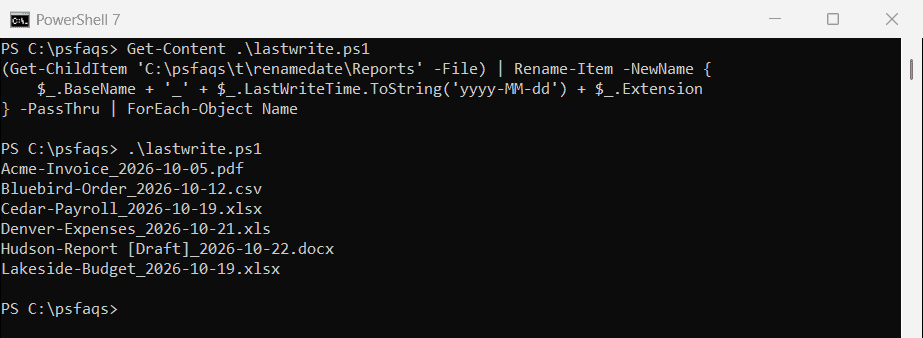
Every file kept its name and gained its own date. The parentheses around Get-ChildItem matter in Windows PowerShell 5.1, and I’ll show why below.
LastWriteTime is the modified date you see in File Explorer. To check it before renaming, here’s how to get a file’s modified date.
Add the creation date as a prefix instead
Use CreationTime for the date the file was created on this disk. Here I put it in front of the name, which groups files by date:
(Get-ChildItem 'C:\psfaqs\t\renamedate\Reports' -File) | Rename-Item -NewName {
    $_.CreationTime.ToString('yyyy-MM-dd') + '_' + $_.Name
} -PassThru | ForEach-Object Name
Output:
2026-09-28_Acme-Invoice.pdf
2026-10-01_Bluebird-Order.csv
2026-10-15_Cedar-Payroll.xlsx
2026-10-20_Denver-Expenses.xls
2026-10-22_Hudson-Report [Draft].docx
2026-10-02_Lakeside-Budget.xlsx
Watch out: a copied or downloaded file gets a new CreationTime, so LastWriteTime is often the more honest date. The post on how to get the file creation date compares the two.
Should the date go before or after the file name?
A suffix keeps files sorted by name, while a prefix sorts them by date. Either way, use year-month-day. Here’s why a US-style date sorts badly:
$dates = '2027-01-15', '2026-11-30', '2026-12-04'
'US style (MM-dd-yyyy): ' + (($dates | ForEach-Object { (Get-Date $_).ToString('MM-dd-yyyy') } | Sort-Object) -join ', ')
'Sortable (yyyy-MM-dd): ' + (($dates | ForEach-Object { (Get-Date $_).ToString('yyyy-MM-dd') } | Sort-Object) -join ', ')
Output:
US style (MM-dd-yyyy): 01-15-2027, 11-30-2026, 12-04-2026
Sortable (yyyy-MM-dd): 2026-11-30, 2026-12-04, 2027-01-15
With MM-dd-yyyy, January 2027 lands before November 2026. With yyyy-MM-dd, alphabetical order is date order, so File Explorer and sorting files by date in scripts agree.
Preview the rename with -WhatIf
Before renaming a whole folder, add -WhatIf. PowerShell prints each old and new path and changes nothing:
(Get-ChildItem 'C:\psfaqs\t\renamedate\Reports' -Filter 'Acme*') | Rename-Item -NewName {
    $_.LastWriteTime.ToString('yyyy-MM-dd') + '_' + $_.Name
} -WhatIf
"Files renamed: $(@(Get-ChildItem 'C:\psfaqs\t\renamedate\Reports' -Filter '2026*').Count)"
Output:
What if: Performing the operation "Rename File" on target "Item: C:\psfaqs\t\renamedate\R