
If you’ve ever run a calculation in PowerShell and ended up with a result like 3.75 when you just needed 3, you know this problem well.
PowerShell stores decimal numbers as doubles by default. And sometimes you just want a clean integer — no fractional part, no trailing decimal, just a whole number you can use in a loop counter, an array index, or a simple display value.
In this tutorial, I’ll walk you through five different ways to convert a double to an int in PowerShell, explain exactly what each method does, and help you pick the right one for your situation.
This tutorial covers:
- Why PowerShell stores numbers as doubles
- Method 1: Direct casting with
[int] - Method 2: Using
[Math]::Floor() - Method 3: Using
[Math]::Ceiling() - Method 4: Using
[Math]::Truncate() - Method 5: Using
[Math]::Round() - How to convert a double stored as a string to int
- Which method should you use?
Why Does PowerShell Use Doubles?
Before jumping into the methods, it helps to understand why this situation comes up.
When you write 1.5 in PowerShell, it automatically treats it as a [double] — a 64-bit floating point number. This is the default for any number with a decimal point.
$value = 3.75
$value.GetType().Name  # Output: Double
This is perfectly fine most of the time. But when you’re doing things like setting a loop count, calculating an index position, or displaying a rounded figure in a report, you need a proper integer.
Let’s look at your options.
Method 1: Direct Casting with [int]
This is the simplest and most commonly used approach. You just put [int] in front of your double value, and PowerShell converts it for you.
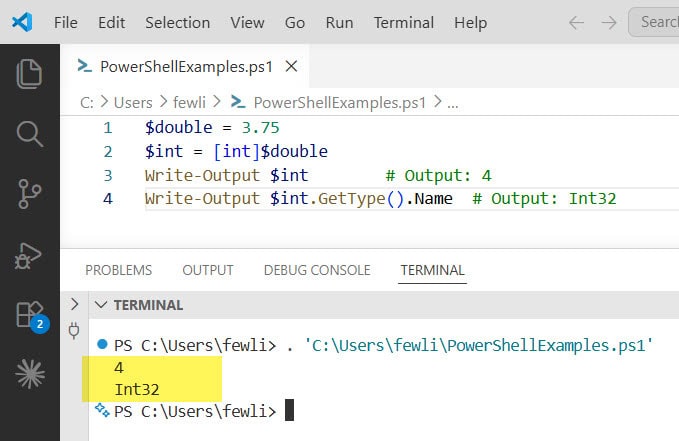
$double = 3.75
$int = [int]$double
Write-Output $int        # Output: 4
Write-Output $int.GetType().Name  # Output: Int32
Clean, simple, one line.
You can check out the exact output in the screenshot below:
But here’s the important thing to understand: PowerShell does NOT just chop off the decimal part. It actually rounds the number using something called Banker’s Rounding (also known as round-half-to-even). This means:
3.75→4(rounds up because it’s above .5)3.5→4(rounds up to nearest even number)2.5→2(rounds down because 2 is the nearest even number)3.2→3(rounds down because it’s below .5)
That last rule with .5 catches a lot of people off guard. Let me show it clearly:
[int]1.5   # Output: 2
[int]2.5   # Output: 2  ← both round to 2 (even)
[int]3.5   # Output: 4
[int]4.5   # Output: 4  ← both round to 4 (even)
So if you have a .5 midpoint, PowerShell always goes toward the even number. This is by design — it reduces cumulative rounding errors in statistical work. But if you’re expecting traditional rounding (where .5 always goes up), you’ll want Method 5 instead.
When to use this: When you want standard rounding and are comfortable with banker’s rounding behavior.
Check out PowerShell Round to 2 Decimal Places
Method 2: Using [Math]::Floor()
Math.Floor() always rounds down to the nearest whole number, no matter what the decimal part is.
Think of it as “always go to the floor — drop down.”
$double = 3.9
$int = [int][Math]::Floor($double)
Write-Output $int  # Output: 3
More examples:
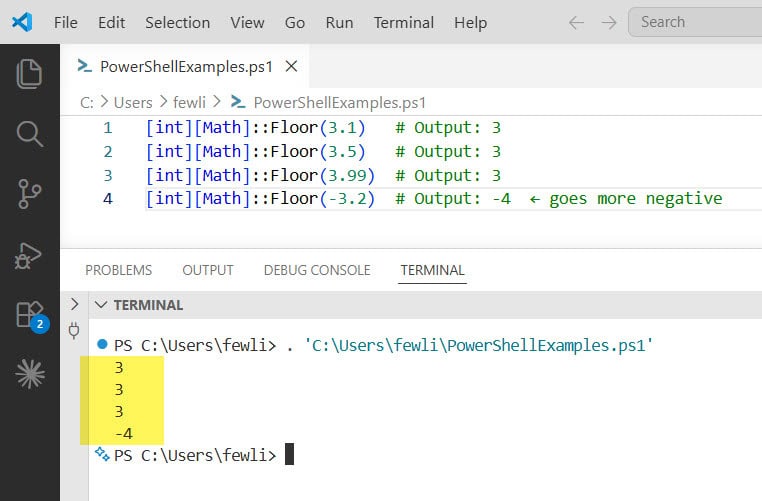
[int][Math]::Floor(3.1)   # Output: 3
[int][Math]::Floor(3.5)   # Output: 3
[int][Math]::Floor(3.99)  # Output: 3
[int][Math]::Floor(-3.2)  # Output: -4  ← goes more negative
Notice that last one. With negative numbers, “floor” means going further away from zero. -3.2 floors to -4, not -3. If that’s not what you want for negative numbers, check out Truncate in Method 4.
Here is the exact output in the screenshot below:
When to use this: When you always want to round down — for example, calculating how many complete pages of results you can fit, or dividing resources without going over.
Read PowerShell Measure-Object 2 Decimal Places
Method 3: Using [Math]::Ceiling()
Math.Ceiling() is the opposite of Floor. It always rounds up to the nearest whole number.
$double = 3.1
$int = [int][Math]::Ceiling($double)
Write-Output $int  # Output: 4
More examples:
[int][Math]::Ceiling(3.1)   # Output: 4
[int][Math]::Ceiling(3.5)   # Output: 4
[int][Math]::Ceiling(3.0)   # Output: 3  ← already whole, no change
[int][Math]::Ceiling(-3.2)  # Output: -3  ← goes toward zero
A practical use case: you’re calculating how many batches you need to process 250 records, 30 at a time:
$totalRecords = 250
$batchSize = 30
$batches = [int][Math]::Ceiling($totalRecords / $batchSize)
Write-Output $batches  # Output: 9
If you used Floor here, you’d get 8 — and you’d miss the last 10 records. Ceiling makes sure you always have enough batches.
When to use this: When you need to round up, like calculating batch counts, page numbers, or any “how many do I need” scenario.
Check out PowerShell If Greater Than 0
Method 4: Using [Math]::Truncate()
Truncate simply removes the decimal part. It doesn’t round up or down — it just cuts it off.
$double = 3.99
$int = [int][Math]::Truncate($double)
Write-Output $int  # Output: 3
More examples:
[int][Math]::Truncate(3.1)   # Output: 3
[int][Math]::Truncate(3.9)   # Output: 3
[int][Math]::Truncate(-3.9)  # Output: -3  ← moves toward zero
You can check out the exact output in the screenshot below:
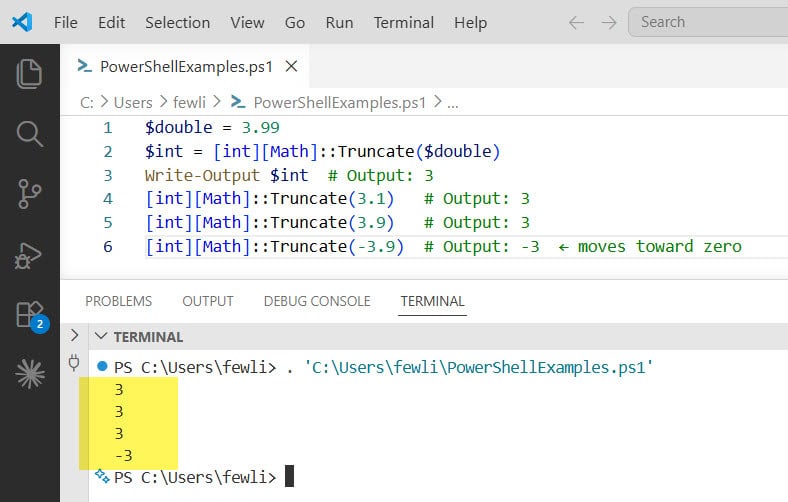
The key difference from Floor: with negative numbers, Truncate always moves toward zero, while Floor moves away from zero.
[int][Math]::Floor(-3.9)     # Output: -4
[int][Math]::Truncate(-3.9)  # Output: -3
You can also use [int]::Truncate() — it works the same way:
$int = [int]::Truncate(7.85)
Write-Output $int  # Output: 7
When to use this: When you want to simply strip the decimal with no rounding at all, and you want consistent behavior with negative numbers.
Check out Convert Number to String in PowerShell
Method 5: Using [Math]::Round()
Math.Round() gives you the most control over how rounding happens. By default, it behaves like the [int] cast and uses banker’s rounding. But you can override that.
Basic usage (same as [int] cast):
$int = [int][Math]::Round(3.5)
Write-Output $int  # Output: 4
Wait — that gives 4? Earlier I said [int]2.5 gives 2. Let me clarify: [Math]::Round(3.5) uses the same banker’s rounding by default, so 3.5 rounds to 4 (nearest even), but 2.5 rounds to 2. The result depends on whether the nearest even integer is above or below.
Traditional rounding (always round .5 up):
If you want the old-school behavior where .5 always rounds up, use AwayFromZero:
$int = [int][Math]::Round(2.5, [System.MidpointRounding]::AwayFromZero)
Write-Output $int  # Output: 3

$int = [int][Math]::Round(3.5, [System.MidpointRounding]::AwayFromZero)
Write-Output $int  # Output: 4
You can also round to a specific number of decimal places before converting to int:
$double = 3.456789
$rounded = [Math]::Round($double, 2)   # 3.46
$int = [int][Math]::Round($double, 0)  # 3
Write-Output $int  # Output: 3
A quick comparison of all rounding behaviors:
| Value | [int] / Default Round | Floor | Ceiling | Truncate | AwayFromZero Round |
|---|---|---|---|---|---|
| 2.3 | 2 | 2 | 3 | 2 | 2 |
| 2.5 | 2 | 2 | 3 | 2 | 3 |
| 2.7 | 3 | 2 | 3 | 2 | 3 |
| 3.5 | 4 | 3 | 4 | 3 | 4 |
| -2.5 | -2 | -3 | -2 | -2 | -3 |
When to use this: When you need explicit, predictable rounding control — especially in financial or reporting scripts.
Check out PowerShell Convert Byte Array to Hex String
Bonus: Converting a Double Stored as a String
Sometimes your double comes in as a string — from a CSV file, a REST API response, or user input. Here’s how to handle that:
$stringValue = "3.75"

# Method 1: Double-cast (string → double → int)
$int = [int][double]$stringValue
Write-Output $int  # Output: 4

# Method 2: Parse then truncate
$int = [int][Math]::Truncate([double]$stringValue)
Write-Output $int  # Output: 3

# Method 3: Using [Convert]::ToInt32()
$int = [Convert]::ToInt32([double]$stringValue)
Write-Output $int  # Output: 4
The [Convert]::ToInt32() method is handy when you’re working with .NET-style code or when you want a clean, readable conversion line without chaining casts.
One thing to watch: if your string has commas as decimal separators (common in European locale data), you’ll need to handle that first:
$stringValue = "3,75"
$cleaned = $stringValue -replace ",", "."
$int = [int][double]$cleaned
Write-Output $int  # Output: 4
Which Method Should You Use?
Here’s my honest take:
- Use
[int]for quick, general-purpose conversions when you just need an integer and aren’t worried about edge cases at the.5midpoint. - Use
[Math]::Floor()when you always need to go lower — batch calculations, index positions, available slot counting. - Use
[Math]::Ceiling()when you always need to go higher — page counts, required resource allocation, buffer sizing. - Use
[Math]::Truncate()when you want to simply drop the decimal with zero rounding logic — raw number parsing, position calculations. - Use
[Math]::Round()withAwayFromZerowhen you need traditional school-textbook rounding where.5always goes up.
The gotcha that trips people up most often is the banker’s rounding behavior of [int] and default [Math]::Round(). If you’re seeing unexpected results at the .5 midpoint, that’s almost certainly the cause.
Conclusion
In this tutorial, I explained how to convert a double to an int in PowerShell using several methods. The [int] cast is great for everyday use, but the [Math] class methods give you precise control when you need it.
My personal go-to for most scripts is [Math]::Truncate() when I want to strip decimals without any rounding surprises, and [Math]::Round() with AwayFromZero when I need traditional rounding. Knowing the difference saves you from debugging some very confusing output.
Do let me know if you have any questions related to this in the comments below.
You may also like the following tutorials:
- PowerShell Round to Nearest Whole Number
- Concatenate Strings and Floats in PowerShell
- Convert a String to a Binary Number in PowerShell

Bijay Kumar is an esteemed author and the mind behind PowerShellFAQs.com, where he shares his extensive knowledge and expertise in PowerShell, with a particular focus on SharePoint projects. Recognized for his contributions to the tech community, Bijay has been honored with the prestigious Microsoft MVP award. With over 15 years of experience in the software industry, he has a rich professional background, having worked with industry giants such as HP and TCS. His insights and guidance have made him a respected figure in the world of software development and administration. Read more.
