The error “Cannot convert value to type System.String” (or its close variant “Cannot convert ‘System.Object[]’ to the type ‘System.String'”) is one of the most frequently encountered PowerShell errors. It appears when a parameter typed as [string] receives something it can’t accept — typically an array, a null value, or a complex object.
In this tutorial, I will explain the root cause and the fixes for the error: cannot convert value to type system.string in PowerShell.
PowerShell: Cannot Convert Value to Type System.String
You’ll see this error in several forms depending on context:
Cannot convert value "" to type "System.String". Error: "Value cannot be null"
Cannot convert 'System.Object[]' to the type 'System.String' required by parameter
Cannot bind parameter 'Name'. Cannot convert value to type System.String.
Cannot convert the value of type "System.String" to type "System.Security.SecureString"
All of these share the same root cause family: a type mismatch between what was passed and what the parameter expects.
Root Cause 1: Passing an Array Where a String Is Expected
This is the most common cause.
A variable that looks like it holds a string is actually holding an array — and the target parameter only accepts a single string value.
Example
function Get-UserInfo {
param (
[Parameter(Mandatory)]
[string]$Username
)
Write-Host "Getting info for: $Username"
}
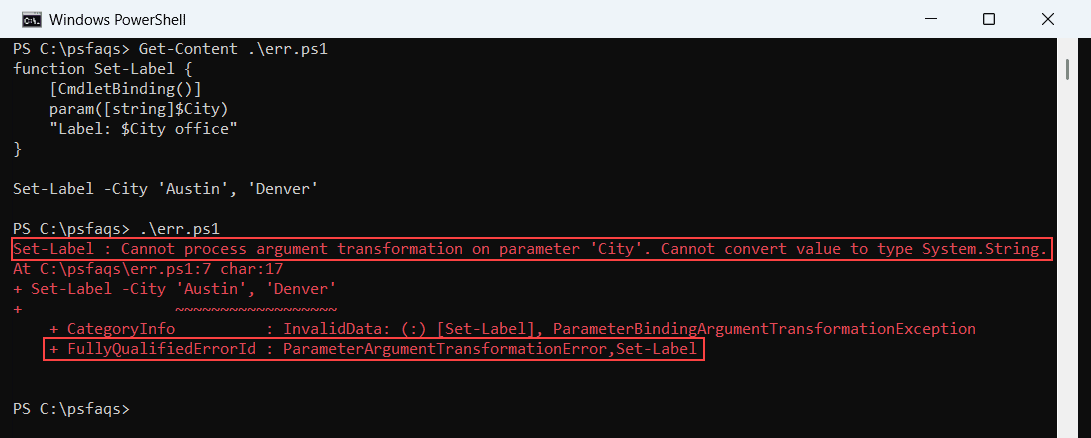
$users = @("Alice", "Bob") # This is an array
Get-UserInfo -Username $users # ERRORError:
Cannot convert value to type System.String.
You can see the exact output in the screenshot below:

Why This Happens
In advanced functions (those using [Parameter()] or [CmdletBinding()]), PowerShell strictly enforces that a [string] parameter receives exactly one value. Passing an array of strings — even an array of one element — violates this rule.
In simple functions (no [Parameter()] or [CmdletBinding()]), PowerShell joins the array elements with spaces and converts to a single string. That’s why the same code works in one function but fails in another.
Fix: Loop over the array
# Pass one value at a time
foreach ($user in $users) {
Get-UserInfo -Username $user
}
Fix: Use pipeline input
# Accept pipeline values in your function
function Get-UserInfo {
param (
[Parameter(Mandatory, ValueFromPipeline)]
[string]$Username
)
process {
Write-Host "Getting info for: $Username"
}
}
$users | Get-UserInfo
Fix: Join the array into a string (when appropriate)
# If the parameter needs all values as one comma-separated string
Get-UserInfo -Username ($users -join ", ")
Check out Convert a String to an Array of Characters in PowerShell
Root Cause 2: Using Commas Between Arguments
This is a classic beginner mistake.
In PowerShell, commas between function arguments create an array, not a list of separate parameters. Compare these two calls:
# WRONG — commas create a single array argument
MyFunction "Alice", "Bob"
# CORRECT — space-separated passes as two arguments
MyFunction "Alice" "Bob"
Example
Here is an example.
function Show-Name {
param (
[Parameter(Mandatory)]
[string]$FirstName,
[Parameter(Mandatory)]
[string]$LastName
)
Write-Host "$FirstName $LastName"
}
# WRONG — passes array @("Alice","Smith") as $FirstName; $LastName gets nothing
Show-Name "Alice", "Smith"
# CORRECT
Show-Name "Alice" "Smith"
# Also correct — named parameters
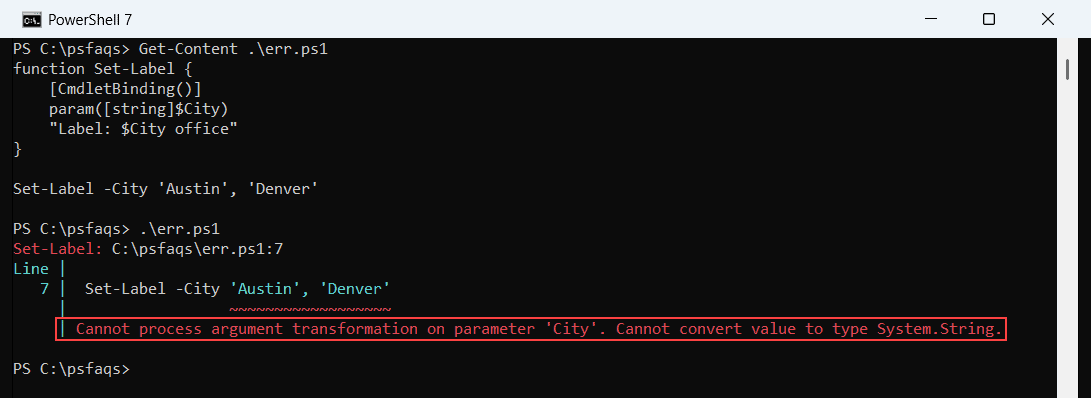
Show-Name -FirstName "Alice" -LastName "Smith"This is particularly common for developers coming from C#, JavaScript, or Python, where comma-separated arguments are the standard syntax.
Here is the exact output in the screenshot below:

Read Find the Index of a String in an Array in PowerShell
Root Cause 3: Passing $null or Empty String to a Mandatory Parameter
Mandatory [string] parameters in advanced functions refuse $null and empty string "" — even when passed explicitly.
This error happens when a mandatory string parameter receives $null or an empty value, which PowerShell rejects because mandatory [string] parameters must always have a valid non-empty input.
function Set-Label {
param (
[Parameter(Mandatory)]
[string]$Label
)
Write-Host "Label: $Label"
}
$value = $null
Set-Label -Label $value # ERROR: Cannot convert value "" to System.String
Set-Label -Label "" # ERROR
Set-Label -Label $null # ERRORFix 1: Make the parameter non-mandatory
Make the parameter optional with a default value so PowerShell always receives a valid string instead of failing on null or empty input.
param (
[string]$Label = ""
)
Fix 2: Guard with a null/empty check before calling
Validate the value before calling the function to ensure only non-null and non-empty strings are passed, preventing the error at the source.
if (-not [string]::IsNullOrEmpty($value)) {
Set-Label -Label $value
}Fix 3: Provide a default fallback
Use a fallback/default value so that when the input is null or empty, PowerShell automatically substitutes a safe string instead of throwing an error.
Set-Label -Label ($value ?? "Default") # PowerShell 7+ null coalescing
Set-Label -Label (if ($value) { $value } else { "Default" }) # PS 5.1
Check out Convert Base64 String to Byte Array in PowerShell
Root Cause 4: A Variable Contains an Object, Not a String
This error occurs when a cmdlet returns a complex object (like an AD object) instead of a plain string, and that entire object is passed to a parameter that expects a [string], causing PowerShell to fail the conversion.
# Get-ADUser returns an ADUser object, not a string
$user = Get-ADUser -Filter { Name -eq "Alice" }
# Passing the object to a [string] parameter
Set-Item -Path "..." -Value $user # ERROR — $user is an object
Fix: Extract the property you need
Extract the required property from the object so only the actual string value (e.g., username or ID) is passed to the parameter.
Use Select-Object -ExpandProperty to directly unwrap the needed string property from the object output before passing it along.
# Extract the specific string property
$userName = $user.SamAccountName
Set-Item -Path "..." -Value $userName
# Or use Select-Object -ExpandProperty
$userName = Get-ADUser -Filter { Name -eq "Alice" } |
Select-Object -ExpandProperty SamAccountName
Fix: Call .ToString() explicitly
Explicitly convert the object to a string using .ToString() when appropriate, ensuring PowerShell receives a valid string representation instead of a full object.
$value = $someObject.ToString()
Set-Item -Path "..." -Value $value
Check out Get All Properties of an Object in PowerShell
Root Cause 5: Pipeline Returns an Array
This error occurs when a pipeline returns multiple values, causing the variable to become an array (System.Object[]), which cannot be passed directly to a parameter that expects a single string.
# Returns multiple objects — $computers is an array
$computers = Get-ADComputer -Filter * | Select-Object -ExpandProperty Name
# ERROR: passes System.Object[] to a [string] parameter
Test-Connection -ComputerName $computers # Fails if parameter doesn't accept arrays
Fix: Pipe directly
Process values directly in the pipeline so each item is handled one at a time, avoiding the need to pass an entire array to a string parameter.
Get-ADComputer -Filter * |
Select-Object -ExpandProperty Name |
ForEach-Object { Test-Connection -ComputerName $_ -Count 1 }
Fix: Cast to a typed array and iterate
Explicitly cast the output to a strongly typed [string[]] array and iterate through it using a loop, ensuring each value is passed individually in the correct format.
[string[]]$computers = Get-ADComputer -Filter * |
Select-Object -ExpandProperty Name
foreach ($computer in $computers) {
Test-Connection -ComputerName $computer -Count 1
}
Read PowerShell Convert XML to Object
Root Cause 6: String Contains Special Characters (SecureString Case)
A specific variant — when a [string] value contains characters like &, $, @, or ! and PowerShell misinterprets them during parsing.
# WRONG — $ and & in the string cause parsing errors
$password = "My&$P@ssw0rd"
$securePass = $password | ConvertTo-SecureString -AsPlainText -Force
Connect-SPOSite -Url $siteUrl -Credential (New-Object PSCredential($user, $securePass))
Fix: Use a here-string for strings with special characters
# Here-string handles all special characters safely
$password = @'
My&$P@ssw0rd
'@
$securePass = $password | ConvertTo-SecureString -AsPlainText -Force
The @'...'@ single-quoted here-string treats every character literally — no variable expansion, no special character interpretation.
Check out Join an Array of Strings in PowerShell
Root Cause 7: Type Mismatch — System.String to SecureString
This specific variant appears frequently in SharePoint, Exchange Online, and Azure PowerShell modules:
Cannot convert the value of type "System.String" to type "System.Security.SecureString"
Modern cmdlets require a [SecureString] for passwords, not a plain [string].
# WRONG — passing a plain string where SecureString is required
Connect-ExchangeOnline -Password "MyPlainPassword"
# CORRECT — convert to SecureString first
$securePass = "MyPlainPassword" | ConvertTo-SecureString -AsPlainText -Force
Connect-ExchangeOnline -Password $securePass
# Better — use Get-Credential for interactive scenarios
$cred = Get-Credential
How to Diagnose the Problem: cannot convert value to type system.string
When you see this error, run these diagnostic checks immediately:
Check 1: What type is your variable?
$myVar = Get-Something
$myVar.GetType().FullName # Shows the actual type
$myVar.GetType().IsArray # True if it's an array
Check 2: How many items does it contain?
$myVar.Count # 1 or more?
Check 3: Use Get-Member to inspect properties
myVar | Get-Member # Shows all properties and methods
Check 4: Display the value before passing it
Write-Host "Variable value: $myVar"
Write-Host "Variable type : $($myVar.GetType().FullName)"
Write-Host "Is array : $($myVar.GetType().IsArray)"
A Diagnostic Helper Function
Here is a helper function that you can use.
function Test-StringCompatibility {
<#
.SYNOPSIS
Checks whether a value is safe to pass as a [string] parameter.
#>
param (
[object]$Value,
[string]$VariableName = "Value"
)
Write-Host "=== Diagnostics for: $VariableName ==="
Write-Host "Type : $($Value.GetType().FullName)"
Write-Host "Is Array : $($Value.GetType().IsArray)"
Write-Host "Count : $(@($Value).Count)"
Write-Host "Is Null : $($null -eq $Value)"
Write-Host "Is Empty : $([string]::IsNullOrEmpty($Value))"
if ($Value.GetType().IsArray) {
Write-Warning "This is an ARRAY — iterate with foreach or use pipeline."
} elseif ($null -eq $Value -or [string]::IsNullOrEmpty($Value)) {
Write-Warning "This is NULL or EMPTY — check source and add a default or guard."
} else {
Write-Host "Looks safe to pass as [string]." -ForegroundColor Green
}
}
# Usage
$result = Get-ADUser -Filter * | Select-Object -ExpandProperty Name
Test-StringCompatibility -Value $result -VariableName '$result'Fix Summary Table
| Error Scenario | Root Cause | Fix |
|---|---|---|
Passing @("a","b") to [string] | Array where single string expected | Iterate with foreach or use pipeline |
MyFunc "a", "b" syntax | Commas create array argument | Use spaces: MyFunc "a" "b" |
Passing $null or "" to Mandatory | Null/empty rejected by advanced functions | Remove Mandatory, add guard, or provide default |
| Object passed instead of string | Variable holds rich object | Use .PropertyName or .ToString() |
| Pipeline returns array | Multiple results stored as array | Use ForEach-Object or Select-Object -First 1 |
| Special chars in string | $ or & misinterpreted | Use here-string @'...'@ |
| String passed to SecureString param | Wrong type for password params | Use ConvertTo-SecureString -AsPlainText -Force |
Check out PowerShell: Convert Hashtable to String
Prevention Best Practices
1. Always validate variable types before passing to functions
if ($value -is [array]) {
Write-Warning "Expected string, got array"
}2. Use [string] cast when you’re confident about content
$value = [string]$someObject
3. Use named parameters instead of positional ones
Named parameters make it immediately obvious what value goes where and prevent accidental array passing:
# Less safe
MyFunc $a $b
# Safer
MyFunc -FirstName $a -LastName $b
4. Add ValueFromPipeline to functions that process collections
param (
[Parameter(Mandatory, ValueFromPipeline)]
[string]$Name
)
process {
# Handles one item at a time from pipeline
}
5. Use [ValidateNotNullOrEmpty()] to surface errors early
param (
[Parameter(Mandatory)]
[ValidateNotNullOrEmpty()]
[string]$Name
)
This raises a clear validation error at the parameter level before your function logic runs — easier to debug than a mid-execution type error.
6. Use Select-Object -ExpandProperty instead of just Select-Object
# WRONG — returns an object with a Name property
$name = Get-Process -Name notepad | Select-Object Name
# CORRECT — returns the string value directly
$name = Get-Process -Name notepad | Select-Object -ExpandProperty Name
Conclusion
The “Cannot convert value to type System.String” error in PowerShell almost always comes down to one of three situations: you’re passing an array where a single string is expected, you’re passing $null or empty string to a mandatory parameter, or your variable holds a complex object rather than a plain string.
The fastest diagnostic is always $variable.GetType().FullName and $variable.GetType().IsArray — these two checks tell you exactly what you’re dealing with. Fix arrays with foreach loops or pipeline iteration, fix null/empty values with guards and defaults, and fix object mismatches by extracting the specific string property you need.
You may also like:
Bijay Kumar is an esteemed author and the mind behind PowerShellFAQs.com, where he shares his extensive knowledge and expertise in PowerShell, with a particular focus on SharePoint projects. Recognized for his contributions to the tech community, Bijay has been honored with the prestigious Microsoft MVP award. With over 15 years of experience in the software industry, he has a rich professional background, having worked with industry giants such as HP and TCS. His insights and guidance have made him a respected figure in the world of software development and administration. Read more.