
When you know only part of a folder name—such as Finance, Archive, or Project-A—PowerShell can search a local drive, mapped drive, or file share and return the matching folder paths. The recommended approach is Get-ChildItem with -Directory, followed by a wildcard filter such as -like '*Finance*'.
This is useful in IT administration when you need to locate project folders on a file server, review legacy department storage, validate a migration scope, or build an inventory before taking a later action. The examples work in Windows PowerShell 5.1 and PowerShell 7+; no additional modules or authentication are required for local folders and accessible network shares.
Quick answer
Use Get-ChildItem to enumerate directories and Where-Object with the -like operator to match any folder name containing your partial text.
$RootPath = 'C:\Data'
$PartialName = 'Finance'

Get-ChildItem -Path $RootPath -Directory -Recurse -ErrorAction SilentlyContinue |
    Where-Object { $_.Name -like "*$PartialName*" } |
    Select-Object Name, FullName
This command searches under C:\Data, returns directories only, and displays folders whose Name contains Finance. The asterisks are wildcards: they allow text before and after the partial name.
For a broader introduction to matching directory names, see PowerShell Find Folders Matching Pattern.
Prerequisites
You need:
- Windows PowerShell 5.1 or PowerShell 7+.
- Read permission on the root folder and any subfolders you want to search.
- A valid local path, mapped drive, or UNC path such as
\\FileServer01\DepartmentData. - No extra PowerShell modules for standard file-system searches.
Verify your PowerShell version and confirm that the root path exists before starting:
$PSVersionTable.PSVersion

$RootPath = 'C:\Data'
Test-Path -Path $RootPath -PathType Container
Test-Path -PathType Container returns True only when the path exists and is a folder. If it returns False, correct the path before running a recursive search.
Understanding the concept
The essential pattern is:
Get-ChildItem | Where-Object
Get-ChildItem retrieves items from a location. When you specify -Directory, it returns folder objects rather than files. Each returned folder has useful properties, including:
Name: The folder name only, such asFinance-Archive.FullName: The complete path, such asC:\Data\Departments\Finance-Archive.LastWriteTime: The date and time the directory was last modified.Parent: The folder’s immediate parent path.
Where-Object filters those folder objects. The expression below means “keep a folder only when its name contains the text stored in $PartialName”:
$_.Name -like "*$PartialName*"
$_ represents the current folder object moving through the pipeline. The -like operator compares text using wildcard characters:
*Finance*matchesFinance,Finance-Archive, andOldFinanceRecords.Finance*matches folder names that begin withFinance.*Financematches folder names that end withFinance.
For a focused explanation of filtering objects in a pipeline, see PowerShell Where-Object.
Method 1: Use Get-ChildItem with a wildcard filter
This method is reliable, readable, and flexible. It is the best default when you need to find folders by part of their names.
Step 1: Define the root path and partial folder name
Choose the location where PowerShell should begin the search. Start with the smallest practical root path to reduce search time and avoid unnecessary permission errors.
$RootPath = 'C:\SharedData'
$PartialName = 'Project'
$RootPath is the starting location. $PartialName is the text that can appear anywhere in a folder name.
For example, a search for Project can match:
Project-Alpha
Archived-Projects
ClientProjectFiles
Step 2: Search folders recursively
Use Get-ChildItem with -Directory and -Recurse, then filter the results by the Name property.
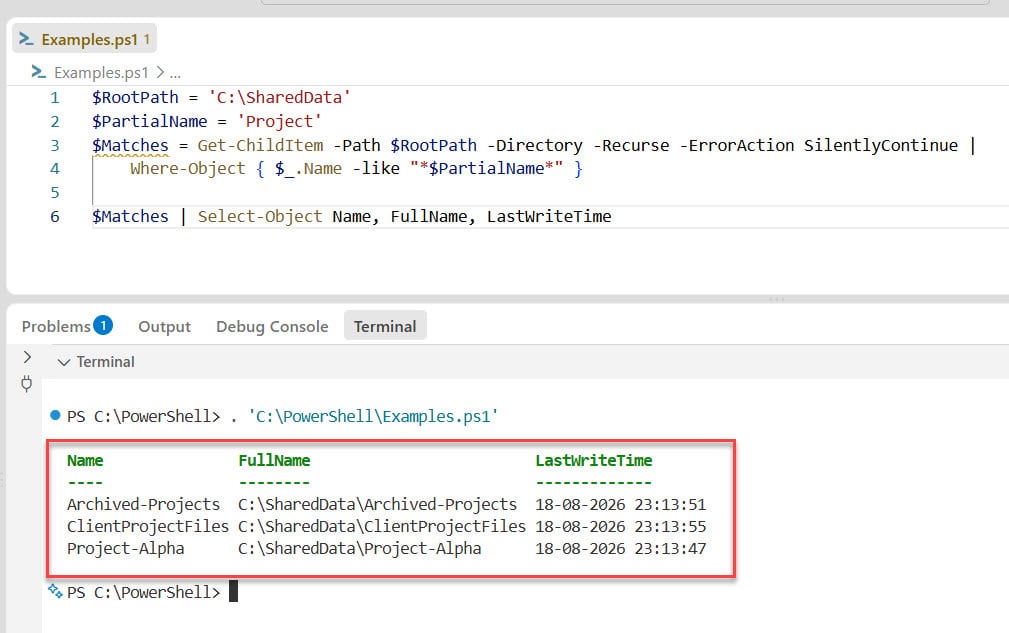
$Matches = Get-ChildItem -Path $RootPath -Directory -Recurse -ErrorAction SilentlyContinue |
    Where-Object { $_.Name -like "*$PartialName*" }

$Matches | Select-Object Name, FullName, LastWriteTime
What this command does:
-Path $RootPathtells PowerShell where to begin.-Directoryexcludes files from the results.-Recursesearches every accessible subfolder below the root path.-ErrorAction SilentlyContinuecontinues when PowerShell cannot access a particular location.Where-Objectretains only folder objects whose names contain the partial text.Select-Objectdisplays only the most useful properties.
The pipeline first produces directory objects, then filters them, then formats selected properties for display.
I executed the above PowerShell script, and you can see the exact output in the screenshot below:
Step 3: Verify the result
Before using a matching path in another script, confirm that each returned item is actually a folder and inspect the full path.
$Matches |
    ForEach-Object {
        [PSCustomObject]@{
            Name         = $_.Name
            FullName     = $_.FullName
            Exists       = Test-Path -Path $_.FullName -PathType Container
            LastModified = $_.LastWriteTime
        }
    } |
    Format-Table -AutoSize
A valid result should show True in the Exists column. This validation is especially useful if a file share is changing while the script runs.
For more Get-ChildItem patterns, review Get-ChildItem in PowerShell.
Example 1: Locate project folders on a file server
An IT team may need to locate all folders associated with a client or project before a storage review, migration, or access audit. The folder naming may not be consistent: one team might use Contoso-Project, another Project-Contoso, and another Contoso_Project_2026.
The following script searches a departmental share for folders that contain a project keyword.
$RootPath = '\\FileServer01\DepartmentData'
$ProjectKeyword = 'Contoso'

if (-not (Test-Path -Path $RootPath -PathType Container)) {
    throw "The root path does not exist or is not accessible: $RootPath"
}

$MatchingFolders = Get-ChildItem -Path $RootPath -Directory -Recurse -ErrorAction SilentlyContinue |
    Where-Object { $_.Name -like "*$ProjectKeyword*" } |
    Select-Object @{
        Name = 'FolderName'
        Expression = { $_.Name }
    }, @{
        Name = 'FolderPath'
        Expression = { $_.FullName }
    }, @{
        Name = 'ParentPath'
        Expression = { $_.Parent.FullName }
    }, LastWriteTime |
    Sort-Object FolderPath

if ($MatchingFolders) {
    $MatchingFolders | Format-Table -AutoSize
}
else {
    Write-Warning "No folders containing '$ProjectKeyword' were found under $RootPath."
}
Input assumptions
- You have read permission to
\\FileServer01\DepartmentData. - The file server and share name are reachable from your computer.
- Folder names contain a consistent partial identifier such as
Contoso. - You want to search all nested folders, not only the top-level folders.
Expected output
The script produces a table similar to this:
FolderName              FolderPath                                                ParentPath                              LastWriteTime
----------              ----------                                                ----------                              -------------
Contoso-Project-Alpha   \\FileServer01\DepartmentData\Projects\Contoso-Project-Alpha  \\FileServer01\DepartmentData\Projects  08/12/2026 10:24:18
Contoso_Archive         \\FileServer01\DepartmentData\Archive\Contoso_Archive         \\FileServer01\DepartmentData\Archive   05/22/2026 16:41:03
How this works
The script validates the root path first, so it does not perform a search against an invalid location. It then collects matching folder objects and creates a clean report with the folder name, full folder path, parent folder, and last modified date.
It performs no changes. You can safely run it before a migration, cleanup, permission review, or manual investigation.
Safe validation step
Use the returned folder paths to verify that each location remains available:
$MatchingFolders |
    ForEach-Object {
        Test-Path -Path $_.FolderPath -PathType Container
    }
If you are checking folders before a copy or migration task, Copy Files From One Folder to Another in PowerShell can help with the next stage after you have reviewed and approved the results.
Example 2: Create a reusable search function and export results
Example 1 is ideal for a single interactive search. This version turns the search into a reusable function, supports an optional recursive search, reports access errors, and exports matching folders to a CSV file.
function Find-FolderByPartialName {
    [CmdletBinding()]
    param(
        [Parameter(Mandatory)]
        [ValidateNotNullOrEmpty()]
        [string]$Path,

        [Parameter(Mandatory)]
        [ValidateNotNullOrEmpty()]
        [string]$PartialName,

        [switch]$Recurse,

        [string]$ExportPath
    )

    if (-not (Test-Path -Path $Path -PathType Container)) {
        throw "The path does not exist or is not accessible: $Path"
    }

    $searchParameters = @{
        Path        = $Path
        Directory   = $true
        ErrorAction = 'SilentlyContinue'
        ErrorVariable = '+SearchErrors'
    }

    if ($Recurse) {
        $searchParameters.Recurse = $true
    }

    $SearchErrors = @()

    $results = Get-ChildItem @searchParameters |
        Where-Object { $_.Name -like "*$PartialName*" } |
        Select-Object Name, FullName, Parent, LastWriteTime |
        Sort-Object FullName

    if ($ExportPath) {
        $results | Export-Csv -Path $ExportPath -NoTypeInformation -Encoding UTF8
        Write-Verbose "Exported $($results.Count) result(s) to $ExportPath."
    }

    if ($SearchErrors.Count -gt 0) {
        Write-Warning "Some locations could not be searched. Review the error details in `$SearchErrors."
    }

    return $results
}

$Results = Find-FolderByPartialName `
    -Path '\\FileServer01\DepartmentData' `
    -PartialName 'Finance' `
    -Recurse `
    -ExportPath 'C:\Reports\Finance-Folder-Search.csv' `
    -Verbose

$Results | Format-Table Name, FullName, LastWriteTime -AutoSize
This version differs from Example 1 in several important ways:
- It packages the logic into a function that you can reuse in scripts and scheduled tasks.
-Recurseis optional, so you can search only the top level when appropriate.-ExportPathcreates a reviewable CSV report without changing any folders.ErrorVariableretains access-related errors instead of displaying each one during the search.-Verboseprovides confirmation when a report has been exported.
The output CSV is useful when a manager, storage owner, or project team needs to review results before any action is taken. For additional export patterns, see Export an Array to CSV in PowerShell.
Common errors and fixes
No folders are returned
- Likely cause: The partial name is incorrect, the desired folders are outside the selected root path, or the search is not recursive.
- How to diagnose it: List a sample of folders beneath the root path and inspect their names.
- Exact fix:
Get-ChildItem -Path 'D:\SharedData' -Directory -Recurse |
    Select-Object -First 30 Name, FullName
- How to prevent it next time: Start with a known parent path, use a short but distinctive search value, and include
-Recursewhen the target may exist below the top level.
Access to the path is denied
- Likely cause: Your account lacks read or list permissions for one or more directories.
- How to diagnose it: Run the command without
-ErrorAction SilentlyContinueto identify the blocked path. - Exact fix: Request read access from the folder owner or administrator, or choose a root path that your account can access.
- How to prevent it next time: Run inventory scripts with a least-privilege account that has documented read access to the required shares.
For additional troubleshooting guidance, see Access to the Path Is Denied in PowerShell.
The root path does not exist
- Likely cause: The drive letter is unavailable, the UNC path is incorrect, the file server is offline, or the current user cannot access the share.
- How to diagnose it:
Test-Path -Path '\\FileServer01\DepartmentData' -PathType Container
- Exact fix: Correct the path, reconnect the mapped drive if needed, or use the appropriate UNC path.
- How to prevent it next time: Store server paths in script parameters or configuration files rather than relying on user-specific mapped drive letters.
The search returns files as well as folders
- Likely cause:
-Directorywas omitted. - How to diagnose it: Examine the
PSIsContainerproperty in the output. - Exact fix:
Get-ChildItem -Path 'D:\SharedData' -Directory -Recurse
- How to prevent it next time: Use
-Directorywhenever the requirement specifically refers to folders.
The search is slow on a large file share
- Likely cause:
-Recursemust inspect a large number of subfolders, particularly across a network connection. - How to diagnose it: Search a narrower root path and compare execution time.
- Exact fix: Start as close as possible to the likely location, avoid scanning an entire drive unnecessarily, and filter early with
-Filterwhen the pattern allows it. - How to prevent it next time: Create a known folder inventory or schedule reporting during lower-usage periods for large environments.
Running scripts is disabled on this system
- Likely cause: The execution policy prevents local scripts from running.
- How to diagnose it:
Get-ExecutionPolicy -List
- Exact fix: Follow your organization’s script execution policy. If permitted, use an approved scope and avoid lowering policy broadly.
- How to prevent it next time: Sign, centrally manage, or run approved scripts according to your organization’s PowerShell security standards.
For more detail, see PowerShell Running Scripts Is Disabled on This System.
Things to keep in mind
Get-ChildItem,-Directory,-Recurse,Where-Object, and-likework in both Windows PowerShell 5.1 and PowerShell 7+.- The
-likeoperator is case-insensitive by default. Use-clikeonly when you require case-sensitive matching. - Search the smallest reasonable root folder first; recursively scanning an entire drive or large file share can be slow.
- Use
-Directoryto exclude files and keep the output focused on folders. - Use
Test-Path -PathType Containerbefore recursive searches and before acting on returned paths. -ErrorAction SilentlyContinuehelps a search continue past inaccessible folders, but capture errors separately when the results are part of an audit.- This tutorial only reads and reports folder information. Review and export the results before combining the search with copy, rename, permission, or deletion commands.
- Use UNC paths for shared storage in reusable automation, because mapped drive letters may not exist in scheduled tasks or under a different service account.
Frequently asked questions
How do I find a folder when I only know part of its name in PowerShell?
Use Get-ChildItem -Directory to retrieve folders and filter their Name property with -like "*text*".
Get-ChildItem -Path ‘C:\Data’ -Directory -Recurse |
Where-Object { $_.Name -like ‘*Finance*’ }
How do I search for folders recursively in PowerShell?
Add -Recurse to Get-ChildItem. It searches every accessible child folder beneath the root path.
Get-ChildItem -Path ‘C:\Data’ -Directory -Recurse
Can PowerShell search a network share for a folder name?
Yes. Use a UNC path as the root location, provided your current account has permission to list the share and its folders.
Get-ChildItem -Path ‘\\FileServer01\DepartmentData’ -Directory -Recurse
How can I find folders that start with a specific name?
Place the wildcard only after the value:
Get-ChildItem -Path ‘C:\Data’ -Directory -Recurse |
Where-Object { $_.Name -like ‘Finance*’ }
This matches Finance, Finance-2026, and FinanceArchive, but not OldFinance.
How can I find matching folders without searching subfolders?
Omit -Recurse. PowerShell will check only the folders directly under the root path.
Get-ChildItem -Path ‘C:\Data’ -Directory |
Where-Object { $_.Name -like ‘*Finance*’ }
How do I save matching folder paths to a CSV file?
Select the properties you need and pipe the results to Export-Csv.
Get-ChildItem -Path ‘C:\Data’ -Directory -Recurse |
Where-Object { $_.Name -like ‘*Finance*’ } |
Select-Object Name, FullName, LastWriteTime |
Export-Csv -Path ‘C:\Reports\FinanceFolders.csv’ -NoTypeInformation -Encoding UTF
Final takeaway
To find a folder by partial name in PowerShell, use Get-ChildItem -Directory and filter the Name property with a wildcard expression such as -like '*Finance*'. Add -Recurse when the folder could be located several levels below the root path, and use a reusable function with CSV export for repeatable reporting.
Use exact-name searches when you need a single known folder; use partial-name matching when naming is inconsistent or you are investigating a broad set of folders. Always validate returned paths and review exported results before connecting a search to any production change. For exact folder-name search patterns, see Find a Folder by Name in PowerShell.
Related PowerShell Tutorials
- PowerShell Find Folders Matching Pattern — Helps you apply wildcard-based matching patterns when locating directories with variable names.
- Find a Folder by Name in PowerShell — Useful when you know the full folder name and need a more precise search.
- Get-ChildItem in PowerShell — Explains the core cmdlet used to enumerate files and folders.
- PowerShell Where-Object — Covers pipeline filtering techniques that make partial-name searches flexible.
- Export an Array to CSV in PowerShell — Shows how to export folder search results for audits, reviews, or migration planning.

Bijay Kumar is an esteemed author and the mind behind PowerShellFAQs.com, where he shares his extensive knowledge and expertise in PowerShell, with a particular focus on SharePoint projects. Recognized for his contributions to the tech community, Bijay has been honored with the prestigious Microsoft MVP award. With over 15 years of experience in the software industry, he has a rich professional background, having worked with industry giants such as HP and TCS. His insights and guidance have made him a respected figure in the world of software development and administration. Read more.
