
To list local users with PowerShell, run Get-LocalUser. It returns every local account on the PC, including the built-in ones, with whether each is enabled:
Get-LocalUser | Sort-Object -Property Name | ForEach-Object {
    '{0,-20} Enabled: {1,-5}  Source: {2}' -f $_.Name, $_.Enabled, $_.PrincipalSource
}
Output:
Administrator        Enabled: False  Source: Local
DefaultAccount       Enabled: False  Source: Local
alice                Enabled: True   Source: MicrosoftAccount
Guest                Enabled: False  Source: Local
svc-backup           Enabled: False  Source: Local
WDAGUtilityAccount   Enabled: False  Source: Local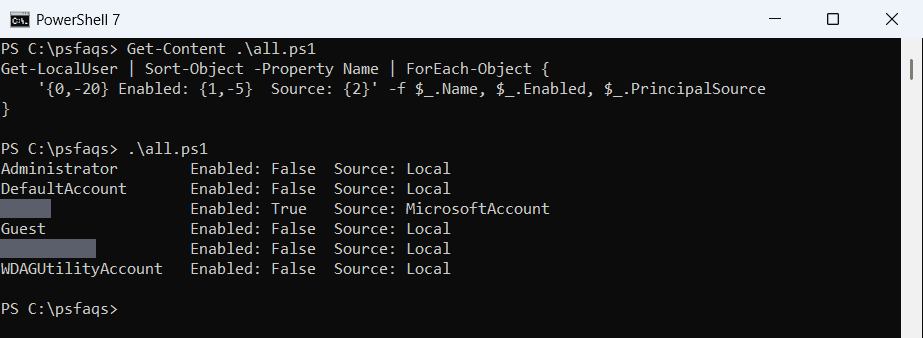
Below I filter enabled accounts, compare Get-LocalUser with net user and CIM, export a report and check remote PCs. I masked my own account names in the output.
What the built-in accounts are
Every Windows PC has a few built-in accounts, and they’re normally disabled:
| Account | What it’s for |
|---|---|
| Administrator | The built-in admin account, disabled by default |
| Guest | Temporary access with very limited rights |
| DefaultAccount | Used by Windows itself; never sign in with it |
| WDAGUtilityAccount | Used by Microsoft Defender Application Guard |
PrincipalSource shows where an account comes from. Local means a normal local account, and MicrosoftAccount means someone signs in with a Microsoft account.
Find enabled accounts
Where-Object filters the list, and Group-Object counts accounts by type:
$users = Get-LocalUser
"Enabled accounts:  $(@($users | Where-Object Enabled).Count) of $(@($users).Count)"
$users | Group-Object -Property { $_.PrincipalSource } | Sort-Object -Property Name |
    ForEach-Object { '{0,-17}  {1}' -f "$($_.Name):", $_.Count }
Output:
Enabled accounts:  1 of 6
Local:             5
MicrosoftAccount:  1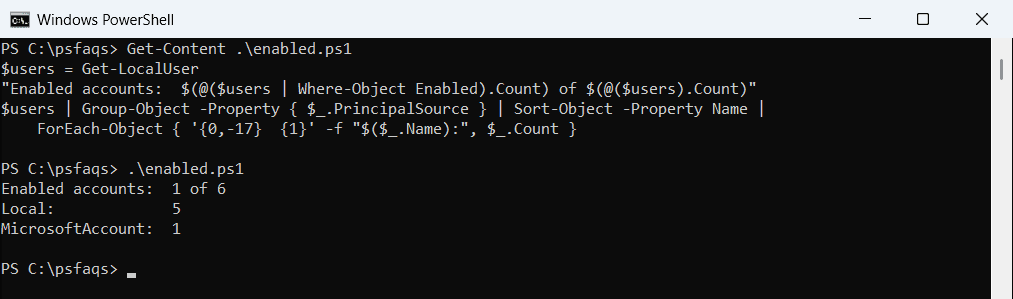
For a security review, check enabled accounts regularly. Listing local administrators shows which of them have admin rights.
List local users with net user
The classic net user command works everywhere, including PCs without the LocalAccounts module:
net userOutput:
User accounts for \\DESKTOP-4T7K2QX

-------------------------------------------------------------------------------
Administrator            DefaultAccount           alice
Guest                    svc-backup               WDAGUtilityAccount
The command completed successfully.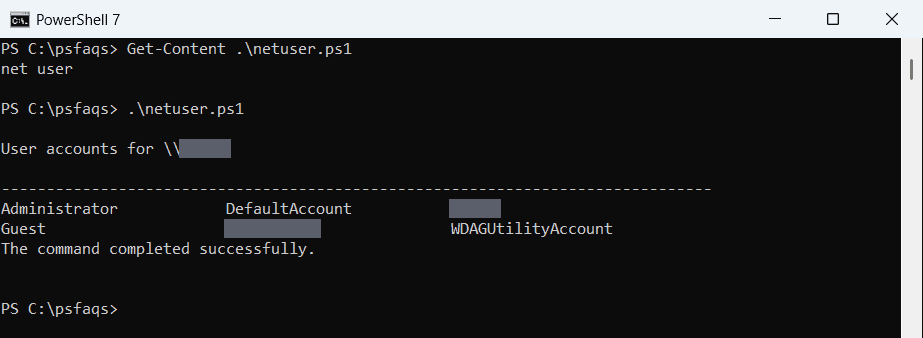
It only returns plain text, though. Use Get-LocalUser when you want to filter, sort or export.
List local users with CIM
Win32_UserAccount also works in both versions and on remote PCs. Filter it to local accounts so it doesn’t query your domain:
Get-CimInstance -ClassName Win32_UserAccount -Filter 'LocalAccount = True' |
    Select-Object -Property Name, Disabled
Export local users to CSV
Select the properties you need and export them for a report:
Get-LocalUser |
    Select-Object -Property Name, Enabled, PrincipalSource, LastLogon, PasswordLastSet |
    Export-Csv -Path C:\Reports\local-users.csv -NoTypeInformation
LastLogon can be empty for Microsoft accounts, because Windows records their sign-ins differently. Microsoft lists every property in the Get-LocalUser reference.
List local users on remote computers
Run Get-LocalUser through Invoke-Command. You need admin rights and WinRM on each PC:
Invoke-Command -ComputerName PC-SALES-07, PC-SALES-08 -ScriptBlock {
    Get-LocalUser | Where-Object Enabled | Select-Object -Property Name, PrincipalSource
} | Select-Object -Property PSComputerName, Name, PrincipalSource
Enabling WinRM helps if the connection fails.
Frequently Asked Questions
How do I list local users in PowerShell?
Run Get-LocalUser. It lists every local account with its Enabled status.
How do I list only enabled local users?
Run Get-LocalUser | Where-Object Enabled.
Does Get-LocalUser work in PowerShell 7?
Yes. It works in PowerShell 7 and Windows PowerShell 5.1 on Windows.
What is the DefaultAccount user?
A built-in account Windows uses internally. It stays disabled, and you shouldn’t sign in with it.
How do I list local users on a remote computer?
Run Get-LocalUser inside Invoke-Command -ComputerName PC01 with admin rights on that PC.
More account management guides:

Bijay Kumar is an esteemed author and the mind behind PowerShellFAQs.com, where he shares his extensive knowledge and expertise in PowerShell, with a particular focus on SharePoint projects. Recognized for his contributions to the tech community, Bijay has been honored with the prestigious Microsoft MVP award. With over 15 years of experience in the software industry, he has a rich professional background, having worked with industry giants such as HP and TCS. His insights and guidance have made him a respected figure in the world of software development and administration. Read more.