
To unblock files recursively in PowerShell, list every file in the folder with Get-ChildItem -Recurse and pipe them to Unblock-File:
Get-ChildItem -Path C:\Downloads\Toolkit -File -Recurse | Unblock-FileOnly do this for files you trust. Below I show how Windows marks downloads, how to find blocked files first, and how to unblock only scripts, all tested in PowerShell 7.6 and 5.1.
Why Windows blocks downloaded files
When a browser saves a file, Windows adds a hidden Zone.Identifier stream that records where it came from. ZoneId=3 means the internet:
Get-Content -Path C:\psfaqs\Downloads\Toolkit\README.txt -Stream Zone.IdentifierOutput:
[ZoneTransfer]
ZoneId=3
HostUrl=https://github.com/contoso/toolkit/archive/main.zip
File Explorer shows these files with an Unblock checkbox in Properties. PowerShell reads the same stream with -Stream Zone.Identifier.
Find the blocked files first
Before unblocking, see which files are actually marked. A file is blocked when its Zone.Identifier stream exists:
Get-ChildItem -Path C:\psfaqs\Downloads\Toolkit -File -Recurse |
    Where-Object { Get-Item -Path $_.FullName -Stream Zone.Identifier -ErrorAction SilentlyContinue } |
    ForEach-Object { 'Blocked: ' + $_.FullName.Replace('C:\psfaqs\Downloads\Toolkit\', '') }
Output:
Blocked: README.txt
Blocked: scripts\Get-Report.ps1
Blocked: scripts\helpers.psm1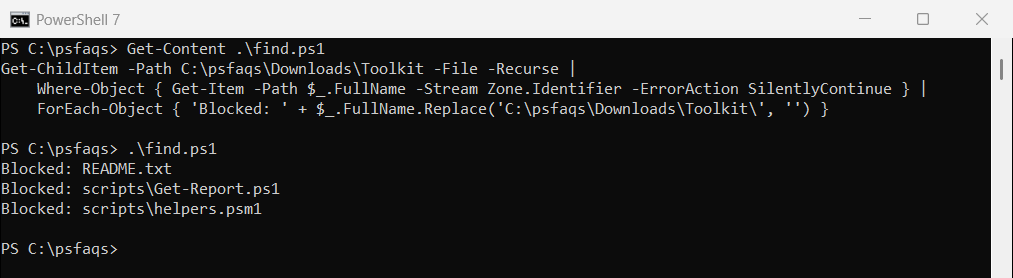
notes.txt isn’t listed, because it was created on this PC. Listing all files in a folder covers the Get-ChildItem options.
What blocking does to scripts
Under the RemoteSigned execution policy, the default on Windows Server and a common choice on PCs, a blocked script from the internet won’t run unless it’s signed:
$script = 'C:\psfaqs\Downloads\Toolkit\scripts\Get-Report.ps1'
$output = powershell.exe -NoProfile -ExecutionPolicy RemoteSigned -File $script 2>&1 | Out-String
if ($output -match 'not digitally signed') { 'Blocked script: Failed. It is not digitally signed' } else { $output.Trim() }
Output:
Blocked script: Failed. It is not digitally signed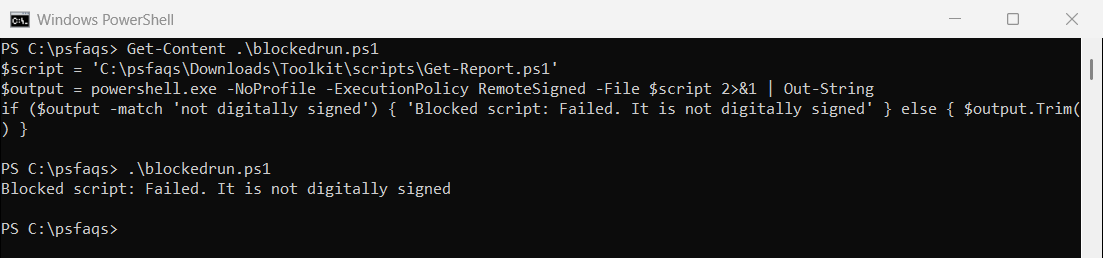
That’s the error “The file is not digitally signed. You cannot run this script on the current system.” Fixing the not digitally signed error covers it in depth.
Unblock every file in the folder
Pipe the files to Unblock-File, then run the same check again. The script runs normally afterward:
Get-ChildItem -Path C:\psfaqs\Downloads\Toolkit -File -Recurse | Unblock-File

$still = Get-ChildItem -Path C:\psfaqs\Downloads\Toolkit -File -Recurse |
    Where-Object { Get-Item -Path $_.FullName -Stream Zone.Identifier -ErrorAction SilentlyContinue }
"Files still blocked: $(@($still).Count)"

$script = 'C:\psfaqs\Downloads\Toolkit\scripts\Get-Report.ps1'
"Script now: $(powershell.exe -NoProfile -ExecutionPolicy RemoteSigned -File $script)"
Output:
Files still blocked: 0
Script now: Report ran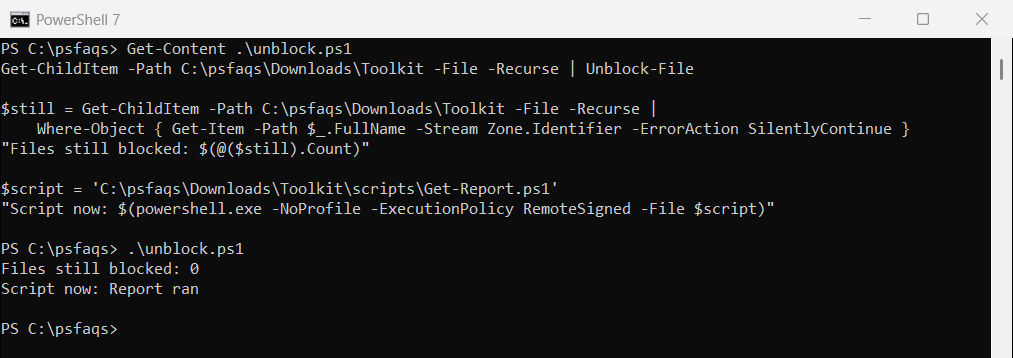
Unblock-File simply removes the Zone.Identifier stream. It doesn’t need admin rights for files you own.
Unblock only scripts, and preview first
-Include limits the list to certain file types, and -WhatIf shows what would change without touching anything:
Get-ChildItem -Path C:\psfaqs\Downloads\Toolkit -Include *.ps1, *.psm1 -File -Recurse | Unblock-File -WhatIfOutput:
What if: Performing the operation "Unblock-File" on target "C:\psfaqs\Downloads\Toolkit\scripts\Get-Report.ps1".
What if: Performing the operation "Unblock-File" on target "C:\psfaqs\Downloads\Toolkit\scripts\helpers.psm1".
Remove -WhatIf to unblock them for real.
Unblock a single file or a ZIP before extracting
For one file, pass its path directly. With a downloaded ZIP, unblock the ZIP itself before extracting, and the extracted files won’t be blocked:
Unblock-File -Path C:\Downloads\toolkit.zip
Expand-Archive -Path C:\Downloads\toolkit.zip -DestinationPath C:\Tools\Toolkit
That saves the recursive step entirely. Extracting a blocked ZIP with File Explorer passes the mark on to every file inside.
Frequently Asked Questions
How do I unblock all files in a folder with PowerShell?
Run Get-ChildItem -Path C:\Folder -File -Recurse | Unblock-File. It unblocks every file in the folder and its subfolders.
How do I check if a file is blocked?
Run Get-Item -Path C:\file.ps1 -Stream Zone.Identifier. If it returns a stream, the file is blocked.
Does Unblock-File need administrator rights?
No, not for files you own. It only removes the file’s Zone.Identifier stream.
Why does my script say it is not digitally signed?
It was downloaded and is still blocked, and your execution policy is RemoteSigned. Unblock it with Unblock-File if you trust it.