
To get the details of a file in PowerShell, use Get-Item with the file path. It returns the name, size, dates and attributes, and Format-List shows them one per line:
Get-Item -Path C:\psfaqs\Reports\q3-sales.csv |
    Select-Object -Property Name, Length, CreationTime, LastWriteTime, Attributes |
    Format-List
Output:
Name          : q3-sales.csv
Length        : 3314
CreationTime  : 7/1/2026 8:00:00 AM
LastWriteTime : 9/15/2026 10:30:00 AM
Attributes    : Archive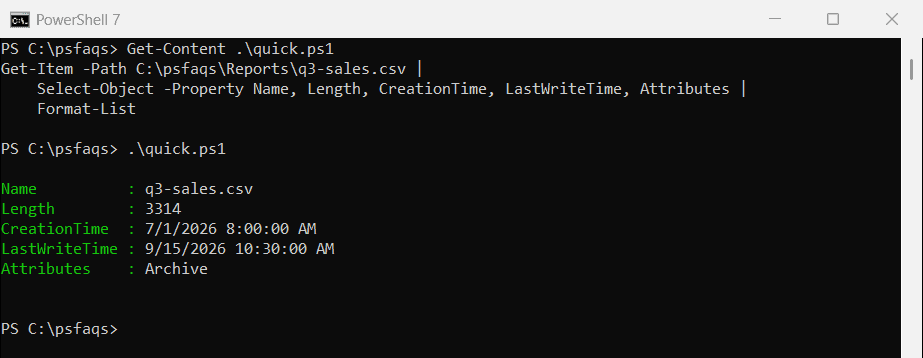
Length is the size in bytes. I ran every example in PowerShell 7.6 and Windows PowerShell 5.1, and they returned the same results.
Read one property at a time
Save the file object in a variable, then read the properties you need. Here I also turn the size into KB and format the date:
$file = Get-Item -Path C:\psfaqs\Reports\q3-sales.csv

"Folder:     $($file.DirectoryName)"
"Extension:  $($file.Extension)"
"Size:       {0:N1} KB" -f ($file.Length / 1KB)
"Modified:   $($file.LastWriteTime.ToString('MMMM d, yyyy h:mm tt'))"
"Days since: $(((Get-Date).Date - $file.LastWriteTime.Date).Days)"
Output:
Folder:     C:\psfaqs\Reports
Extension:  .csv
Size:       3.2 KB
Modified:   September 15, 2026 10:30 AM
Days since: 13
Get-ItemProperty returns the same object for a file, so either cmdlet works.
| Property | What it holds |
|---|---|
Length | Size in bytes |
CreationTime | When the file was created on this drive |
LastWriteTime | When the content last changed |
LastAccessTime | When it was last read, if Windows tracks it |
DirectoryName / Extension | The folder path and the extension |
A copied file gets a new CreationTime, but keeps its LastWriteTime. That’s why a file can look “modified” before it was “created”.
Check file attributes
Attributes lists every flag on the file. For a quick yes or no, use IsReadOnly or HasFlag:
$file = Get-Item -Path C:\psfaqs\Reports\readme.txt

"Attributes: $($file.Attributes)"
"Read-only:  $($file.IsReadOnly)"
"Hidden:     $($file.Attributes.HasFlag([System.IO.FileAttributes]::Hidden))"
Output:
Attributes: ReadOnly, Archive
Read-only:  True
Hidden:     False
How do I get the version of a file?
Executables and DLLs carry version details. Get-Item returns them in the VersionInfo property:
$info = (Get-Item -Path "$env:WINDIR\System32\robocopy.exe").VersionInfo

"Description:    $($info.FileDescription)"
"FileVersion:    $($info.FileVersion)"
"ProductVersion: $($info.ProductVersion)"
"FileVersionRaw: $($info.FileVersionRaw)"
Output:
Description:    Microsoft Robocopy
FileVersion:    10.0.26100.1 (WinBuild.160101.0800)
ProductVersion: 10.0.26100.1
FileVersionRaw: 10.0.26100.9278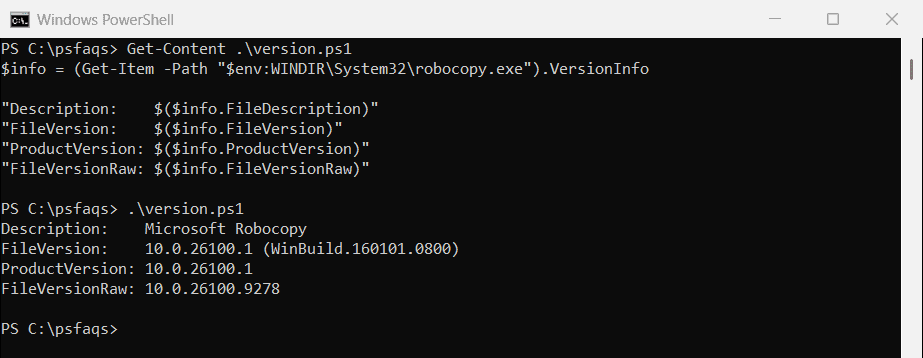
Look at the two versions. On Windows system files, the FileVersion text often shows the original build number, while FileVersionRaw shows the version of the file that’s actually installed.
FileVersionRaw is a real version object, so it’s also the one to sort and compare. The FileVersion text can include extra words in brackets.
Get the version of several files
Get-ChildItem -Path "$env:WINDIR\System32\cmd.exe", "$env:WINDIR\System32\robocopy.exe" |
    Select-Object -Property Name, @{ Name = 'Version'; Expression = { $_.VersionInfo.FileVersionRaw } }
Output:
Name         Version
----         -------
cmd.exe      10.0.26100.9278
robocopy.exe 10.0.26100.9278
Compare a file version
$version = (Get-Item -Path "$env:WINDIR\System32\robocopy.exe").VersionInfo.FileVersionRaw

if ($version -ge [version]'10.0.26100.0') { "Version $version is 10.0.26100 or later" }
Output: