
To remove characters from a string in PowerShell, replace them with nothing. Use .Replace() for exact characters, or -replace with a pattern to remove a whole group at once:
$phone = '(512) 555-0147'

$phone.Replace('(', '').Replace(')', '').Replace('-', '')
$phone -replace '[^\d]', ''
Output:
512 5550147
5125550147
The second line keeps only the digits, which is the easiest way to clean up a US phone number. I ran every example in PowerShell 7.6 and Windows PowerShell 5.1, with the same results.
Remove the first or last character
Substring() returns part of a string. Start at position 1 to drop the first character, or stop one short of the end to drop the last:
$code = '#ATX-2026;'

"Without the first character: $($code.Substring(1))"
"Without the last character:  $($code.Substring(0, $code.Length - 1))"
"Without both:                $($code.Substring(1, $code.Length - 2))"
Output:
Without the first character: ATX-2026;
Without the last character:  #ATX-2026
Without both:                ATX-2026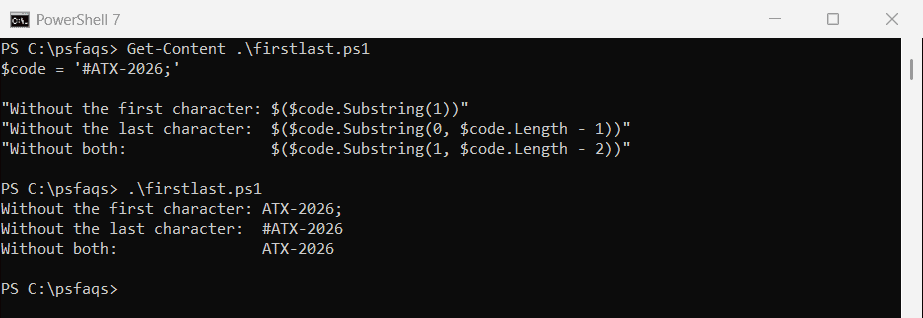
$code.Remove(0, 1) also removes the first character, if you find it easier to read.
Guard against empty strings
Substring fails on an empty string, which can stop a script halfway through a list. Check the length first:
function Remove-FirstCharacter ([string]$Text) {
    if ($Text.Length -gt 0) { $Text.Substring(1) } else { $Text }
}

try { ''.Substring(1) } catch { "Substring on an empty string: $($_.Exception.InnerException.GetType().Name)" }
"Guarded function: [$(Remove-FirstCharacter '')] and [$(Remove-FirstCharacter 'Austin')]"
Output:
Substring on an empty string: ArgumentOutOfRangeException
Guarded function: [] and [ustin]
Trim characters from the start or end
TrimStart(), TrimEnd() and Trim() remove characters from the edges. The catch is that they take a set of characters, not a piece of text:
"TrimStart('0'):     $('00042'.TrimStart('0'))"
"TrimEnd(','):       $('Austin, Denver,'.TrimEnd(','))"
"Trim('*'):          $('***SALE***'.Trim('*'))"
"TrimEnd('.csv'):    $('Stats.csv'.TrimEnd('.csv'))"
"-replace '\.csv$':  $('Stats.csv' -replace '\.csv$', '')"
Output:
TrimStart('0'):     42
TrimEnd(','):       Austin, Denver
Trim('*'):          SALE
TrimEnd('.csv'):    Stat
-replace '\.csv$':  Stats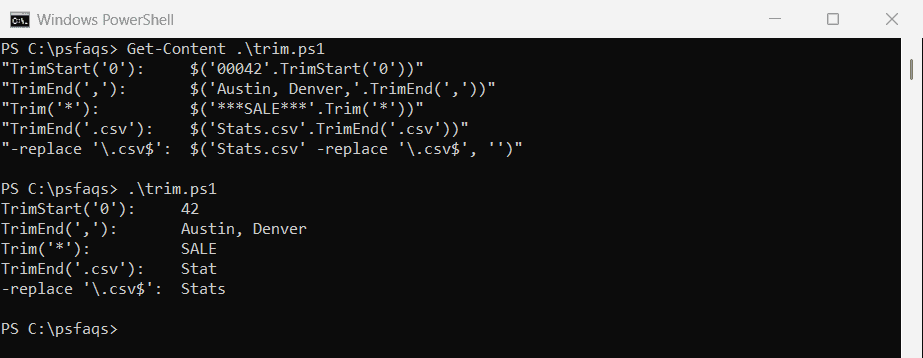
TrimEnd(‘.csv’) removed every trailing ., c, s and v, so Stats lost its last s too. To remove an exact ending, use -replace with $, which anchors the match to the end. The TrimEnd documentation describes this behavior.
Remove digits, punctuation or extra spaces
Character classes in -replace remove whole groups of characters at once:
$text = '  Order #1042-B: ship to Austin, TX!  '

"No digits:        [$($text -replace '\d', '')]"
"No punctuation:   [$($text -replace '[^\w\s]', '')]"
"Letters only:     [$($text -replace '[^A-Za-z]', '')]"
"Single spaces:    [$(($text -replace '\s+', ' ').Trim())]"
Output:
No digits:        [  Order #-B: ship to Austin, TX!  ]
No punctuation:   [  Order 1042B ship to Austin TX  ]
Letters only:     [OrderBshiptoAustinTX]
Single spaces:    [Order #1042-B: ship to Austin, TX!]