
To sort files by date in PowerShell, pipe Get-ChildItem to Sort-Object LastWriteTime. Add -Descending to put the newest file first:
Get-ChildItem -Path C:\Reports -File | Sort-Object LastWriteTime -DescendingLastWriteTime is the date modified you see in File Explorer. I set up a test folder with known dates and ran every example in PowerShell 7 and Windows PowerShell 5.1.
Sort files by date modified (newest first)
My test folder has five files with modified dates I set myself. Sorting descending puts this morning’s notes on top:
Get-ChildItem -Path C:\psfaqs\sortdemo -File |
    Sort-Object -Property LastWriteTime -Descending |
    Format-Table Name,
        @{ n = 'Modified'; e = { $_.LastWriteTime.ToString('yyyy-MM-dd HH:mm') } } -AutoSize
Output:
Name               Modified
----               --------
notes.txt          2026-10-07 08:05
invoice-1042.pdf   2026-10-06 16:45
austin-report.docx 2026-10-02 11:20
team-photo.jpg     2026-10-02 11:20
budget-2026.xlsx   2026-09-14 09:30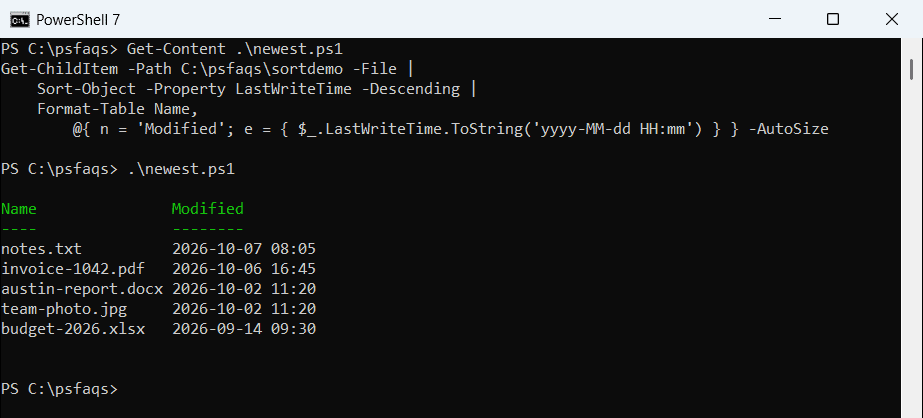
That’s PowerShell 7. Windows PowerShell 5.1 listed team-photo.jpg before austin-report.docx, because both were saved at 11:20 and 5.1 doesn’t keep ties in a fixed order.
Drop -Descending to see the oldest first. -File skips folders, which otherwise mix into the list. Get-ChildItem covers -File, -Filter and -Recurse in more detail.
Sort files by creation date
CreationTime is when the file was created on this drive. Copying a file gives the copy a new creation date, so it can be newer than the modified date:
Get-ChildItem -Path C:\psfaqs\sortdemo -File |
    Sort-Object -Property CreationTime |
    Format-Table Name,
        @{ n = 'Created'; e = { $_.CreationTime.ToString('yyyy-MM-dd HH:mm') } } -AutoSize
Output:
Name               Created
----               -------
budget-2026.xlsx   2026-01-05 08:00
notes.txt          2026-07-01 10:00
austin-report.docx 2026-08-19 13:10
team-photo.jpg     2026-10-02 11:20
invoice-1042.pdf   2026-10-06 16:45
budget-2026.xlsx was created in January but edited in September, which is why the two sorts differ. Getting a file’s creation date explains the three date properties.
What happens when two files have the same date?
austin-report.docx and team-photo.jpg were both saved at 11:20. Add Name as a second sort key so ties always come out in the same order:
Get-ChildItem -Path C:\psfaqs\sortdemo -File |
    Sort-Object -Property @{ Expression = 'LastWriteTime'; Descending = $true }, Name |
    Select-Object -First 4 |
    Format-Table Name,
        @{ n = 'Modified'; e = { $_.LastWriteTime.ToString('yyyy-MM-dd HH:mm') } } -AutoSize
Output:
Name               Modified
----               --------
notes.txt          2026-10-07 08:05
invoice-1042.pdf   2026-10-06 16:45
austin-report.docx 2026-10-02 11:20
team-photo.jpg     2026-10-02 11:20
The hash table sorts dates descending while Name stays ascending. With the second key, both versions return exactly this order.
Get the newest or oldest files
Select-Object -First after a sort gives the newest files in any version. PowerShell 7 also has -Top, which does both steps at once:
try {
    Get-ChildItem -Path C:\psfaqs\sortdemo -File |
        Sort-Object -Property LastWriteTime -Descending -Top 2 -ErrorAction Stop |
        ForEach-Object { $_.Name }
}
catch {
    "Failed. $($_.Exception.Message)"
}
Output:
notes.txt
invoice-1042.pdf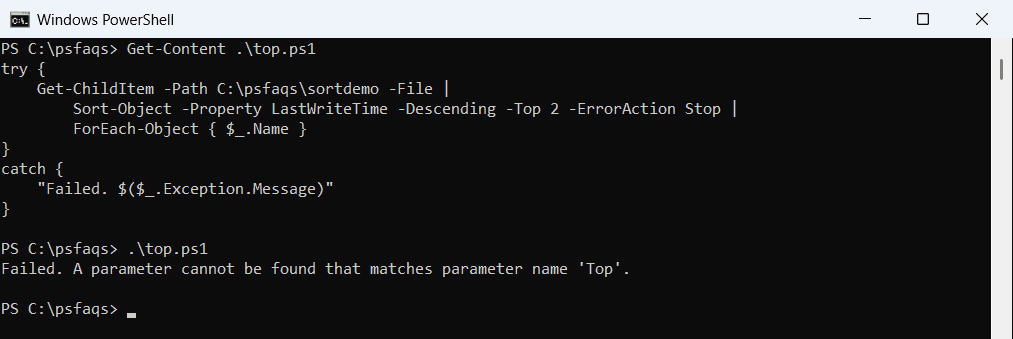
That’s PowerShell 7. Microsoft added -Top and -Bottom in PowerShell 6.0, so Windows PowerShell 5.1 rejects them. For just the single newest file, see finding the most recent file.
Find files modified between two dates
Filter with Where-Object before sorting. Using -lt for the end date leaves out anything from October 7, so notes.txt isn’t included:
$from = [datetime]'2026-10-01'
$to   = [datetime]'2026-10-07'

Get-ChildItem -Path C:\psfaqs\sortdemo -File -Recurse |
    Where-Object { $_.LastWriteTime -ge $from -and $_.LastWriteTime -lt $to } |
    Sort-Object LastWriteTime, Name |
    Format-Table Name,
        @{ n = 'Modified'; e = { $_.LastWriteTime.ToString('yyyy-MM-dd HH:mm') } } -AutoSize
Output:
Name               Modified
----               --------
austin-report.docx 2026-10-02 11:20
team-photo.jpg     2026-10-02 11:20
invoice-1042.pdf   2026-10-06 16:45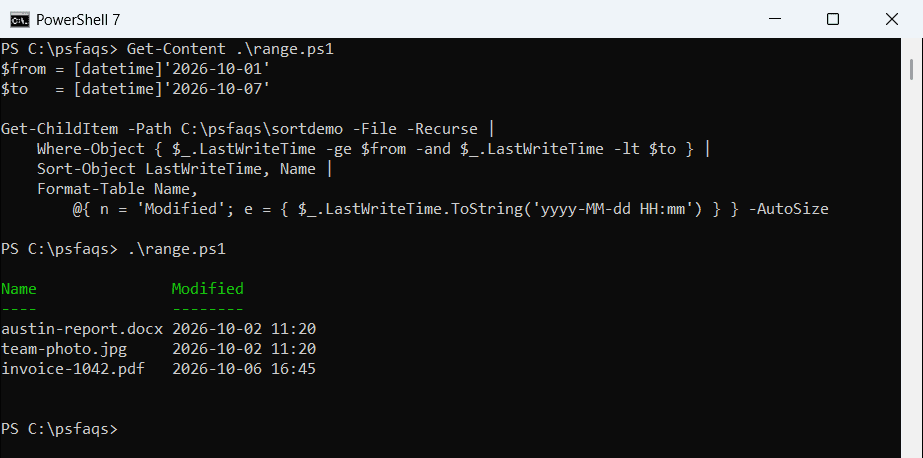
To cover the whole end day, use the next day with -lt. Date differences in PowerShell helps when you build rolling windows like “last 7 days”.
Sort files in subfolders by date
-Recurse includes subfolders. Showing the path relative to the root makes it clear where each file lives:
Get-ChildItem -Path C:\psfaqs\sortdemo -File -Recurse |
    Sort-Object LastWriteTime |
    Select-Object -First 2 |
    Format-Table @{ n = 'File'; e = { $_.FullName.Replace('C:\psfaqs\sortdemo\', '') } },
                 @{ n = 'Modified'; e = { $_.LastWriteTime.ToString('yyyy-MM-dd') } } -AutoSize
Output:
File                   Modified
----                   --------
archive\q1-summary.pdf 2026-04-03
budget-2026.xlsx       2026-09-14
The oldest file sits in the archive subfolder. To act on old files after sorting, see deleting files older than 30 days.
Frequently Asked Questions
How do I sort files by date in PowerShell?
Run Get-ChildItem -File | Sort-Object LastWriteTime. Add -Descending for newest first.
How do I sort files by creation date?
Sort on CreationTime instead: Get-ChildItem -File | Sort-Object CreationTime.
How do I get the 5 newest files?
Use Sort-Object LastWriteTime -Descending | Select-Object -First 5. In PowerShell 7 you can use -Top 5, per