
To add a date to a filename in PowerShell, format the date as text with (Get-Date).ToString('yyyy-MM-dd') or Get-Date -Format 'yyyy-MM-dd', then put it inside the name:
$now = Get-Date -Date '2026-09-29 14:05:09'
$stamp = $now.ToString('yyyy-MM-dd')

$file = New-Item -Path "C:\psfaqs\Reports\report-$stamp.txt" -ItemType File
$file.Name
Output:
report-2026-09-29.txtI used a fixed date so the output doesn’t change. In a real script, use $now = Get-Date. Every example here ran in PowerShell 7.6 and Windows PowerShell 5.1, with the same results.
Date and time formats for file names
Pick a format from the custom format letters. Capital MM is the month, dd the day, HH the 24-hour hour, mm the minutes and ss the seconds:
$now = Get-Date -Date '2026-09-29 14:05:09'

foreach ($format in 'yyyy-MM-dd', 'yyyyMMdd', 'yyyy-MM-dd_HH-mm-ss', 'yyyyMMdd-HHmm', 'MMM-dd-yyyy') {
    '{0,-22} report-{1}.csv' -f $format, $now.ToString($format)
}
Output:
yyyy-MM-dd             report-2026-09-29.csv
yyyyMMdd               report-20260929.csv
yyyy-MM-dd_HH-mm-ss    report-2026-09-29_14-05-09.csv
yyyyMMdd-HHmm          report-20260929-1405.csv
MMM-dd-yyyy            report-Sep-29-2026.csv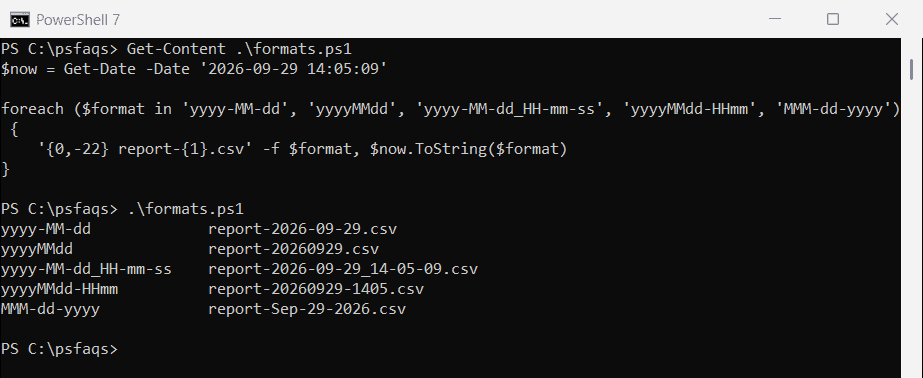
yyyy-MM-dd is the safest choice for dates, and yyyy-MM-dd_HH-mm-ss when you create more than one file a day.
Three mistakes that break dated file names
Lowercase mm means minutes, not months. The default short date uses slashes. And a time with colons can’t be used in a Windows file name at all:
$now = Get-Date -Date '2026-09-29 14:05:09'

"yyyy-mm-dd (lowercase mm): $($now.ToString('yyyy-mm-dd'))"
"Default short date:        $($now.ToString('d'))"
"HH:mm with colons:         $($now.ToString('HH:mm'))"

$bad = [System.IO.Path]::GetInvalidFileNameChars()
"Colon allowed in a name?   $(-not ($bad -contains ':'))"
"Slash allowed in a name?   $(-not ($bad -contains '/'))"
Output:
yyyy-mm-dd (lowercase mm): 2026-05-29
Default short date:        9/29/2026
HH:mm with colons:         14:05
Colon allowed in a name?   False
Slash allowed in a name?   False
Always pass an explicit format with dashes or underscores. Windows doesn’t allow \ / : * ? ” < > | in file names, as Microsoft’s file naming rules explain.
Sort order: put the year first
Month-first names look natural in the US, but they don’t sort by date. Year-first names sort correctly everywhere, including File Explorer:
$usStyle  = 'report-12-01-2025.csv', 'report-01-15-2026.csv', 'report-09-29-2026.csv'
$isoStyle = 'report-2025-12-01.csv', 'report-2026-01-15.csv', 'report-2026-09-29.csv'

"Sorted MM-dd-yyyy: $(($usStyle | Sort-Object) -join ', ')"
"Sorted yyyy-MM-dd: $(($isoStyle | Sort-Object) -join ', ')"
Output:
Sorted MM-dd-yyyy: report-01-15-2026.csv, report-09-29-2026.csv, report-12-01-2025.csv
Sorted yyyy-MM-dd: report-2025-12-01.csv, report-2026-01-15.csv, report-2026-09-29.csv
With yyyy-MM-dd, the newest file is always last in the list. Finding the most recent file relies on the same idea.
Export data to a file with the date in its name
Build the path once and pass it to Export-Csv, Out-File or any other cmdlet that writes files:
$now = Get-Date -Date '2026-09-29 14:05:09'
$path = "C:\psfaqs\Reports\orders-$($now.ToString('yyyy-MM-dd_HHmm')).csv"

@(
    [pscustomobject]@{ OrderId = 1001; State = 'TX'; Total = 249.99 }
    [pscustomobject]@{ OrderId = 1002; State = 'CA'; Total = 89.50 }
) | Export-Csv -Path $path -NoTypeInformation

(Get-ChildItem -Path C:\psfaqs\Reports -Filter 'orders-*.csv').Name
Output:
orders-2026-09-29_1405.csvAdding the time as well keeps each run from overwriting the last one. Export-Csv covers the other export options.
Add a date to an existing file’s name
Split the name into BaseName and Extension, and put the date between them. Using the file’s own LastWriteTime records when it was last changed, not when you renamed it:
$file = Get-Item -Path C:\psfaqs\Reports\sales.csv
$newName = '{0}_{1}{2}' -f $file.BaseName, $file.LastWriteTime.ToString('yyyy-MM-dd'), $file.Extension

Rename-Item -Path $file.FullName -NewName $newName
(Get-ChildItem -Path C:\psfaqs\Reports).Name
Output:
sales_2026-09-15.csv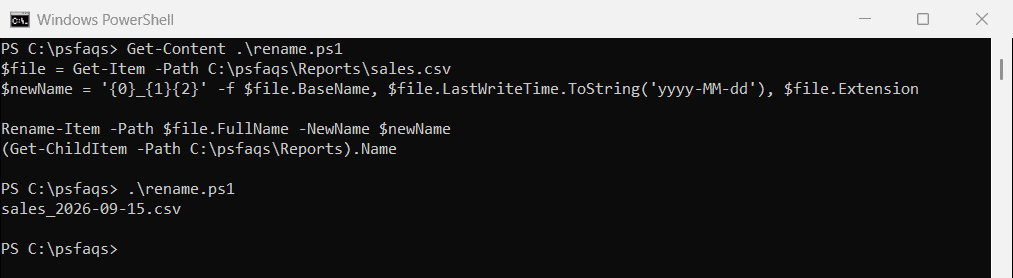
Use (Get-Date).ToString('yyyy-MM-dd') instead to stamp today’s date. Renaming files with a date covers renaming many files at once.
Avoid overwriting a file from the same day
If a script runs twice in one day, a date-only name already exists the second time. A short loop adds a counter until it finds a free name:
function New-DatedFile {
    param([string]$Folder, [string]$Name, [string]$Extension, [datetime]$Date)
    $base = '{0}-{1}' -f $Name, $Date.ToString('yyyy-MM-dd')
    $path = Join-Path -Path $Folder -ChildPath "$base$Extension"
    $n = 1
    while (Test-Path -Path $path) {
        $n++
        $path = Join-Path -Path $Folder -ChildPath "$base-$n$Extension"
    }
    (New-Item -Path $path -ItemType File).Name
}

$day = Get-Date -Date '2026-09-29'
1..3 | ForEach-Object { New-DatedFile -Folder C:\psfaqs\Reports -Name backup -Extension .zip -Date $day }
Output:
backup-2026-09-29.zip
backup-2026-09-29-2.zip
backup-2026-09-29-3.zip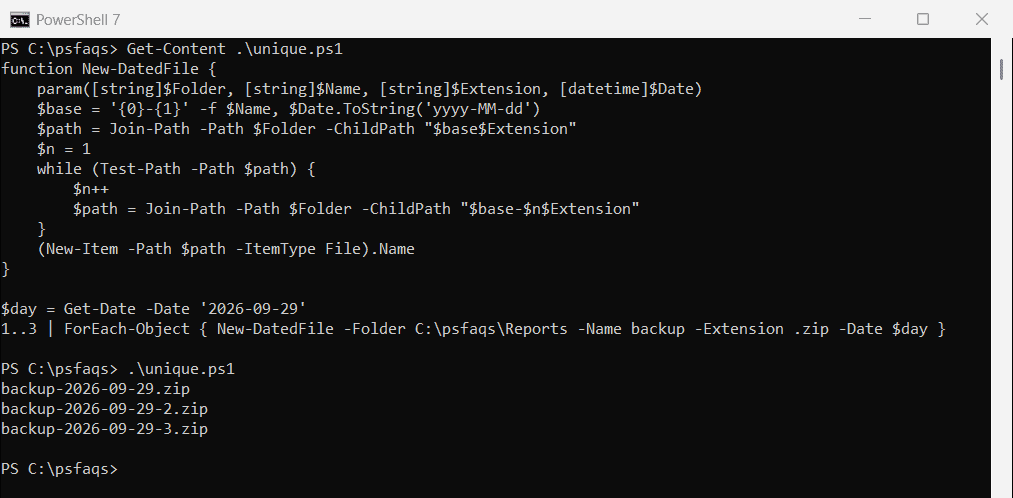
Test-Path checks each candidate before New-Item creates it. Microsoft’s Get-Date documentation has more on -Format and the date object’s methods.
Frequently Asked Questions
How do I add today’s date to a file name in PowerShell?
Use "report-$(Get-Date -Format 'yyyy-MM-dd').csv" as the file name. It produces names like report-2026-09-29.csv.