
To filter objects between two dates with PowerShell Where-Object, compare the date property against a start and an end date and join both tests with -and:
Where-Object { $_.Placed -ge $start -and $_.Placed -lt $end }That one line hides three traps: times of day on the end date, dates that are really strings, and slow filtering on big logs. I’ll walk through each with real output from PowerShell 7 and Windows PowerShell 5.1.
Filter objects between two dates with Where-Object
Here are six sample orders from October 2026. Each one has a Placed property that’s a real DateTime, and I want the orders from October 5 through October 15:
$orders = @(
    [pscustomobject]@{ Id = 1001; Customer = 'Maria Lopez'; Placed = [datetime]'2026-10-03 09:15' }
    [pscustomobject]@{ Id = 1002; Customer = 'Tom Baker';   Placed = [datetime]'2026-10-05 08:30' }
    [pscustomobject]@{ Id = 1003; Customer = 'Dana Reyes';  Placed = [datetime]'2026-10-09 13:40' }
    [pscustomobject]@{ Id = 1004; Customer = 'Alex Wilber'; Placed = [datetime]'2026-10-15 00:00' }
    [pscustomobject]@{ Id = 1005; Customer = 'Megan Bowen'; Placed = [datetime]'2026-10-15 16:20' }
    [pscustomobject]@{ Id = 1006; Customer = 'Adele Vance'; Placed = [datetime]'2026-10-21 11:05' }
)

$start = Get-Date '2026-10-05'
$end   = Get-Date '2026-10-15'

$orders | Where-Object { $_.Placed -ge $start -and $_.Placed -le $end } |
    ForEach-Object { '{0}  {1,-12} {2:yyyy-MM-dd HH:mm}' -f $_.Id, $_.Customer, $_.Placed }
Output:
1002  Tom Baker    2026-10-05 08:30
1003  Dana Reyes   2026-10-09 13:40
1004  Alex Wilber  2026-10-15 00:00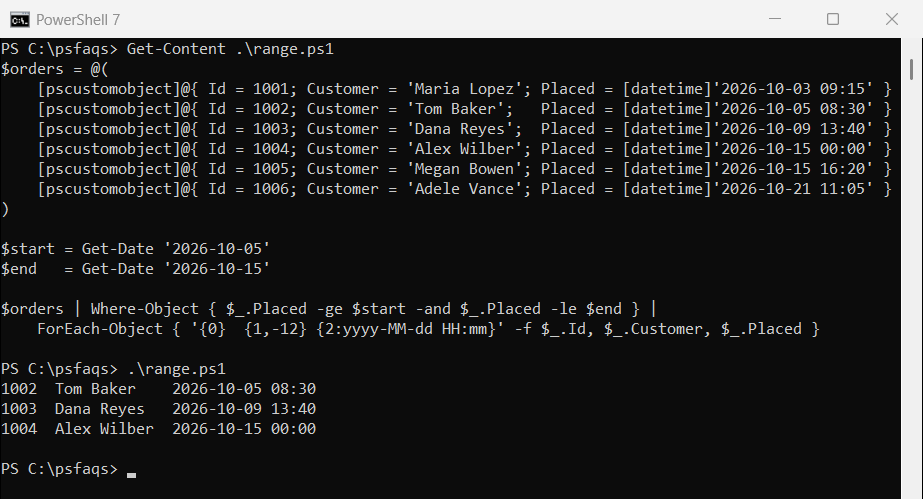
-ge means greater than or equal and -le means less than or equal, so both boundary days count. The -and joins the two tests, as covered in Where-Object with multiple conditions.
Look closely, though. Megan Bowen’s order from 4:20 PM on October 15 is missing.
Why does the end date miss the last day?
Get-Date ‘2026-10-15’ means midnight at the start of October 15. Anything later that day is greater than $end, so -le drops it. There are two clean fixes:
# $orders: the six sample orders from the first example
$start = Get-Date '2026-10-05'
$end   = Get-Date '2026-10-15'

# Option 1: stop before midnight of the next day
$orders | Where-Object { $_.Placed -ge $start -and $_.Placed -lt $end.AddDays(1) } |
    ForEach-Object { '{0}  {1,-12} {2:yyyy-MM-dd HH:mm}' -f $_.Id, $_.Customer, $_.Placed }

# Option 2: compare only the date part
"Count with .Date: " + @($orders | Where-Object { $_.Placed.Date -ge $start -and $_.Placed.Date -le $end }).Count
Output:
1002  Tom Baker    2026-10-05 08:30
1003  Dana Reyes   2026-10-09 13:40
1004  Alex Wilber  2026-10-15 00:00
1005  Megan Bowen  2026-10-15 16:20
Count with .Date: 4
Option 1 asks for everything before midnight on October 16, which is the safest choice for timestamps. Option 2 strips the time with .Date before comparing.
For one-sided checks like files older than 30 days, see comparing dates in PowerShell.
If you need the number of days or hours between the two dates rather than a filter, see getting the difference between two dates.
Find files modified between two dates
Files work the same way through LastWriteTime. My test folder has five log files and one CSV, and I want the logs changed from October 1 through October 14, 2026:
$start = Get-Date '2026-10-01'
$end   = Get-Date '2026-10-15'      # files from October 1-14

Get-ChildItem .\logs -Filter *.log -File |
    Where-Object { $_.LastWriteTime -ge $start -and $_.LastWriteTime -lt $end } |
    Sort-Object LastWriteTime |
    ForEach-Object { '{0,-14} {1:yyyy-MM-dd HH:mm}' -f $_.Name, $_.LastWriteTime }
Output:
app-1002.log   2026-10-02 06:45
app-1008.log   2026-10-08 14:05
app-1014.log   2026-10-14 23:59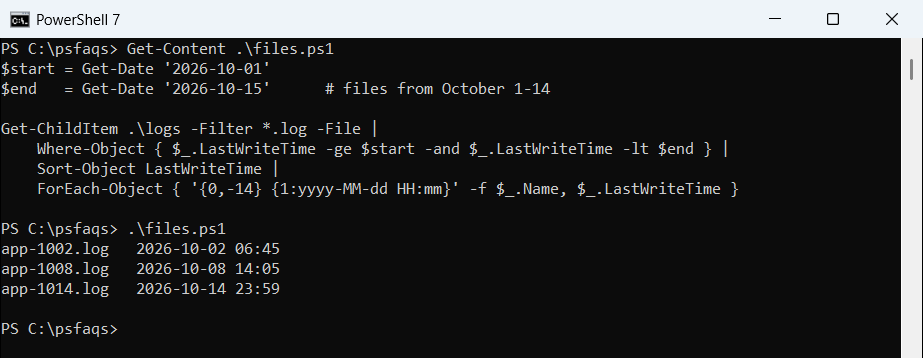
The 11:59 PM file on October 14 made it in because the end is midnight on October 15 with -lt. -Filter *.log runs inside Get-ChildItem, so fewer objects reach Where-Object.
Swap LastWriteTime for CreationTime to filter by when a file was created. To act on the results, see moving files by date, or use files modified after a date when you only have a start date.
Filter the last 7 days or the current month
Relative ranges are just calculated start dates. I fixed today at October 23, 2026 so the output stays the same; in a real script use (Get-Date).Date:
# $orders: the six sample orders from the first example
$today     = Get-Date '2026-10-23'          # in real scripts: (Get-Date).Date
$weekStart = $today.AddDays(-7)
$monthStart = $today.AddDays(1 - $today.Day)

"Last 7 days: " + (($orders | Where-Object Placed -ge $weekStart).Id -join ', ')
"This month:  " + (($orders | Where-Object Placed -ge $monthStart).Id -join ', ')
"Month start: {0:yyyy-MM-dd}" -f $monthStart
Output:
Last 7 days: 1006
This month:  1001, 1002, 1003, 1004, 1005, 1006
Month start: 2026-10-01
With only one condition, Where-Object also accepts the shorter comparison syntax, Where-Object Placed -ge $weekStart, with no script block. AddDays with a negative number goes back in time, as shown in adding days to a date.
Dates from CSV and JSON files are strings
This is where most date filters silently go wrong. Import-Csv and ConvertFrom-Csv give you text, and when the left side of -ge is a string, PowerShell converts the right side to a string too. Here’s the same filter on CSV and JSON data:
$start = Get-Date '2026-10-01'
$csv  = "Id,Date`n1,9/28/2026`n2,10/5/2026`n3,11/2/2026" | ConvertFrom-Csv
$json = '[{"Id":1,"Created":"2026-09-28T10:00:00"},
          {"Id":2,"Created":"2026-10-05T14:30:00"}]' | ConvertFrom-Json

"CSV as text:    " + (($csv | Where-Object { $_.Date -ge $start }).Id -join ', ')
"CSV cast first: " + (($csv | Where-Object { [datetime]$_.Date -ge $start }).Id -join ', ')
"JSON type:      " + $json[0].Created.GetType().Name
"JSON as is:     " + (($json | Where-Object { $_.Created -ge $start }).Id -join ', ')
Output:
CSV as text:    1, 2, 3
CSV cast first: 2, 3
JSON type:      DateTime
JSON as is:     2