
A PowerShell switch parameter is a parameter of type [switch] that’s on when you include it and off when you leave it out. It takes no value, like -Force or -Recurse:
function Get-OrderReport {
    param(
        [string]$City,
        [switch]$IncludeCancelled
    )
    if ($IncludeCancelled) { "$City report: 48 orders, including 3 cancelled" }
    else { "$City report: 45 orders" }
}

Get-OrderReport -City 'Austin'
Get-OrderReport -City 'Austin' -IncludeCancelled
Output:
Austin report: 45 orders
Austin report: 48 orders, including 3 cancelled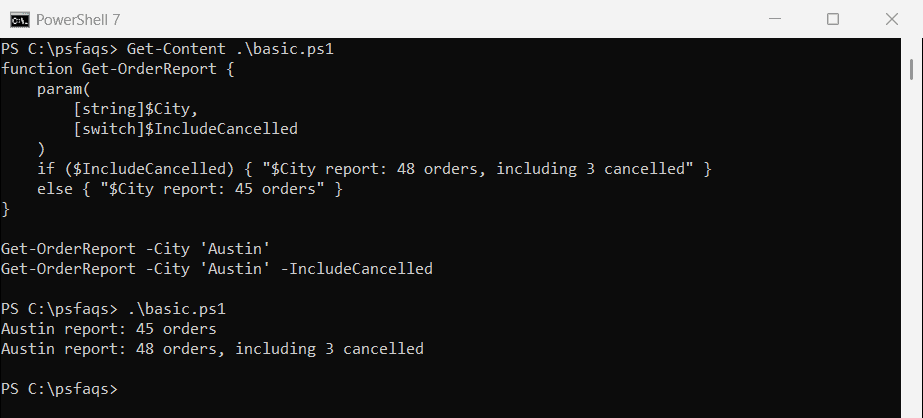
Below I cover how to pass an explicit value, tell whether the caller used the switch, forward it to another function and name switches well. Everything runs the same in PowerShell 7.6 and 5.1.
Declare a switch parameter
Put [switch] before the parameter name in the param block. Inside the function, the variable acts like True or False, so it works straight in an if statement:
function Get-OrderReport {
    param([switch]$IncludeCancelled)
    if ($IncludeCancelled) { 'Including cancelled orders' }
}
Switches aren’t positional, so callers must always type the name. Functions in PowerShell covers the rest of the param block.
Pass a value with -Switch:$true or -Switch:$false
Add a colon to set a switch from a value or a variable. That’s handy when a script decides at run time:
function Test-Switch {
    param([switch]$Force)
    'Force: {0,-5}  IsPresent: {1,-5}  Passed: {2}' -f [bool]$Force, $Force.IsPresent, $PSBoundParameters.ContainsKey('Force')
}

Test-Switch
Test-Switch -Force
Test-Switch -Force:$false
$useForce = $true
Test-Switch -Force:$useForce
Output:
Force: False  IsPresent: False  Passed: False
Force: True   IsPresent: True   Passed: True
Force: False  IsPresent: False  Passed: True
Force: True   IsPresent: True   Passed: True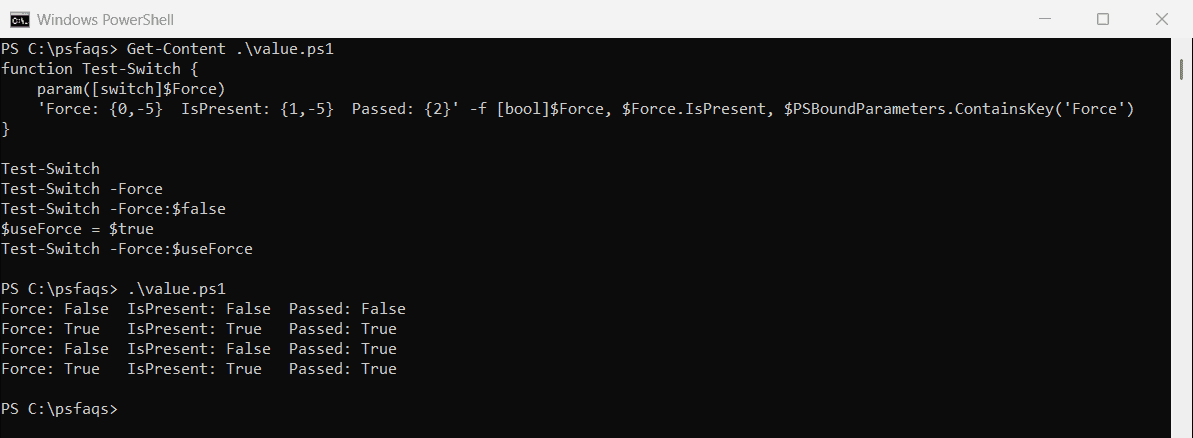
IsPresent tells you whether the switch is on. To know whether the caller typed it at all, even as :$false, check $PSBoundParameters.ContainsKey('Force').
Don’t leave a space
-Force $false doesn’t turn the switch off. The switch is on, and $false becomes a separate positional argument, which often causes an error. Always use the colon.
Only switch parameters work without a value. If you leave the value off any other parameter, PowerShell stops with a parameter binding error, and our guide shows how to fix the “Missing an argument for parameter” error in PowerShell.
Pass a switch to another function
When one function calls another, forward the switch with the colon syntax. The inner function gets the same on or off state:
function Remove-OldReport {
    param([string]$Path, [switch]$Force)
    "Removing $Path (Force: $Force)"
}

function Invoke-Cleanup {
    param([switch]$Force)
    Remove-OldReport -Path 'C:\Reports\2026-01.csv' -Force:$Force
}

Invoke-Cleanup
Invoke-Cleanup -Force
Output:
Removing C:\Reports\2026-01.csv (Force: False)
Removing C:\Reports\2026-01.csv (Force: True)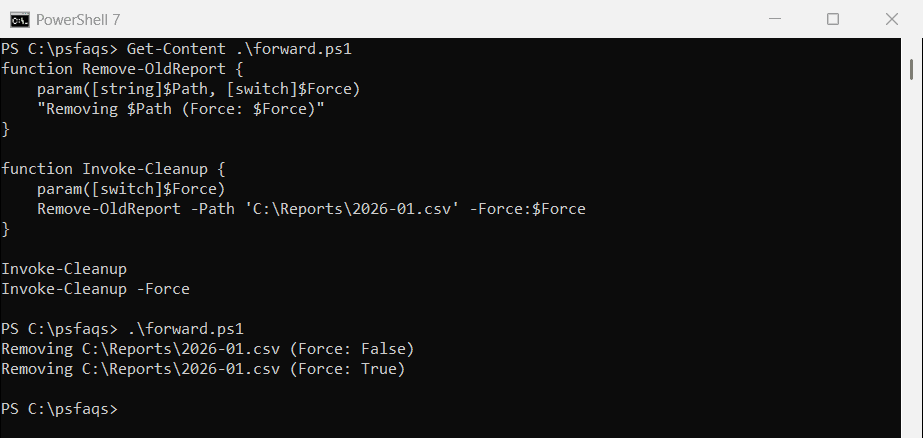
For many parameters at once, splat @PSBoundParameters instead. Function return values covers the other half of function design.
Name switches so the default is off
Microsoft’s guidance is that switches should always default to False. Don’t write [switch]$Email = $true. Turn the name around so the switch enables the less common behavior:
function Send-Invoice {
    param([string]$Customer, [switch]$NoEmail)
    if ($NoEmail) { "Invoice for $Customer saved, no email sent" }
    else { "Invoice for $Customer saved and emailed" }
}

Send-Invoice -Customer 'Contoso Dallas'
Send-Invoice -Customer 'Contoso Dallas' -NoEmail
Output: