
To move a file to a folder in PowerShell, use Move-Item with the file in -Path and the folder in -Destination. The file keeps its name and disappears from the original folder:
Move-Item -Path C:\psfaqs\Inbox\readme.txt -Destination C:\psfaqs\Processed

"Inbox:     $((Get-ChildItem -Path C:\psfaqs\Inbox).Name -join ', ')"
"Processed: $((Get-ChildItem -Path C:\psfaqs\Processed).Name -join ', ')"
Output:
Inbox:     orders-0927.csv, orders-0928.csv, orders-0929.csv
Processed: orders-0928.csv, readme.txt
That’s the whole job when everything is where you expect. The rest of this guide covers the cases that go wrong. I ran every example in PowerShell 7.6 and Windows PowerShell 5.1, with the same results.
Make sure the destination folder exists
If the destination folder doesn’t exist, Move-Item doesn’t fail. It moves the file and renames it to the folder name you gave:
Move-Item -Path C:\psfaqs\Inbox\readme.txt -Destination C:\psfaqs\Archive2026

$item = Get-Item -Path C:\psfaqs\Archive2026
"Archive2026 is a folder: $($item.PSIsContainer)"
"It is now the file, $($item.Length) bytes"
Remove-Item -Path C:\psfaqs\Archive2026
Output:
Archive2026 is a folder: False
It is now the file, 16 bytes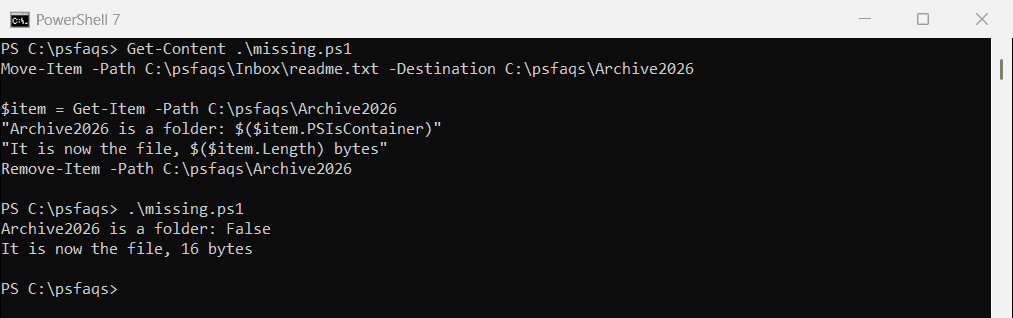
Create the folder first with New-Item -Force. It does nothing if the folder already exists, so it’s safe to run every time:
$target = 'C:\psfaqs\Archive\2026'
New-Item -Path $target -ItemType Directory -Force | Out-Null

Move-Item -Path C:\psfaqs\Inbox\readme.txt -Destination $target
"In $($target): $((Get-ChildItem -Path $target).Name)"
Remove-Item -Path C:\psfaqs\Archive -Recurse -Force
Output:
In C:\psfaqs\Archive\2026: readme.txtCreating dated folders shows the same pattern for archive folders.
When the file already exists
Move-Item stops with an error if a file with the same name is already in the destination. -Force replaces it:
try {
    Move-Item -Path C:\psfaqs\Inbox\orders-0928.csv -Destination C:\psfaqs\Processed -ErrorAction Stop
}
catch { 'Without -Force: Failed. orders-0928.csv is already in Processed' }

Move-Item -Path C:\psfaqs\Inbox\orders-0928.csv -Destination C:\psfaqs\Processed -Force
"With -Force, Processed has: $(Get-Content -Path C:\psfaqs\Processed\orders-0928.csv)"
Output:
Without -Force: Failed. orders-0928.csv is already in Processed
With -Force, Processed has: new orders-0928.csv
-Force overwrites without asking, so use it only when the newer copy should always win.
Move files only if they don’t exist
To keep the files that are already there, check each target path with Test-Path and skip the ones that exist:
$destination = 'C:\psfaqs\Processed'

Get-ChildItem -Path C:\psfaqs\Inbox -Filter *.csv -File | ForEach-Object {
    $target = Join-Path -Path $destination -ChildPath $_.Name
    if (Test-Path -Path $target) {
        "Skipped $($_.Name), it already exists"
    }
    else {
        Move-Item -Path $_.FullName -Destination $target
        "Moved   $($_.Name)"
    }
}
Output:
Moved   orders-0927.csv
Skipped orders-0928.csv, it already exists
Moved   orders-0929.csv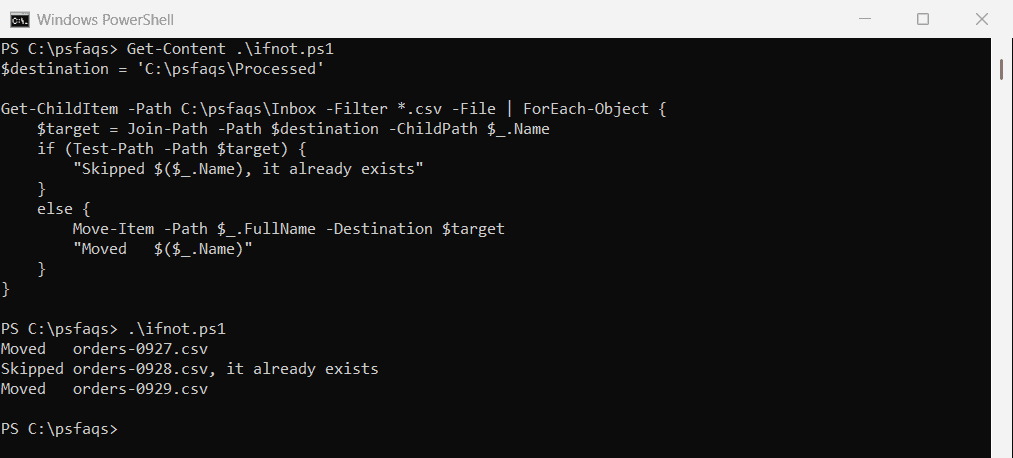
Skipped files stay in the source folder, so you can check them later. Test-Path covers its other options.
Rename instead of skipping
If you want to keep both copies, add a number to the name until you find one that’s free:
$destination = 'C:\psfaqs\Processed'
$file = Get-Item -Path C:\psfaqs\Inbox\orders-0928.csv

$target = Join-Path -Path $destination -ChildPath $file.Name
$n = 1
while (Test-Path -Path $target) {
    $n++
    $target = Join-Path -Path $destination -ChildPath ('{0}-{1}{2}' -f $file.BaseName, $n, $file.Extension)
}
Move-Item -Path $file.FullName -Destination $target
"Processed now has: $((Get-ChildItem -Path $destination).Name -join ', ')"
Output:
Processed now has: orders-0928-2.csv, orders-0928.csvMove files by type or date
Get-ChildItem picks the files, Where-Object filters them, and Move-Item takes them from the pipeline. -PassThru outputs each moved file so you can log it:
$cutoff = Get-Date -Date '2026-09-29'

Get-ChildItem -Path C:\psfaqs\Inbox -Filter *.csv -File |
    Where-Object LastWriteTime -LT $cutoff |
    Move-Item -Destination C:\psfaqs\Processed -Force -PassThru |
    ForEach-Object { "Moved $($_.Name)" }
Output:
Moved orders-0927.csv
Moved orders-0928.csv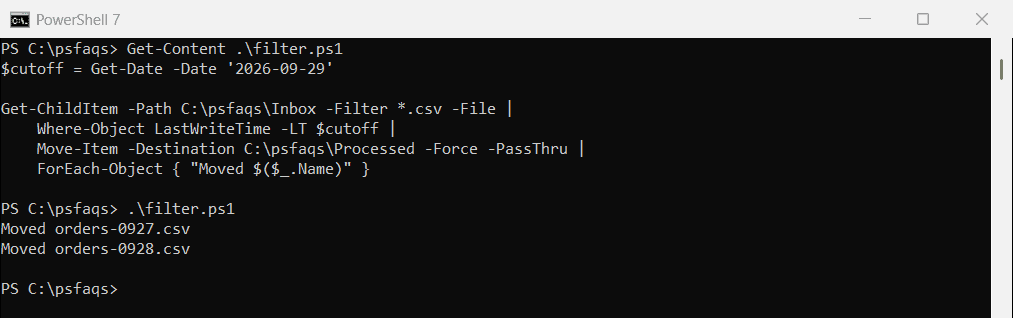
Change the filter to *.log or any other pattern. Finding the newest file uses the same date filtering.
Preview the move with -WhatIf
-WhatIf shows every move Move-Item would make, without moving anything. Run it first on any wildcard move:
Move-Item -Path C:\psfaqs\Inbox\*.csv -Destination C:\psfaqs\Processed -WhatIfOutput:
What if: Performing the operation "Move File" on target "Item: C:\psfaqs\Inbox\orders-0927.csv Destination: C:\psfaqs\Processed\orders-0927.csv".
What if: Performing the operation "Move File" on target "Item: C:\psfaqs\Inbox\orders-0928.csv Destination: C:\psfaqs\Processed\orders-0928.csv".
What if: Performing the operation "Move File" on target "Item: C:\psfaqs\Inbox\orders-0929.csv Destination: C:\psfaqs\Processed\orders-0929.csv".
Microsoft lists every parameter in the Move-Item documentation.
Frequently Asked Questions
How do I move a file to a folder in PowerShell?
Run Move-Item -Path C:\Inbox\report.csv -Destination C:\Processed. The file keeps its name.
Why did Move-Item rename my file?
The destination folder didn’t exist, so Move-Item used that path as the new file name. Create the folder first with New-Item -Force.