
To count the lines in a file with PowerShell, read it with Get-Content and check .Count. Get-Content returns one item per line, so the count is the number of lines:
$lines = (Get-Content -Path C:\psfaqs\notes.txt).Count
"notes.txt has $lines lines"
Output:
notes.txt has 5 linesThat’s the right answer for most files. But the popular Measure-Object -Line method gives a different number, and neither is the fastest for big files. I ran every example in PowerShell 7.6 and Windows PowerShell 5.1.
Why does Measure-Object -Line give a smaller number?
notes.txt has five lines, and two of them are blank. Here are three ways to count them:
"Get-Content .Count:   $((Get-Content -Path C:\psfaqs\notes.txt).Count)"
"Measure-Object -Line: $((Get-Content -Path C:\psfaqs\notes.txt | Measure-Object -Line).Lines)"
"Non-blank lines:      $(@(Get-Content -Path C:\psfaqs\notes.txt | Where-Object { $_.Trim() }).Count)"
Output:
Get-Content .Count:   5
Measure-Object -Line: 3
Non-blank lines:      3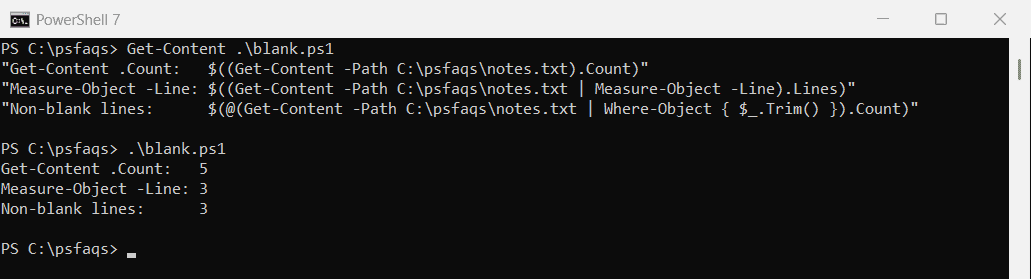
Measure-Object -Line skipped the two empty lines. Neither answer is wrong, but decide which one you need. For “how many lines does the file have,” use .Count.
Don’t count with -ReadCount 0
You’ll see -ReadCount 0 recommended for streaming a file line by line. It does the opposite: it sends the whole file down the pipeline as one array:
$count = 0
Get-Content -Path C:\psfaqs\notes.txt -ReadCount 0 | ForEach-Object { $count++ }
"Counted with -ReadCount 0: $count"
Output:
Counted with -ReadCount 0: 1The loop ran once, for one big array. The Get-Content documentation explains how -ReadCount groups lines.
What’s the fastest way to count lines in a large file?
I made a 300,000-line log file and timed four methods on it:
$file = 'C:\psfaqs\big.log'
$tests = [ordered]@{
    '(Get-Content).Count'  = { (Get-Content -Path $file).Count }
    'Measure-Object -Line' = { (Get-Content -Path $file | Measure-Object -Line).Lines }
    '-ReadCount 1000'      = { $n = 0; Get-Content -Path $file -ReadCount 1000 | ForEach-Object { $n += $_.Count }; $n }
    'File.ReadLines'       = { [System.Linq.Enumerable]::Count([System.IO.File]::ReadLines($file)) }
}

foreach ($name in $tests.Keys) {
    $lines = 0
    $ms = (Measure-Command { $lines = & $tests[$name] }).TotalMilliseconds
    '{0,-21} {1,7} lines {2,7:N0} ms' -f $name, $lines, $ms
}
Output in PowerShell 7 (your times will differ):
(Get-Content).Count    300000 lines   5,737 ms
Measure-Object -Line   300000 lines   2,770 ms
-ReadCount 1000        300000 lines     146 ms
File.ReadLines         300000 lines     151 ms
Output in Windows PowerShell 5.1:
(Get-Content).Count    300000 lines   3,325 ms
Measure-Object -Line   300000 lines   6,158 ms
-ReadCount 1000        300000 lines     174 ms
File.ReadLines         300000 lines     155 ms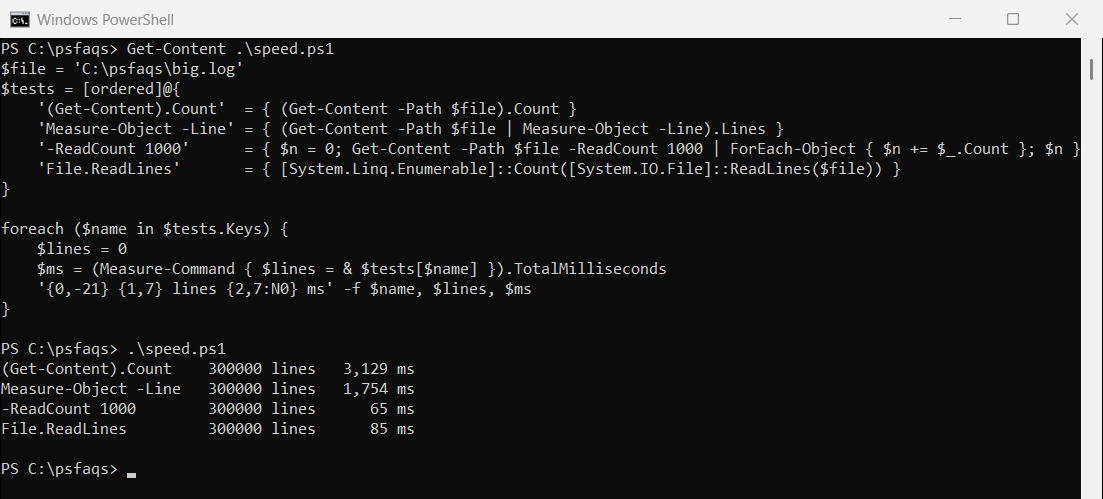
-ReadCount 1000 and [System.IO.File]::ReadLines() were many times faster in both versions. ReadLines also reads the file one line at a time, so it uses very little memory on multi-GB logs.
ReadLines needs a full path, like C:\Logs\app.log. A relative path is resolved from the folder PowerShell started in, not your current location.
Count words and characters
Measure-Object counts lines, words and characters in one pass:
$stats = Get-Content -Path C:\psfaqs\notes.txt | Measure-Object -Line -Word -Character
"Lines: $($stats.Lines), words: $($stats.Words), characters: $($stats.Characters)"
Output:
Lines: 3, words: 13, characters: 73It skips blank lines and doesn’t count line breaks as characters.
Why -split gives one extra word
Splitting the text on whitespace is the other common way to count words. Leading spaces create an empty first item, so trim first:
$text = Get-Content -Path C:\psfaqs\notes.txt -Raw

"-split '\s+':        $(($text -split '\s+').Count) words"
"Trim, then split:    $(($text.Trim() -split '\s+').Count) words"
Output:
-split '\s+':        14 words
Trim, then split:    13 words
Count lines that match a pattern
Select-String returns one match per matching line, so its count is the number of lines that contain the text:
$errors = (Select-String -Path C:\psfaqs\Logs\app.log -Pattern 'ERROR').Count
"app.log has $errors error lines"
Output:
app.log has 2 error linesSelect-String in PowerShell covers regex patterns and case-sensitive matching.
Count lines in every file in a folder
Get-ChildItem -Path C:\psfaqs\Logs -Filter *.log | ForEach-Object {
    [pscustomobject]@{
        File   = $_.Name
        Lines  = (Get-Content -Path $_.FullName).Count
        Errors = @(Select-String -Path $_.FullName -Pattern 'ERROR').Count
    }
} | Sort-Object -Property Lines -Descending | Format-Table -AutoSize
Output:
File      Lines Errors
----      ----- ------
app.log       5      2
web.log       3      1
audit.log     2      0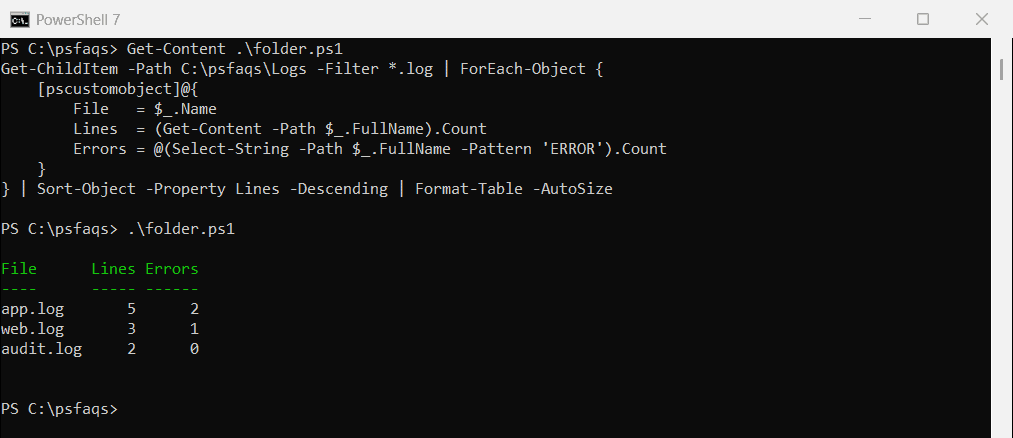
For large logs, swap (Get-Content -Path $_.FullName).Count for the ReadLines version above.