
To compare dates in PowerShell, make sure both sides are [datetime] values, then use -lt, -gt and -eq. Subtracting one date from another tells you how far apart they are:
$dueDate  = [datetime]'2026-10-15'
$shipDate = [datetime]'2026-10-02'

if ($shipDate -lt $dueDate) { "Shipped $(($dueDate - $shipDate).Days) days before the due date" }
"Equal: $($shipDate -eq $dueDate)"
Output:
Shipped 13 days before the due date
Equal: False
Earlier means smaller, so -lt reads as “before” and -gt as “after.” I ran every example in PowerShell 7.6 and Windows PowerShell 5.1, with the same results.
Why do my date comparisons give the wrong answer?
Dates stored as text compare letter by letter, not by calendar. ‘1’ comes before ‘9’, so October 1 looks earlier than September 30:
"As text:  '10/1/2026' -lt '9/30/2026' = $('10/1/2026' -lt '9/30/2026')"
"As dates: October 1 before September 30? $([datetime]'10/1/2026' -lt [datetime]'9/30/2026')"
Output:
As text:  '10/1/2026' -lt '9/30/2026' = True
As dates: October 1 before September 30? False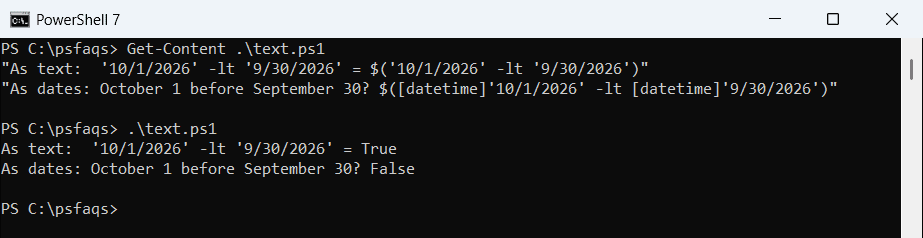
Convert strings with [datetime] or ParseExact before comparing. Converting a string to a date covers formats like dd/MM/yyyy.
The left side decides
When one side is a date and the other is text, PowerShell converts the right side to match the left. Put the date on the left:
$cutoff = [datetime]'2026-09-01'

"Date on the left:   [datetime]'2026-01-15' -gt '2026-09-01' = $([datetime]'2026-01-15' -gt '2026-09-01')"
"String on the left: '2026-01-15' -gt `$cutoff            = $('2026-01-15' -gt $cutoff)"
Output:
Date on the left:   [datetime]'2026-01-15' -gt '2026-09-01' = False
String on the left: '2026-01-15' -gt $cutoff            = True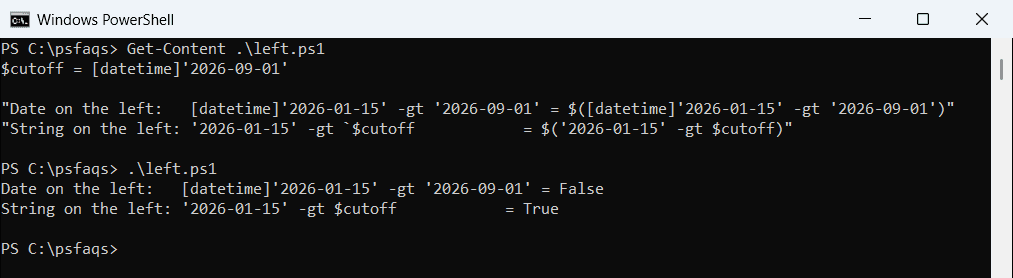
With the string on the left, PowerShell compared two pieces of text and got it wrong.
Compare dates without the time
Two times on the same day aren’t equal. The .Date property sets the time to midnight, so you compare days only:
$loggedIn  = [datetime]'2026-09-28 08:15'
$loggedOut = [datetime]'2026-09-28 17:40'

"Same moment? $($loggedIn -eq $loggedOut)"
"Same day?    $($loggedIn.Date -eq $loggedOut.Date)"
"Same month?  $($loggedIn.ToString('yyyy-MM') -eq ([datetime]'2026-09-02').ToString('yyyy-MM'))"
Output:
Same moment? False
Same day?    True
Same month?  True
To compare just the month or the year, format both dates the same way first, as in the last line.
Find the number of days between two dates
Subtracting dates gives a TimeSpan. Be careful which property you read:
$start = [datetime]'2026-08-29 20:00'
$end   = [datetime]'2026-09-28 08:00'
$span  = $end - $start

"Days:       $($span.Days)"
"TotalDays:  $($span.TotalDays)"
"TotalHours: $($span.TotalHours)"
Output:
Days:       29
TotalDays:  29.5
TotalHours: 708
.Days drops the partial day, while .TotalDays keeps it. Round TotalDays yourself if you need a different rule. The TimeSpan documentation lists all of its properties.
Check if a file is older than 30 days
Compare each file’s LastWriteTime with a cutoff date 30 days ago:
$today  = [datetime]'2026-09-28'
$cutoff = $today.AddDays(-30)

Get-ChildItem -Path C:\psfaqs\Reports -File |
    Where-Object LastWriteTime -LT $cutoff |
    ForEach-Object {
        $age = ($today - $_.LastWriteTime.Date).Days
        '{0,-18} {1:MMM d, yyyy}  ({2} days old)' -f $_.Name, $_.LastWriteTime, $age
    }
Output:
budget-2026.xlsx   Aug 20, 2026  (39 days old)
q1-sales.csv       Mar 31, 2026  (181 days old)
q2-sales.csv       Jun 30, 2026  (90 days old)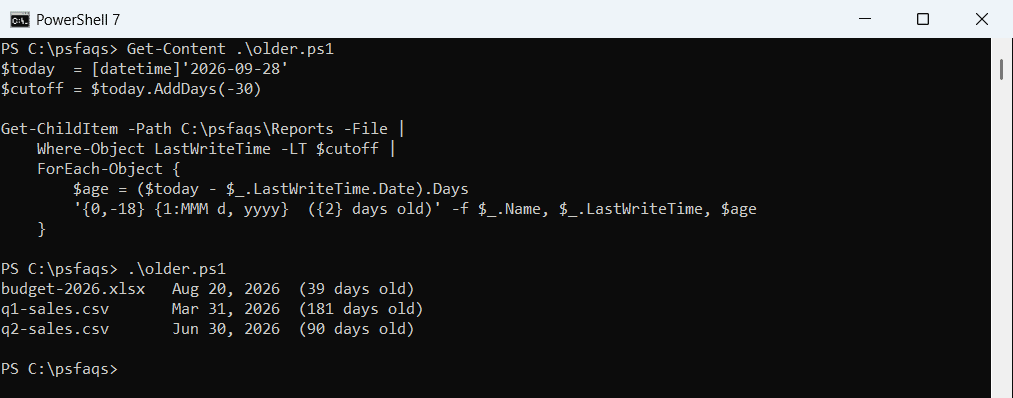
I used a fixed today so the output doesn’t change. In a real script, use (Get-Date).AddDays(-30).
Find files changed after a date
With Where-Object’s short syntax, the property is on the left, so a plain date string on the right works:
Get-ChildItem -Path C:\psfaqs\Reports -File |
    Where-Object LastWriteTime -GT '2026-09-01' |
    Select-Object -ExpandProperty Name
Output:
notes.txt
q3-sales.csv
Files changed between two dates
Use -ge for the start and -lt with the day after the end date, so the whole last day counts:
$from = [datetime]'2026-04-01'
$to   = [datetime]'2026-08-31'

Get-ChildItem -Path C:\psfaqs\Reports -File |
    Where-Object { $_.LastWriteTime -ge $from -and $_.LastWriteTime -lt $to.AddDays(1) } |
    Select-Object -ExpandProperty Name
Output:
budget-2026.xlsx
q2-sales.csv
To delete old files instead of listing them, see Remove-Item, and try it with -WhatIf first.
Frequently Asked Questions
How do I compare two dates in PowerShell?
Convert both to [datetime] and use -lt, -gt or -eq, like $shipDate -lt $dueDate. Earlier dates are smaller.
How do I compare dates without the time?
Compare the Date property of each value: $a.Date -eq $b.Date. It sets the time to midnight.
How do I check if a date is older than 30 days?
Compare it with (Get-Date).AddDays(-30), like $file.LastWriteTime -lt (Get-Date).AddDays(-30).