
To add days to a date in PowerShell, call the date’s AddDays() method. Use a negative number to go back in time, like AddDays(-7) for a week ago:
$invoiceDate = [datetime]'2026-09-28'

"Due in 30 days:   $($invoiceDate.AddDays(30).ToString('MMM d, yyyy'))"
"One week earlier: $($invoiceDate.AddDays(-7).ToString('MMM d, yyyy'))"
Output:
Due in 30 days:   Oct 28, 2026
One week earlier: Sep 21, 2026
For today’s date, start from (Get-Date), as in (Get-Date).AddDays(30). I used fixed dates so you get the same output, and I ran every example in PowerShell 7.6 and Windows PowerShell 5.1.
AddDays returns a new date
Dates can’t be changed in place. AddDays gives you a new date, so assign it back or the change is lost:
$date = [datetime]'2026-09-28'

$date.AddDays(5) | Out-Null
"After AddDays(5) on its own: $($date.ToString('yyyy-MM-dd'))"

$date = $date.AddDays(5)
"After assigning the result:  $($date.ToString('yyyy-MM-dd'))"
Output:
After AddDays(5) on its own: 2026-09-28
After assigning the result:  2026-10-03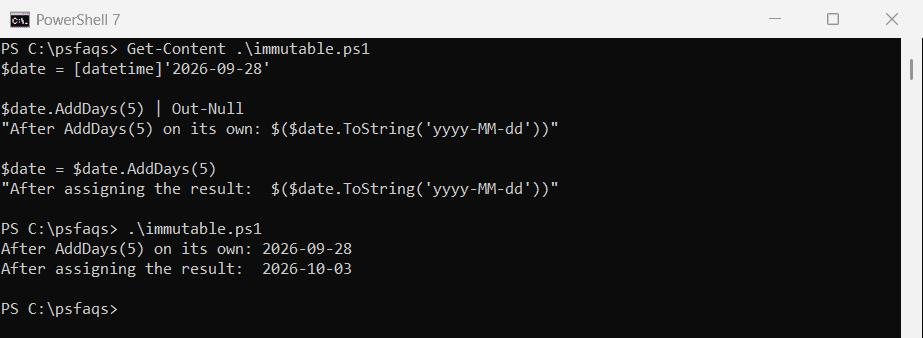
This catches people in loops, where $date.AddDays(1) on its own line does nothing.
Get yesterday’s date (Get-Date minus 1 day)
AddDays(-1) keeps the current time. Add .Date first when you need yesterday at midnight, for example as the start of a log search:
$now = [datetime]'2026-09-28 14:35:10'

"AddDays(-1):       $($now.AddDays(-1))"
"Midnight start:    $($now.Date.AddDays(-1))"
"Formatted:         $($now.AddDays(-1).ToString('yyyy-MM-dd'))"
Output:
AddDays(-1):       09/27/2026 14:35:10
Midnight start:    09/27/2026 00:00:00
Formatted:         2026-09-27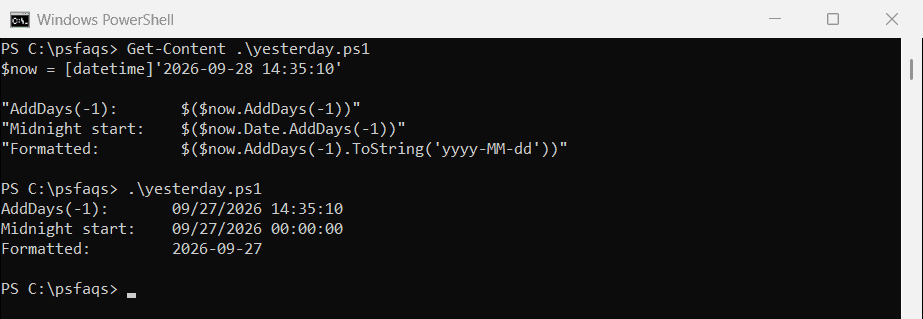
In a real script, write (Get-Date).Date.AddDays(-1) for yesterday at midnight and (Get-Date).AddDays(-1).ToString('yyyy-MM-dd') for a file name.
What (Get-Date).AddDays(0) does
AddDays(0) returns the same date and time, not today at midnight. Use .Date for that:
$now = [datetime]'2026-09-28 14:35:10'

"AddDays(0): $($now.AddDays(0))"
".Date:      $($now.Date)"
Output:
AddDays(0): 09/28/2026 14:35:10
.Date:      09/28/2026 00:00:00
Get today at midnight the reliable way
Setting the hour, minute and second with Get-Date looks like midnight, but the milliseconds stay behind, so equality checks fail:
$today = Get-Date -Hour 0 -Minute 0 -Second 0
"Get-Date -Hour 0 -Minute 0 -Second 0 leaves milliseconds: $($today.Millisecond -ne 0 -or $today.Ticks % 10000 -ne 0)"
"(Get-Date).Date is exactly midnight: $((Get-Date).Date.TimeOfDay -eq [timespan]::Zero)"
Output:
Get-Date -Hour 0 -Minute 0 -Second 0 leaves milliseconds: True
(Get-Date).Date is exactly midnight: True
(Get-Date).Date clears the whole time part. The Get-Date documentation also shows -Millisecond, which PowerShell 7 and 5.1 both support.
Add months and years
AddMonths and AddYears handle different month lengths for you, but the result can drift at the end of a month:
$start = [datetime]'2026-01-31'

"Plus 1 month:          $($start.AddMonths(1).ToString('MMM d, yyyy'))"
"Plus 1 month, twice:   $($start.AddMonths(1).AddMonths(1).ToString('MMM d, yyyy'))"
"Plus 2 months at once: $($start.AddMonths(2).ToString('MMM d, yyyy'))"
Output:
Plus 1 month:          Feb 28, 2026
Plus 1 month, twice:   Mar 28, 2026
Plus 2 months at once: Mar 31, 2026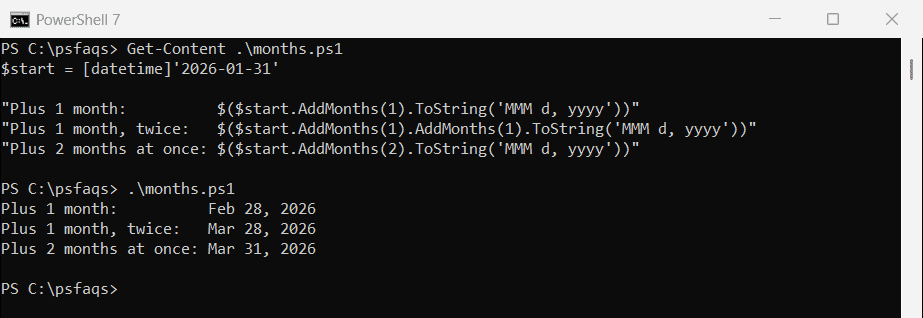
January 31 plus a month becomes February 28, the last valid day, and the next month starts from the 28th. For monthly billing, add months to the original date each time. Microsoft’s AddMonths reference explains the last-valid-day rule.
Hours, leap years and partial days
The other Add methods work the same way. AddDays also takes fractions:
$d = [datetime]'2028-02-29 09:00'

"AddYears(1):  $($d.AddYears(1).ToString('yyyy-MM-dd'))"
"AddHours(36): $($d.AddHours(36).ToString('yyyy-MM-dd HH:mm'))"
"AddDays(1.5): $($d.AddDays(1.5).ToString('yyyy-MM-dd HH:mm'))"
Output:
AddYears(1):  2029-02-28
AddHours(36): 2028-03-01 21:00
AddDays(1.5): 2028-03-01 21:00
February 29, 2028 plus one year is February 28, 2029, since 2029 isn’t a leap year.
Add days to a date stored as text
Dates from CSV files, Read-Host or the registry are text, and text has no AddDays method. Cast it first:
$text = '2026-09-28'

try { $text.AddDays(1) } catch { "A string has no AddDays method" }
"Cast first: $(([datetime]$text).AddDays(1).ToString('yyyy-MM-dd'))"
Output:
A string has no AddDays method
Cast first: 2026-09-29
For formats like 09/28/2026 or 28-09-2026, see converting a string to a date.
Add business days
AddDays counts weekends. To skip them, add one day at a time and only count weekdays:
function Add-BusinessDays {
    param([datetime]$Date, [int]$Days)
    while ($Days -gt 0) {
        $Date = $Date.AddDays(1)
        if ($Date.DayOfWeek -notin 'Saturday', 'Sunday') { $Days-- }
    }
    $Date
}

$ordered = [datetime]'2026-09-25'
"Ordered Friday, ships in 3 business days: $((Add-BusinessDays -Date $ordered -Days 3).ToString('dddd, MMM d'))"
Output:
Ordered Friday, ships in 3 business days: Wednesday, Sep 30Add a holiday list like the one in counting business days between two dates if you need it. Microsoft’s AddDays reference covers the method itself.