
To get the difference between two dates in PowerShell, subtract one [datetime] from the other. The result is a TimeSpan, and its TotalDays, TotalHours and TotalMinutes properties give the full difference in each unit:
$start = [datetime]'2026-09-01 08:30'
$end   = [datetime]'2026-09-28 17:45'

$diff = $end - $start
"Days:    $($diff.TotalDays)"
"Hours:   $($diff.TotalHours)"
"Minutes: $($diff.TotalMinutes)"
Output:
Days:    27.3854166666667
Hours:   657.25
Minutes: 39435
I ran every example in PowerShell 7.6 and Windows PowerShell 5.1, with the same results. All dates are fixed so you’ll get the same output.
Minutes vs TotalMinutes
This is the most common mistake with date differences. Minutes is only the minutes part of the TimeSpan, from 0 to 59. TotalMinutes is the whole difference in minutes:
$start = [datetime]'2026-09-28 09:00'
$end   = [datetime]'2026-09-28 11:15'
$diff  = $end - $start

"Minutes:      $($diff.Minutes)"
"TotalMinutes: $($diff.TotalMinutes)"
"Hours:        $($diff.Hours)"
"TotalHours:   $($diff.TotalHours)"
Output:
Minutes:      15
TotalMinutes: 135
Hours:        2
TotalHours:   2.25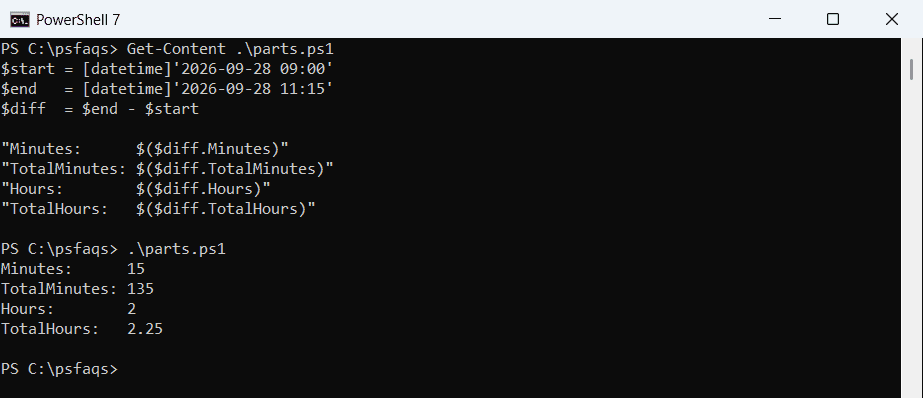
The same goes for Days, Hours and Seconds. Use the Total properties whenever you want the answer in one unit.
Use New-TimeSpan
New-TimeSpan does the same subtraction and accepts date strings directly. Swap the dates and the result turns negative:
$span = New-TimeSpan -Start '2026-11-26' -End '2026-12-25'
"Days from Thanksgiving to Christmas 2026: $($span.Days)"

$back = New-TimeSpan -Start '2026-12-25' -End '2026-11-26'
"With the dates swapped: $($back.Days)"
Output:
Days from Thanksgiving to Christmas 2026: 29
With the dates swapped: -29
Wrap the result in [Math]::Abs() if you don’t care which date comes first. The New-TimeSpan documentation covers its other parameters.
Difference in months and years
A TimeSpan has no months or years, because months have different lengths. Count calendar months instead, and subtract one if the end day hasn’t been reached:
function Get-MonthsBetween {
    param([datetime]$Start, [datetime]$End)
    $months = ($End.Year - $Start.Year) * 12 + $End.Month - $Start.Month
    if ($End.Day -lt $Start.Day) { $months-- }
    $months
}

"Jan 31 to Mar 1, 2026: $(Get-MonthsBetween '2026-01-31' '2026-03-01') full month(s)"
"Jan 15 to Sep 28, 2026: $(Get-MonthsBetween '2026-01-15' '2026-09-28') full months"
Output:
Jan 31 to Mar 1, 2026: 1 full month(s)
Jan 15 to Sep 28, 2026: 8 full months
Calculate an age correctly
Dividing days by 365 ignores leap years and adds a year too early. Compare against the birthday in the current year instead:
$birthday = [datetime]'1990-10-05'
$today    = [datetime]'2026-09-28'

$age = $today.Year - $birthday.Year
if ($today -lt $birthday.AddYears($age)) { $age-- }
"Age on Sep 28, 2026: $age"
"Naive TotalDays / 365: $([Math]::Floor(($today - $birthday).TotalDays / 365))"
Output:
Age on Sep 28, 2026: 35
Naive TotalDays / 365: 36
The naive math says 36, but this person doesn’t turn 36 until October 5. Comparing dates covers -lt and -gt on dates.
Count business days between two dates
Loop through each day and skip weekends and holidays. This uses the 2026 federal holidays from September onward:
$holidays = [datetime[]]('2026-09-07', '2026-10-12', '2026-11-11', '2026-11-26', '2026-12-25')
$start = [datetime]'2026-09-01'
$end   = [datetime]'2026-09-30'

$workdays = 0
for ($d = $start; $d -le $end; $d = $d.AddDays(1)) {
    if ($d.DayOfWeek -in 'Saturday', 'Sunday') { continue }
    if ($holidays -contains $d) { continue }
    $workdays++
}
"Business days in September 2026: $workdays"
Output:
Business days in September 2026: 21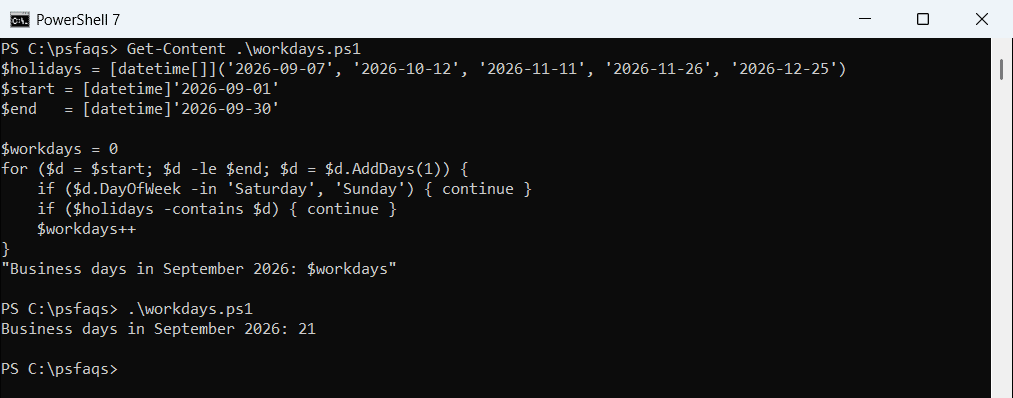
Add your company’s own holidays to the list. For long ranges, the loop is still fast, since a year is only 365 steps.
Watch out for daylight saving time
A plain [datetime] subtraction counts clock time. Across the March 8, 2026 change to daylight saving time, a day in New York was only 23 hours long:
$tz    = [TimeZoneInfo]::FindSystemTimeZoneById('Eastern Standard Time')
$start = [datetime]'2026-03-07 12:00'
$end   = [datetime]'2026-03-08 12:00'

"Local clock difference: $(($end - $start).TotalHours) hours"
$realHours = ([TimeZoneInfo]::ConvertTimeToUtc($end, $tz) - [TimeZoneInfo]::ConvertTimeToUtc($start, $tz)).TotalHours
"Actual elapsed time in New York: $realHours hours"
Output:
Local clock difference: 24 hours
Actual elapsed time in New York: 23 hours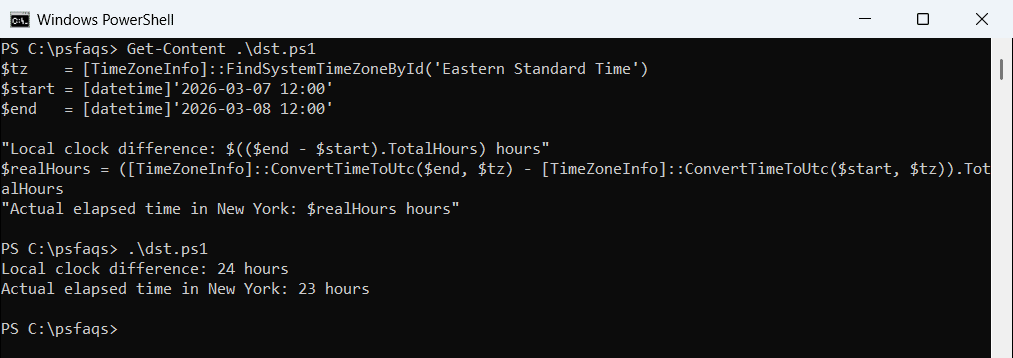
Convert both times to UTC first when you need the real elapsed time, like for billing or SLAs. TimeZoneInfo.ConvertTimeToUtc handles the rules for each time zone.
Format a time difference
TimeSpan’s ToString takes custom formats. Colons must be escaped with a backslash, and hh stops at 23, so use TotalHours for long spans:
$span = New-TimeSpan -Hours 27 -Minutes 5 -Seconds 9

"hh\:mm\:ss format: $($span.ToString('hh\:mm\:ss'))"
"With days:         $($span.ToString('d\.hh\:mm\:ss'))"
"Total hours:       {0}:{1:mm\:ss}" -f [Math]::Floor($span.TotalHours), $span
Output:
hh\:mm\:ss format: 03:05:09
With days:         1.03:05:09
Total hours:       27:05:09