
To convert HEIC to JPG using PowerShell, decode the photo with the Windows imaging decoder and save it with JpegBitmapEncoder. With the function from this page, it’s one line per photo or folder:
Get-ChildItem -Path C:\Photos -Filter *.heic | Convert-HeicToJpgIt needs Microsoft’s free HEIF Image Extensions from the Microsoft Store. I tested it in PowerShell 7 and Windows PowerShell 5.1 on HEIC files made with Windows’ own encoder.
Check that Windows can read HEIC files
PowerShell can’t decode HEIC by itself. It borrows the decoder Windows uses for the Photos app, so test for it first:
Add-Type -AssemblyName PresentationCore
$file = Get-ChildItem -Path C:\psfaqs\photos -Filter *.heic | Select-Object -First 1

try {
    $stream = [System.IO.File]::OpenRead($file.FullName)
    $decoder = [System.Windows.Media.Imaging.BitmapDecoder]::Create($stream, 'None', 'OnLoad')
    "HEIC decoder:  $($decoder.CodecInfo.FriendlyName)"
    "Handles:       $($decoder.CodecInfo.FileExtensions)"
}
catch {
    "Failed. No HEIC decoder: $($_.Exception.Message)"
}
finally { $stream.Dispose() }
Output:
HEIC decoder:  Microsoft HEIF Decoder
Handles:       .heic,.heif,.hif,.avci,.heics,.heifs,.avcs,.avif,.avifs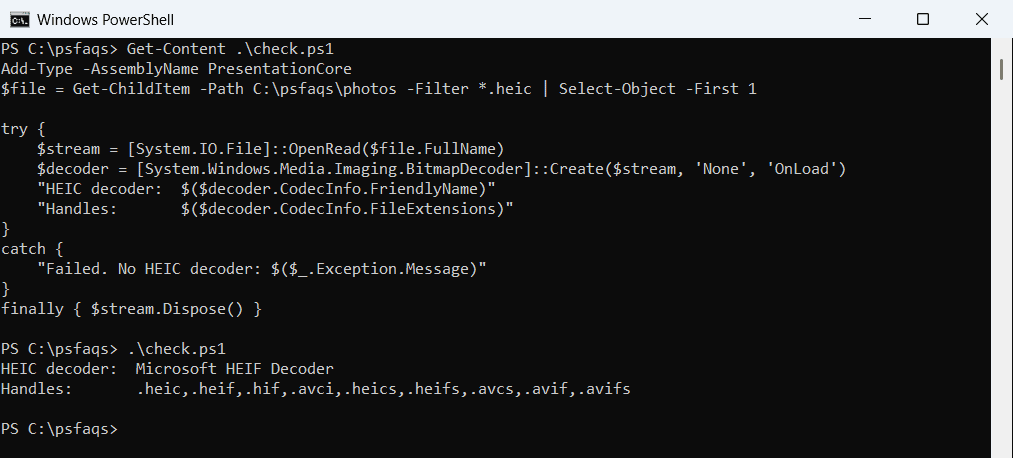
If you get Failed instead, install HEIF Image Extensions from the Microsoft Store. HEIC photos are compressed with HEVC, so you may also need the HEVC Video Extensions. Listing Windows features won’t show these, because they’re Store apps.
The Convert-HeicToJpg function
Save this as HeicTools.ps1. It reads the HEIC file, takes the first image, and writes a JPG with the same name next to it:
Add-Type -AssemblyName PresentationCore

function Convert-HeicToJpg {
    param(
        [Parameter(Mandatory, ValueFromPipelineByPropertyName)]
        [Alias('FullName')] [string]$Path,
        [ValidateRange(1, 100)] [int]$Quality = 90
    )
    process {
        $source = (Resolve-Path -LiteralPath $Path).ProviderPath
        $target = [System.IO.Path]::ChangeExtension($source, '.jpg')

        $in = [System.IO.File]::OpenRead($source)
        try {
            $decoder = [System.Windows.Media.Imaging.BitmapDecoder]::Create($in, 'PreservePixelFormat', 'OnLoad')
        }
        finally { $in.Dispose() }
        $frame = $decoder.Frames[0]

        $encoder = New-Object System.Windows.Media.Imaging.JpegBitmapEncoder
        $encoder.QualityLevel = $Quality
        $encoder.Frames.Add([System.Windows.Media.Imaging.BitmapFrame]::Create($frame, $null, $null, $null))
        $out = [System.IO.File]::Create($target)
        try { $encoder.Save($out) }
        finally { $out.Dispose() }

        [pscustomobject]@{
            Jpg    = Split-Path -Path $target -Leaf
            Size   = '{0} x {1}' -f $frame.PixelWidth, $frame.PixelHeight
            SizeKB = '{0:N1}' -f ((Get-Item -LiteralPath $target).Length / 1KB)
        }
    }
}
No admin rights are needed. Passing $null as metadata means camera details and GPS location aren’t copied, which is handy for photos you’ll share. Try and finally make sure both files are closed even when a photo is damaged.
Convert one HEIC file to JPG
Dot-source the file and pass a photo:
. .\HeicTools.ps1

Convert-HeicToJpg -Path C:\psfaqs\photos\IMG_2041.heic | Format-List
Output:
Jpg    : IMG_2041.jpg
Size   : 800 x 600
SizeKB : 33.9
The JPG lands in the same folder. To save it somewhere else, change the $target line. Getting a file’s size covers the size math in more detail.
Convert all HEIC files in a folder
The function accepts files from the pipeline, so Get-ChildItem can feed it a whole folder:
. .\HeicTools.ps1

Get-ChildItem -Path C:\psfaqs\photos -Filter *.heic |
    Convert-HeicToJpg |
    Format-Table -AutoSize
Output:
Jpg          Size      SizeKB
---          ----      ------
IMG_2041.jpg 800 x 600 33.9
IMG_2042.jpg 800 x 600 32.9
IMG_2043.jpg 600 x 800 33.8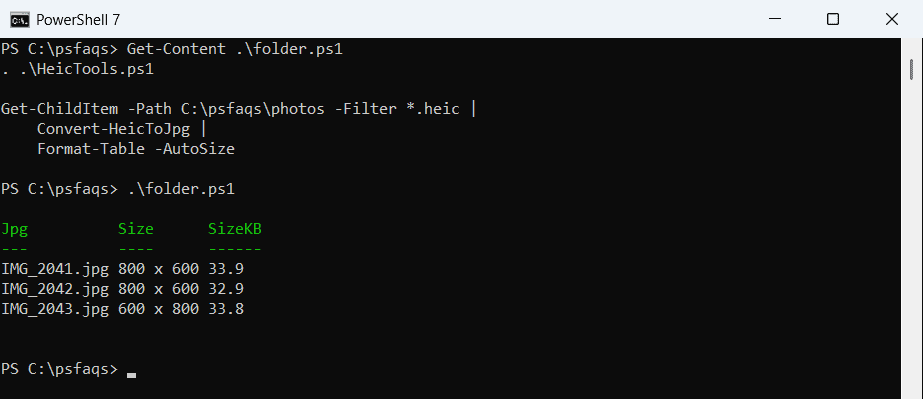
IMG_2043 is a portrait photo, and the width and height come through correctly. Add -Recurse to include subfolders. Looping through files in a folder shows other ways to process a folder.
Have PNG screenshots to shrink as well? See how to convert PNG to JPG using PowerShell.
What JPG quality should I use?
QualityLevel goes from 1 to 100. I converted the same photo four times to compare file sizes:
. .\HeicTools.ps1

foreach ($q in 50, 75, 90, 100) {
    $r = Convert-HeicToJpg -Path C:\psfaqs\photos\IMG_2042.heic -Quality $q
    'Quality {0,3}: {1,5} KB' -f $q, $r.SizeKB
}
Output:
Quality  50:  14.3 KB
Quality  75:  32.9 KB
Quality  90:  32.9 KB
Quality 100: 139.6 KB
On my smooth test image, 75 and 90 came out the same size, and 100 was more than four times bigger. Results depend on the photo, so try two settings on your own files.
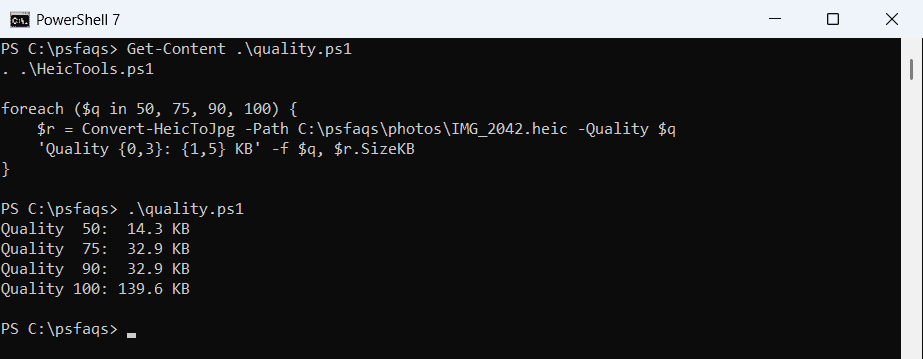
My function uses 90, which keeps detail without the jump in size at 100. Expect JPGs to be bigger than the HEIC originals, since HEIC compresses better.
Why System.Drawing can’t open HEIC files
Many older scripts use System.Drawing for image conversion. It doesn’t use the HEIF extension, and the error is misleading in both versions:
Add-Type -AssemblyName System.Drawing
try {
    $image = [System.Drawing.Image]::FromFile('C:\psfaqs\photos\IMG_2041.heic')
    "Loaded $($image.Width) x $($image.Height)"
}
catch {
    "Failed. $($_.Exception.InnerException.Message)"
}
Output:
Failed. An object could not be created, possibly due to a lack of memory, but most likely due to invalid input.That’s PowerShell 7. Windows PowerShell 5.1 just says “Out of memory.” Neither is about memory; the format isn’t supported. Converting PNG to ICO is a case where System.Drawing works fine.
Convert HEIC with ImageMagick
If a PC can’t get the Store extensions, ImageMagick is the usual alternative