
To run a PowerShell script in PowerShell ISE, open the .ps1 file with File > Open (Ctrl+O) and press F5, or click the green Run Script button. To run only part of the script, select those lines and press F8.
The output shows in the console pane under the script. The ISE runs Windows PowerShell 5.1 only, so below I also cover parameters, debugging, execution policy and what to do when you need PowerShell 7.
Open PowerShell ISE
Start it from the Start menu (Windows PowerShell > Windows PowerShell ISE), or type powershell_ise.exe in Run or any console. On my Windows 11 PC it’s in the usual place:
$ise = Get-Command -Name powershell_ise.exe -ErrorAction SilentlyContinue
if ($ise) { "ISE found: $($ise.Source)" } else { 'The ISE is not installed on this PC' }
Output:
ISE found: C:\WINDOWS\System32\WindowsPowerShell\v1.0\powershell_ise.exeIf it says the ISE isn’t installed, your Windows image left it out. Listing Windows features helps when you check optional components.
Run a script with F5 or a selection with F8
Once the script is open in the script pane, these are the keys you’ll use most. They come straight from Microsoft’s shortcut list:
| Action | Shortcut |
|---|---|
| Run the whole script | F5 |
| Run the selected lines | F8 |
| Stop a running script | Ctrl+Break |
| New script / Open script | Ctrl+N / Ctrl+O |
| Show or hide the script pane | Ctrl+R |
| Open powershell.exe outside the ISE | Ctrl+Shift+P |
Save with Ctrl+S as you go, so the .ps1 file on disk matches what you tested. Output and errors appear in the console pane below the script.
How do I run a script with parameters in PowerShell ISE?
F5 runs the script with default parameter values. To pass your own, type the call in the console pane. Here’s my sample script:
param(
    [string]$Region = 'Austin',
    [decimal]$Target = 50000
)
$sales = @{ Austin = 48250; Denver = 61200; Seattle = 55900 }
$total = $sales[$Region]
"Region: $Region"
"Sales:  {0:C0} of {1:C0} target" -f $total, $Target
"Status: $(if ($total -ge $Target) { 'Target met' } else { 'Below target' })"
These are the two lines I’d type in the ISE console pane. I ran them in a Windows PowerShell 5.1 console, which is the same engine the ISE hosts:
& C:\psfaqs\scripts\Get-SalesTotal.ps1
& C:\psfaqs\scripts\Get-SalesTotal.ps1 -Region Denver -Target 60000
Output:
Region: Austin
Sales:  $48,250 of $50,000 target
Status: Below target
Region: Denver
Sales:  $61,200 of $60,000 target
Status: Target met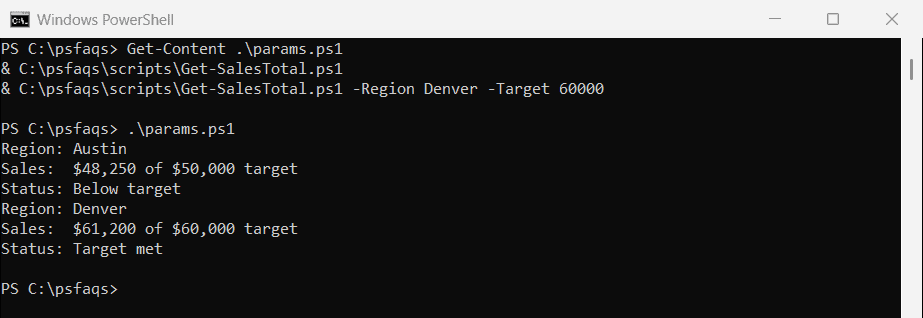
The & call operator handles paths with spaces too. Running a script from the command line with parameters covers named, positional and switch parameters.
Debug a script in PowerShell ISE
Click a line and press F9 to set a breakpoint, then F5 to run until it. The ISE stops there and highlights the line, and you can hover over variables to see their values.
| Debug action | Shortcut |
|---|---|
| Toggle breakpoint | F9 |
| Step over | F10 |
| Step into | F11 |
| Step out | Shift+F11 |
| Continue | F5 |
| Stop debugging | Shift+F5 |
While stopped, the console pane works too, so you can type $Region to check a value. For catching errors at run time, see try and catch in PowerShell.
Why won’t my script run in the ISE?
The usual reason is the execution policy. The ISE uses Windows PowerShell’s policy, which is stored separately from PowerShell 7’s. On my PC the two versions disagree:
"PowerShell $($PSVersionTable.PSVersion.Major) execution policy"
"  LocalMachine: $(Ge