
To get the size of a file in PowerShell, read the Length property of the file object that Get-Item returns. It’s the size in bytes:
(Get-Item 'C:\Reports\q3-deck.pptx').LengthBelow I convert that number to KB, MB and GB, list and total the sizes in a folder, and cover three traps I hit while testing in PowerShell 7 and Windows PowerShell 5.1.
Create sample files to follow along
You don’t need real files to practice. Open PowerShell in an empty test folder and run this to create a reports folder with three files of known sizes:
New-Item -ItemType Directory .\reports\archive -Force | Out-Null
[IO.File]::WriteAllBytes("$PWD\reports\q3-deck.pptx", (New-Object byte[] 5767168))
[IO.File]::WriteAllBytes("$PWD\reports\sales-2026.csv", (New-Object byte[] 48213))
[IO.File]::WriteAllBytes("$PWD\reports\notes.txt", (New-Object byte[] 812))

Get-ChildItem .\reports -File | ForEach-Object Name
Output:
notes.txt
q3-deck.pptx
sales-2026.csv
[IO.File]::WriteAllBytes writes a file of exactly that many bytes, so every number below is predictable. For more ways to list what’s in a folder, see the Get-ChildItem cmdlet.
Get the file size in bytes with Get-Item
Get-Item returns a FileInfo object, and its Length property holds the size. It’s an Int64, so files over 2 GB are fine:
$file = Get-Item .\reports\q3-deck.pptx
$file.Length
$file.Length.GetType().Name
Output:
5767168
Int64
5,767,168 bytes is exactly 5.5 MB. Don’t confuse this with the length of a string, which counts characters, not bytes.
How do I get the file size in KB, MB or GB?
PowerShell has built-in multipliers: 1KB is 1024, 1MB is 1024 squared, and 1GB is 1024 cubed. Divide by one of them, then round:
$bytes = (Get-Item .\reports\q3-deck.pptx).Length

"KB: $([math]::Round($bytes / 1KB, 2))"
"MB: $([math]::Round($bytes / 1MB, 2))"
"GB: $([math]::Round($bytes / 1GB, 4))"
"Formatted: {0:N2} MB" -f ($bytes / 1MB)
Output:
KB: 5632
MB: 5.5
GB: 0.0054
Formatted: 5.50 MB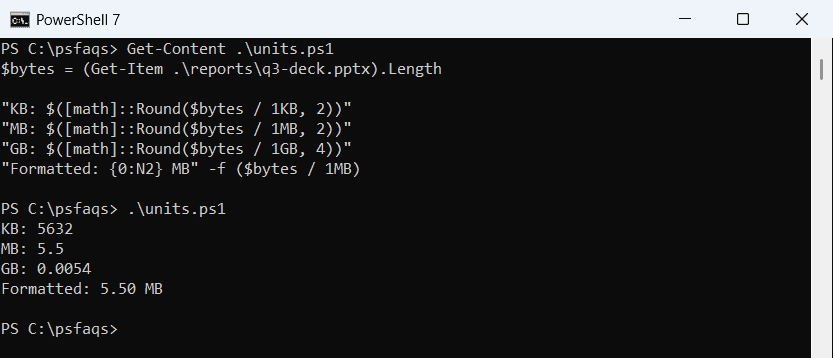
[math]::Round keeps a number you can compare or sort. The -f format operator with N2 returns text with two decimals and a thousands separator. More options are in rounding to 2 decimal places.
Show file sizes in a readable format
For a report, pick the unit per file. This small function chooses GB, MB, KB or bytes based on the size:
function Format-FileSize ([long]$Bytes) {
    if     ($Bytes -ge 1GB) { '{0:N2} GB' -f ($Bytes / 1GB) }
    elseif ($Bytes -ge 1MB) { '{0:N2} MB' -f ($Bytes / 1MB) }
    elseif ($Bytes -ge 1KB) { '{0:N2} KB' -f ($Bytes / 1KB) }
    else                    { "$Bytes bytes" }
}

Get-ChildItem .\reports -File | Sort-Object Length -Descending | ForEach-Object {
    '{0,-16} {1}' -f $_.Name, (Format-FileSize $_.Length)
}
Output:
q3-deck.pptx     5.50 MB
sales-2026.csv   47.08 KB
notes.txt        812 bytes
Sorting on Length before formatting matters, because sorting the text “5.50 MB” would put it in the wrong order. Here’s how Sort-Object sorts by a property.
Get the total size of several files
Pipe the files to Measure-Object with -Property Length and -Sum. It adds up the bytes and counts the files:
$sum = Get-ChildItem .\reports -File | Measure-Object -Property Length -Sum

"Files: $($sum.Count)"
"Total: {0:N0} bytes ({1:N2} MB)" -f $sum.Sum, ($sum.Sum / 1MB)
Output:
Files: 3
Total: 5,816,193 bytes (5.55 MB)
The -File switch skips subfolders such as archive. To include files in subfolders, add -Recurse, as in getting the size of a folder.
As a table, the numbers look different in each version:
Get-ChildItem .\reports -File | Measure-Object -Property Length -Sum -Maximum |
    Format-Table Count, Sum, Maximum
Output:
Count         Sum     Maximum
-----         ---     -------
    3 5816193.000 5767168.000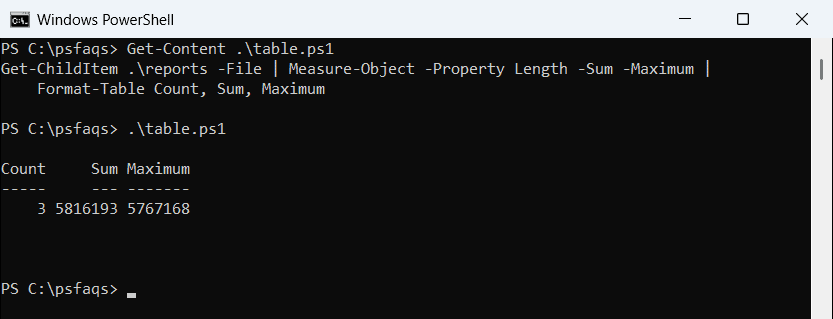
Windows PowerShell 5.1 prints 5816193, while PowerShell 7 prints 5816193.00. It’s the same [double] in both; only the table format differs. Measure-Object can also return the average and minimum.
Why does a folder show a size of 1?
Get-Item works on folders too, but a DirectoryInfo object has no Length property:
$item = Get-Item .\reports

"Length of a folder: $($item.Length)"
"Is a folder:        $($item.PSIsContainer)"
Output:
Length of a folder: 1
Is a folder:        True
The 1 isn’t a size. When an object has no Length, PowerShell falls back to its built-in Length for a single item, which is always 1. Check PSIsContainer, or use Get-ChildItem -File so folders never reach your math.
Get the current size of a file that changes
A FileInfo object keeps the size it read. If a log keeps growing after you call Get-Item, call Refresh() before you read Length again:
Set-Content .\reports\log.txt ('a' * 500) -NoNewline
$file = Get-Item .\reports\log.txt
Add-Content .\reports\log.txt ('x' * 100) -NoNewline

"Before Refresh(): $($file.Length)"
$file.Refresh()
"After Refresh():  $($file.Length)"
Output:
Before Refresh(): 500
After Refresh():  600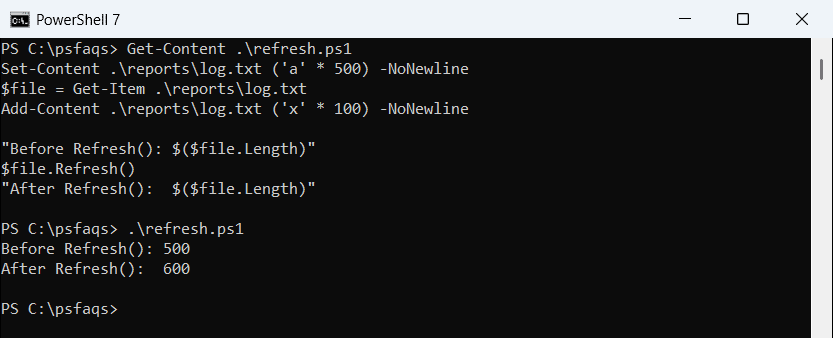
PowerShell 7 kept 500 until Refresh(). Windows PowerShell 5.1 showed 600 both times, because .NET Framework read the file only when Length was first used. Call Refresh() in both versions and you won’t depend on that timing.
Handle a file that doesn’t exist
Get-Item fails on a missing path. Check first with Test-Path, or catch the error:
$path = '.\reports\budget-2026.xlsx'