
To change the wallpaper with PowerShell, call the Windows SystemParametersInfo function with the image path. Add-Type makes it available, and the change shows right away without signing out:
Add-Type -TypeDefinition @'
using System.Runtime.InteropServices;
public static class Desktop {
    [DllImport("user32.dll", CharSet = CharSet.Unicode)]
    public static extern bool SystemParametersInfo(uint action, uint param, string value, uint flags);
}
'@
[Desktop]::SystemParametersInfo(0x14, 0, 'C:\Wallpapers\navy-2026.png', 0x3)
It returns True when Windows accepts the image, affects only the signed-in user and needs no admin rights. Below I set the fit style, wrap it in a safe function and cover company PCs. I left my own wallpaper alone.
Check the current wallpaper style
Windows stores how the image fits the screen under HKCU:\Control Panel\Desktop. This reads the style without touching anything:
$desktop = Get-ItemProperty -Path 'HKCU:\Control Panel\Desktop'
$names = @{ '10' = 'Fill'; '6' = 'Fit'; '2' = 'Stretch'; '22' = 'Span'; '0' = 'Center or Tile' }

"WallpaperStyle: $($desktop.WallpaperStyle) ($($names[$desktop.WallpaperStyle]))"
"TileWallpaper:  $($desktop.TileWallpaper)"
"Image type:     $([IO.Path]::GetExtension($desktop.WallPaper))"
Output:
WallpaperStyle: 10 (Fill)
TileWallpaper:  0
Image type:     .jpg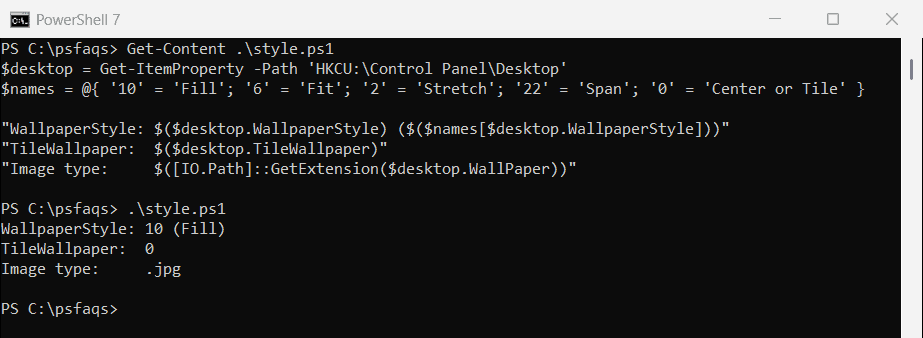
| Style | WallpaperStyle | TileWallpaper |
|---|---|---|
| Fill | 10 | 0 |
| Fit | 6 | 0 |
| Stretch | 2 | 0 |
| Center | 0 | 0 |
| Tile | 0 | 1 |
| Span (multiple monitors) | 22 | 0 |
Set the style first, then call SystemParametersInfo so Windows applies both together.
To use a solid color instead of an image, see changing the desktop background color.
Make a test image
For a solid-color wallpaper, you don’t need an image editor. System.Drawing can create one in PowerShell:
Add-Type -AssemblyName System.Drawing
$bitmap = [System.Drawing.Bitmap]::new(1920, 1080)
$graphics = [System.Drawing.Graphics]::FromImage($bitmap)
$graphics.Clear([System.Drawing.Color]::FromArgb(18, 38, 94))
$bitmap.Save('C:\psfaqs\Wallpaper\navy-2026.png', [System.Drawing.Imaging.ImageFormat]::Png)
$graphics.Dispose(); $bitmap.Dispose()

$file = Get-Item -Path 'C:\psfaqs\Wallpaper\navy-2026.png'
"Created $($file.Name): 1920 x 1080, $([math]::Round($file.Length / 1KB)) KB"
Output:
Created navy-2026.png: 1920 x 1080, 10 KB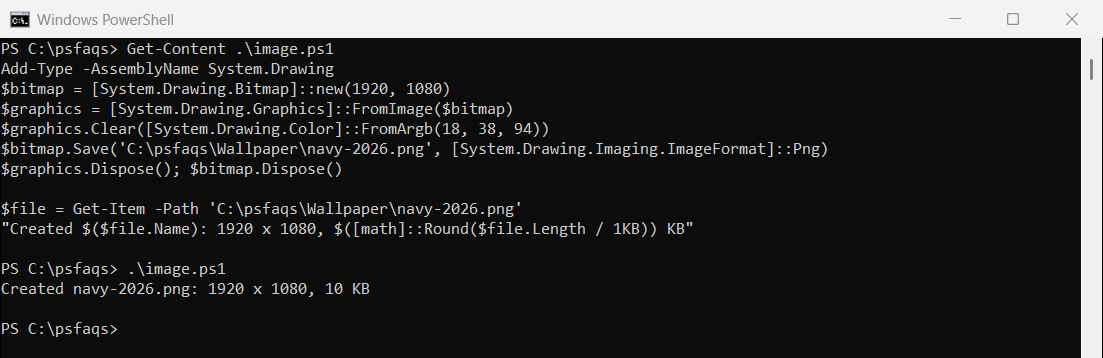
Use your screen’s resolution for a sharp result. JPG, PNG and BMP all work.
A reusable Set-Wallpaper function
This function sets the style and the image together. SupportsShouldProcess gives it -WhatIf, so you can check the path before anything changes:
function Set-Wallpaper {
    [CmdletBinding(SupportsShouldProcess)]
    param(
        [Parameter(Mandatory)] [string]$Path,
        [ValidateSet('Fill', 'Fit', 'Stretch', 'Center', 'Span')] [string]$Style = 'Fill'
    )
    $Path = (Resolve-Path -Path $Path -ErrorAction Stop).Path
    $styles = @{ Fill = '10'; Fit = '6'; Stretch = '2'; Center = '0'; Span = '22' }

    if ($PSCmdlet.ShouldProcess($Path, "Set desktop wallpaper ($Style)")) {
        Set-ItemProperty -Path 'HKCU:\Control Panel\Desktop' -Name WallpaperStyle -Value $styles[$Style]
        Set-ItemProperty -Path 'HKCU:\Control Panel\Desktop' -Name TileWallpaper -Value '0'
        Add-Type -TypeDefinition @'
using System.Runtime.InteropServices;
public static class Desktop {
    [DllImport("user32.dll", CharSet = CharSet.Unicode, SetLastError = true)]
    public static extern bool SystemParametersInfo(uint action, uint param, string value, uint flags);
}
'@
        # 0x14 = SPI_SETDESKWALLPAPER, 0x3 = SPIF_UPDATEINIFILE | SPIF_SENDCHANGE
        if (-not [Desktop]::SystemParametersInfo(0x14, 0, $Path, 0x3)) { throw 'Windows rejected the image.' }
    }
}

Set-Wallpaper -Path 'C:\psfaqs\Wallpaper\navy-2026.png' -Style Fill -WhatIf
Output:
What if: Performing the operation "Set desktop wallpaper (Fill)" on target "C:\psfaqs\Wallpaper\navy-2026.png".