
To generate a random string in PowerShell, turn a list of allowed characters into an array, pick characters with Get-Random in a loop, and join them with -join:
$chars  = 'ABCDEFGHIJKLMNOPQRSTUVWXYZabcdefghijklmnopqrstuvwxyz0123456789'.ToCharArray()
$random = -join (1..12 | ForEach-Object { Get-Random -InputObject $chars })
$random
Output (yours will differ):
HGRDWptVJXmXThat’s fine for test data and file names. For passwords, API keys or tokens, use the secure method further down, since Get-Random isn’t built for secrets.
I ran every example in PowerShell 7.6 and Windows PowerShell 5.1 and note the version-only options.
Two Get-Random mistakes to avoid
Get-Random picks from a list, and a plain string isn’t a list of characters. -Count also never picks the same item twice:
"Piping a plain string returns: $('ABCDEF' | Get-Random)"
"Piping its characters returns $(('ABCDEF'.ToCharArray() | Get-Random).ToString().Length) character"
"-Count 12 from 10 digits returns $(('0123456789'.ToCharArray() | Get-Random -Count 12).Count) characters"
Output:
Piping a plain string returns: ABCDEF
Piping its characters returns 1 character
-Count 12 from 10 digits returns 10 characters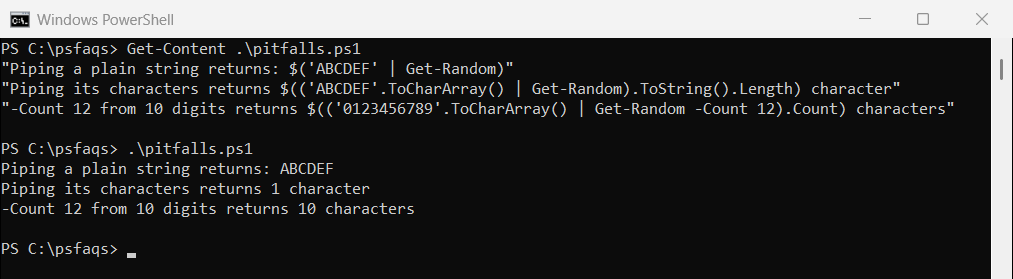
So -join ($chars | Get-Random -Count 12) never repeats a character, and it returns fewer than 12 when the set is small. Pick one character per loop instead, as in the first example.
A reusable random string function
This function guarantees at least one uppercase letter, one lowercase letter, one digit and, unless you turn them off, one symbol. It leaves out look-alike characters like I, l, O and 0:
function Get-RandomString {
    param(
        [int]$Length = 12,
        [switch]$NoSymbols
    )
    $sets = @('ABCDEFGHJKLMNPQRSTUVWXYZ', 'abcdefghijkmnopqrstuvwxyz', '23456789')
    if (-not $NoSymbols) { $sets += '!@#$%^&*-_' }

    $picked = foreach ($set in $sets) { Get-Random -InputObject $set.ToCharArray() }
    $all    = ($sets -join '').ToCharArray()
    $picked += 1..($Length - $sets.Count) | ForEach-Object { Get-Random -InputObject $all }

    -join ($picked | Get-Random -Count $picked.Count)
}

Get-RandomString
Get-RandomString -Length 8 -NoSymbols
Output (yours will differ):
@&s2LvLk_c$u
Yn96TyF9
The last line shuffles the result with Get-Random -Count, so the guaranteed characters don’t always sit at the start. In PowerShell 7 you can write Get-Random -Shuffle instead.
Get the same random values every time with -SetSeed
For tests and demos, -SetSeed makes Get-Random repeat the same sequence. I got the same results in both PowerShell versions:
"First run:  $(Get-Random -SetSeed 42 -Maximum 1000)"
"Second run: $(Get-Random -SetSeed 42 -Maximum 1000)"

$null = Get-Random -SetSeed 2026
$first = 'Alice', 'Bob', 'Carol', 'David', 'Emma'
$last  = 'Johnson', 'Smith', 'Diaz', 'Miller', 'Brown'
1..3 | ForEach-Object { '{0} {1}' -f (Get-Random -InputObject $first), (Get-Random -InputObject $last) }
Output:
First run:  177
Second run: 177
David Smith
Bob Brown
Alice Miller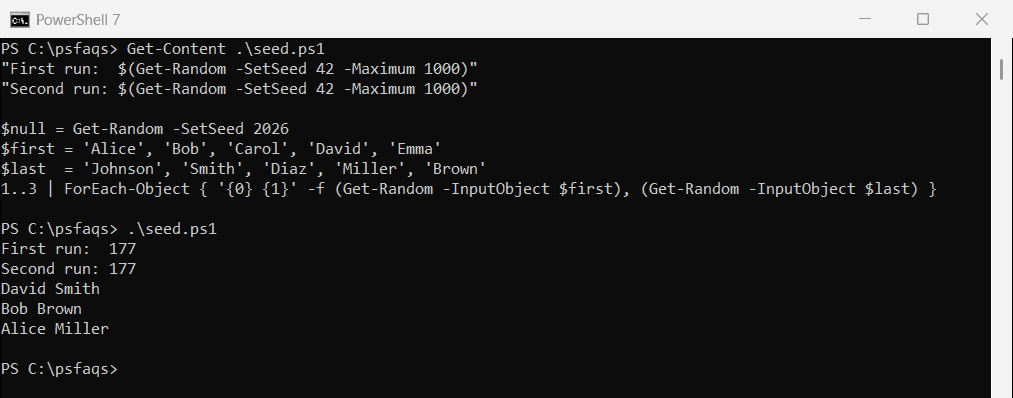
That’s handy for sample data like these random names, and it’s also why Get-Random shouldn’t produce secrets. Microsoft’s Get-Random documentation says it doesn’t ensure cryptographically secure randomness.
Generate a secure random string
For anything secret, use .NET’s RandomNumberGenerator. This function works in both PowerShell 7 and Windows PowerShell 5.1:
function New-SecureRandomString {
    param(
        [int]$Length = 20,
        [string]$Chars = 'ABCDEFGHJKLMNPQRSTUVWXYZabcdefghijkmnopqrstuvwxyz23456789'
    )
    $rng   = [System.Security.Cryptography.RandomNumberGenerator]::Create()
    $byte  = [byte[]]::new(1)
    $limit = 256 - (256 % $Chars.Length)    # skip values that would favor some characters
    $out   = [System.Text.StringBuilder]::new()

    while ($out.Length -lt $Length) {
        $rng.GetBytes($byte)
        if ($byte[0] -lt $limit) { [void]$out.Append($Chars[$byte[0] % $Chars.Length]) }
    }
    $out.ToString()
}

New-SecureRandomString
New-SecureRandomString -Length 32
Output (yours will differ):
GKL7fxyKjEYxbsJ75MUj
T5YogG8tnR66ddYoqqQrjT4TEodVAwzE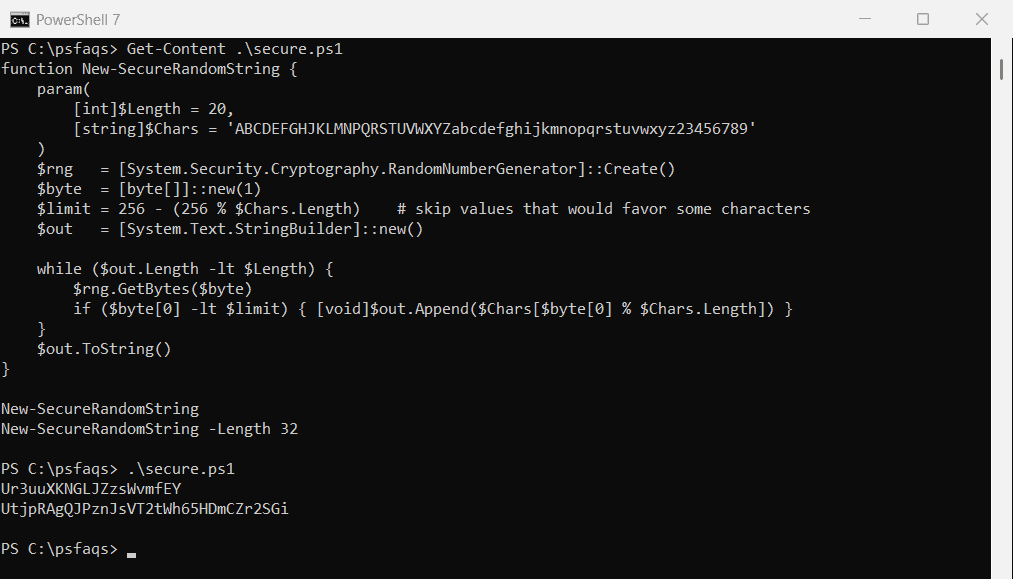
The $limit check throws away a few byte values so every character has the same chance. The RandomNumberGenerator reference explains the class.
PowerShell 7.4 and later: one line
On PowerShell 7.4 and later, which run on .NET 8 or newer, GetString does the same work in one call. It doesn’t exist in Windows PowerShell 5.1:
$chars = 'ABCDEFGHJKLMNPQRSTUVWXYZabcdefghijkmnopqrstuvwxyz23456789'
[System.Security.Cryptography.RandomNumberGenerator]::GetString($chars, 20)
Output in PowerShell 7 (yours will differ):
KwLJBvyAUuvirehQnW2cThe PowerShell password generator builds on this for passwords with rules.
Generate a random token or unique ID
For API keys and reset links, generate random bytes and encode them as hex or Base64:
$bytes = [byte[]]::new(32)
[System.Security.Cryptography.RandomNumberGenerator]::Create().GetBytes($bytes)

$hex = -join ($bytes | ForEach-Object { $_.ToString('x2') })
"Hex token ($($hex.Length) characters): $hex"
"Base64 token: $([Convert]::ToBase64String($bytes))"
Output (yours will differ):
Hex token (64 characters): 0e30e4a9cc037cd30bc7695590a14e1ff72e95a4de08d3517e64c7d9a1943dac
Base64 token: DjDkqcwDfNMLx2lVkKFOH/culaTeCNNRfmTH2aGUPaw=
When you only need something unique, not secret, a GUID is simpler:
$id = [guid]::NewGuid().ToString('N').Substring(0, 12)
"Order reference: ORD-$($id.ToUpper())"
Output (yours will differ