
To create a folder if it does not exist in PowerShell, check it with Test-Path -PathType Container and run New-Item when the check comes back False:
$path = 'C:\psfaqs\Sales\Reports'
if (-not (Test-Path -Path $path -PathType Container)) {
    New-Item -Path $path -ItemType Directory | Out-Null
}
That pattern is safe to run on every script start. Below I cover the -Force shortcut, the .NET method, a reusable function, and two traps I hit while testing in PowerShell 7 and Windows PowerShell 5.1.
Create a folder if it doesn’t exist with Test-Path and New-Item
The Test-Path cmdlet returns True or False, so it fits straight into an if statement. I ran the same check twice in one script to show both branches:
$path = 'C:\psfaqs\Sales\Reports'
foreach ($run in 1, 2) {
    if (-not (Test-Path -Path $path -PathType Container)) {
        New-Item -Path $path -ItemType Directory | Out-Null
        "Run ${run}: created $path"
    }
    else { "Run ${run}: $path already exists" }
}
Output:
Run 1: created C:\psfaqs\Sales\Reports
Run 2: C:\psfaqs\Sales\Reports already exists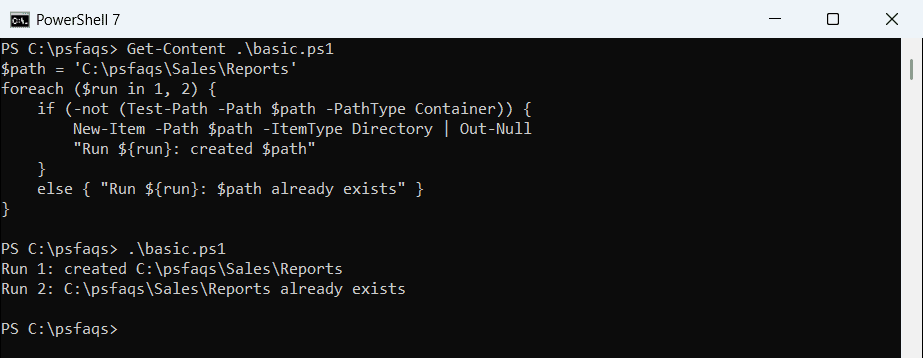
New-Item prints a directory listing for every folder it creates. Piping it to Out-Null keeps the script output clean, which matters in scheduled tasks and logs.
Why -PathType Container matters
A plain Test-Path returns True for files too. If a file happens to have your folder’s name, the check passes and your script carries on without a folder:
$path = 'C:\psfaqs\Sales\Archive'
Set-Content -Path $path -Value 'not a folder'     # a file named Archive
"Test-Path:           $(Test-Path -Path $path)"
"Test-Path Container: $(Test-Path -Path $path -PathType Container)"
$result = New-Item -Path $path -ItemType Directory -Force
"New-Item -Force returned: $(if ($result) { 'a folder' } else { 'nothing' })"
"Archive is still a:  $((Get-Item -Path $path).GetType().Name)"
Output:
Test-Path:           True
Test-Path Container: False
New-Item -Force returned: nothing
Archive is still a:  FileInfo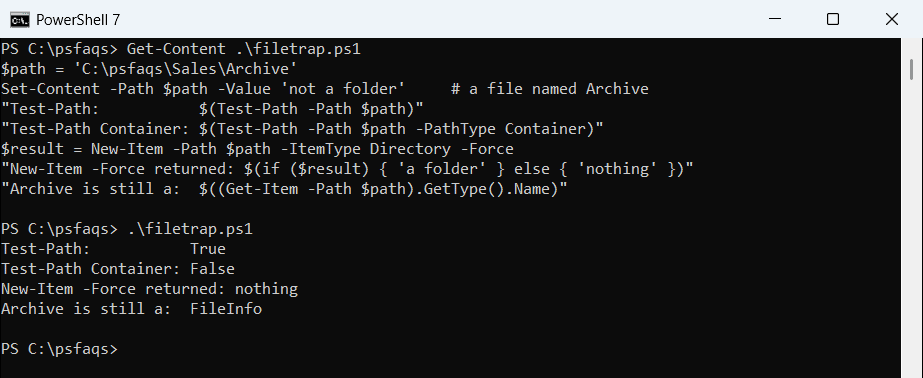
New-Item -Force didn’t create the folder and didn’t raise an error either. It just returned nothing, in both PowerShell 7 and 5.1.
Adding -PathType Container makes the check fail, so you notice. The same idea applies when you create a file only if it doesn’t exist, where you’d use -PathType Leaf.
Does New-Item -Force overwrite an existing folder?
No. For folders, -Force returns the existing folder and leaves its contents alone. That makes it a one-line way to create a folder if it doesn’t exist:
$path = 'C:\psfaqs\Sales\2026\Q4'
New-Item -Path $path -ItemType Directory | Out-Null    # also creates Sales\2026
Set-Content -Path "$path\forecast.csv" -Value 'Region,Total'
$again = New-Item -Path $path -ItemType Directory -Force
"Returned:   $($again.FullName)"
"Files kept: $((Get-ChildItem -Path $path).Name)"
"mkdir:      $((mkdir -Path $path -Force).Name)"
Output:
Returned:   C:\psfaqs\Sales\2026\Q4
Files kept: forecast.csv
mkdir:      Q4
forecast.csv survived, and the first New-Item call also built the missing Sales\2026 parent. The mkdir function, which calls New-Item -ItemType Directory, accepts -Force the same way.
Files are different: -Force on an existing file replaces it with an empty one. See the New-Item cmdlet guide for that case.
Create a folder with [System.IO.Directory]::CreateDirectory
The .NET method creates every missing folder in the path and doesn’t complain if the folder is already there. The catch is how it reads a relative path:
Set-Location -Path 'C:\psfaqs\Sales'
$rel = [System.IO.Directory]::CreateDirectory('Receipts')
"Relative path: $($rel.FullName)"
$full = Join-Path -Path (Get-Location) -ChildPath 'Receipts'
$dir = [System.IO.Directory]::CreateDirectory($full)
"Full path:     $($dir.FullName)"
"Exists:        $([System.IO.Directory]::Exists($full))"
Output:
Relative path: C:\psfaqs\Receipts
Full path:     C:\psfaqs\Sales\Receipts
Exists:        True
Set-Location moved PowerShell to C:\psfaqs\Sales, but the relative call created C:\psfaqs\Receipts. .NET resolves relative paths against the process folder, not your current PowerShell directory. Always pass a full path, as the second call does.
Create multiple folders with a reusable function
When a script needs several folders, I wrap the check in a small function. It uses -LiteralPath so a folder name with square brackets is read as plain text:
function New-FolderIfMissing {
    param([Parameter(Mandatory)][string[]]$Path)
    foreach ($p in $Path) {
        if (Test-Path -LiteralPath $p -PathType Container) {
            "Exists:  $p"; continue
        }
        New-Item -Path $p -ItemType Directory -ErrorAction Stop | Out-Null
        "Created: $p"
    }
}
$root = 'C:\psfaqs\Sales'
New-FolderIfMissing -Path "$root\Austin", "$root\Logs [2026]"
New-FolderIfMissing -Path "$root\Austin", "$root\Logs [2026]", "$root\Denver"
"Test-Path -Path:        $(Test-Path -Path "$root\Logs [2026]")"
"Test-Path -LiteralPath: $(Test-Path -LiteralPath "$root\Logs [2026]")"
Output:
Created: C:\psfaqs\Sales\Austin
Created: C:\psfaqs\Sales\Logs [2026]
Exists:  C:\psfaqs\Sales\Austin
Exists:  C:\psfaqs\Sales\Logs [2026]
Created: C:\psfaqs\Sales\Denver
Test-Path -Path:        False
Test-Path -LiteralPath: True
The last two lines show why. Test-Path -Path treats [2026] as a wildcard and reports False for a folder that exists, so the function would try to create it again and fail.
For more patterns, see creating multiple folders at once and naming a folder with the current date.
Handle errors when the folder can’t be created
Without -Force, New-Item throws an IOException when the folder already exists. The same applies to a missing drive or a folder you don’t have permission to write to:
$path = 'C:\psfaqs\Sales\Reports'
New-Item -Path $path -ItemType Directory | Out-Null
try {
    New-Item -Path $path -ItemType Directory -ErrorAction Stop | Out-Null
}
catch [System.IO.IOException] {
    "Failed. $($_.Exception.Message)"
    "Error ID: $($_.FullyQualifiedErrorId)"
}