
To find a string in a file and return the matching line in PowerShell, use Select-String with the file path and the text to look for. It returns the file name, the line number and the line itself:
Select-String -Path C:\psfaqs\Logs\app.log -Pattern 'Timeout'Output:
Logs\app.log:4:2026-09-28 09:10 [ERROR] Timeout calling api.contoso.comSelect-String works much like grep on Linux. I ran every example in PowerShell 7.6 and Windows PowerShell 5.1, and I point out the one parameter that’s only in 7.
Return just the line, or the line number
Each result has a Line property with the text and a LineNumber property with its position in the file:
Select-String -Path C:\psfaqs\Logs\app.log -Pattern 'ERROR' | ForEach-Object {
    "Line $($_.LineNumber): $($_.Line)"
}
Output:
Line 2: 2026-09-28 09:05 [ERROR] Disk C: is full
Line 4: 2026-09-28 09:10 [ERROR] Timeout calling api.contoso.com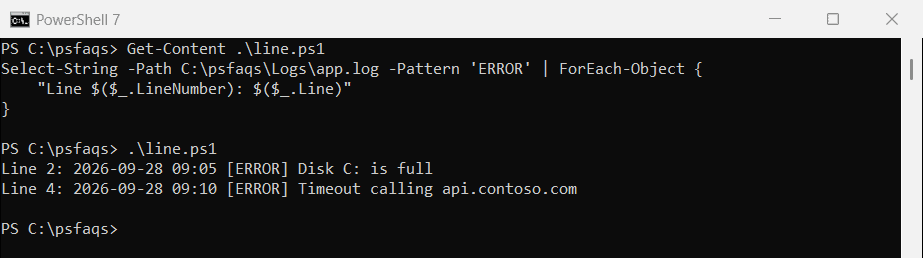
Select-String can match patterns too, as shown in finding text patterns with Select-String.
Why does Select-String match lines it shouldn’t?
-Pattern is a regular expression, so some characters have special meanings. In regex, [ERROR] means “any one of the letters E, R or O”:
$log = 'C:\psfaqs\Logs\app.log'

"Regex '[ERROR]':      $(@(Select-String -Path $log -Pattern '[ERROR]').Count) lines"
"With -SimpleMatch:    $(@(Select-String -Path $log -Pattern '[ERROR]' -SimpleMatch).Count) lines"
"Escaped '\[ERROR\]':  $(@(Select-String -Path $log -Pattern '\[ERROR\]').Count) lines"
Output:
Regex '[ERROR]':      5 lines
With -SimpleMatch:    2 lines
Escaped '\[ERROR\]':  2 lines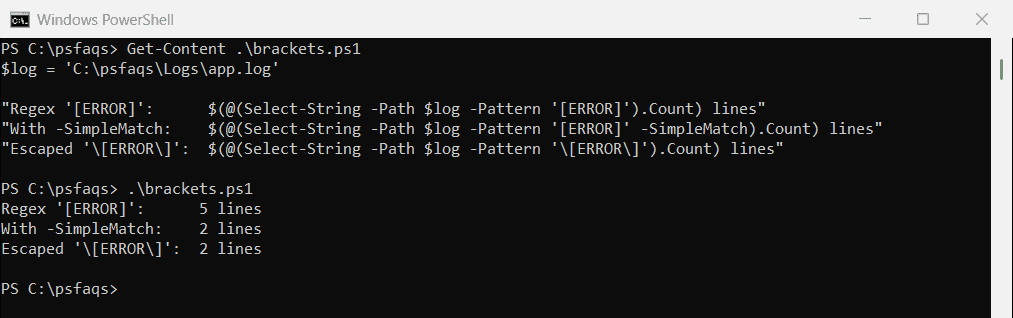
-SimpleMatch searches for the exact text, which is what you want for brackets, dots, backslashes and paths. Escaping with a backslash works too.
Find lines that start or end with a string
Use the regex anchors ^ for the start of a line and $ for the end:
$cities = 'New York City', 'Los Angeles', 'New York State', 'Chicago', 'Newark'

"Starts with 'New York': $(($cities | Select-String -Pattern '^New York').Line -join ', ')"
"Ends with 'State':      $(($cities | Select-String -Pattern 'State$').Line -join ', ')"
Output:
Starts with 'New York': New York City, New York State
Ends with 'State':      New York State
Newark starts with New but not with New York, so it’s not in the first result. Matching ignores case by default. Add -CaseSensitive when it matters.
Show the lines around a match
-Context takes the number of lines before and after each match, which helps when reading logs:
Select-String -Path C:\psfaqs\Logs\app.log -Pattern 'Disk' -Context 1, 1 | ForEach-Object {
    $_.Context.PreContext
    "> $($_.Line)"
    $_.Context.PostContext
}
Output:
2026-09-28 09:00 [INFO] Service started
> 2026-09-28 09:05 [ERROR] Disk C: is full
2026-09-28 09:06 [WARN] Retry scheduled
Search many files at once
Give -Path a wildcard to search every matching file. The Filename property shows where each line came from:
Select-String -Path C:\psfaqs\Logs\*.log -Pattern 'ERROR' -SimpleMatch |
    Select-Object -Property Filename, LineNumber, Line
Output:
Filename LineNumber Line
-------- ---------- ----
app.log           2 2026-09-28 09:05 [ERROR] Disk C: is full
app.log           4 2026-09-28 09:10 [ERROR] Timeout calling api.contoso.com
web.log           3 2026-09-28 10:02 [ERROR] Upstream timeout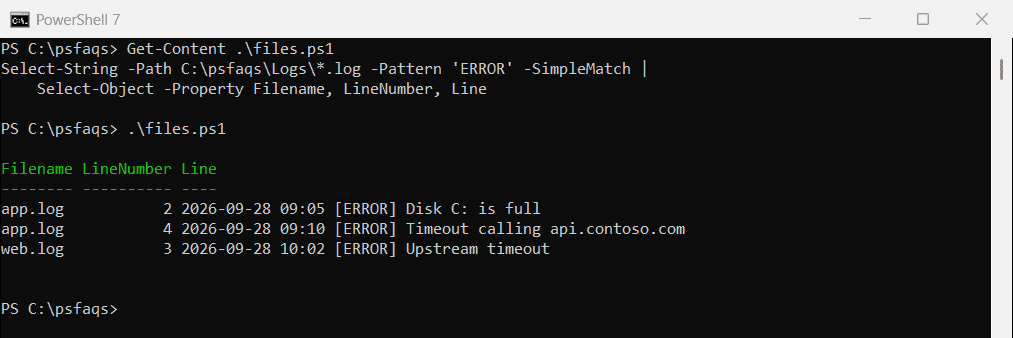
For subfolders, pipe Get-ChildItem to Select-String: Get-ChildItem C:\Logs -Recurse -Filter *.log | Select-String 'ERROR'.
Just check if a file contains the text
-Quiet returns True or False instead of the matches, which fits neatly into an if statement:
foreach ($file in Get-ChildItem -Path C:\psfaqs\Logs -Filter *.log) {
    $hasError = Select-String -Path $file.FullName -Pattern 'ERROR' -SimpleMatch -Quiet
    '{0,-10} has errors: {1}' -f $file.Name, $hasError
}
Output:
app.log    has errors: True
audit.log  has errors: False
web.log    has errors: True
Get plain text with -Raw (PowerShell 7)
In PowerShell 7, -Raw returns the matching lines as plain strings, without the file name and line number:
Select-String -Path C:\psfaqs\Logs\app.log -Pattern 'ERROR' -RawOutput in PowerShell 7:
2026-09-28 09:05 [ERROR] Disk C: is full
2026-09-28 09:10 [ERROR] Timeout calling api.contoso.com
Windows PowerShell 5.1 doesn’t have -Raw, so use (Select-String ...).Line there. The Select-String documentation lists every parameter.