
To list file names only in PowerShell, run Get-ChildItem with -File and -Name. You get plain names, without folders, sizes or dates:
Get-ChildItem -Path C:\Reports -File -NameBelow I use a small Reports folder with two subfolders to show every variation: recursive lists, names without extensions, filters and saving the list to a file.
List names with Get-ChildItem -Name
-Name returns only the names of the items as strings. Without -File, folders are included too:
Get-ChildItem -Path .\Reports -NameOutput:
Archive
Images
budget-2026.xlsx
notes.txt
sales-2026-09.csv
sales-2026-10.csv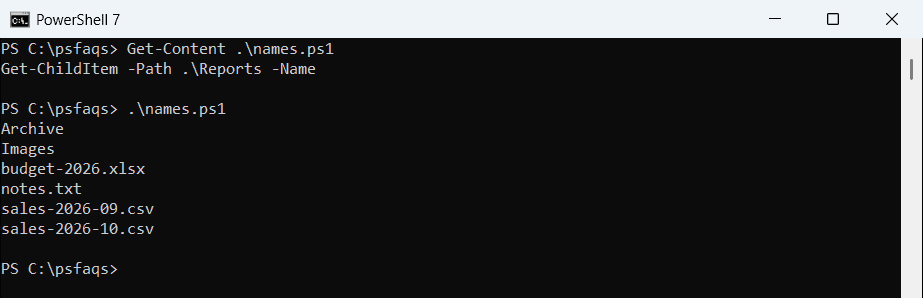
Archive and Images are folders. The default output shows Mode, LastWriteTime and Length columns, and -Name removes all of that.
List only files, not folders
Add -File to skip folders. Use -Directory instead when you want only the folder names:
Get-ChildItem -Path .\Reports -File -NameOutput:
budget-2026.xlsx
notes.txt
sales-2026-09.csv
sales-2026-10.csv
These are strings, not file objects, so you can pipe them straight to a text file or compare them with other lists. See listing directories and files for the full objects.
List file names recursively
-Recurse searches every subfolder. With -Name, files in subfolders come back as paths relative to the starting folder:
Get-ChildItem -Path .\Reports -File -Recurse -NameOutput:
budget-2026.xlsx
notes.txt
sales-2026-09.csv
sales-2026-10.csv
Archive\sales-2026-08.csv
Images\chart-2026-10.png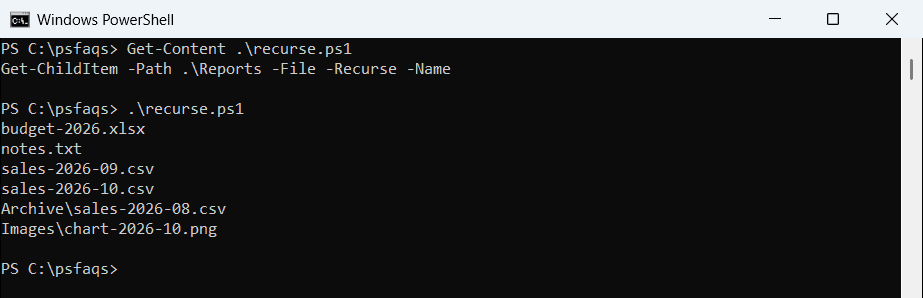
To limit how deep it goes, add -Depth 1 to search only one level of subfolders. To count files instead, see counting files in a folder.
List file names without the extension
-Name gives you the extension too. For names without it, get the file objects and read the BaseName property:
(Get-ChildItem -Path .\Reports -File).BaseNameOutput:
budget-2026
notes
sales-2026-09
sales-2026-10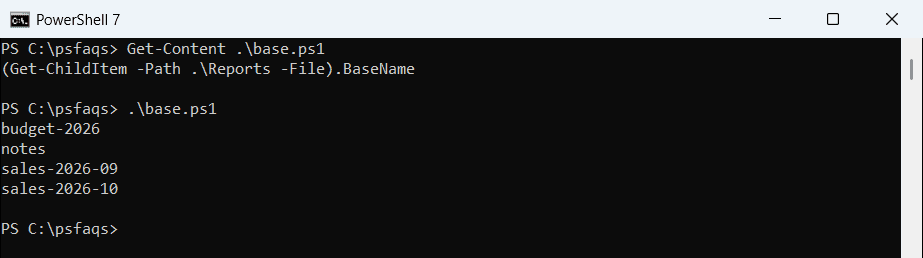
Member enumeration reads BaseName from every file at once. Getting a file name without the extension covers single paths too.
Filter the file names
-Filter is the fastest way to match a pattern, because the file system applies it before PowerShell sees the files:
Get-ChildItem -Path .\Reports -Filter *.csv -Recurse -NameOutput:
sales-2026-09.csv
sales-2026-10.csv
Archive\sales-2026-08.csv
For conditions that -Filter can’t handle, such as the date or size, use Where-Object. Then take just the Name property:
Get-ChildItem -Path .\Reports -File -Recurse |
    Where-Object { $_.Name -like 'sales-*' -and $_.LastWriteTime -gt (Get-Date).AddDays(-30) } |
    Select-Object -ExpandProperty Name
Output:
sales-2026-09.csv
sales-2026-10.csv
sales-2026-08.csv
Here the subfolder file shows only its name, because Name doesn’t include the folder. More patterns are in the Get-ChildItem filter guide.
Get full paths instead
When you need the full path, read FullName rather than using -Name:
(Get-ChildItem -Path C:\Reports -File -Recurse).FullNameThat’s the version to use when you pass the files to Copy-Item or Remove-Item from another folder.
Save the list of file names to a file
Because -Name returns strings, you can pipe them straight to Set-Content:
Get-ChildItem -Path .\Reports -File -Recurse -Name | Set-Content -Path .\file-list.txt
"Saved $((Get-Content -Path .\file-list.txt).Count) file names"
Output:
Saved 6 file namesUse Export-Csv instead if you want more columns, such as size or date. The Get-ChildItem reference lists every parameter.
Frequently Asked Questions
How do I list only file names in PowerShell?
Run Get-ChildItem -Path C:\Reports -File -Name. -File skips folders and -Name returns only the names.
How do I list file names in all subfolders?
Add -Recurse: Get-ChildItem -Path C:\Reports -File -Recurse -Name. Subfolder files come back with a relative path.
How do I get file names without the extension?
Use the BaseName property: (Get-ChildItem -Path C:\Reports -File).BaseName.
What is the difference between -Name and Select-Object Name?
-Name returns plain strings, with relative paths when you recurse. Select-Object -ExpandProperty Name returns only the file name.
How do I save a list of file names to a text file?
Pipe the names to Set-Content: Get-ChildItem -File -Name | Set-Content .\file-list.txt. See Microsoft’s