
To convert an object to an array in PowerShell, wrap it in the array subexpression operator @(). You always get an array back, even for one object or no objects at all:
$users = @($user)              # one object -> Object[] with 1 item
$files = @(Get-ChildItem *.log)  # 0, 1 or many results -> always an array
What “object” means changes the answer, though. Below I cover single objects, PSCustomObject properties, hashtables, command output, and JSON, with the spots where Windows PowerShell 5.1 acts differently from PowerShell 7.
Wrap a single object in an array with @()
The @() operator takes whatever the code inside it produces and puts it in an array. With one custom object, you get a one-item Object[] that you can index like any array of objects:
$user = [pscustomobject]@{ Name = 'Maria Lopez'; City = 'Austin'; Dept = 'Sales' }
$users = @($user)
"Type: $($users.GetType().Name)  Count: $($users.Count)"
$users[0].Name
Output:
Type: Object[]  Count: 1
Maria Lopez![PowerShell @() operator wraps a single PSCustomObject in an Object[] array](https://powershellfaqs.com/wp-content/uploads/2026/10/powershell-wrap-object-in-array-at-operator.png)
This matters most with command output. A command that finds one item returns that item itself, not an array, so code that expects a list can trip over it.
Why doesn’t my single object have a Count in PowerShell 5.1?
Since Windows PowerShell 3.0, single objects get a Count of 1, so you can treat them like a collection. A PSCustomObject is the exception in 5.1:
$user = [pscustomobject]@{ Name = 'Maria Lopez'; City = 'Austin'; Dept = 'Sales' }
"Single object Count: [$($user.Count)]"
"Wrapped with @() Count: [$(@($user).Count)]"
Output:
Single object Count: [1]
Wrapped with @() Count: [1]
PowerShell 7 prints [1] both times. Windows PowerShell 5.1 prints an empty value for the bare object:
Single object Count: []
Wrapped with @() Count: [1]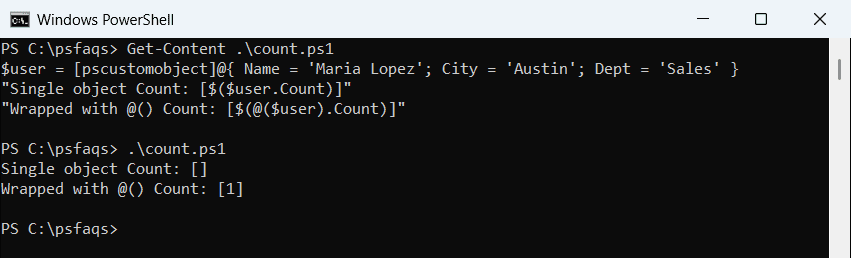
So if ($result.Count -gt 0) fails quietly in 5.1 when one custom object comes back. Wrapping with @() fixes it in both versions, and it’s the safest way to get the array length of any result.
How does @() handle no results and $null?
There’s a subtle difference between “nothing” and $null. A command that returns nothing gives an empty array, but a real $null value becomes an array with one $null item:
$none = @(Get-ChildItem -Path . -Filter *.nomatch)
"No results: $($none.Count)"
"Wrapped null: $(@($null).Count)"
$cast = [array]$null
"Cast null is still null: $($null -eq $cast)"
Output:
No results: 0
Wrapped null: 1
Cast null is still null: True
Notice the last line: an [array] cast leaves $null as $null. If a variable might hold $null, filter it out first or check whether the array is empty before you loop.
Cast an object to [array], [object[]] or a typed array
Casting works too. [array] and [object[]] give the same Object[] type, and the comma operator builds a one-item array without any cast:
$user = [pscustomobject]@{ Name = 'Maria Lopez'; City = 'Austin'; Dept = 'Sales' }
$a = [array]$user
$b = [object[]]$user
$c = , $user
"$($a.GetType().Name) $($b.GetType().Name) $($c.GetType().Name)"
[string[]]$zips = 78701, 80202
"$($zips.GetType().Name): $($zips[0].GetType().Name)"
Output:
Object[] Object[] Object[]
String[]: String
A typed cast like [string[]] also converts each item. The ZIP codes started as numbers and came out as strings. I use typed arrays when a script must reject the wrong kind of data, and @() everywhere else.
To see what you actually have, check the object’s type with GetType(), as the examples here do.
Convert PSCustomObject properties to an array
Sometimes you want the object’s properties as a list of rows rather than one object. Every object exposes them through PSObject.Properties:
$user = [pscustomobject]@{ Name = 'Maria Lopez'; City = 'Austin'; Dept = 'Sales' }
$pairs = $user.PSObject.Properties | ForEach-Object {
    [pscustomobject]@{ Property = $_.Name; Value = $_.Value }
}
$pairs
"Values only: $($user.PSObject.Properties.Value -join ', ')"
Output:
Property Value
-------- -----
Name     Maria Lopez
City     Austin
Dept     Sales
Values only: Maria Lopez, Austin, Sales
Each property becomes its own object with Property and Value columns, which is handy for reports. The guide to getting all properties of an object shows how to include hidden and extended ones too.
If you only need the values, $user.PSObject.Properties.Value returns them as a plain array in property order.
Convert a hashtable to an array in PowerShell
A hashtable is one object, so the pipeline sends it as a single item. Call GetEnumerator() to get one entry per key instead:
$offices = @{ Austin = 'TX'; Denver = 'CO'; Seattle = 'WA' }
"Piped as is: $(($offices | Measure-Object).Count)"
$rows = @($offices.GetEnumerator() | Sort-Object -Property Key)
"Entries: $($rows.Count)"
$rows | ForEach-Object { "$($_.Key) is in $($_.Value)" }
$keys = @($offices.Keys) | Sort-Object
"Keys: $($keys -join ', ')"
Output:
Piped as is: 1
Entries: 3
Austin is in TX
Denver is in CO
Seattle is in WA
Keys: Austin, Denver, Seattle
Each entry has Key and Value properties. The Keys and Values collections aren’t arrays, so wrap them with @() when you need array methods or indexing. Hashtables don’t keep order, which is why I sort the entries.
Going the other way, from text to a table, is covered in converting a string to a hashtabl