
To get a file creation date in PowerShell, read the CreationTime property of the file object that Get-Item returns. Use CreationTimeUtc when you want the same value in UTC:
(Get-Item -Path 'C:\Reports\budget-2026.xlsx').CreationTime
(Get-Item -Path 'C:\Reports\budget-2026.xlsx').CreationTimeUtc
In this tutorial, I’ll show you how to read the file creation date in PowerShell for one file and a whole folder, filter and sort by it, format it, change it, and avoid the copy and 1601 traps.
My sample Reports folder has five files, an Archive subfolder, and creation times I set in 2026. I print UTC throughout so the output doesn’t depend on the PC’s time zone.
Get the creation date of a single file
Get-Item returns a FileInfo object. CreationTime is in local time and CreationTimeUtc is in UTC. Here I print the UTC values with a fixed format:
$folder = 'C:\psfaqs\t\creationdate\Reports'

$file = Get-Item -Path "$folder\budget-2026.xlsx"

'Name:          ' + $file.Name
'Created (UTC):  {0:yyyy-MM-dd HH:mm}' -f $file.CreationTimeUtc
'Modified (UTC): {0:yyyy-MM-dd HH:mm}' -f $file.LastWriteTimeUtc
'Kind:           ' + $file.CreationTimeUtc.Kind
Output:
Name:          budget-2026.xlsx
Created (UTC):  2026-01-12 14:05
Modified (UTC): 2026-01-15 14:05
Kind:           Utc
CreationTimeUtc is when this copy of the file appeared on the disk. LastWriteTimeUtc is the last content change, which is covered in getting a file’s modified date.
Both properties hold the same moment; only the clock differs. To turn any date into UTC yourself, see getting the date in UTC with PowerShell.
Get the creation date of all files in a folder
Get-ChildItem doesn’t show CreationTime in its default view, so ask for it. This lists every file, including subfolders, oldest first:
$folder = 'C:\psfaqs\t\creationdate\Reports'

Get-ChildItem -Path $folder -File -Recurse |
    Sort-Object -Property CreationTimeUtc, Name |
    ForEach-Object { '{0,-18} {1:yyyy-MM-dd HH:mm}' -f $_.Name, $_.CreationTimeUtc }
Output:
budget-2026.xlsx   2026-01-12 14:05
q4-2025.csv        2026-02-03 10:00
sales-q1.csv       2026-04-03 09:30
notes.txt          2026-06-18 16:45
plan.docx          2026-08-21 11:15
summary.txt        2026-10-02 13:20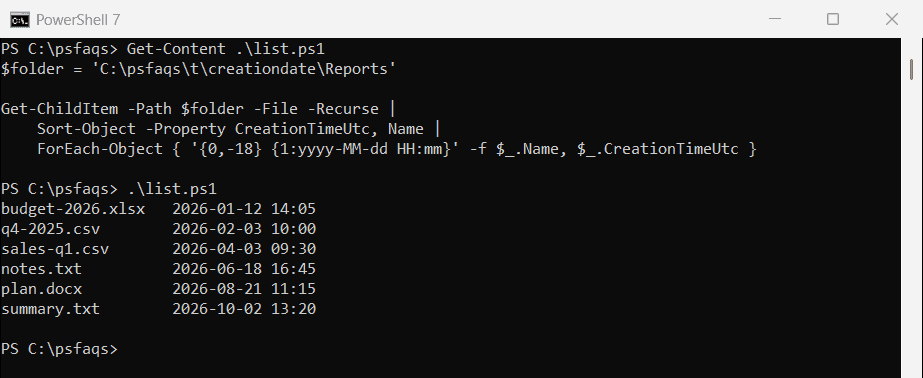
I sort on CreationTimeUtc and then Name, because Sort-Object in Windows PowerShell 5.1 isn’t stable when two values tie. More sort options are in sorting files by date in PowerShell.
Find files created after, before or between dates
Pipe the files to Where-Object and compare CreationTimeUtc with a date string. PowerShell converts the string to a DateTime because the left side is one:
$folder = 'C:\psfaqs\t\creationdate\Reports'

$files = Get-ChildItem -Path $folder -File

$after   = $files | Where-Object CreationTimeUtc -ge '2026-06-01'
$before  = $files | Where-Object CreationTimeUtc -lt '2026-03-01'
$between = $files | Where-Object {
    $_.CreationTimeUtc -ge '2026-04-01' -and $_.CreationTimeUtc -lt '2026-09-01'
}

"Created on or after Jun 1: $($after.Name -join ', ')"
"Created before Mar 1:      $($before.Name -join ', ')"
"Created Apr 1 to Aug 31:   $($between.Name -join ', ')"
Output:
Created on or after Jun 1: notes.txt, plan.docx, summary.txt
Created before Mar 1:      budget-2026.xlsx
Created Apr 1 to Aug 31:   notes.txt, plan.docx, sales-q1.csv
For a range, use -ge for the start and -lt for the day after the end, so nothing on the last day slips through. The same pattern for modified dates is in finding files modified after a date.
Need several conditions in one filter? Where-Object between two dates walks through more examples.
Find the newest or oldest file by creation date
Sort once and take both ends of the list. The @() wrapper keeps the indexing working even when the folder has a single file:
$folder = 'C:\psfaqs\t\creationdate\Reports'

$sorted = @(Get-ChildItem -Path $folder -File | Sort-Object CreationTimeUtc, Name)

'Oldest: {0} ({1:yyyy-MM-dd})' -f $sorted[0].Name, $sorted[0].CreationTimeUtc
'Newest: {0} ({1:yyyy-MM-dd})' -f $sorted[-1].Name, $sorted[-1].CreationTimeUtc
Output:
Oldest: budget-2026.xlsx (2026-01-12)
Newest: summary.txt (2026-10-02)
$sorted[0] is the oldest file and $sorted[-1] is the newest. To clean up the oldest ones automatically, see deleting files older than 30 days.
Format the file creation date
CreationTimeUtc is a DateTime, so ToString() takes any format string. Pass a culture for month names, and use TimeZoneInfo to show Eastern time:
$folder = 'C:\psfaqs\t\creationdate\Reports'

$created = (Get-Item -Path "$folder\budget-2026.xlsx").CreationTimeUtc
$us      = [cultureinfo]'en-US'
$eastern = [TimeZoneInfo]::FindSystemTimeZoneById('Eastern Standard Time')

'ISO date:      ' + $created.ToString('yyyy-MM-dd')
'US long date:  ' + $created.ToString('MMMM d, yyyy', $us)
'Sortable UTC:  ' + $created.ToString('u')
'Eastern time:  ' + [TimeZoneInfo]::ConvertTimeFromUtc($created, $eastern).ToString('yyyy-MM-dd HH:mm')
'File name tag: ' + $created.ToString('yyyyMMdd')
Output:
ISO date:      2026-01-12
US long date:  January 12, 2026
Sortable UTC:  2026-01-12 14:05:00Z
Eastern time:  2026-01-12 09:05
File name tag: 20260112
I name the culture and the time zone explicitly so the result is the same on every PC. The full list of format codes is in the format date guide.
The yyyyMMdd tag is handy for file names. If that’s the goal, renaming files with a date has a complete script.
Change the creation date of a file or folder
CreationTime and CreationTimeUtc can be written, not only read. Here are three ways to set them, plus a folder, all on sandbox files:
$folder = 'C:\psfaqs\t\creationdate\Reports'

$file = Get-Item -Path "$folder\plan.docx"
$file.CreationTimeUtc = '2026-05-01 08:00'

Set-ItemProperty -Path "$folder\notes.txt" -Name CreationTimeUtc -Value '2026-05-02 08:00'
[System.IO.File]::SetCreationTimeUtc("$folder\summary.txt", '2026-05-03 08:00')
(Get-Item -Path "$folder\Archive").CreationTimeUtc = '2026-05-04 08:00'

Get-Chi