
To format a date in PowerShell, pass a format string to Get-Date -Format. MM is the month, dd the day, yyyy the year, HH the hour on a 24-hour clock and mm the minutes:
$date = Get-Date '2026-09-28 14:05:09'

Get-Date -Date $date -Format 'MM/dd/yyyy'
Get-Date -Date $date -Format 'yyyy-MM-dd HH:mm'
Get-Date -Date $date -Format 'dddd, MMMM d, yyyy'
Output:
09/28/2026
2026-09-28 14:05
Monday, September 28, 2026
Every example here uses the same fixed date, September 28, 2026 at 2:05:09 PM, so your output will match mine. Replace -Date $date with nothing to format the current time.
I ran everything on Windows 11 with US English (en-US) regional settings, in PowerShell 7.6 and Windows PowerShell 5.1. The two versions agree, except for a few details I point out below.
Common custom date formats
Custom formats let you build any layout. Here are the ones I use most, with the format string on the left:
'{0,-22} {1}' -f 'MM/dd/yyyy',          (Get-Date -Date $date -Format 'MM/dd/yyyy')
'{0,-22} {1}' -f 'M/d/yy',              (Get-Date -Date $date -Format 'M/d/yy')
'{0,-22} {1}' -f 'yyyy-MM-dd',          (Get-Date -Date $date -Format 'yyyy-MM-dd')
'{0,-22} {1}' -f 'MMM d, yyyy',         (Get-Date -Date $date -Format 'MMM d, yyyy')
'{0,-22} {1}' -f 'dddd, MMMM d, yyyy',  (Get-Date -Date $date -Format 'dddd, MMMM d, yyyy')
'{0,-22} {1}' -f 'h:mm tt',             (Get-Date -Date $date -Format 'h:mm tt')
'{0,-22} {1}' -f 'HH:mm:ss',            (Get-Date -Date $date -Format 'HH:mm:ss')
'{0,-22} {1}' -f 'yyyyMMdd_HHmmss',     (Get-Date -Date $date -Format 'yyyyMMdd_HHmmss')
Output:
MM/dd/yyyy             09/28/2026
M/d/yy                 9/28/26
yyyy-MM-dd             2026-09-28
MMM d, yyyy            Sep 28, 2026
dddd, MMMM d, yyyy     Monday, September 28, 2026
h:mm tt                2:05 PM
HH:mm:ss               14:05:09
yyyyMMdd_HHmmss        20260928_140509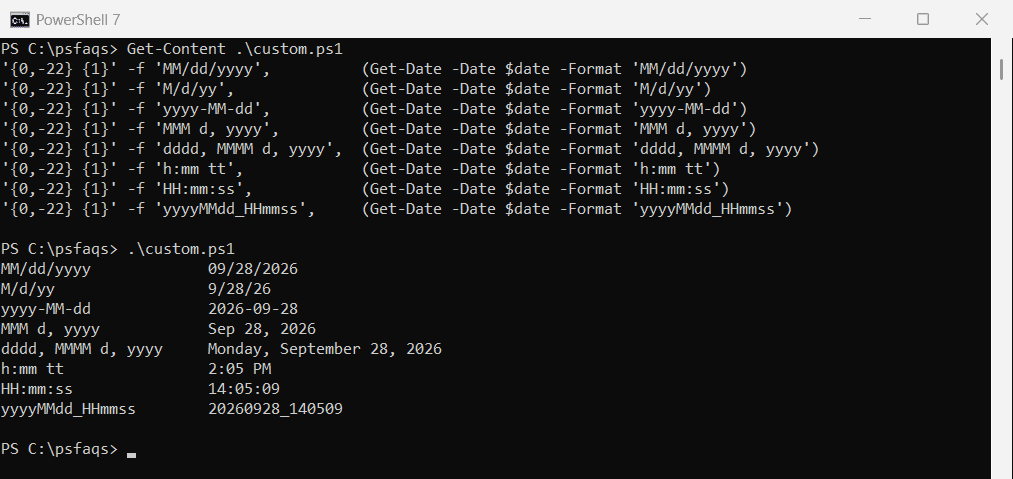
yyyyMMdd_HHmmss is my go-to for file names, because it sorts correctly and has no characters Windows won’t allow.
Standard format specifiers (d, D, t, g, s, o)
Single letters are shortcuts for full patterns. They follow the regional settings of the PC, which makes them a good fit for output people will read:
foreach ($f in 'd', 'D', 't', 'T', 'g', 'G', 'M', 'Y', 's', 'o') {
    '{0}  {1}' -f $f, (Get-Date -Date $date -Format $f)
}
Output:
d  9/28/2026
D  Monday, September 28, 2026
t  2:05 PM
T  2:05:09 PM
g  9/28/2026 2:05 PM
G  9/28/2026 2:05:09 PM
M  September 28
Y  September 2026
s  2026-09-28T14:05:09
o  2026-09-28T14:05:09.0000000
s and o are the exceptions. They always use the sortable ISO 8601 layout, whatever the region. Use them in logs and in data you exchange with other systems.
How do I show the time in 24-hour format?
Use uppercase HH for the 24-hour clock and lowercase hh plus tt for 12-hour time with AM/PM:
Get-Date -Date $date -Format 'HH:mm'          # 24-hour clock
Get-Date -Date $date -Format 'hh:mm tt'       # 12-hour clock with AM/PM
Get-Date -Date $date -Format 'MM/dd/yyyy HH:mm:ss'
Output:
14:05
02:05 PM
09/28/2026 14:05:09
Get the date without the time
There are three ways, and the difference is the type you get back:
$date.Date                         # midnight, still a DateTime
$date.ToShortDateString()          # text in your regional format
Get-Date -Date $date -Format 'd'   # same, via -Format
Output:
Monday, September 28, 2026 12:00:00 AM
9/28/2026
9/28/2026
.Date keeps a real DateTime set to midnight, which is what you want before comparing dates. The other two return text.
Get the day of week, day of month and month name
A DateTime already has these as properties, so you often don’t need a format string at all:
"Day of month : $($date.Day)"
"Day of week  : $($date.DayOfWeek)"
"Day number   : $([int]$date.DayOfWeek)   (Sunday = 0)"
"Day of year  : $($date.DayOfYear)"
"Month number : $($date.Month)"
"Month name   : $(Get-Date -Date $date -Format 'MMMM')"
"Short month  : $(Get-Date -Date $date -Format 'MMM')"
Output:
Day of month : 28
Day of week  : Monday
Day number   : 1   (Sunday = 0)
Day of year  : 271
Month number : 9
Month name   : September
Short month  : Sep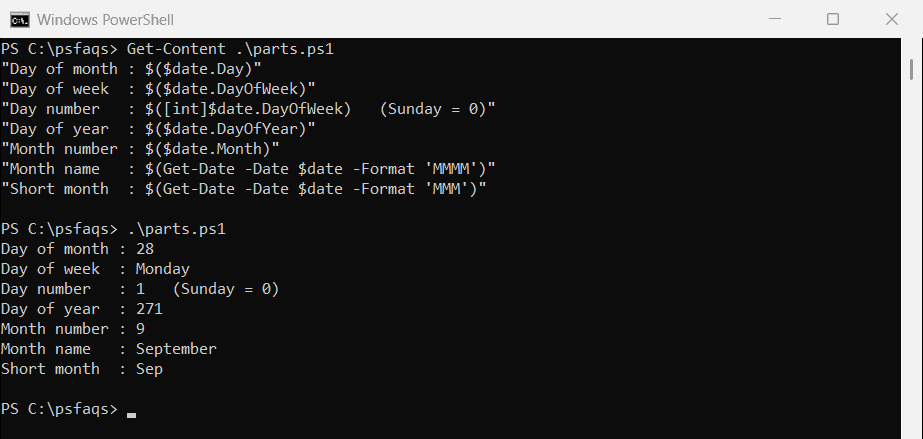
DayOfWeek counts from Sunday as 0, so Monday is 1. For month names in another language, ask that culture:
(Get-Culture).DateTimeFormat.MonthNames[0..2]
[cultureinfo]::GetCultureInfo('es-US').DateTimeFormat.GetMonthName(9)
Output:
January
February
March
septiembre
Format dates with -UFormat
-UFormat uses Unix-style codes such as %Y and %m. It’s handy if you already know them from Linux or macOS:
Get-Date -Date $date -UFormat '%Y-%m-%d %H:%M:%S'
Get-Date -Date $date -UFormat '%A, %B %d'
Get-Date -Date $date -UFormat 'Day %j of the year'
Output:
2026-09-28 14:05:09
Monday, September 28
Day 271 of the year
Be careful with the week number. %V is supposed to be the ISO 8601 week, and September 28, 2026 is in ISO week 40. PowerShell 7 gets it right:
Get-Date -Date $date -UFormat 'ISO week %V'Output in PowerShell 7:
ISO week 40Windows PowerShell 5.1 prints ISO week 39 for the same date. In 5.1, ask the calendar for the week instead. It works in both versions:
(Get-Culture).Calendar.GetWeekOfYear($date, 'FirstFourDayWeek', 'Monday')Output:
40That rule (weeks start on Monday, week 1 has at least four days) matches ISO weeks except for a few days around New Year. In PowerShell 7, [System.Globalization.ISOWeek]::GetWeekOfYear($date) is exact.
%s (seconds since 1970) has a similar problem: Windows PowerShell 5.1 ignores your time zone offset, so the number is off by your UTC offset. PowerShell 7 fixed it.
Format a date for another culture
Pass a culture to ToString() to format for a different region without changing your PC settings:
$date.ToString('D')
$date.ToString('D', [cultureinfo]'en-GB')
$date.ToString('D', [cultureinfo]'de-DE')
$date.ToString('MM/dd/yyyy', [cultureinfo]::InvariantCulture)
Output:
Monday, September 28, 2026
Monday, 28 September 2026
Montag, 28. September 2026
09/28/2026
Culture data can change between .NET versions. The British long date above is “Monday, 28 September 2026” in PowerShell 7 but “28 September 2026” in Windows PowerShell 5.1.
That’s why InvariantCulture is the safe choice for files and APIs: it gives the same result on every machine and version.
Common date formatting mistakes
Using mm when you mean MM
Format strings are case-sensitive. mm is minutes, so this prints “05” (the minutes) where you expected the month:
Get-Date -Date $date -Format 'yyyy-mm-dd'    # mm = minutes
Get-Date -Date $date -Format 'yyyy-MM-dd'    # MM = month
Output:
2026-05-28
2026-09-28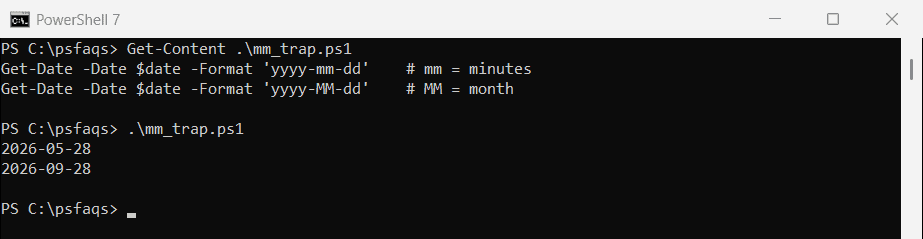
Doing date math on a formatted string
-Format returns text, so you can’t add days to the result:
$text = Get-Date -Date $date -Format 'yyyy-MM-dd'
$text.GetType().Name
$text.AddDays(1)
Output:
String
InvalidOperation: C:\psfaqs\string_trap.ps1:5
Line |
   5 |  $text.AddDays(1)
     |  ~~~~~~~~~~~~~~~~
     | Method invocation failed because [System.String] does not contain a method named 'AddDays'.
Do the math first, then format at the very end:
$date.AddDays(7).ToString('yyyy-MM-dd')Output:
2026-10-05Assuming the u format converts to UTC
The u specifier adds a Z, but it doesn’t convert the time. Call ToUniversalTime() first when you really need UTC:
Get-Date -Format 'u'                                # adds a Z but does NOT convert
(Get-Date).ToUniversalTime().ToString('yyyy-MM-ddTHH:mm:ssZ')   # real UTC
Use the date in a file name
This is the pattern I use for backups and logs:
$stamp = Get-Date -Date '2026-09-28 14:05:09' -Format 'yyyy-MM-dd_HHmm'
"backup_$stamp.zip"
Output:
backup_2026-09-28_1405.zipIf you need the file created too, see how to add a date to a file name with PowerShell.
Convert a string to a date, then format it
When the date comes in as text, parse it with the exact format first. Then you can format it any way you like:
$text = '09/28/2026 14:05'
$parsed = [datetime]::ParseExact($text, 'MM/dd/yyyy HH:mm', [cultureinfo]::InvariantCulture)
$parsed.ToString('dddd, MMMM d, yyyy h:mm tt')
Output:
Monday, September 28, 2026 2:05 PMMore on parsing in convert a string to a date in PowerShell. Microsoft’s custom date and time format strings page lists every code.
Frequently Asked Questions
How do I format a date as MM/dd/yyyy in PowerShell?
Run Get-Date -Format 'MM/dd/yyyy'. For a specific date, add -Date, for example Get-Date -Date '2026-09-28' -Format 'MM/dd/yyyy'.
How do I get the current date in yyyy-MM-dd format?
Get-Date -Format 'yyyy-MM-dd'. It’s the ISO 8601 date and sorts correctly as text.
How do I get the day of the week in PowerShell?
Use (Get-Date).DayOfWeek for the name or [int](Get-Date).DayOfWeek for the number, where Sunday is 0.
What is the difference between -Format and -UFormat?
-Format uses .NET format strings like yyyy-MM-dd. -UFormat uses Unix codes like %Y-%m-%d. Both return a string.
Why does my formatted date show minutes instead of the month?
You used lowercase mm, which means minutes. Use uppercase MM for the month.
Keep going with these date and time guides:
- Compare dates in PowerShell
- Add days to a date in PowerShell
- Get the difference between two dates
- Get-Date in ISO 8601 format

Bijay Kumar is an esteemed author and the mind behind PowerShellFAQs.com, where he shares his extensive knowledge and expertise in PowerShell, with a particular focus on SharePoint projects. Recognized for his contributions to the tech community, Bijay has been honored with the prestigious Microsoft MVP award. With over 15 years of experience in the software industry, he has a rich professional background, having worked with industry giants such as HP and TCS. His insights and guidance have made him a respected figure in the world of software development and administration. Read more.